2026-07-09
Zoom Video Chat Is Not the Workflow: A Practical Architecture for Remote Teams
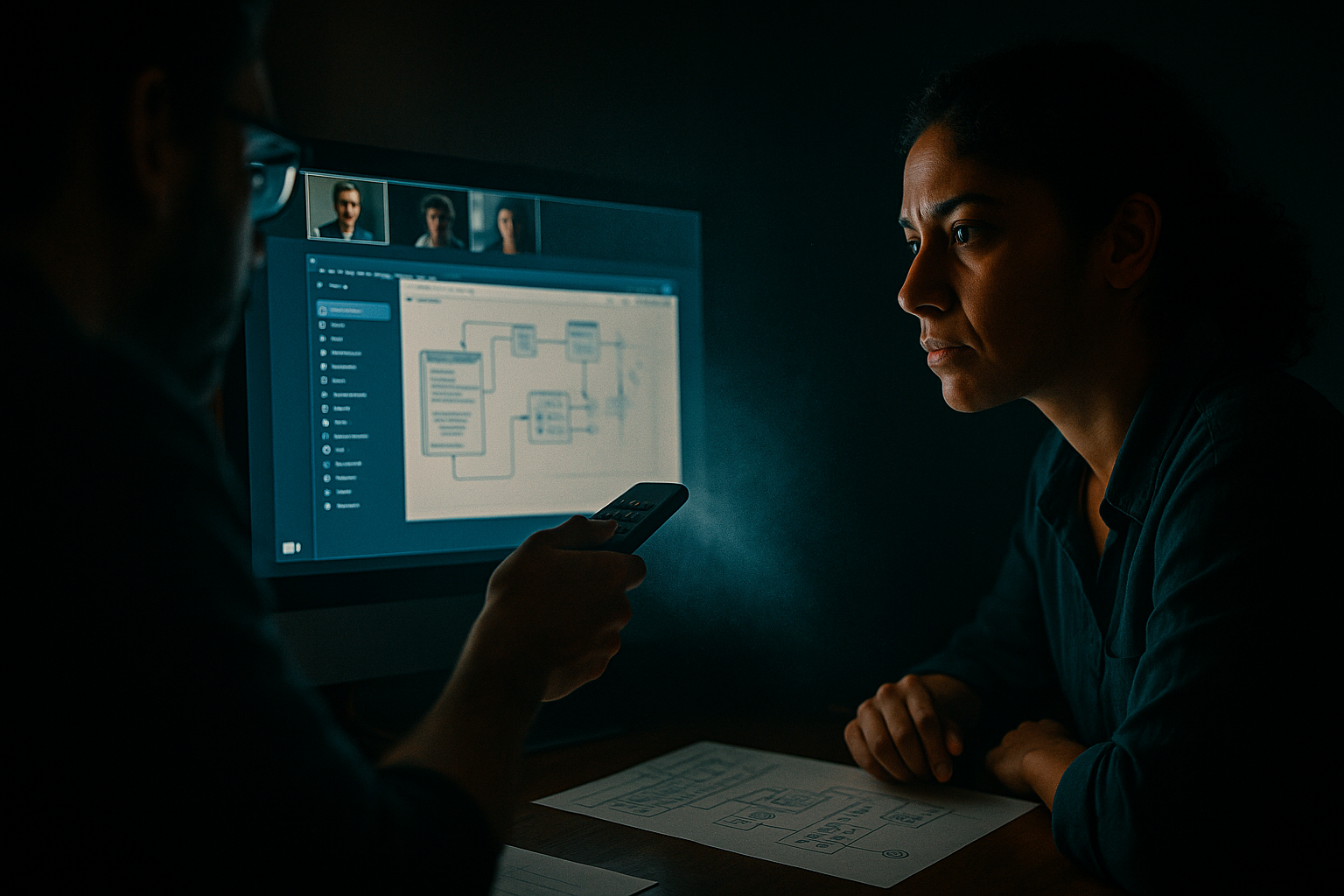
Remote teams keep running into the same failure pattern: the call happens, everyone talks, someone shares a screen, and the team leaves with less certainty than expected. Zoom video chat did its job. The collaboration system did not.
Teams think the problem is meeting quality. The real problem is workflow architecture.
A video call is good at creating presence. It is weaker at shared control, durable context, artifact ownership, and follow-through. That gap matters more in 2026 because product teams are increasingly distributed, tools are more specialized, and the cost of a bad handoff shows up immediately in rework, support load, and slower shipping.
The practical question is not whether to use Zoom video chat. Most teams already do. The question is where it belongs in the operating system of the team, where it should stop, and what needs to take over when the work moves from conversation to execution.
Table of contents
- Why zoom video chat is not your collaboration system
- Use zoom video chat where it is strongest
- Design the collaboration architecture around the call
- Screen sharing and remote control need a different model
- Build a meeting workflow that survives real work
- What breaks when teams use zoom video chat badly
- Implementation sequence for remote product teams
- Security privacy and operational boundaries
- Comparison zoom video chat remote access and collaborative screen sharing
- Metrics that tell you the workflow is improving
- Where PairUX fits alongside zoom video chat
Why zoom video chat is not your collaboration system
Video is the room, not the workflow
Zoom video chat gives remote teams a room. That room has faces, voices, reactions, screen sharing, and a rough sense of urgency. For many team activities, that is enough. A roadmap debate, customer interview, or hiring loop often needs conversation more than control.
But real production work has state. A designer has a Figma file, a developer has a local environment, a support engineer has a customer issue, and a founder has a decision that needs to become a task. The call can expose that state, but it does not automatically structure it.
The mistake teams make is treating the meeting as the unit of work. The better unit is the workflow around the meeting: what enters the call, what changes during the call, and what leaves the call.
Practical rule: If the outcome depends on someone manipulating a live workspace, do not design the session as a normal video meeting.
This is where many remote teams get stuck. They ask, “Which video tool should we use?” The more useful question is, “Which collaboration mode are we in?”
What changes in 2026
Remote work is no longer an emergency workaround. Many teams now have stable distributed operating models, but their collaboration stack is still assembled from habits: Zoom for calls, Slack for quick messages, Linear or Jira for tickets, GitHub for code, Figma for design, Notion for notes, and a remote control tool when something gets painful.
That works until the handoff matters. A senior engineer explains a local bug while a junior engineer watches. A designer narrates a prototype but cannot let the product manager quickly try the edge case. A support lead shares a customer screen, but the session leaves no clean record of what was changed.
That changes the conversation. Zoom video chat remains useful, but it should not be expected to carry every collaboration job. The architecture needs a clean boundary between conversation, shared workspace control, and durable records.
For adjacent reading on the broader tooling category, teams evaluating endpoint-style workflows face similar tradeoffs in this network guide to remote access software in 2026.
Use zoom video chat where it is strongest
Fast alignment and social context
Zoom video chat is strong when a team needs fast alignment. Tone matters. Facial reactions matter. A five-minute conversation can unblock a decision that would take twenty messages and three misunderstandings.
Good uses include:
- Product strategy discussions where ambiguity is high.
- Design critiques where the first goal is reaction, not editing.
- Incident coordination where roles need to be assigned quickly.
- Customer calls where trust and presence matter.
- Hiring, onboarding, and sensitive internal conversations.
In these cases, the video layer reduces delay. It lets people ask clarifying questions, challenge assumptions, and converge on a shared interpretation. That is valuable.
The failure starts when teams keep the same mode after the conversation should become execution. If the next step is “let me drive,” “try this on my machine,” or “watch me reproduce the bug,” the collaboration mode has changed.
Decision calls versus production sessions
A useful way to think about it is to split remote sessions into two buckets: decision calls and production sessions.
Decision calls are about choosing. Production sessions are about doing. They have different requirements.
| Session type | Primary goal | Best tool layer | Common failure |
|---|---|---|---|
| Decision call | Align, debate, choose | Zoom video chat | No decision record |
| Design review | Inspect and critique | Video plus shared artifact | Feedback not applied |
| Pair debugging | Reproduce and fix | Collaborative screen sharing | One person becomes narrator |
| Customer support | Diagnose and resolve | Controlled access workflow | No audit trail |
| Onboarding | Teach by doing | Shared control plus notes | Trainee watches passively |
The practical question is: when does the session cross from talking into doing? That is the point where your architecture should switch from video-first to workspace-first.
Practical rule: Use video to create alignment, but use shared control to create progress.
Design the collaboration architecture around the call
The three layers to separate
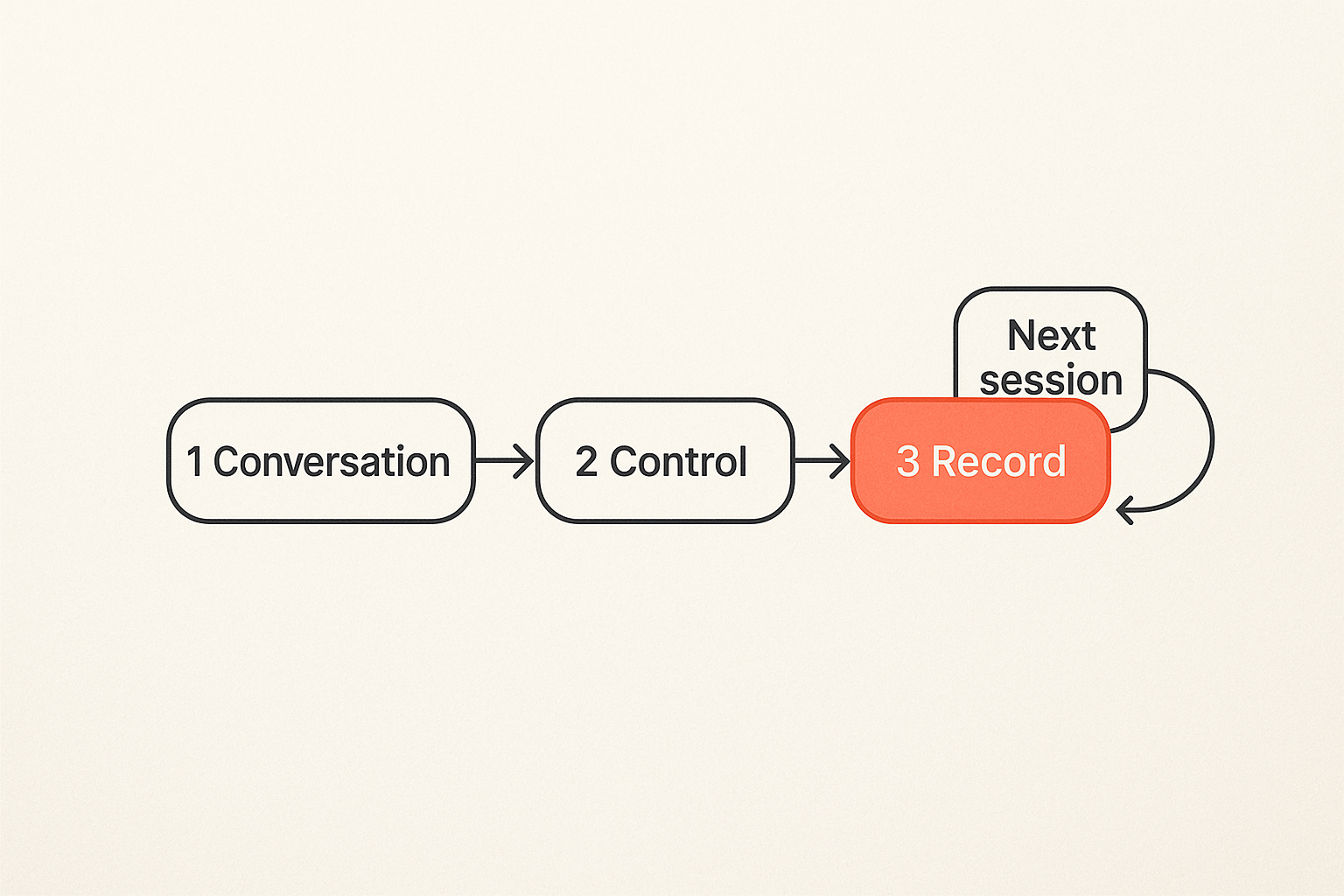
Most teams need three collaboration layers, not one giant meeting tool.
- Conversation layer: voice, video, reactions, quick clarification.
- Control layer: shared screen, remote input, multi-cursor work, guided execution.
- Record layer: notes, tickets, commits, decisions, customer history, recordings when appropriate.
Zoom video chat fits naturally in the conversation layer. It can also provide basic screen sharing, which is useful for presentation. But once the work requires multiple people to interact with the same screen, the control layer deserves its own design.
What breaks in practice is layer confusion. A team tries to use a conversation tool as a control tool, then uses chat memory as the record layer. Nobody is explicitly wrong, but the system is fragile.
A better architecture looks like this:
- Start in the conversation layer when the problem is unclear.
- Move into the control layer when someone needs to manipulate state.
- Save the outcome into the record layer before the session ends.
- Link the record to the relevant ticket, customer, commit, design file, or decision log.
This is less about buying more tools and more about assigning jobs to tools. For example, if your team already uses Zoom for daily coordination, keep it. But do not assume that a screen share is enough for pair programming, design iteration, or guided support.
The handoff contract
Every productive remote session needs a handoff contract. It does not have to be formal. It only needs to answer four questions:
- What state are we starting from?
- Who can control the workspace?
- What artifact will change?
- Where will the result be recorded?
Without that contract, meetings drift. One person shares, another person comments, a third person waits, and the actual owner leaves with a vague action item.
For teams that want a deeper Zoom-specific workflow framing, our earlier article on building the workflow around a Zoom video chat call covers the meeting boundary in more detail.
Screen sharing and remote control need a different model
Why passive sharing stalls
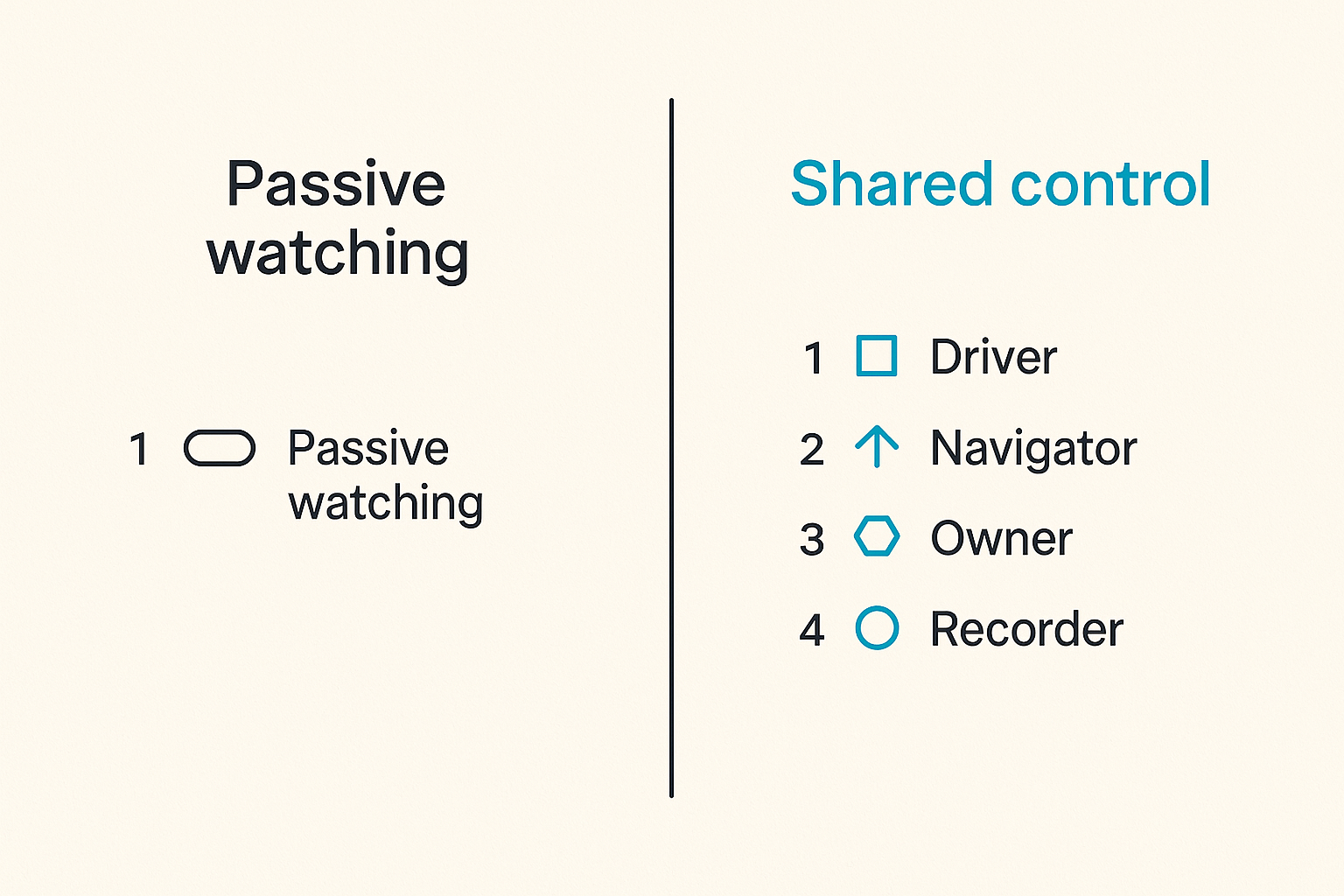
Passive screen sharing is deceptively comfortable. One person drives, everyone else watches. It feels efficient because there is one cursor and one narrative.
Then the hidden costs appear:
- The driver becomes a bottleneck.
- Reviewers describe actions instead of taking them.
- Junior teammates hesitate to interrupt.
- The session turns into a lecture instead of collaboration.
- The team misses details because attention decays quickly.
For product designers, passive sharing often means feedback stays abstract. “Move that a little” and “try the other state” become slow verbal loops. For software developers, passive sharing turns debugging into narration. The person with the keyboard owns the speed of the entire room.
The mistake teams make is assuming screen visibility equals collaboration. It does not. Visibility lets others observe state. Control lets others help change it.
When shared control changes the outcome
Shared control matters when speed depends on reducing translation. Instead of saying, “Click the left nav, open settings, scroll down, no, the other toggle,” a teammate can take control and show the exact path.
Good candidates for shared control include:
- Pair debugging on a local environment.
- Reviewing a clickable prototype.
- Walking a customer through setup.
- Fixing a configuration issue.
- Training a teammate on an internal tool.
- Testing edge cases in a staging environment.
This is where collaborative screen sharing and remote control become operational infrastructure, not a nice-to-have. PairUX is built around that layer: real-time screen sharing, remote control, and multi-cursor collaboration for teams that need to work together instead of only watch. You can review the current collaboration capabilities on the PairUX features page.
Practical rule: If teammates are giving cursor directions out loud, the tool is forcing verbal translation where direct control would be faster.
Build a meeting workflow that survives real work
Before the call prepare state
A productive remote session starts before anyone joins. The owner should prepare the state that the group will inspect or change. That might be a branch, prototype, customer account, test environment, dashboard, or written decision brief.
A simple pre-call checklist:
- Define the session goal in one sentence.
- Link the relevant artifact.
- Identify the person who owns the final decision.
- Decide whether participants need view-only access or control access.
- Confirm sensitive data boundaries before screen sharing.
This is especially important for remote teams across time zones. If half the meeting is spent opening files, finding credentials, or explaining the ticket history, the team burns the highest-bandwidth part of the session on setup.
Related reading from our network: founders selling digital products face a similar workflow problem where the visible checkout is only one part of the system; the same state-and-handoff thinking shows up in selling digital products as a practical system.
During the call assign control
During the call, control should be explicit. Do not let the loudest person become the driver by default.
A practical control model:
- The session owner states the goal.
- The current driver shares the workspace.
- The group decides whether the session is observe, guide, or co-work.
- Control changes hands when the work requires direct manipulation.
- The artifact owner confirms what changed.
- The recorder captures the decision or next action.
The important part is that “who drives” becomes a workflow decision, not a social accident.
For design work, that may mean letting the PM click through a prototype while the designer watches behavior. For development, it may mean the reviewer briefly taking control to reproduce a failure. For support, it may mean the customer success lead controlling only the relevant application window while the customer observes.
After the call preserve decisions
The end of the call is where many teams lose value. A good conversation happened, but the decision lives in memory. Two days later, someone asks, “What did we decide?”
Your post-call record should be short and attached to the work system:
- Decision made.
- Artifact changed.
- Owner assigned.
- Follow-up deadline.
- Open question, if any.
This does not need to be a transcript. In many cases, a transcript creates more noise. What matters is a usable record that lets someone resume the work without replaying the meeting.
What breaks when teams use zoom video chat badly
Too many watchers
A common remote collaboration failure is the room full of watchers. Ten people join, one person shares, and nine people half-listen while doing other work.
This is not a moral failure. It is a system design failure. The meeting does not give participants a job.
Fix it by assigning roles:
- Driver: controls the workspace.
- Navigator: guides the next action.
- Owner: makes the decision.
- Recorder: captures the outcome.
- Observers: optional, invited only when needed.
If someone has no role, they probably do not need to be in the live session. Send the record instead.
No artifact owner
Remote work breaks when nobody owns the artifact. A call can produce agreement, but if no one owns the design file, pull request, support note, or decision log, the work remains implied.
This is common in startup teams because everyone is moving quickly and roles overlap. It feels lightweight until the same decision gets reopened three times.
The fix is simple: every collaborative session needs one artifact owner. Not three. Not “the team.” One person responsible for making sure the output lands somewhere durable.
Support sessions without an audit trail
Customer support and onboarding sessions have a sharper failure mode. If your team uses Zoom video chat to look at a customer issue, then switches to ad hoc remote control or verbal instructions, you can lose track of what happened.
That creates problems:
- The next support rep cannot see the history.
- The customer repeats the same context.
- Internal teams cannot distinguish user error from product bug.
- Sensitive information may have been exposed without a clear policy.
A useful support workflow records the session outcome without over-recording the customer. Capture the issue, environment, actions taken, and next step. Avoid storing unnecessary screen content just because recording was easy.
Implementation sequence for remote product teams
Step 1 classify sessions
Start by classifying your recurring sessions. Do not begin with tools. Begin with work patterns.
Use categories like:
- Alignment: standups, planning, roadmap discussion.
- Review: design critique, PR review, launch readiness.
- Co-work: pair programming, bug reproduction, prototype editing.
- Support: customer troubleshooting, onboarding, setup help.
- Training: internal enablement, new hire shadowing.
For each category, define the expected output. If the output is a decision, Zoom video chat may be enough with a good note. If the output is changed state, you need a stronger control layer.
Step 2 map tools to jobs
Once sessions are classified, map tools by job.
| Job | Tool requirement | Bad default | Better default |
|---|---|---|---|
| Discuss direction | Video and audio | Long async thread | Short call plus decision note |
| Present work | Stable screen share | Sending screenshots only | Screen share plus linked artifact |
| Co-edit or debug | Remote control | Verbal cursor directions | Shared control session |
| Support customer | Scoped access and record | Unstructured call | Controlled session plus support note |
| Preserve outcome | Durable system of record | Chat recap only | Ticket, doc, commit, or CRM note |
This table is intentionally plain. The goal is not to create a complex operating model. The goal is to stop asking one tool to do every job.
If your team is adopting a dedicated co-work layer, the PairUX documentation is the practical place to check setup, system requirements, security notes, and common operating questions before rolling it out.
Step 3 define fallback paths
Remote collaboration fails in small ways: audio breaks, permissions fail, a browser crashes, a customer cannot install something, a developer’s local environment is not ready.
Define fallback paths before important sessions:
- If video fails, continue with audio plus shared artifact.
- If remote control fails, switch to guided steps and record the blocker.
- If the local environment fails, move to staging or a reproduction branch.
- If sensitive data appears, pause sharing and narrow the scope.
- If no decision owner is present, convert the meeting into discovery, not decision-making.
Fallback paths reduce panic. They also reveal whether the session was designed around the work or around the meeting link.
Security privacy and operational boundaries
Access is not the same as visibility
Security conversations around collaboration tools often get too abstract. The practical distinction is simple: seeing a screen is different from controlling a screen, and controlling a screen is different from having standing access.
Each level needs its own boundary:
- Visibility: what can participants see?
- Control: who can move the cursor, type, click, or change settings?
- Persistence: does access remain after the session?
- Record: what evidence or history is retained?
Zoom video chat may be appropriate for visibility and conversation. Remote control or collaborative screen sharing needs tighter rules because participants can affect real systems.
Related reading from our network: secure collaboration teams can also learn from private messaging architecture, especially around identity, device trust, and metadata in end-to-end encrypted messaging systems.
Recordings permissions and customer data
Recording every call is a lazy default. Sometimes recording is useful. Sometimes it creates a data liability and a review burden.
For internal product work, a short decision note often beats a full recording. For customer support, recording policies should be explicit and consent-aware. For design reviews, the artifact history may already preserve the meaningful changes.
A practical permissions model should answer:
- Who may start a screen share?
- Who may request or grant control?
- Can control be limited to a window or session?
- Are recordings allowed, and where are they stored?
- How are customer secrets, tokens, keys, and private messages handled?
- Who removes access after the session ends?
The mistake teams make is treating remote collaboration as low-risk because the tool feels familiar. Familiar does not mean harmless. If a session can change production state, customer settings, source code, or billing configuration, it needs operational boundaries.
Practical rule: Treat remote control as temporary operational access, not as a meeting feature.
Comparison zoom video chat remote access and collaborative screen sharing
Choosing by job to be done
Different tools solve different parts of the remote work problem. The cleanest way to choose is by job to be done, not by brand familiarity.
| Capability | Zoom video chat | Traditional remote access | Collaborative screen sharing |
|---|---|---|---|
| Face-to-face conversation | Strong | Weak or absent | Usually secondary |
| Presentation screen share | Strong | Moderate | Strong |
| Multi-person co-work | Limited | Usually one operator | Strong when designed for it |
| Customer troubleshooting | Useful for conversation | Strong for device access | Strong for guided sessions |
| Pair programming | Good for talking | Often awkward | Strong with shared control |
| Persistent unattended access | Not the focus | Often supported | Usually session-based |
| Decision record | Requires external system | Requires external system | Requires external system |
This is not a “replace Zoom” argument. It is a boundary argument. Zoom video chat is often the right room. It is not always the right workbench.
What works and what fails
What works:
- Use Zoom for alignment, discussion, and human context.
- Use collaborative screen sharing when multiple people need to interact with one workspace.
- Use a ticket, document, commit, or CRM note as the durable record.
- Keep customer support sessions scoped and documented.
- Assign roles before the session gets messy.
What fails:
- Running all remote work through a generic meeting link.
- Asking participants to narrate cursor movements for twenty minutes.
- Recording calls instead of writing decisions.
- Letting remote control happen without explicit permission boundaries.
- Inviting observers who have no role in the outcome.
The operational win is not fewer meetings by itself. It is fewer meetings that have to be repeated because the first one did not produce usable state.
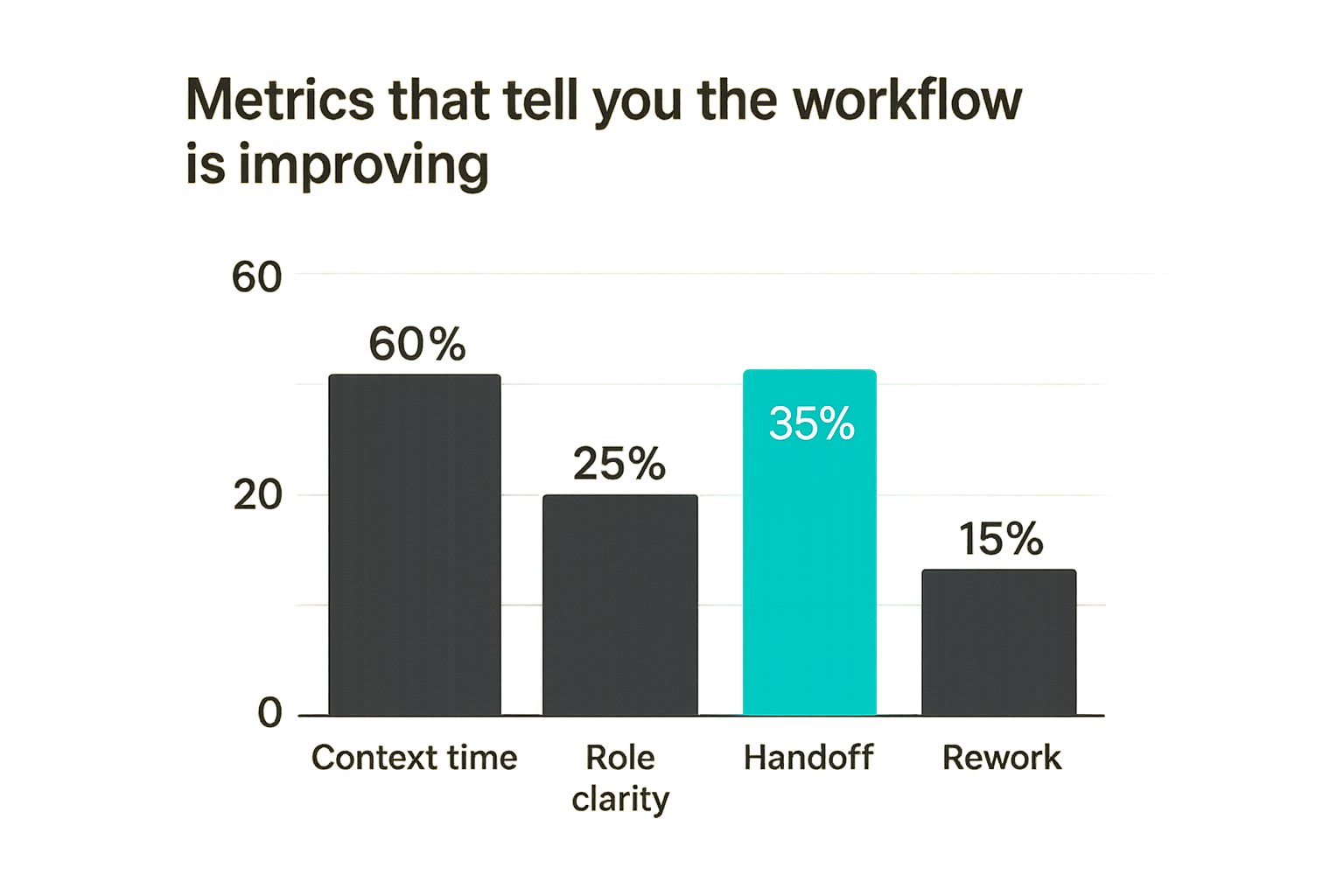
Metrics that tell you the workflow is improving
Time to shared context
You do not need a complex analytics program to measure collaboration quality. Start with time to shared context: how long it takes from “we joined the session” to “everyone understands the state we are working on.”
For a good remote product team, this should shrink over time because artifacts are linked, roles are clear, and the right tool opens quickly.
Signals that time to shared context is too high:
- The first ten minutes are spent finding links.
- People ask for background that should have been in the ticket.
- The driver has to explain local setup repeatedly.
- Nobody knows whether the call is for deciding or doing.
Improving this metric is mostly preparation and architecture. Put the state where people can reach it. Make the collaboration mode explicit. Use video when the team needs conversation. Use shared control when the team needs action.
Handoff quality
Handoff quality is the second metric. After the session, can someone continue the work without asking the same group to reconvene?
A high-quality handoff includes:
- The current state.
- The decision or change made.
- The owner.
- The next step.
- Any unresolved risk.
A low-quality handoff sounds like, “We talked about it on the call.” That is not a record. That is a memory leak.
You can sample this weekly. Pick a few remote sessions and inspect the output. Did the design change land? Did the bug reproduction become an issue? Did the customer support note include what was tried? Did the onboarding session produce a reusable checklist?
If not, your meeting volume is hiding workflow debt.
Where PairUX fits alongside zoom video chat
Use video for conversation PairUX for co-work
PairUX fits best when the team has already recognized the boundary: Zoom video chat is useful for conversation, but the work itself needs a more direct collaboration surface.
For remote teams, product designers, software developers, and startup operators, that often means:
- A designer and PM testing a prototype together.
- Two engineers debugging a local issue without turning one person into a narrator.
- A founder helping a teammate configure an internal tool.
- A support lead guiding a customer through setup.
- A small team reviewing a workflow where multiple people need to point, click, and try.
PairUX is not trying to make every meeting heavier. The point is to make the hands-on sessions less awkward. Keep Zoom where it works. Add collaborative screen sharing and remote control where the work requires shared execution.
You can follow product updates, tutorials, and workflow notes on the PairUX blog as the tool continues to evolve for practical remote collaboration.
Try pairux.com
pairux.com is for remote teams that need fast, practical guidance on collaborative screen sharing, remote control, and working together online.
If your team uses Zoom video chat for conversation but needs a better way to co-work on live screens, Try pairux.com.