2026-07-06
Zoom Video Chat for Remote Teams: The Practical Collaboration Workflow in 2026

Zoom video chat is where many remote teams start when something is blocked. A designer shares a prototype. A developer shares a local build. An operator pulls up a dashboard. Everyone joins the call, talks for 40 minutes, and leaves with a vague sense that progress happened.
Then the same issue comes back tomorrow.
Teams think the problem is Zoom video chat quality, meeting etiquette, or whether people are paying attention. The real problem is that the video call is being asked to do the work of a collaboration system. It is carrying context, control, notes, decisions, debugging, review, and accountability without an architecture around it.
That changes the conversation. The practical question is not “Should we use Zoom?” Most teams already do. The practical question is: what should happen before, during, and after a Zoom video chat so remote work does not disappear into a meeting transcript nobody reads?
Table of contents
- Zoom video chat is a workflow surface, not the workflow
- Zoom video chat architecture for remote teams
- When to use Zoom video chat and when not to
- The pre-call workflow that prevents wasted meetings
- Screen sharing and remote control are different jobs
- Zoom video chat for design, development, and operations
- Implementation sequence for a better live collaboration system
- Failure modes in Zoom video chat workflows
- What works and what fails in practice
- Where PairUX fits beside Zoom video chat
- Closing: zoom video chat is a workflow decision
Zoom video chat is a workflow surface, not the workflow
The meeting is only one state in the work
A Zoom call is a temporary synchronization point. It is not a backlog, design system, source control system, incident channel, QA record, or customer support history. When teams treat it as all of those things, the call starts to absorb responsibilities it cannot reliably carry.
A useful way to think about it is state. Before the call, work has a state: unclear requirement, broken build, design disagreement, customer issue, blocked handoff. During the call, the team changes that state. After the call, the new state needs to be visible somewhere durable.
If the state only exists in people’s heads, the workflow failed even if the call felt productive.
Practical rule: use Zoom video chat to change the state of work, not to store the state of work.
Why this matters more in 2026
Remote teams in 2026 are less likely to be fully synchronous. People are spread across time zones, using more AI-assisted tools, shipping faster, and maintaining more integrations. The cost of unclear handoffs is higher because fewer people share the same room, calendar, or operating context.
The mistake teams make is trying to fix this with more meetings. They add recurring syncs, longer reviews, and “quick calls” that are not quick. The better move is to make each live session more operationally precise.
That means Zoom video chat needs boundaries. It should answer questions like: who owns the artifact, who can take control, where decisions are recorded, what happens if the call drops, and what counts as done.
Where Zoom fits well
Zoom is strong for presence, voice, facial cues, lightweight screen sharing, customer calls, stakeholder reviews, and fast escalation. It is less strong as a persistent collaboration layer where multiple people need to manipulate the same environment, pass control repeatedly, or continue work after the call ends.
For a broader walkthrough of how teams can frame the call as one piece of the system, we covered a related angle in Zoom Video Chat for Remote Teams, but the short version is simple: the call is useful when the workflow around it is explicit.
Zoom video chat architecture for remote teams

Map the collaboration stack
Most remote collaboration stacks have the same basic layers:
- Conversation: Zoom, team chat, comments, voice notes.
- Shared visual context: screen sharing, whiteboards, prototypes, dashboards.
- Control and execution: remote control, terminal sharing, local app interaction, browser sessions.
- Artifacts: tickets, pull requests, design files, docs, recordings, test cases.
- Follow-up: owners, due dates, decision logs, release notes, support replies.
Zoom video chat usually sits in the conversation and shared visual context layers. Problems start when teams expect it to handle control, artifact management, and follow-up without support.
If a developer is debugging a local environment, the call is not enough. If a designer needs another designer to manipulate a prototype, passive screen share is not enough. If an operator needs a teammate to walk through a customer account safely, “can you see my screen?” is not enough.
Separate conversation from control
Conversation and control have different risk profiles. Talking through an idea is low-risk. Giving someone input access to your machine, browser, staging environment, or production dashboard is higher-risk. The workflow needs to reflect that.
Remote control should have clear consent, visible handoff, revocation, and a reason. It should not happen as a messy side effect of a meeting. If the person who owns the screen cannot explain who is controlling what, the session is already too loose.
This is where dedicated collaborative screen sharing tools matter. Zoom can keep the team in the same room conversationally, while another layer handles multi-cursor work, control, or shared execution. PairUX documents the setup and security basics in its remote collaboration docs, which is where this kind of operational detail belongs.
Define ownership before the call
Every live session needs a driver, a navigator, and an owner of the output. Sometimes one person has two roles, but the roles should still exist.
- Driver: controls the screen or working environment.
- Navigator: directs attention, asks questions, challenges assumptions.
- Recorder: captures decisions, links, commands, screenshots, or next steps.
- Owner: makes sure the result lands in the right system after the call.
Practical rule: if nobody owns the post-call artifact, the Zoom meeting is not finished; it is only over.
Related reading from our network: teams thinking about tool selection more broadly face similar rollout and ownership issues in Pivotal Software in 2026.
When to use Zoom video chat and when not to
Good reasons to open a live call
Live video is expensive compared with async work, but it is useful when the team needs high-bandwidth alignment. Good reasons include:
- A decision is blocked by ambiguity.
- The artifact is visual or interactive.
- Multiple people need to inspect the same failure.
- A customer issue needs fast triage.
- A design or code review has become circular in comments.
- Trust or tone matters and text is creating friction.
The key is that the call has a job. “Let’s discuss” is not a job. “Decide whether to ship the new onboarding flow by reviewing the failing edge cases” is a job.
Bad reasons to open a live call
Bad reasons usually sound harmless:
- “Can we jump on quickly?” without context.
- “Let’s align” when a written update would work.
- “I’ll explain it live” because nobody prepared the artifact.
- “We always have this meeting” because the calendar says so.
- “Everyone should be aware” when only two people need to act.
What breaks in practice is calendar trust. Once people learn that live calls often lack a defined outcome, they multitask, arrive unprepared, or avoid joining. Then the team adds more meetings to compensate for the lack of attention, and the loop gets worse.
A simple decision table
| Situation | Use Zoom video chat? | Better default | Why |
|---|---|---|---|
| Quick status update | Usually no | Async post | Low ambiguity, easy to scan |
| Design critique with tradeoffs | Yes | Live review plus notes | Visual nuance matters |
| Debugging a local issue | Yes, with control layer | Pairing session | Shared execution matters |
| Approval with no open questions | No | Ticket or doc approval | Decision can be recorded async |
| Customer escalation | Often yes | Live triage plus case notes | Time and tone matter |
| Repeating training session | Maybe | Recording and office hours | Avoid live repetition |
The practical question is not whether Zoom is good or bad. It is whether the work benefits from synchronous attention.
The pre-call workflow that prevents wasted meetings
Write the problem statement first
Before scheduling a Zoom video chat, write a two- or three-sentence problem statement. Not an agenda full of nouns. A problem statement.
Bad:
- “Discuss onboarding.”
- “Review dashboard.”
- “Sync on bug.”
Better:
- “Users invited through SSO are landing on the wrong onboarding step. We need to identify whether the issue is routing, account state, or copy.”
- “The dashboard redesign improves scanability but hides export actions. We need to decide whether exports belong in the header or row menu.”
- “The checkout flow fails after coupon removal in staging. We need to reproduce it and assign the fix.”
This small step changes behavior. People know what to prepare, what to ignore, and what outcome matters.
Attach the artifact, not just the invite
A meeting invite without the artifact is a tax. Everyone spends the first ten minutes finding the design file, ticket, branch, dashboard, or customer account. The host shares their screen while other people ask for links in chat. By the time the work starts, the meeting is already drifting.
Attach the artifact where people will actually use it:
- Design file or prototype.
- Ticket or issue.
- Pull request.
- Log query.
- Customer case.
- Test account.
- Recording or screenshot.
If the artifact is sensitive, attach the access request or describe who has permission. Do not discover access problems during the call.
Set roles and exit criteria
A practical call invite can be short:
Problem: Checkout fails after coupon removal in staging.
Artifact: BUG-1842, staging URL, console log screenshot.
Driver: Maya.
Navigator: Luis.
Recorder: Priya.
Exit: reproduce once, identify owner, add next step to BUG-1842.
Timebox: 25 minutes.
This is not bureaucracy. It is compression. It prevents the call from becoming an open-ended conversation.
Practical rule: a remote meeting without exit criteria expands until the calendar stops it.
Related reading from our network: focused software teams making launch decisions face the same need for explicit workflow boundaries in Specialty Products in 2026.
Screen sharing and remote control are different jobs
Screen sharing is for shared context
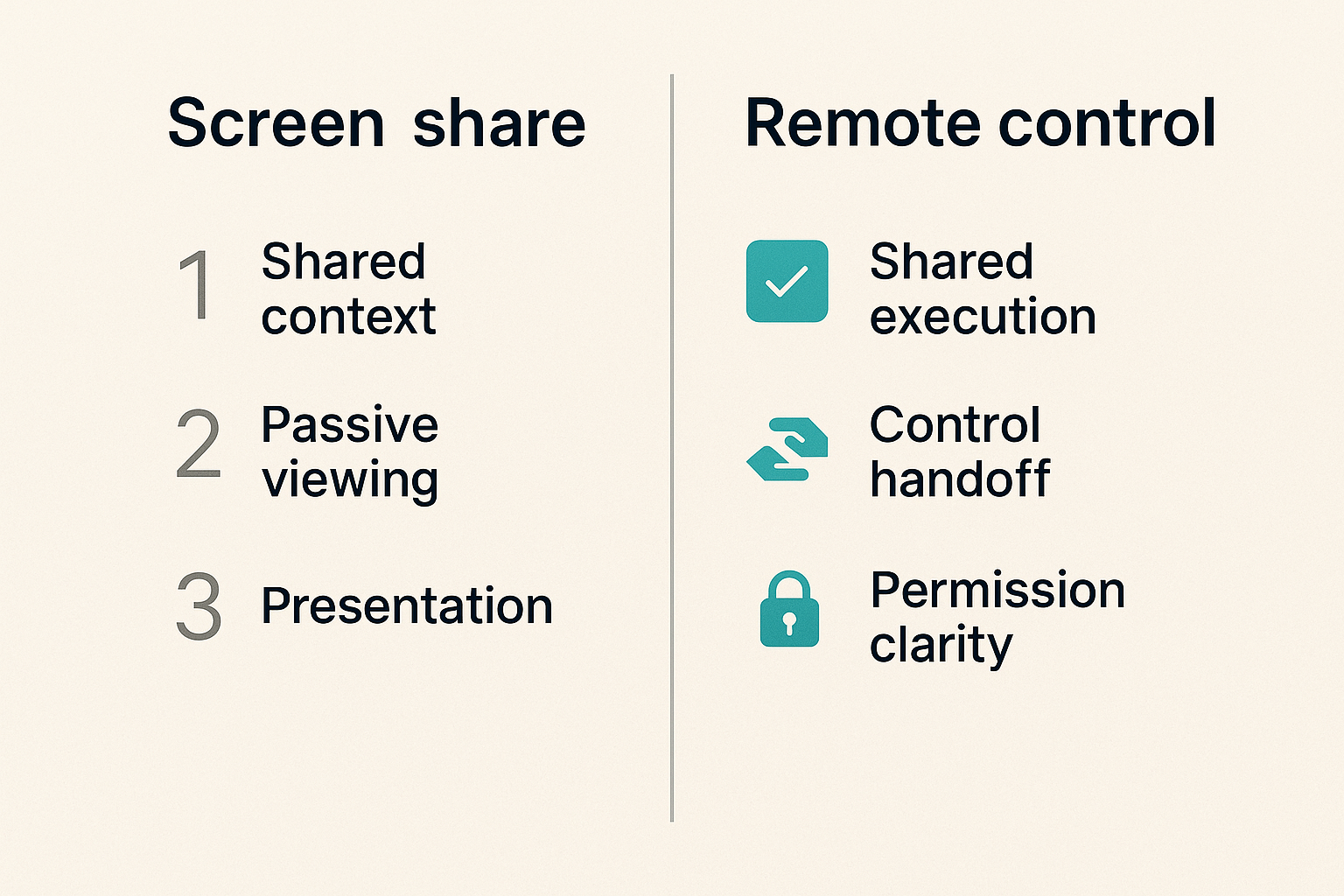
Screen sharing answers, “Are we looking at the same thing?” That is valuable. A shared screen reduces ambiguity when the topic is visual, spatial, or stateful. It lets a designer point to a breakpoint, a developer show a stack trace, or an operator walk through a CRM flow.
But passive viewing has a limit. The viewer can suggest, but not act. The host becomes the hands for the whole group. That is fine for presentations. It is bad for collaborative execution.
Remote control is for shared execution
Remote control answers, “Can another person safely act in this environment?” That is a different job. It requires control handoff, permission clarity, and enough responsiveness that the second person can actually work.
This matters for:
- Pair programming.
- QA reproduction.
- Design implementation review.
- Customer support walkthroughs.
- Internal tooling fixes.
- Debugging across unfamiliar environments.
When remote control is clumsy, teams fall back to verbal instruction: “click the third dropdown, no the other one, scroll up, open dev tools, paste this command.” That works for five minutes. Then it becomes slow, frustrating, and error-prone.
What breaks when teams blur them
The common failure is treating remote control like a feature hidden inside a meeting instead of a workflow decision. Someone asks for control. The host grants it. Nobody says what the controller is allowed to touch. The call continues with several people talking at once. If something changes unexpectedly, nobody has a clean audit trail of why.
A better pattern is explicit handoff:
- State the task: “I’m taking control to reproduce the coupon removal bug.”
- Confirm the boundary: “I’ll stay in staging and won’t touch production data.”
- Execute the change.
- Narrate the result.
- Release control.
- Record what changed.
This is the difference between collaboration and chaos.
Zoom video chat for design, development, and operations
Product design reviews
Design reviews are a good use of Zoom video chat because visual tradeoffs are hard to resolve in long comment threads. But design reviews fail when they become taste debates.
A useful design review workflow has three layers:
- Intent: what problem the design is solving.
- Constraints: technical, accessibility, business, or support limits.
- Decision: what changes before build, what ships, and what is deferred.
For product designers, the call should not be a guided tour of every frame. It should focus on the unresolved decisions. If everyone is watching the designer click through a file for 45 minutes, the meeting is doing documentation work badly.
Good design review prompt:
We are reviewing the new invite flow only for first-run clarity.
Ignore visual polish unless it blocks comprehension.
Decision needed: keep team-size question before or after email invites.
That framing keeps the conversation out of the weeds.
Developer pairing and debugging
Developer collaboration is where the limits of plain video calls show up quickly. Code, terminal state, browser state, local environment variables, logs, and test data all matter. A screen share can show them, but it does not make them easy to operate together.
For debugging, the workflow should preserve evidence:
- What branch or build was used?
- What account or fixture reproduced the issue?
- What command was run?
- What log line mattered?
- What changed after the session?
A lightweight session record can be enough:
{
  "session_type": "debugging",
  "issue": "BUG-1842",
  "environment": "staging",
  "reproduced": true,
  "suspected_cause": "coupon state not cleared after removal",
  "owner": "maya",
  "next_step": "add regression test before fix"
}
The goal is not to document everything. The goal is to prevent the same investigation from being repeated by another teammate tomorrow.
Startup operations and customer support
Operators use Zoom video chat for customer escalations, vendor calls, onboarding, finance reviews, sales engineering, and internal process fixes. The failure mode is different from design and development: operational calls often involve sensitive systems.
If a teammate is sharing a billing dashboard, admin console, analytics account, or customer record, the team needs rules:
- Hide unrelated customer data when possible.
- Avoid exposing secrets, tokens, private messages, or payment details.
- Use test accounts for walkthroughs.
- Record only when there is a clear reason.
- Capture decisions in the customer system or operating doc.
Related reading from our network: collaboration choices also intersect with privacy and identity workflows, which is why End-to-End Encrypted Messaging in 2026 is useful adjacent reading for teams handling sensitive conversations.
Implementation sequence for a better live collaboration system
Step 1 inventory recurring call types
Do not start by buying more tools or rewriting every meeting policy. Start with an inventory. List the live collaboration sessions that happen repeatedly.
Common categories:
- Product design review.
- Engineering pairing.
- Bug triage.
- Sprint planning.
- Customer escalation.
- Onboarding or training.
- Operations review.
- Founder or leadership decision call.
For each category, ask:
- What artifact starts the call?
- What decision or state change should end it?
- Who usually drives?
- Where should the output go?
- What sensitive data may appear?
- Is screen sharing enough, or is remote control needed?
This inventory usually exposes the real issue. The team does not have “too many Zoom calls.” It has too many undefined call types.
Step 2 create call templates
Templates do not need to be fancy. They need to be repeatable. A good template reduces setup time and makes expectations visible.
Example bug triage template:
Call type: Bug triage
Use when: issue is reproducible only with live inspection or cross-functional context
Required artifact: ticket, environment, reproduction steps
Roles: driver, navigator, recorder
Remote control: allowed in staging only
Exit criteria: reproduced/not reproduced, owner assigned, next action recorded
Output location: issue tracker
Default timebox: 25 minutes
Example design review template:
Call type: Design review
Use when: visual or interaction tradeoff blocks progress
Required artifact: prototype, decision prompt, constraints
Roles: presenter, challenger, recorder
Remote control: optional for prototype walkthrough
Exit criteria: decision made or specific follow-up assigned
Output location: design file comment and project ticket
Default timebox: 30 minutes
The template should live where the team works, not in a forgotten wiki. If the team starts from tickets, put it in tickets. If the team starts from docs, put it in docs.
Step 3 wire handoffs into your tools
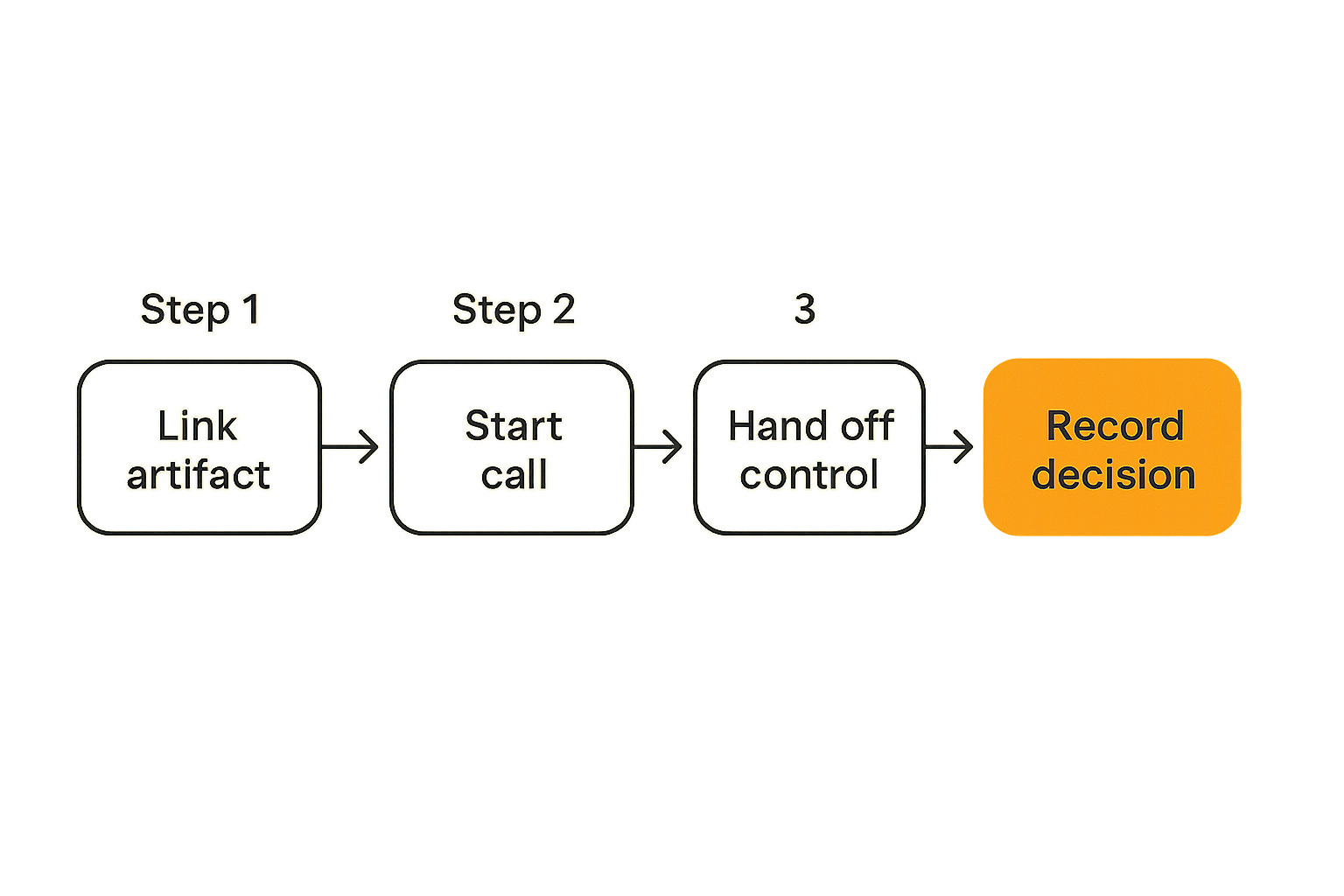
The handoff is where many workflows die. A useful implementation connects the end of the call to the next system.
For example:
- The Zoom video chat starts from a ticket or design file.
- The host shares the artifact and restates the exit criteria.
- If control is needed, the team moves into a dedicated remote control session.
- The recorder captures decisions and commands as they happen.
- The owner updates the ticket, PR, design comment, or customer case before the call ends.
- Follow-up work is assigned with a due date or explicit “not doing” decision.
If step five happens later, it often does not happen. End the call only after the durable system is updated.
Failure modes in Zoom video chat workflows
The meeting becomes the database
This is the most common failure. A team relies on memory, chat snippets, and recordings to reconstruct what happened. Recordings can help, but they are bad databases. They are slow to scan, hard to diff, and rarely connected to the work item.
If someone has to watch a 52-minute recording to understand why a button changed, the process is broken. The decision should be in the design file, ticket, or pull request.
Recordings are evidence. They are not the operating layer.
One person drives forever
In many remote teams, one person becomes the permanent driver. They share the screen, open every tab, run every command, and make every edit while others talk. This creates hidden bottlenecks.
It also reduces quality. People catch different things when they can interact directly. A developer may notice a console warning only when they drive. A designer may feel interaction latency only when they navigate. A support lead may spot a customer-state problem only when they control the workflow themselves.
The fix is not to force everyone to drive all the time. The fix is to make control handoff normal, safe, and intentional.
Decisions are made without durable context
Remote teams often make decisions in live calls that later look arbitrary. Someone asks, “Why did we choose this?” The answer is, “We talked about it on Zoom.” That is not enough.
A durable decision record needs:
- The decision.
- The reason.
- The alternatives rejected.
- The owner.
- The date.
- The artifact affected.
Keep it short. A three-line comment is better than a perfect template nobody fills out.
Practical rule: if a decision changes product behavior, customer experience, security posture, or operational process, it needs to survive outside the call.
What works and what fails in practice
What works
The teams that get value from Zoom video chat tend to do a few boring things consistently:
- They open calls from specific artifacts.
- They define the outcome before discussion starts.
- They separate visual review from hands-on control.
- They rotate who drives when execution matters.
- They update the system of record before leaving.
- They keep sensitive screens out of casual sharing.
- They treat recurring calls as products that can be improved.
None of this is glamorous. It works because it reduces ambiguity. People spend less energy figuring out how to collaborate and more energy doing the work.
What fails
What fails is tool optimism. A team assumes that better video quality, smarter summaries, or another meeting add-on will fix a broken collaboration habit.
Those things can help, but they do not answer the core questions:
- Why are we live?
- What are we changing?
- Who has control?
- Where does the output go?
- What happens next?
If those questions are unanswered, the workflow will leak no matter which video platform is used.
Metrics worth watching
You do not need a full analytics program for meetings. Track a few practical signals:
| Metric | What it tells you | Bad smell |
|---|---|---|
| Calls without linked artifacts | Preparation quality | People spend time finding context |
| Calls without recorded outcomes | Handoff quality | Same topics repeat |
| Average live debug duration | Execution efficiency | Pairing is becoming wandering |
| Reopened decisions | Decision quality | Context was not durable |
| Control handoff frequency | Collaboration depth | One person is always driving |
| Follow-up aging | Accountability | Calls create tasks nobody owns |
A chart is less important than the conversation it starts. If 40 percent of design reviews end without a recorded decision, that is not a Zoom problem. It is a workflow problem.
Where PairUX fits beside Zoom video chat
Use Zoom for presence and discussion
Zoom video chat is good at getting people into the same conversational space. Keep using it for that. Voice, presence, and quick face-to-face alignment still matter, especially when a topic is ambiguous or sensitive.
The mistake teams make is expecting the same tool to be the best place for every type of collaboration. A call can host the conversation while another tool handles the actual shared work.
Use PairUX for collaborative screen work
PairUX is designed around the part of remote collaboration that often gets awkward in ordinary calls: shared screen work with remote control, multi-cursor collaboration, and practical cross-platform sessions. If the job is “watch my screen,” Zoom may be enough. If the job is “work with me on this screen,” you need a more intentional layer.
The product details are listed on the PairUX features page, but the architectural point is more important than the feature list: separate the meeting room from the shared work surface.
That separation gives teams a cleaner operating model:
- Zoom handles conversation.
- PairUX handles collaborative interaction.
- Tickets, docs, PRs, and design files hold durable state.
- Team chat handles lightweight updates.
Now each layer has a job.
A practical product fit
PairUX fits teams that already use Zoom video chat but keep running into the same live-work problems:
- Developers verbally steering another developer through local steps.
- Designers needing someone else to interact with a prototype or app.
- Startup operators walking teammates through admin tools.
- Support teams reproducing customer issues together.
- Remote teams that want fast collaboration without turning every session into a long meeting.
If your team needs implementation guidance before rolling this out, the broader PairUX blog covers tutorials, product updates, and practical remote collaboration workflows.
Closing: zoom video chat is a workflow decision
What to change this week
Do not try to reform every meeting. Pick one recurring Zoom video chat category that causes pain. Debugging sessions, design reviews, and customer escalations are good candidates.
Then make three changes:
- Require a problem statement and linked artifact before the call.
- Define whether the session is viewing-only or hands-on control.
- End only after the decision or next step is recorded in the right system.
That is enough to expose the real bottlenecks. Maybe the team needs better templates. Maybe it needs stronger ownership. Maybe it needs a dedicated collaborative screen sharing layer. The answer becomes visible once the workflow is explicit.
Zoom video chat is not the enemy of deep work. Unstructured live collaboration is. Treat the call as one component in the system, and remote work gets easier to operate.
Try pairux.com
PairUX helps remote teams collaborate through practical screen sharing, remote control, and shared online work. Try pairux.com if your Zoom video chat workflow needs a better hands-on collaboration layer.