2026-07-03
Zoom Video Chat for Remote Teams: Build the Workflow, Not Just the Call

Zoom video chat is where many remote teams start. It is fast, familiar, and good enough for a quick conversation. Then the real work begins: someone shares a screen, another person tries to explain what to click, a designer asks for a small change, and a developer says they will fix it later.
Teams think the problem is meeting quality. The real problem is collaboration architecture.
The practical question is not whether Zoom can host a call. It can. The question is whether your remote team can move from discussion to shared execution without losing context, ownership, or momentum. In 2026, that matters because more teams are distributed by default, product cycles are shorter, and the cost of slow handoffs shows up quickly.
A useful way to think about Zoom video chat is this: it is the conversation layer. It is not always the hands-on layer, the state layer, or the accountability layer. That changes the conversation.
Table of contents
- Zoom video chat is a workflow choice, not a meeting link
- Decide what Zoom owns in your collaboration stack
- Build the remote session around roles and state
- Screen sharing needs an operating model
- Remote control is the missing layer in many Zoom workflows
- Security and privacy are workflow problems
- Implementation workflow: from meeting link to collaboration system
- Common failure modes in Zoom video chat collaboration
- What works, what fails, and how to choose alternatives
- Where PairUX fits next to Zoom video chat
Zoom video chat is a workflow choice, not a meeting link
The meeting is only the visible layer
Most teams evaluate Zoom video chat by asking whether people can join, talk, share video, and see a screen. That is the easy part. The harder part is what happens after someone says, here is the issue.
A remote design review is not just a video call. It has artifacts, permissions, notes, unresolved questions, and decisions. A debugging session is not just a screen share. It has terminal output, logs, environment details, credentials that should not be exposed, and changes that need review. A customer onboarding call is not just face time. It has support follow-up, configuration changes, and risk if the wrong person takes control.
The mistake teams make is treating the meeting link as the unit of work. In practice, the unit of work is the session: who joins, what they can touch, what output is expected, where decisions are captured, and what happens next.
Practical rule: Use Zoom video chat for conversation, but define the collaboration session separately. A meeting without roles, artifacts, and handoff rules is just a live interruption.
Where screen sharing turns into production work
Screen sharing starts as visibility. Then it becomes production work when somebody needs to operate the interface. This is where many workflows degrade.
A designer shares a prototype and the product manager asks for variants. A developer shares a local build and the QA lead spots a state bug. A founder shares analytics and the team debates which funnel event is wrong. Everyone can see the problem, but only one person can act. The rest narrate.
That narration cost is easy to ignore. It feels collaborative because everyone is present. But if one person is slowly translating five voices into cursor movement, you have a bottleneck, not a workflow.
Decide what Zoom owns in your collaboration stack
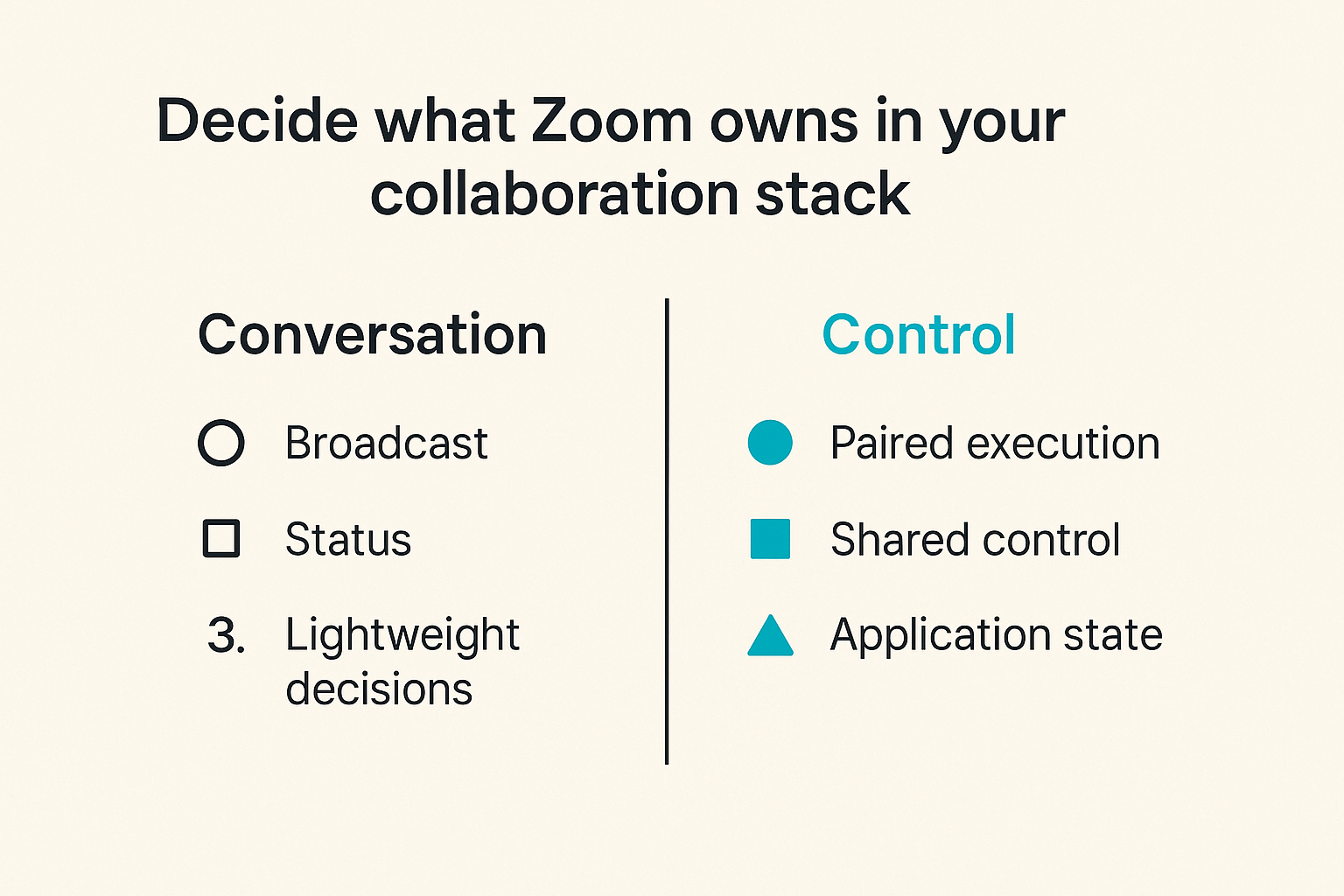
Good fit: broadcast, status, lightweight decisions
Zoom is good at synchronous communication. It works well for standups, customer calls, executive updates, hiring loops, incident bridges, and lightweight decision meetings. If the job is to align a group of people around context, Zoom video chat is usually a reasonable default.
It is also useful when body language matters. Product critique, design discussion, roadmap tradeoffs, and early customer discovery often benefit from richer conversation than text can provide.
The practical question is whether the meeting requires shared operation. If not, Zoom can own the whole interaction. If yes, Zoom should usually own only the voice and video layer while another tool owns the work surface.
Related reading from our network: teams choosing broader SaaS workflows face the same ownership question in this practical guide to pivotal software evaluation.
Bad fit: paired execution and shared control
Zoom becomes weaker when the task requires multiple people to interact with the same machine, design surface, browser session, or application state. Remote control exists in many meeting tools, but it is often treated as an add-on instead of the center of the workflow.
What breaks in practice is speed. The person driving becomes a human API. Everyone else submits verbal commands. The session produces lag, interruptions, and corrections: no, the other panel; scroll back; not that button; open the console; try the second option.
That does not mean Zoom is bad. It means the work has moved beyond video chat. For teams comparing real-time collaboration requirements, the PairUX feature overview is a useful reference for capabilities such as multi-cursor collaboration, remote control, and cross-platform screen sharing.
Build the remote session around roles and state
Driver, navigator, reviewer, recorder
A good remote session has roles. They do not need to be bureaucratic, but they do need to be explicit.
- Driver: operates the shared environment.
- Navigator: directs the next action and watches for logic gaps.
- Reviewer: challenges assumptions and validates the outcome.
- Recorder: captures decisions, follow-ups, links, and unresolved questions.
On a two-person call, one person may hold two roles. On a five-person call, roles prevent the session from turning into commentary. The key is that everyone knows how they contribute.
For product designers, the driver might be the designer in Figma while the product lead navigates through edge cases. For developers, the driver might run the code while the navigator watches logs and proposes experiments. For startup operators, the driver might update a dashboard while the recorder turns decisions into tickets.
Practical rule: If nobody owns the recorder role, your meeting output depends on memory. That is not a system.
Session state that must survive the call
A Zoom call disappears when people leave. The work should not.
Session state includes the link to the artifact, the current version, the decision made, the open question, the person responsible, and the deadline. It may also include a recording, transcript, log file, branch name, customer account, or screenshot.
Many remote teams over-invest in the live meeting and under-invest in the state transition after it. That creates the familiar Monday problem: everyone remembers a good discussion, but nobody knows what changed.
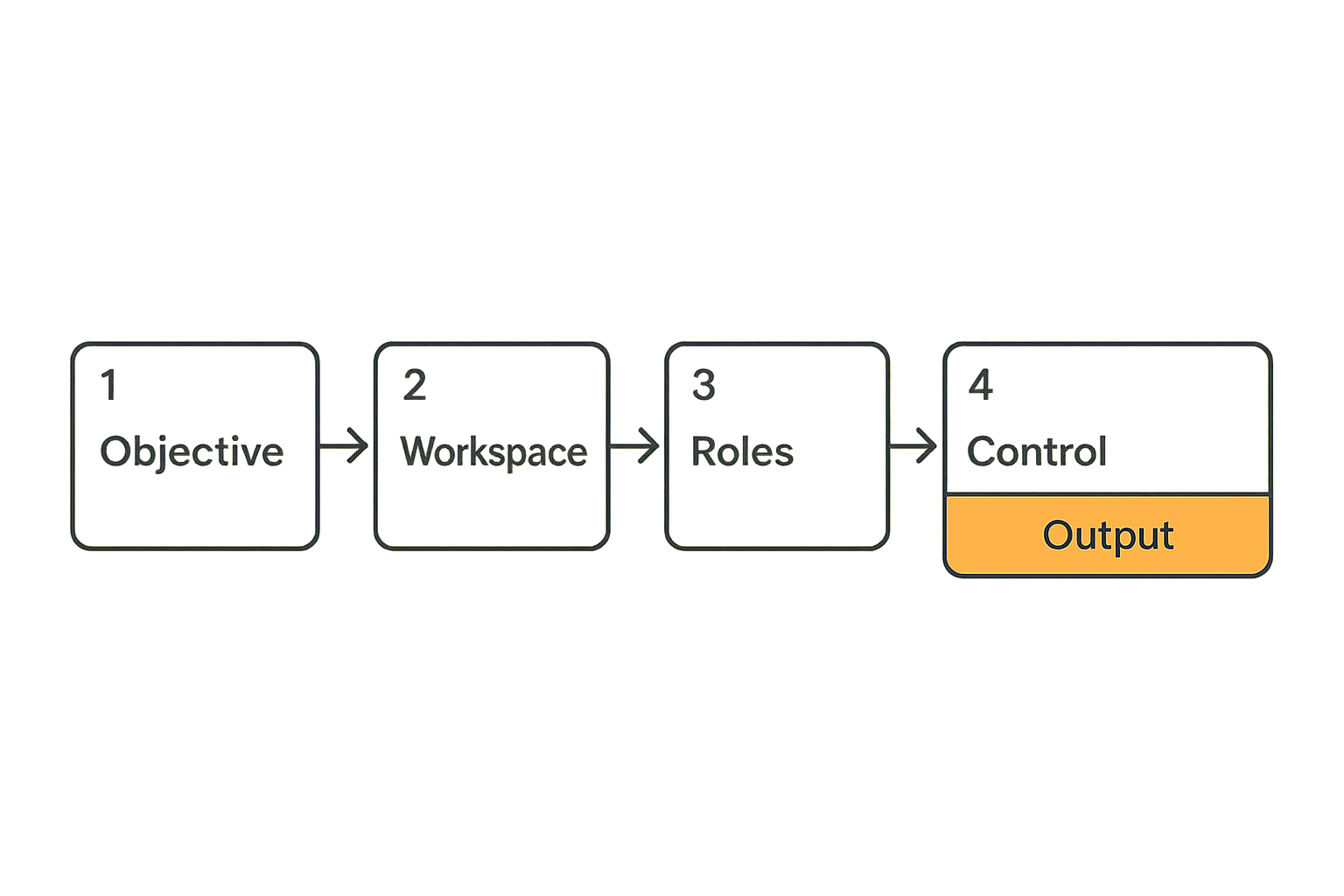
A simple session state model can be enough:
- Objective: what the session is supposed to finish.
- Workspace: where the actual work happens.
- Access: who can view, control, edit, or approve.
- Output: what artifact proves the session was useful.
- Follow-up: what happens if the output is incomplete.
Screen sharing needs an operating model
What works for product design reviews
Product design reviews often fail because they mix critique, decision-making, and editing in the same call. Zoom video chat can support the conversation, but the operating model should decide when the team is observing and when the team is changing the artifact.
A practical design review flow looks like this:
- The designer frames the problem and constraints.
- The team reviews the current user path without interruption.
- Reviewers raise issues by severity, not preference.
- The driver makes small changes live only when they clarify the decision.
- Larger changes become assigned follow-ups.
This prevents the session from becoming a live redesign by committee. It also protects the designer from being reduced to a cursor operator for everyone else in the room.
What works for software pairing
Software pairing has a different operating model. The goal is not just to discuss code. The goal is to advance code safely while two or more people share context.
For developers, the best sessions usually have short loops: form a hypothesis, inspect the code, run the test, observe the result, commit or revert. Zoom can carry the voice channel, but screen sharing and remote control need to keep pace with the loop.
A useful way to think about it is latency budget. If every handoff takes thirty seconds of permission negotiation, window switching, or verbal instruction, the pairing loop gets heavy. The team stops experimenting and starts lecturing.
What fails when everyone watches passively
Passive screen sharing feels efficient because it avoids interruptions. It is often the opposite. One person works, four people wait, and the team calls it collaboration.
The failure mode is especially visible in cross-functional calls. Engineers watch a designer operate a prototype. Designers watch an engineer dig through logs. Operators watch a founder update a spreadsheet. Each group understands part of the context but cannot interact with the work directly.
What works is controlled participation. Let the right person drive at the right time. Make control transfer intentional. Keep the session objective visible. End with output.
Related reading from our network: founders building digital products run into similar handoff problems between idea, prototype, launch, and support, which is covered in this operator guide to digital products in 2026.
Remote control is the missing layer in many Zoom workflows
Why can you click that wastes time
Every remote team knows the phrase: can you click that? It sounds harmless. It is actually a signal that the workflow has exceeded the tool.
When a collaborator can see the right action but cannot perform it, the session adds translation overhead. The observer must describe the target. The driver must interpret the instruction. If the UI changes, both people re-sync. If the task is sensitive, the driver hesitates. If the call has five people, the loudest instruction wins.
The mistake teams make is assuming screen sharing equals collaboration. It does not. Screen sharing provides visibility. Remote control provides agency. Multi-cursor or shared-control systems go further by letting more than one person participate without collapsing into chaos.
Permission boundaries and trust
Remote control introduces risk. That does not mean teams should avoid it. It means they should define boundaries.
Good remote control workflows answer these questions before the session starts:
- Who can request control?
- Who can grant it?
- Can control be revoked instantly?
- Are sensitive windows hidden or excluded?
- Is the session recorded or logged?
- What actions are off-limits?
Practical rule: Remote control should be easy to grant, obvious while active, and instant to revoke. If a host cannot tell who controls the screen, the workflow is not ready for serious work.
When to use a dedicated collaborative tool
Use a dedicated collaborative screen sharing tool when the work requires active participation, not just viewing. This includes pair programming, design critique with live edits, support escalation, QA reproduction, onboarding, and internal troubleshooting.
Zoom can still be present. The architecture is not always either-or. Many teams keep Zoom for the conversation and add a dedicated tool for the shared work surface. The important part is that ownership is clear. Voice and video live in one layer. Control and collaboration live in another.
If your team is moving beyond basic meetings, the PairUX documentation is the practical place to check installation, system requirements, security notes, and setup details.
Security and privacy are workflow problems
Separate conversation privacy from screen access
Security discussions around Zoom video chat often focus on meeting access: passwords, waiting rooms, host controls, recording settings. Those matter. But for working sessions, screen access is the more operational concern.
A private conversation can still expose the wrong tab. A trusted teammate can still receive too much control. A recorded session can still capture customer data, internal dashboards, or credentials. The risk is not only who joined the meeting. It is what the meeting allowed them to see or touch.
For sensitive work, define the workspace before the call. Close unrelated windows. Use test accounts where possible. Avoid live credentials. Decide whether recording is allowed. If production data is involved, treat the session like an operational change, not a casual chat.
Related reading from our network: for teams thinking about private communication more broadly, this workflow-focused guide to end-to-end encrypted messaging apps is a useful adjacent reference.
Meeting hygiene for working teams
Meeting hygiene is not etiquette. It is risk control.
For remote teams, the basics are still worth enforcing:
- Use named accounts for working sessions.
- Avoid public meeting links for internal production work.
- Lock rooms when all expected participants have joined.
- Announce recording before it starts.
- Keep customer data out of casual screen shares.
- Revoke remote control when the task is complete.
- Move decisions into the system of record before ending.
The practical question is not whether every session needs enterprise-grade ceremony. Most do not. The question is whether your default behavior protects the team when people are tired, rushed, or multitasking.
Implementation workflow: from meeting link to collaboration system
Step-by-step rollout
Do not fix remote collaboration by adding three tools and hoping people behave differently. Start with the highest-friction sessions and design the workflow around them.
A practical rollout sequence:
- Inventory recurring Zoom video chat sessions where screen sharing is common.
- Label each session by job: status, review, pairing, support, incident, onboarding, planning.
- Identify where the session slows down: control handoff, note capture, artifact access, decision ownership, follow-up.
- Decide which layer Zoom owns and which layer another tool should own.
- Create a default session template with roles, workspace links, and expected output.
- Pilot the workflow with one team for two weeks.
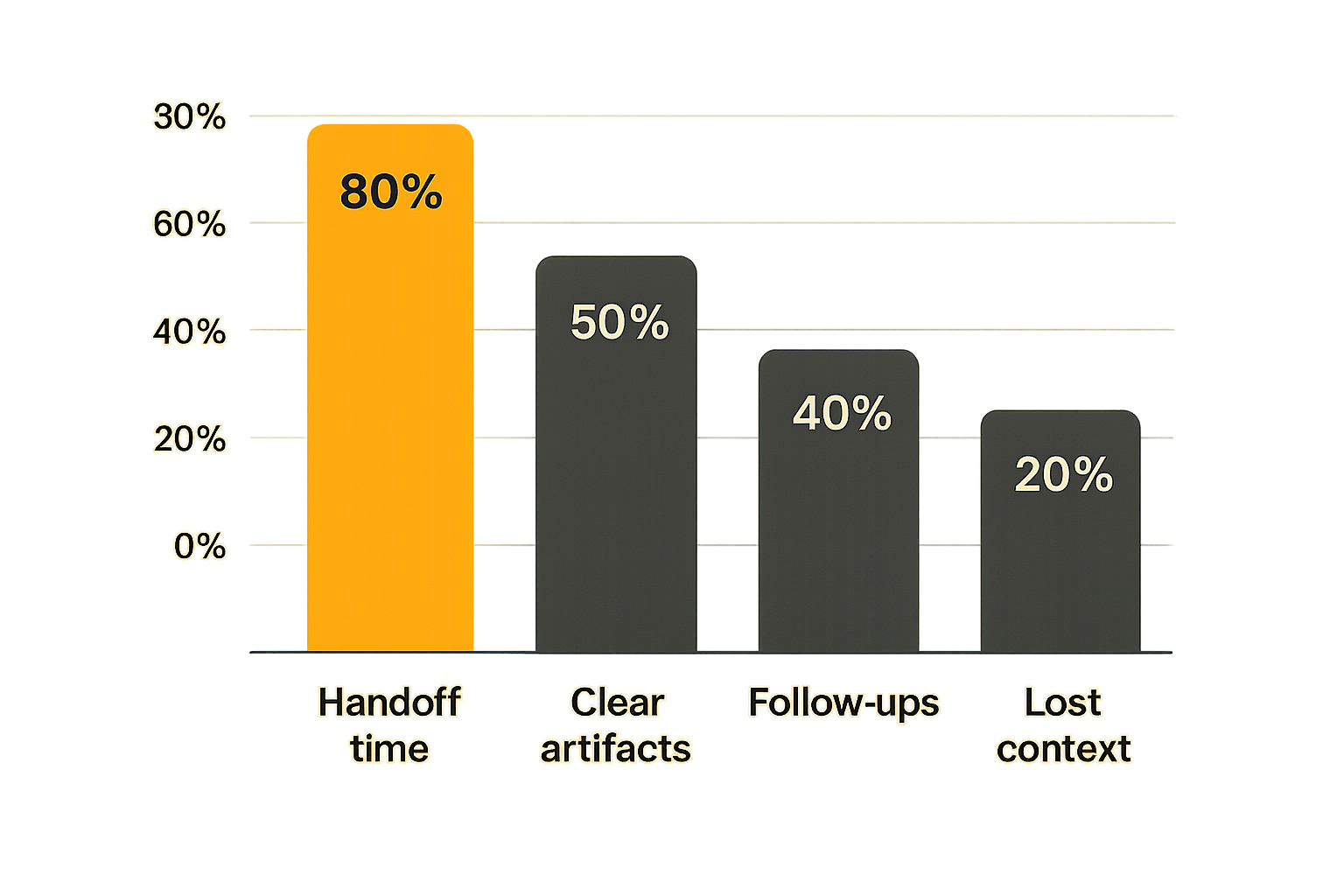
- Keep the parts that reduce handoff time and remove anything that adds ceremony.
This is not a procurement exercise first. It is an operating exercise. Tool choice comes after workflow clarity.
Default templates and checklists
Templates beat reminders. If people need to remember the workflow manually, it will decay under pressure.
For a product review, the template might include objective, prototype link, decision owner, open questions, and follow-up ticket. For a debugging session, it might include branch, environment, log source, reproduction steps, and rollback plan. For customer onboarding, it might include customer account, permissions, configuration checklist, and support handoff.
The PairUX blog has covered adjacent remote stack choices in a practical guide to cloud based productivity and collaboration tools, and the same principle applies here: the stack only works when each tool has a job.
Metrics that show whether it is working
You do not need fake precision. You do need signals.
Track a few practical indicators:
- How many meetings end with a clear artifact?
- How often does the team schedule a follow-up because no decision was made?
- How long does it take to transfer control or switch drivers?
- How many action items are unclear after twenty-four hours?
- How often do people ask for recordings because notes were missing?
These metrics are not about surveillance. They are about friction. If the workflow is working, sessions should produce clearer output with fewer follow-up meetings.
Practical rule: Measure collaboration by completed handoffs and usable artifacts, not by meeting attendance.
Common failure modes in Zoom video chat collaboration
Tool sprawl without ownership
The most common failure mode is adding tools without assigning ownership. Zoom for calls. Slack for comments. Docs for notes. Figma for design. GitHub for code. Linear or Jira for tickets. A remote control tool for hands-on work. All reasonable. But if nobody defines the handoffs, the team gets sprawl.
What breaks in practice is accountability. The decision is in the chat, the screenshot is in the doc, the ticket is stale, and the person who shared the screen assumes someone else captured the conclusion.
The fix is not fewer tools at all costs. The fix is clearer boundaries. Each tool should own a specific part of the workflow: conversation, artifact, control, decision, task, or record.
Meetings that create no durable output
A meeting without durable output may still be valuable, but working sessions should usually leave a trace. That trace can be a merged pull request, updated design, recorded customer decision, support note, incident timeline, or ticket with acceptance criteria.
If your Zoom video chat sessions repeatedly end with someone saying they will summarize later, the workflow is under-designed. Summaries created after the fact are often incomplete because the context has already moved on.
A better pattern is live capture. The recorder writes decisions as they happen. The driver updates the artifact during the session. The team checks the output before leaving.
Screen share latency and context switching
Latency is not only network delay. It is also cognitive delay.
A person shares the wrong monitor. Notifications appear. Someone asks to zoom in. Another person loses track when the driver switches windows. The team spends five minutes finding the right tab. These small delays compound until the session feels heavier than asynchronous work.
Reduce context switching by preparing the workspace before the call. Share a single application when possible. Close unrelated windows. Keep the artifact link in the calendar invite. Use a separate notes document. Decide who drives first.
What works, what fails, and how to choose alternatives
Comparison table for common collaboration jobs
Different jobs need different collaboration layers. Treating every remote interaction as the same kind of Zoom video chat creates bad defaults.
| Collaboration job | Zoom-only approach | Better operating model | What to watch |
|---|---|---|---|
| Daily standup | Everyone reports live | Short call plus written board | Status theater |
| Product critique | Designer shares screen | Review roles plus artifact notes | Preference debates |
| Pair programming | One developer narrates | Shared control and short test loops | Slow driver handoffs |
| QA reproduction | Tester explains bug | Shared environment with recorded steps | Missing evidence |
| Customer onboarding | Host clicks through setup | Guided control with permission boundaries | Exposed data |
| Incident bridge | Many people talk at once | Clear commander, scribe, and workstreams | Conflicting actions |
The point is not that Zoom is wrong. The point is that Zoom-only is often incomplete. Once the job requires shared operation, you need a stronger model.
Decision rules for operators
Operators need simple rules because edge cases multiply quickly.
Use Zoom video chat as the primary tool when the session is mostly conversation, alignment, or relationship building. Add a collaborative screen sharing or remote control layer when the session requires active participation on a shared surface. Move work asynchronous when the session is mostly status or review that does not require live discussion.
The mistake teams make is defaulting to a call because it is easy to schedule. The better question is: what state must change by the end of this session? If the answer is only awareness, a call may be fine. If the answer is code changed, design approved, bug reproduced, account configured, or customer unblocked, design the workflow around that outcome.
Where PairUX fits next to Zoom video chat
PairUX as the hands-on layer
PairUX fits the part of the workflow where screen sharing needs to become shared operation. It is for remote teams that need fast, practical collaborative screen sharing, remote control, and working together online without pretending the video call is the whole system.
In a practical stack, Zoom video chat can stay responsible for the conversation. PairUX can handle the hands-on collaboration layer: shared screen context, remote control, multi-person participation, and the moments where saying can you click that becomes too slow.
That architecture is simple: keep the meeting tool for talking, use the collaboration tool for doing, and make the output durable in your project system. No hype required.
Closing: make the call operational
Zoom video chat is useful, familiar, and likely to remain part of remote work. But remote teams should stop treating it as the complete collaboration workflow.
The meeting is only one layer. The work also needs roles, artifacts, control boundaries, security habits, state capture, and follow-through. Once you separate those layers, the tool conversation gets easier. Zoom can do what it is good at. Dedicated collaborative screen sharing can do what meetings do poorly.
That is the practical shift for 2026: build the workflow around the work, not around the meeting link. If your team uses Zoom video chat every day, make those calls operational.
Try pairux.com
pairux.com is for remote teams that need fast, practical guidance on collaborative screen sharing, remote control, and working together online. Try pairux.com.