2026-07-10
Vizio Remote Control Lessons for Remote Teams: Build Better Collaborative Control Workflows

A Vizio remote control looks simple until the wrong person has it.
One person is trying to change the input. Another wants to open settings. Someone else is asking why the screen went black. The issue is not the plastic remote. The issue is control, visibility, timing, and trust.
Remote teams run into the same problem every day. A designer shares a prototype. A developer needs to drive the browser. A founder wants to jump in and adjust copy. Support needs to inspect a customer issue without taking over recklessly.
Teams think the problem is remote control software. The real problem is remote control workflow. That changes the conversation. The practical question is not whether someone can click on another screen. The practical question is who gets control, when, why, with what guardrails, and how the session recovers when something goes wrong.
Table of contents
- Vizio remote control is a useful model for team control
- Vizio remote control vs collaborative remote control
- Design the session model before choosing tools
- Permissions are the product experience
- A practical workflow for remote control handoff
- What breaks when teams implement remote control badly
- Use Vizio remote control thinking for design and engineering reviews
- Security and trust are workflow constraints
- Tool selection criteria for collaborative remote control
- Where PairUX fits in the remote control workflow
Vizio remote control is a useful model for team control
A Vizio remote control is a narrow interface for a shared surface. The TV is visible to everyone in the room, but only one person usually holds the device that changes the state. That creates a clean operating model: one screen, one controller, one visible result.
Remote work is messier. The shared surface might be a Figma file, staging app, terminal, admin dashboard, analytics view, or customer account. Multiple people may need to act. Some should only observe. Some should never be allowed to click certain things.
The mistake teams make is treating remote control as a feature toggle. They ask, can our tool do remote control? A better question is, can our team use remote control without confusion, accidental changes, or support debt?
The remote is not the workflow
The physical remote is just the input device. The workflow includes who knows how to use it, who is allowed to use it, what happens when the screen changes, and how the group gets back to a known state.
In a meeting, the digital equivalent is often broken. Someone says, can I drive for a second? The host grants control. The cursor moves. Nobody knows whether the driver is editing the live page, a prototype, a local branch, or a production setting.
That is where remote control stops being a convenience and becomes an operational risk.
Practical rule: Remote control should never be granted without a task, a boundary, and a clear handoff back to the owner.
Why this matters for remote teams in 2026
Remote teams now do more than talk on calls. Product reviews, debugging sessions, onboarding, customer support, design critiques, and incident follow-ups all happen through shared screens. The screen is no longer a presentation layer. It is the workplace.
That means control matters. If the person sharing the screen is always the only person who can interact, the session slows down. If everyone can interact freely, the session becomes unsafe and noisy. The useful middle is controlled collaboration.
Many teams already have video calls, chat, ticketing, product analytics, and design tools. What they lack is a clean control workflow across those tools. If your meeting stack is built around talking, every action still routes through one tired screen owner.
The operator framing
A useful way to think about it is this: remote control is not a UI feature. It is an operating agreement.
For a Vizio remote control, the agreement is usually social. The person holding it controls the TV until someone else asks. For distributed work, the agreement needs to be more explicit because the consequences are higher.
You need answers to basic questions:
- Who owns the session?
- Who can request control?
- What can they control?
- How does the owner revoke control?
- What is recorded, logged, or summarized?
- What happens if latency, permissions, or trust breaks?
Related reading from our network: teams evaluating adjacent remote access stacks face similar tradeoffs around ownership, security, and support operations in this remote access software architecture guide.
Vizio remote control vs collaborative remote control
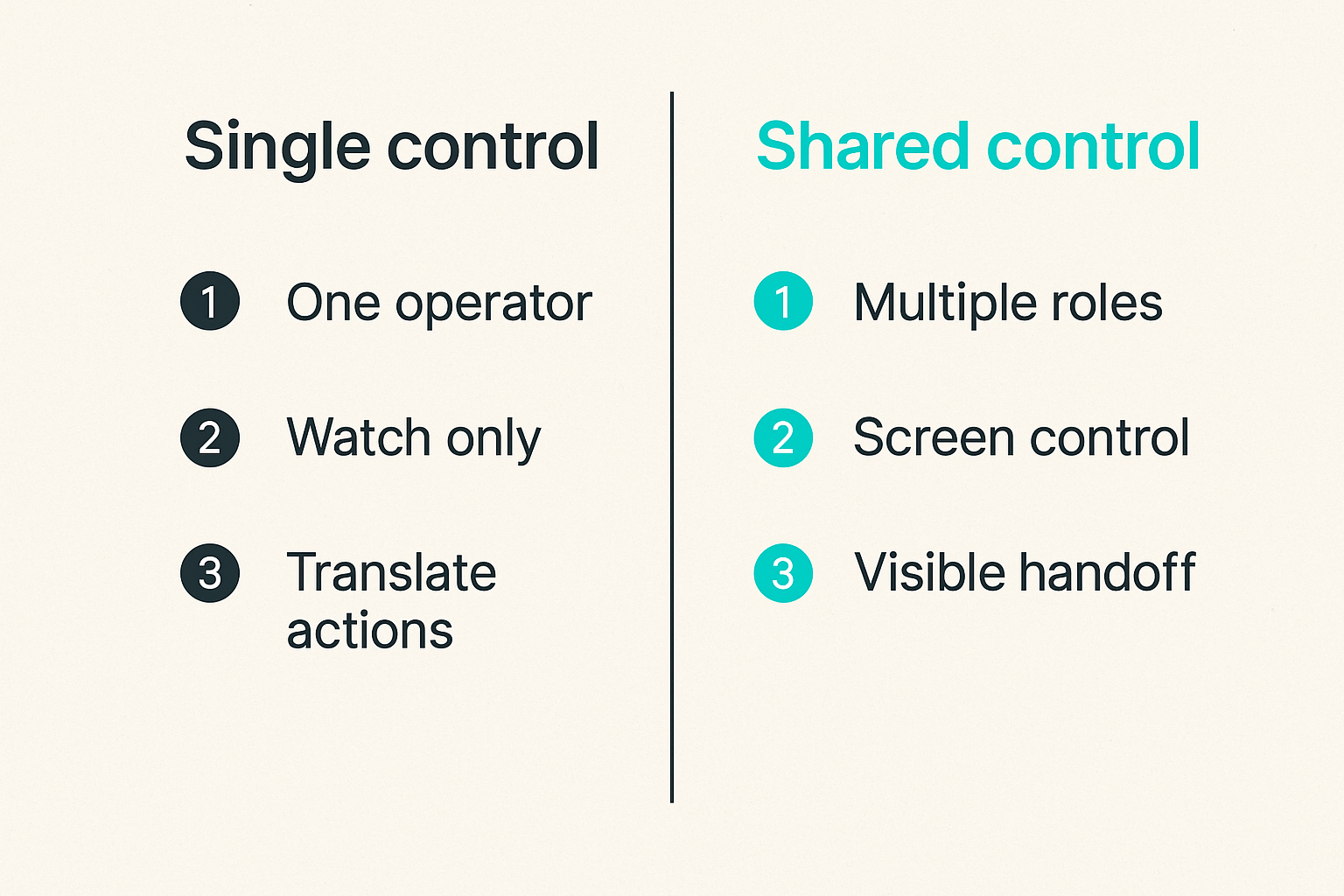
The Vizio remote control model is useful because it is simple. But the simplicity is also the limitation. A TV remote assumes one active controller and a relatively low-risk surface. Collaborative software often needs multiple roles, reversible actions, and stronger boundaries.
Single operator control
Single operator control works when one person has the context and everyone else is watching. It is fine for a demo, a walkthrough, or a founder showing a dashboard.
It fails when the watcher has the expertise. A designer may see the spacing issue faster than the developer. A developer may know the console command. A support lead may know the customer account path. Making the screen owner translate every instruction creates lag and errors.
What breaks in practice is not usually the call. It is the translation loop:
- Move your cursor to the left.
- No, the other left panel.
- Click the small icon.
- Not that one.
- Undo that.
That is operational waste.
Shared operator control
Shared operator control lets another participant act directly. Done well, it shortens review loops and reduces instruction fatigue. Done badly, it creates collisions.
The goal is not to let everyone drive at once. The goal is to make control handoff fast, visible, and reversible.
In collaborative screen sharing, this usually means:
- The host can approve or deny a request.
- The active controller is visible.
- Control can be revoked instantly.
- The session state remains understandable to everyone.
- Sensitive surfaces are handled intentionally.
For teams evaluating capabilities, the relevant product surface is not just screen sharing. It is remote control, multi-cursor behavior, and cross-platform collaboration. PairUX documents those collaboration patterns on its features page for teams comparing shared-work tools instead of generic meeting software.
The comparison that matters
| Dimension | Vizio remote control | Collaborative remote control |
|---|---|---|
| Primary surface | TV screen | App, desktop, browser, design file, terminal |
| Typical controller | One person in the room | Host plus approved participants |
| Risk level | Low to moderate | Low to high, depending on surface |
| Handoff method | Physical handover | Permission request and grant |
| Visibility | Everyone sees the TV | Participants see shared screen and cursor state |
| Recovery | Change input, back button, reset app | Revoke control, undo changes, restore session |
| Failure mode | Wrong input or setting | Accidental edits, data exposure, unclear ownership |
The practical question is not whether collaborative control is better. It is whether the control model matches the work surface. A staging browser and a production billing dashboard should not have the same control assumptions.
Design the session model before choosing tools
Most teams choose tools first and invent process later. That is backwards. If you do not define the session model, the tool defaults become your policy.
A session model is the basic map of roles, permissions, and state. It does not need to be bureaucratic. It just needs to be clear enough that people know what is supposed to happen.
Session owner
The session owner is the person responsible for the shared surface. In a design review, that may be the designer. In a debugging call, it may be the developer running the local environment. In customer support, it may be the support agent or implementation engineer.
Ownership does not mean the owner does all the work. It means the owner controls access and recovery.
Good session owners do three things:
- State what surface is being shared.
- State whether it is safe to control.
- Revoke control when the task is done.
This sounds basic. Many teams skip it. Then someone edits the wrong document or clicks through a customer account with no shared understanding of boundaries.
Control participant
The control participant is the person temporarily driving. Their job is to complete a narrow task, not take over the meeting.
A good control request sounds like this:
- I need control for 30 seconds to inspect the hover state.
- I need to run one command in the local terminal.
- I need to reproduce the bug by changing this filter.
- I need to point to three layout issues without editing.
A weak request sounds like this:
- Let me drive.
- Give me control.
- I will fix it.
The difference is scope. Scope is what keeps remote control from becoming chaos.
Observers and reviewers
Observers matter because they provide context, catch mistakes, and validate the outcome. But observers should not all become potential controllers by default.
For larger sessions, separate people into:
- Drivers who may request control.
- Reviewers who can comment but not drive.
- Stakeholders who observe and approve outcomes.
That structure helps design critiques and engineering reviews stay productive. It also reduces the social pressure to grant control to whoever asks loudest.
Permissions are the product experience
Remote control permissions are not a security footnote. They are the product experience. If permissions are too heavy, people avoid collaboration. If they are too loose, people create risk.
The best permission model feels boring. People know how to request, grant, revoke, and recover without a long explanation.
Ask, grant, revoke
Every remote control workflow needs three obvious actions: ask, grant, revoke.
Ask should communicate intent. Grant should make the active controller visible. Revoke should be instant and socially normal.
Practical rule: If revoking control feels rude or technically awkward, your workflow is already unsafe.
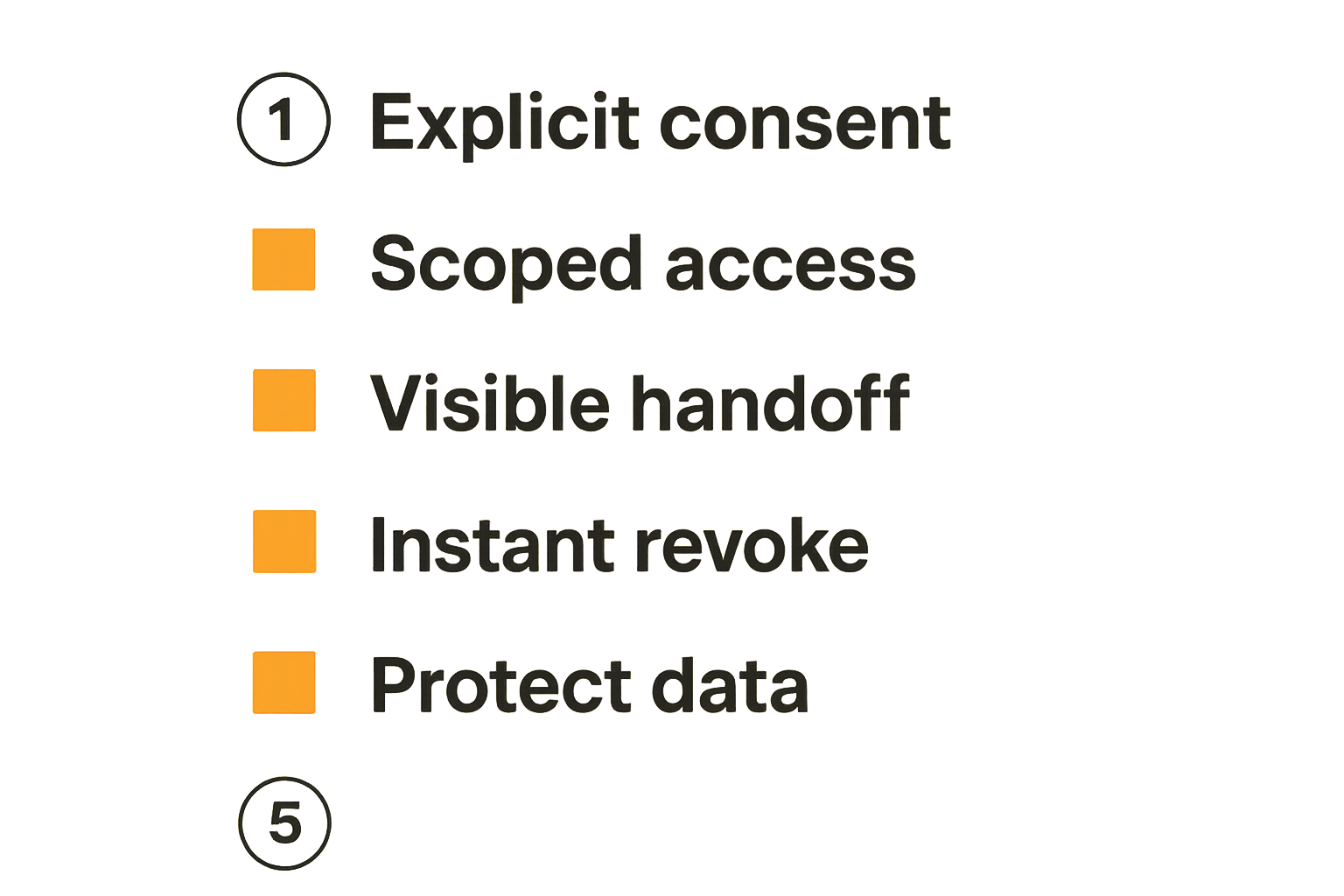
Teams often focus on the grant action. They ask whether control can be given. But the revoke action is more important operationally. The host must be able to stop control when the task changes, the wrong window appears, or the session moves into sensitive territory.
Scope control to the task
Not every session needs full desktop control. Sometimes the right scope is a browser tab, app window, prototype, canvas, or pointer-only mode.
Scope should follow risk:
- Low risk: prototype walkthrough, whiteboard, public webpage.
- Medium risk: staging app, internal dashboard, shared document.
- High risk: production admin, customer data, billing settings, terminal with credentials.
For high-risk surfaces, remote control may still be useful, but the workflow must be tighter. The owner may drive while the expert narrates. Or the expert may control only after secrets are hidden and the action is reversible.
Related reading from our network: publishing teams face a similar control problem when automation can move content across review lanes, approvals, and distribution; this publishing automation workflow architecture is a useful adjacent model.
Make handoff visible
Handoff should be visible to everyone, not just the host and controller. If the cursor changes ownership, participants should know who is acting.
Visible handoff reduces confusion:
- Reviewers know whose action they are watching.
- The host knows when control is active.
- The controller knows when their responsibility starts and ends.
- The team can discuss actions without guessing who clicked.
The mistake teams make is relying on voice alone. Voice helps, but visual state matters when people are watching a shared screen, reading chat, and thinking through the problem at the same time.
A practical workflow for remote control handoff
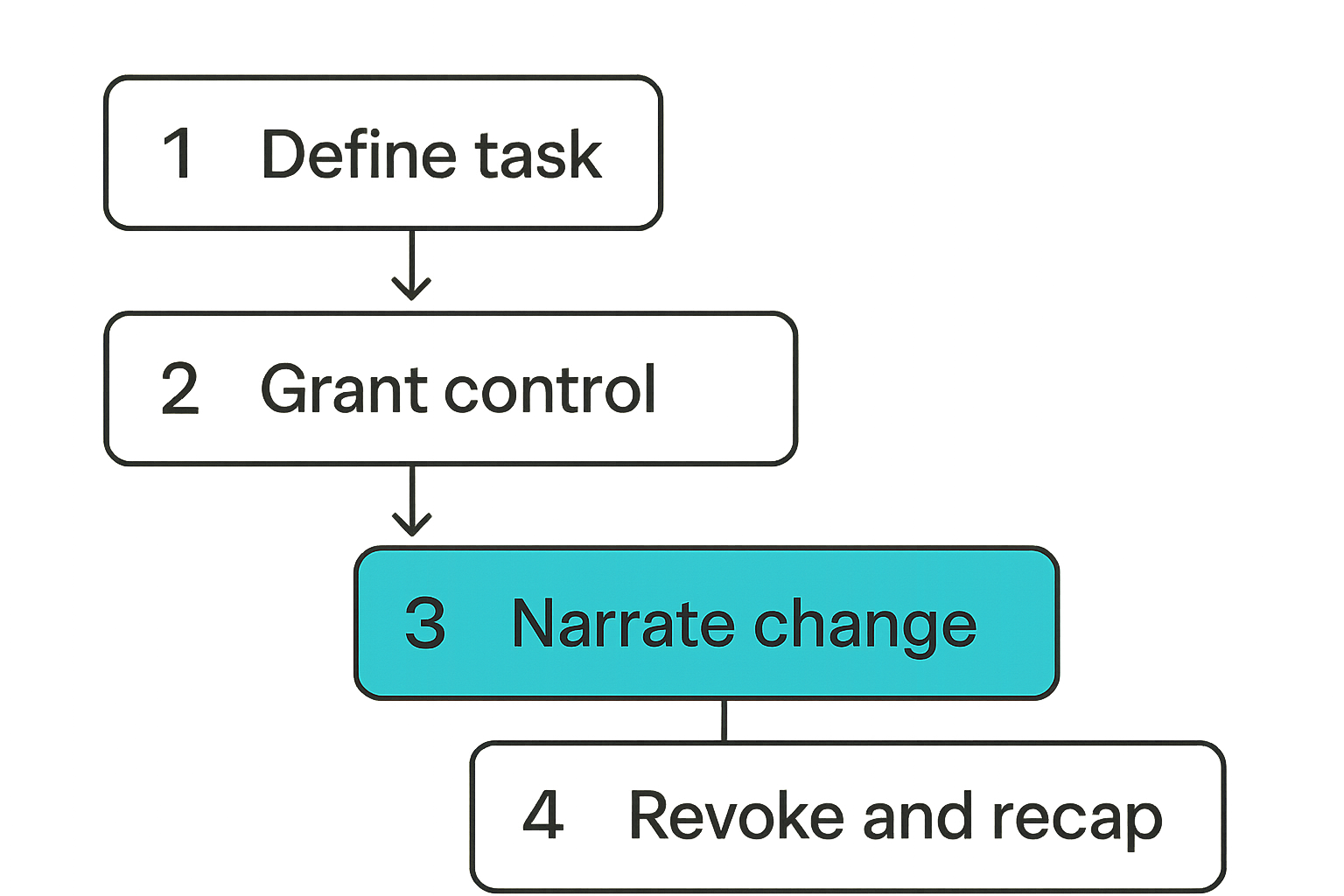
You do not need a 12-page policy. You need a repeatable sequence that works under pressure. The sequence below is enough for most product, engineering, and support sessions.
Step 1 define the task
Before granting control, define the task in one sentence.
Examples:
- Inspect the responsive breakpoint in the prototype.
- Reproduce the checkout validation bug in staging.
- Show where the onboarding copy is confusing.
- Configure the local environment variable for the demo.
This prevents open-ended driving. It also gives the host a natural point to revoke control when the task is complete.
Step 2 grant narrow control
Grant the minimum useful control. If pointer access is enough, do not grant full interaction. If a browser tab is enough, do not expose the full desktop. If the task is in staging, do not switch to production while the participant still has control.
A simple numbered workflow looks like this:
- Host names the shared surface.
- Participant states the task.
- Host grants scoped control.
- Participant completes the action while narrating.
- Host revokes control.
- Team confirms the result and next step.
That sequence is not slow. After a few sessions, it becomes natural.
Step 3 narrate the state change
The controller should narrate meaningful state changes. Not every mouse movement needs commentary. But actions that change data, navigation, configuration, or test conditions should be spoken out loud.
Good narration sounds like:
- I am switching from mobile to desktop breakpoint.
- I am opening the console, not changing app state.
- I am applying the filter that triggered the bug.
- I am saving this draft, not publishing it.
Narration keeps observers aligned. It also creates a lightweight audit trail in the meeting memory.
Step 4 revoke and summarize
When the task is done, revoke control and summarize what changed.
This is where many sessions get sloppy. The controller finishes the action, keeps control, then the conversation drifts. Ten minutes later, nobody remembers who is driving or whether the shared surface is still safe.
Practical rule: Control should return to the owner after every completed task, even if the same person will request it again later.
Summaries should be short:
- We reproduced the bug with the annual plan filter.
- The layout issue appears below 840 pixels.
- The copy change is in draft, not published.
- The local fix worked, but it is not committed.
What breaks when teams implement remote control badly
Bad remote control workflows fail in predictable ways. The failures are usually social first and technical second.
Ambiguous ownership
Ambiguous ownership happens when nobody knows who is responsible for the shared screen. This is common in startup meetings where everyone is moving fast and roles blur.
Symptoms include:
- Multiple people asking for control at once.
- The host granting control without understanding the task.
- Participants talking over the active controller.
- No one knowing whether a change was saved.
The fix is simple: name the owner at the start. The owner does not need to be the most senior person. They need to be the person accountable for the session surface.
Silent state changes
Silent state changes are dangerous because the screen looks similar after the action. A filter changes. A toggle flips. A draft saves. A test user becomes an admin. The group keeps talking, but the underlying state has shifted.
In a Vizio remote control scenario, this is like someone changing the input and leaving the room. Everyone else sees a different screen but does not know why.
In team software, silent state changes create rework and support tickets. People make decisions based on the wrong state. Developers debug the wrong condition. Designers review the wrong variant.
Support sessions without auditability
Support and onboarding sessions need extra care. A customer may share sensitive information. An agent may need to control a screen to guide setup. The line between helping and overreaching can get blurry.
For support sessions, define:
- What the agent may control.
- Whether customer approval is required for each action.
- How secrets are hidden.
- What gets summarized after the session.
- When escalation is required.
If you operate in a regulated or security-sensitive environment, your requirements may be stricter. The point is not to turn every support call into legal review. The point is to avoid pretending remote control is just a convenience.
Use Vizio remote control thinking for design and engineering reviews
The phrase Vizio remote control may sound consumer-grade, but the control pattern is useful for serious team work. One shared surface. Clear operator. Visible state. Fast handoff. That is exactly what many remote reviews lack.
Design critique
Design critique often fails because the designer becomes a cursor translator. Reviewers say, move this, zoom there, click that frame. The designer burns attention operating the tool instead of listening to critique.
What works:
- Let reviewers request short control windows.
- Use pointer-only control when edits are not needed.
- Keep the designer as session owner.
- Summarize accepted changes separately from live exploration.
What fails:
- Letting every stakeholder drag elements around.
- Editing production design files without naming the task.
- Treating visual exploration as approved direction.
- Losing the distinction between suggestion and decision.
Design teams do not need more meeting time. They need cleaner interaction during the time they already spend together.
Pair programming
Pair programming is a natural use case for collaborative remote control, but it still needs rules. Developers often assume they can improvise because the context is technical. That works until someone runs the wrong command, edits the wrong branch, or exposes a secret.
Good pair programming control looks like:
- Driver and navigator roles are explicit.
- Control switches at task boundaries.
- Terminal actions are narrated.
- Risky commands are confirmed before execution.
- The final state is committed, stashed, or discarded intentionally.
If your team already uses video calls for pairing, it is worth separating the call workflow from the control workflow. We covered the meeting layer in a prior PairUX article on Zoom video chat for remote team workflow architecture, but the same principle applies here: the call is not the work system by itself.
Founder and operator reviews
Startup operators often jump across product, sales, support, and analytics in one session. That makes remote control useful and risky.
A founder may want to take control to show a funnel issue. A product manager may need to inspect a customer segment. An engineer may need to verify a deployment. Each surface has different risk.
A practical review rule is to segment the session:
- Public or low-risk surfaces: broad participation is fine.
- Internal analytics: control limited to people with context.
- Customer data: owner drives unless there is a specific reason to hand off.
- Production settings: no casual remote control.
Related reading from our network: operators selling digital products deal with the same issue across checkout, delivery, support, and analytics surfaces, which is why this guide on the operating system behind digital product sales is relevant beyond ecommerce.
Security and trust are workflow constraints
Security is not something you bolt onto remote control after the team gets used to loose habits. The habit is the control plane. If people normalize casual access, the tool cannot fully save you.
Consent must be explicit
Consent should be obvious to the person sharing the screen. They should know when control is requested, who requested it, and what granting it means.
Do not hide control behind vague meeting permissions. Joining a call should not imply permission to operate someone else’s machine or app. Viewing and controlling are different levels of trust.
This matters most when:
- Contractors join internal sessions.
- Customers share screens with support.
- New employees are onboarding.
- Sensitive dashboards are reviewed.
- Personal desktop notifications may appear.
The stronger the trust boundary, the more explicit the consent needs to be.
Local boundaries still matter
Remote control does not erase local security. The host machine, browser profile, logged-in accounts, clipboard, notifications, password manager, and local files are all part of the risk surface.
Before high-risk sessions, hosts should close unrelated windows, disable sensitive notifications, and use test accounts when possible. This is basic operational hygiene.
The mistake teams make is assuming the collaboration tool defines the full boundary. It does not. The local environment still matters.
Document the operating rules
Small teams resist documentation because they picture heavy process. The better version is a short working agreement.
Example remote control rules:
- Ask for control with a task.
- Grant the narrowest useful scope.
- Narrate meaningful state changes.
- Revoke control after each task.
- Do not control production surfaces casually.
- Stop immediately if sensitive information appears.
PairUX keeps setup, system requirements, and security-oriented product guidance in its documentation, which is where teams should start when turning these operating rules into actual practice.
Tool selection criteria for collaborative remote control
Once the workflow is clear, tool selection becomes easier. You are no longer buying a vague remote control feature. You are evaluating whether the tool supports the operating model your team needs.
Latency and cursor fidelity
Latency changes behavior. If control feels delayed, the driver overcorrects. If cursor movement is choppy, reviewers stop trusting precise interaction. If clicks land late, demos become awkward and debugging becomes unreliable.
For product teams, cursor fidelity matters in:
- Design tools.
- Browser DevTools.
- Complex admin interfaces.
- Drag-and-drop builders.
- Visual QA sessions.
Do not evaluate latency only on a perfect office network. Test it across home Wi-Fi, cross-region calls, and realistic workloads.
Cross-platform support
Remote teams rarely standardize perfectly. Designers may be on macOS. Developers may use Linux. Operators may be on Windows. Customers may join from whatever device their company issued.
Cross-platform support affects adoption more than teams expect. If control works for half the team, the team will route work around the tool instead of through it.
Evaluate:
- Operating system support.
- Browser compatibility.
- Permission prompts.
- Input behavior across keyboard layouts.
- Multi-monitor handling.
- Performance on older machines.
The best workflow still fails if the tool only works for the people with the newest setup.
Recovery behavior
Recovery is underrated. Every remote control system eventually hits a bad state: dropped connection, frozen cursor, wrong permission, accidental click, or participant confusion.
Look for recovery behavior such as:
- Instant revoke.
- Clear reconnect state.
- Host override.
- Session restart without losing context.
- Visible active controller state.
- Predictable behavior when a participant leaves.
What breaks in practice is not the happy path. It is the awkward middle: the participant thinks they have control, the host thinks control is revoked, and the screen is not responding. Good tools make that state obvious.
Where PairUX fits in the remote control workflow
PairUX is built around collaborative screen sharing with remote control, which puts it closer to the actual work than a basic meeting tool. The point is not to replace every communication channel. The point is to make shared-screen work less dependent on verbal cursor instructions and more structured around control handoff.
Built for shared work, not just viewing
Viewing is passive. Shared work is active. Remote teams need both.
For design reviews, that means reviewers can point, inspect, and sometimes drive without derailing the session. For engineering, it means pairing can move faster when the right person can act directly. For operators, it means walkthroughs can become working sessions instead of long descriptions.
The product fit is strongest when your team repeatedly says things like:
- Can I drive for a second?
- No, click the other thing.
- Let me show you instead.
- I wish I could just take the cursor.
- We are wasting time describing the UI.
Those are not meeting problems. They are control workflow problems.
How to pilot it with your team
Start with one workflow, not the whole company. Pick a recurring session where control handoff would obviously reduce friction.
Good pilots include:
- Weekly design critique.
- Pair programming for tricky bugs.
- Product QA on staging.
- Customer onboarding walkthroughs.
- Founder review of funnel or activation flows.
Run the pilot with a lightweight scorecard:
| Question | Good sign | Warning sign |
|---|---|---|
| Did control handoff reduce verbal instructions? | Fewer cursor directions | Same amount of confusion |
| Was ownership clear? | Host stayed accountable | Multiple people drove casually |
| Were risky surfaces protected? | Scope changed intentionally | Production or customer data exposed casually |
| Did sessions recover from issues? | Revoke and reconnect were clear | Participants were unsure who had control |
| Did the team want to repeat it? | Workflow became natural | Tool felt like ceremony |
After two or three sessions, you will know whether remote control is improving the work or just adding another layer.
Closing the loop on Vizio remote control
The Vizio remote control analogy works because it strips the problem down to control of a shared surface. In a living room, the stakes are usually low. In a remote team, the stakes are product quality, development speed, customer trust, and operational clarity.
Do not buy remote control as a novelty. Build a control workflow your team can trust. Name the owner. Scope the task. Make handoff visible. Revoke control cleanly. Protect sensitive surfaces. Then choose tools that reinforce those habits instead of fighting them.
That is the practical way to apply Vizio remote control thinking to remote collaboration in 2026.
Try pairux.com
PairUX is for remote teams that need fast, practical collaborative screen sharing, remote control, and online work sessions that feel like real shared work. Try pairux.com.