2026-07-14
Vizio Remote Control Thinking for Remote Team Screen Sharing Workflows
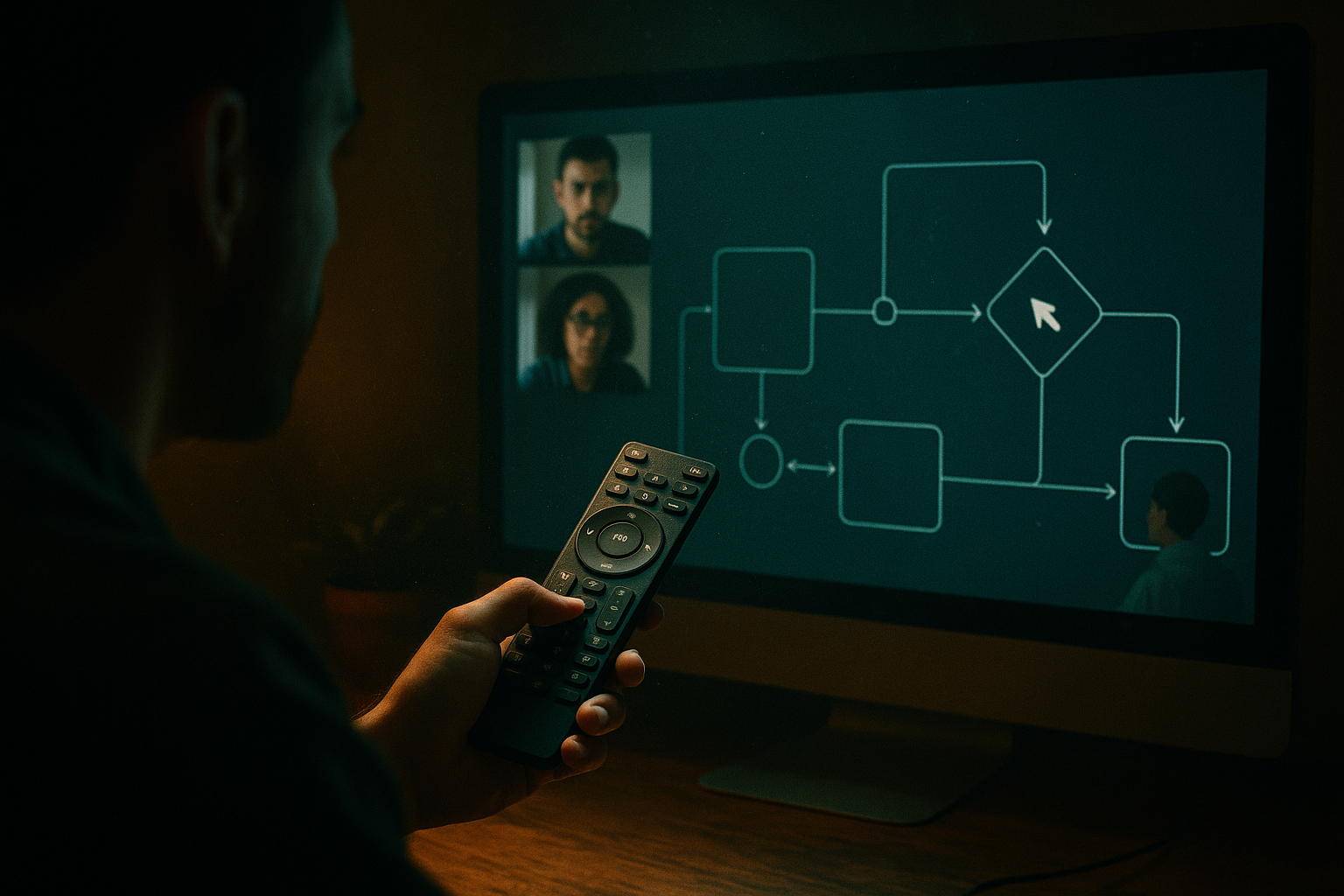
A Vizio remote control has one job: let someone control a shared screen without turning the room into a support ticket. Remote teams have the same problem, just with higher stakes.
A designer shares a prototype. A developer needs to inspect the UI. A founder wants to steer a demo. Support needs to reproduce a bug. Everyone says they need “remote control,” but what they really need is a clean control workflow: who can drive, who can watch, who can interrupt, and what happens when the session gets messy.
Teams think the problem is finding a better button. The real problem is designing a control plane for collaboration.
That changes the conversation. A Vizio remote control is useful here not because your team is managing a TV, but because it is a simple model for shared authority: limited inputs, visible state, fast handoff, and low training cost. In remote work, the UI is not the whole system. State, trust, permissions, latency, and recovery are the real work.
Table of contents
- Why a Vizio remote control is a useful model for team control
- Vizio remote control lessons for remote teams
- The mistake teams make with collaborative remote control
- Designing a Vizio remote control style control plane
- A practical workflow for remote handoff
- Where remote control breaks in practice
- Use cases: design, development, support, and operations
- Implementation rules for collaborative screen sharing software
- What to measure after you improve control
- Where PairUX fits the workflow
Why a Vizio remote control is a useful model for team control
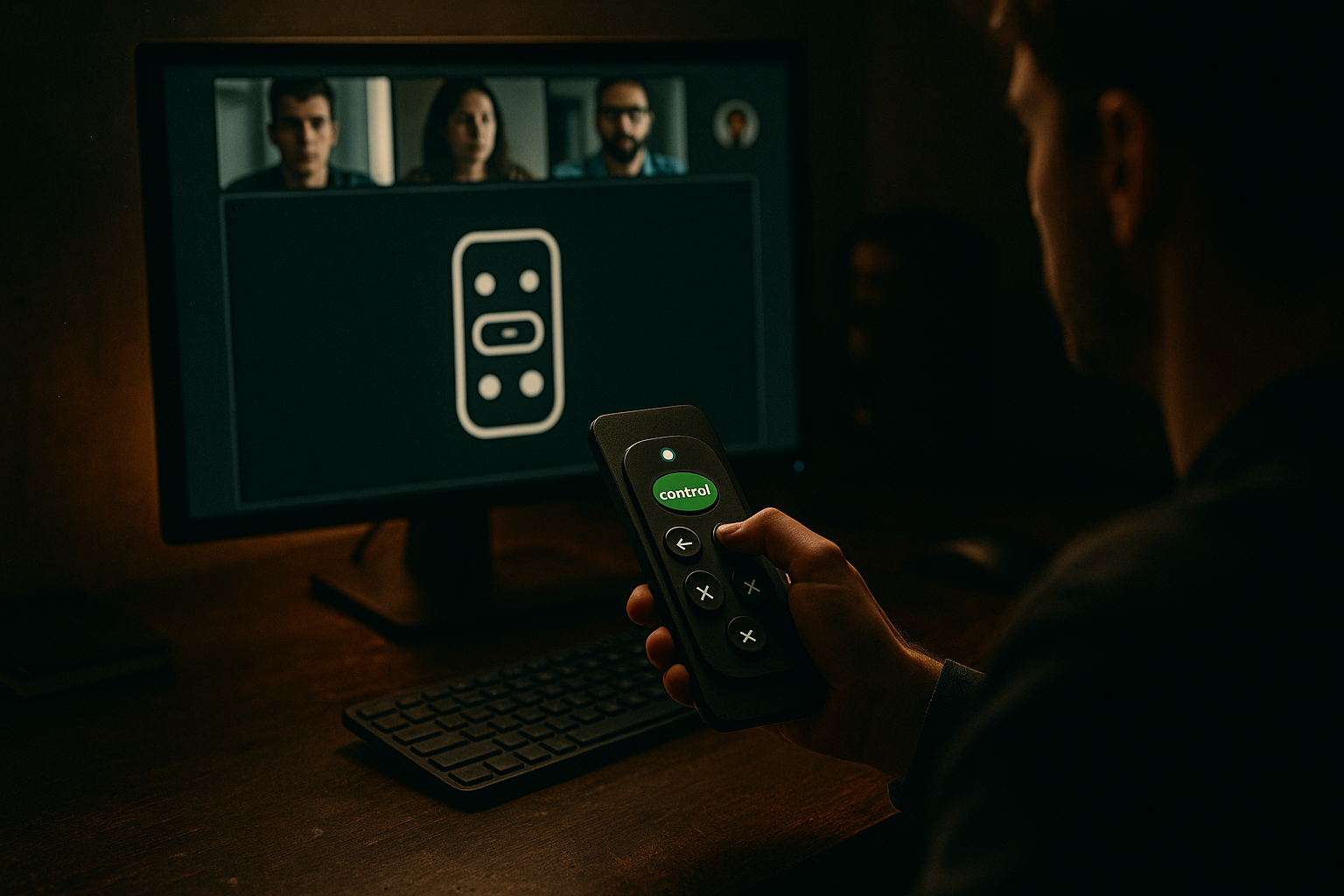
From consumer remote to collaboration control plane
A physical remote works because the rules are simple. There is a screen. There is an operator. There are visible outcomes. If someone presses volume up, everyone knows what changed.
Remote collaboration tools often lose that clarity. The screen is shared, but the control state is vague. Someone has keyboard access, another person is moving a cursor, a third person is narrating, and nobody knows whether a click is intentional or accidental.
A useful way to think about it is this: the Vizio remote control is not just an input device. It is a control contract. It says who has authority to change the shared environment.
Remote teams need the same contract for collaborative screen sharing and remote control.
The handoff problem hiding in plain sight
Most teams do not fail because they cannot start a screen share. They fail during handoff.
A designer says, “Can you take over and inspect this?” A developer says, “Give me control.” The host clicks the wrong permission. Someone else starts talking. The session drifts. Five minutes later, the team is debugging the collaboration tool instead of the product.
The practical question is not “can another person control my screen?” The practical question is “can control move between people without confusion, risk, or wasted time?”
That is the architecture problem.
Why this matters in 2026
Remote and hybrid teams now run serious work through shared screens: production debugging, executive demos, customer onboarding, design QA, sales engineering, and incident review. The cost of a sloppy control handoff is no longer just annoyance. It can mean exposing private data, changing the wrong environment, or losing the thread during a high-pressure session.
We have covered a similar framing in Vizio remote control thinking for remote teams, but the core point is worth making again: good remote control is workflow design, not a decorative meeting feature.
Practical rule: Treat remote control like shared authority, not like a cursor gimmick.
Vizio remote control lessons for remote teams
Make control obvious
The best control systems make state visible. You know if the TV is on. You know if the volume changed. You know if an input switched.
Collaborative screen sharing should do the same. A session needs obvious signals:
- who is currently driving;
- who requested control;
- whether keyboard input is active;
- whether clipboard sharing is enabled;
- whether sensitive apps are hidden or blocked;
- how the host can revoke control instantly.
The mistake teams make is assuming people will remember who has control. They will not. In real calls, people are reading Slack, watching the screen, scanning logs, and thinking about the next decision.
If control state is not visible, it is effectively unmanaged.
Limit the number of active drivers
A TV remote usually has one active operator at a time. That is not a limitation. It is a safety feature.
Remote collaboration can support multiple cursors and shared presence, but write access should be deliberate. When everyone can act at once, ownership blurs. The session becomes noisy, and mistakes become harder to attribute.
A better pattern is:
- many people can view;
- several people can point or annotate;
- one person drives at a time;
- the host can reclaim control immediately;
- control expires when the task ends.
This keeps collaboration fluid without making the shared machine feel like a public keyboard.
Separate viewing from acting
Viewing is low risk. Acting is not.
A product manager watching a prototype does not need keyboard access. A developer inspecting a DOM issue might need mouse and keyboard. A customer support agent may need guided control, but only inside a specific app or browser profile.
The practical model is simple: every participant should start as a viewer. Promote them only when the workflow requires action.
Related reading from our network: teams evaluating broader tooling can compare similar ownership and security tradeoffs in this guide to remote access software architecture.
The mistake teams make with collaborative remote control
They treat screen sharing as a meeting feature
Screen sharing is usually bought as part of a meeting stack. That is why many teams underinvest in the workflow around it.
The meeting starts. Someone shares. Someone asks for control. The tool allows it. The team assumes the problem is solved.
What breaks in practice is everything around that moment: permission prompts, input conflicts, hidden windows, environment safety, recording policy, and session cleanup.
A comparison helps:
| Approach | What it optimizes for | What breaks |
|---|---|---|
| Basic meeting screen share | Quick visibility | Unclear authority, weak handoff, poor session memory |
| Traditional remote access | Device administration | Too much privilege for lightweight collaboration |
| Collaborative remote control | Shared work with bounded authority | Requires clearer workflow design |
| Async recording only | Review after the fact | No live intervention or guided debugging |
The right answer depends on the job. But if your team is designing, debugging, or supporting in real time, basic viewing is rarely enough.
They ignore session state
Session state is the difference between “we are safely collaborating” and “someone still has access because nobody closed the loop.”
A good session tracks:
- active host;
- active controller;
- pending requests;
- granted permissions;
- expiration time;
- revoked permissions;
- session notes or outcome;
- artifacts created during the session.
This does not need to become bureaucracy. It just needs to exist.
Practical rule: If a permission can be granted, it also needs an obvious owner, visible state, and a predictable expiration.
They forget support and auditability
When something goes wrong, the team needs to answer basic questions quickly. Who had control? What were they trying to do? Was the session recorded? Did control persist after the call?
Without that information, every issue becomes a blame exercise. That is bad for security and bad for team culture.
Auditability does not mean surveillance. It means operational memory. For remote teams, lightweight session records help everyone reconstruct decisions without relying on scattered chat messages.
Designing a Vizio remote control style control plane
Define the session roles
Start with roles before features. The role model is the foundation of the control plane.
A practical setup looks like this:
| Role | Default access | Can request control | Can grant control | Typical user |
|---|---|---|---|---|
| Host | Full local control | Not needed | Yes | Person sharing the screen |
| Driver | Temporary remote control | Yes | No | Developer, designer, support agent |
| Viewer | Watch only | Maybe | No | Stakeholder, reviewer, teammate |
| Observer | Watch limited view | No | No | Customer, trainee, external guest |
Do not make everyone an admin because it is faster in the moment. That shortcut becomes expensive when the team scales.
Make permissions temporary
Permanent access is rarely needed for live collaboration. Most remote control sessions are task-bound: fix the layout, reproduce the bug, adjust the config, review the flow, capture the issue.
Good defaults:
- control grants expire at session end;
- keyboard access can be separate from pointer access;
- clipboard sharing is off unless needed;
- file transfer is off unless explicitly enabled;
- host can revoke with one action;
- external guests receive stricter defaults.
This is where many remote workflows quietly fail. Permissions are granted to reduce friction, then nobody removes them because there is no cleanup step.
Use visible control states
A Vizio remote control produces visible feedback on a shared display. Remote control software should also show state where people are already looking.
Useful states include:
- “Alex is viewing”;
- “Priya requested control”;
- “Sam is controlling mouse and keyboard”;
- “Host paused remote input”;
- “Clipboard sharing disabled”;
- “Control expires in 10 minutes.”
These labels seem small, but they reduce verbal overhead. Instead of asking “do you have control?” five times, the team can see the answer.
Related reading from our network: editorial and product teams face the same tension between automation and human approval, which is covered well in this piece on publishing automation workflow architecture.
A practical workflow for remote handoff
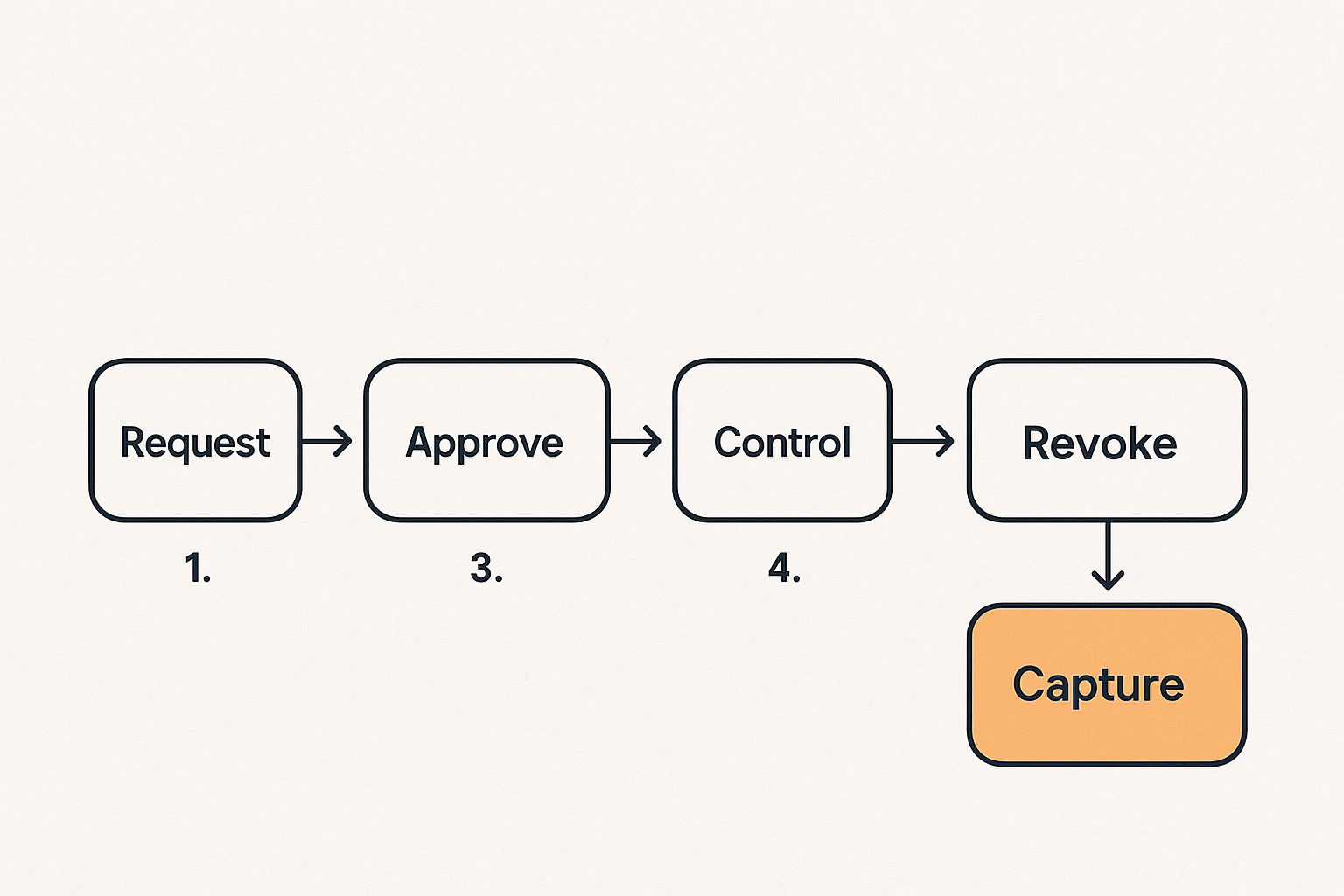
Step sequence for a safe session
Use a repeatable sequence. The point is not to slow the team down. The point is to remove improvisation from risky moments.
- Open the session with intent. State the goal: “We are debugging the checkout state issue in staging.”
- Confirm the environment. Make sure the host is not sharing unrelated private windows or production tools unless necessary.
- Start everyone as viewers. Let participants observe before granting any input.
- Request control explicitly. The future driver says what they need to do and why.
- Grant the narrowest useful control. Mouse only, keyboard too, clipboard, or app-limited access depending on the task.
- Narrate state-changing actions. The driver says before clicking destructive or irreversible actions.
- Revoke control when done. Do not wait until the meeting ends.
- Capture the outcome. Note what changed, what was learned, and what needs follow-up.
This workflow is simple enough to run in a design critique, a support call, or a pair programming session.
What works
What works is boring and explicit:
- a named host;
- one driver at a time;
- visible permission state;
- short-lived control grants;
- shared notes or issue links;
- a habit of narrating risky actions;
- a cleanup step before ending the call.
The reason this works is that it matches how people behave under pressure. Nobody has to infer the control model from memory.
What fails
What fails is ambiguous access.
The common failure pattern looks like this:
- the host shares too much of the desktop;
- someone gets control without a stated task;
- the driver clicks through multiple apps;
- another participant starts directing verbally;
- the team loses track of who changed what;
- control remains active longer than needed;
- the next meeting starts with residual confusion.
Practical rule: If the team cannot explain who is driving and why in one sentence, pause the session before granting more access.
Where remote control breaks in practice
Latency turns intent into confusion
Latency is not just a technical annoyance. It changes behavior.
When input is delayed, people double-click, repeat commands, talk over each other, and assume the tool is broken. A small delay can create a large coordination problem.
Teams can reduce the damage by setting expectations:
- use pointer movement for orientation, not constant gesturing;
- avoid rapid destructive clicks;
- say “I am clicking save now” before important actions;
- let the screen catch up before issuing another command;
- switch drivers if the current participant has poor connectivity.
The collaboration workflow has to account for real networks, not ideal demos.
Permissions outlive the reason for access
The most dangerous permission is the one nobody remembers granting.
This is why remote control should be session-scoped by default. Persistent unattended access belongs to a different category of tooling, with different controls and expectations. Live collaboration should assume presence, consent, and expiration.
A lightweight policy can help:
remote_control_defaults:
  viewers_start_read_only: true
  control_requires_host_approval: true
  max_control_grant_minutes: 15
  clipboard_sharing_default: disabled
  file_transfer_default: disabled
  external_guest_control: host_approved_only
  revoke_on_session_end: true
The exact settings matter less than the posture: access is temporary unless there is a strong reason otherwise.
Context disappears after the call
Remote sessions often produce decisions that never make it into the system of record. Someone saw the bug. Someone changed the setting. Someone agreed to update the prototype. Then the call ends, and the context evaporates.
This is not a screen sharing problem alone. It is a workflow integration problem.
At minimum, teams should capture:
- the session goal;
- the issue, ticket, or project link;
- who drove the session;
- what changed;
- what still needs review;
- any security or customer data concerns.
For setup details, system requirements, and practical usage guidance, the PairUX docs are the better place to check before rolling a workflow out to a wider team.
Use cases: design, development, support, and operations
Product design reviews
Design reviews often need more than passive comments. A designer may want a developer to take control and inspect responsive behavior. A founder may want to test a signup path. A researcher may need to guide a participant without taking over the entire session.
The mistake teams make is giving everyone equal power in the review. That creates noise.
A cleaner review pattern:
- designer hosts the prototype or build;
- reviewers start as viewers;
- one person gets control to test a specific path;
- comments go into the design system, issue tracker, or notes;
- control returns to the designer after the task.
This keeps critique focused on the product instead of the tool.
Pair programming and debugging
Developers need fast control handoff. Pairing is painful when every switch requires a long permission dance, but unsafe when everyone has uncontrolled input.
For pair programming, the best pattern is quick but bounded:
- driver owns the keyboard for a defined slice of work;
- navigator talks through direction and tradeoffs;
- control switches at natural boundaries;
- production credentials and secrets stay out of the shared surface;
- terminal commands are narrated before execution.
Remote control should support the rhythm of the work, not force the team into a slow meeting format.
Customer support and internal operations
Support sessions need extra caution because the person sharing may be a customer, contractor, or non-technical teammate. The support agent may know what to do, but the host still owns the environment.
Good support control patterns include:
- confirm consent before taking control;
- explain each action in plain language;
- avoid opening unrelated apps;
- do not request clipboard or file transfer unless needed;
- end control before discussing next steps;
- summarize the fix in the ticket.
Related reading from our network: launch and operations teams face similar coordination risks when vendors, timing, and attribution cross paths, as described in this guide to choosing a promotional products supplier for a software launch.
Implementation rules for collaborative screen sharing software
Session setup checklist
Before you standardize any remote control workflow, define the checklist your team can actually follow.
Use this as a starting point:
- Is the session internal, external, or mixed?
- Who is the host?
- What is the goal?
- Which app or screen needs to be visible?
- Is production data visible?
- Who may request control?
- What permissions are allowed?
- How will control be revoked?
- Where will the outcome be recorded?
Do not make this a 20-field form. The point is to create a shared habit, not another process nobody uses.
Policy defaults that prevent damage
Default settings should protect the host when nobody is thinking about policy.
A practical baseline:
| Control area | Safer default | When to loosen it |
|---|---|---|
| Viewer access | Read-only | When pointing or annotation improves discussion |
| Remote input | Host-approved | During pair work or guided support |
| Clipboard | Disabled | When copying known non-sensitive text |
| File transfer | Disabled | When the workflow explicitly requires files |
| Session duration | Time-bounded | For long pairing blocks with active participants |
| Guest access | Restricted | For trusted external collaborators |
The best defaults are not the most restrictive. They are the defaults that match normal work while preventing accidental escalation.
Integration points to plan early
Remote control does not live alone. It touches identity, calendars, ticketing, design tools, repositories, customer support systems, and sometimes compliance workflows.
Plan these integration points early:
- identity and sign-in;
- team membership and guest access;
- session links in calendar events;
- issue tracker references;
- recording or note policies;
- notification rules;
- device and OS permissions;
- logs for support troubleshooting.
If your team is comparing options, the PairUX features page shows how real-time screen sharing, remote control, multi-cursor collaboration, and cross-platform support fit together as one workflow instead of disconnected buttons.
What to measure after you improve control
Operational metrics
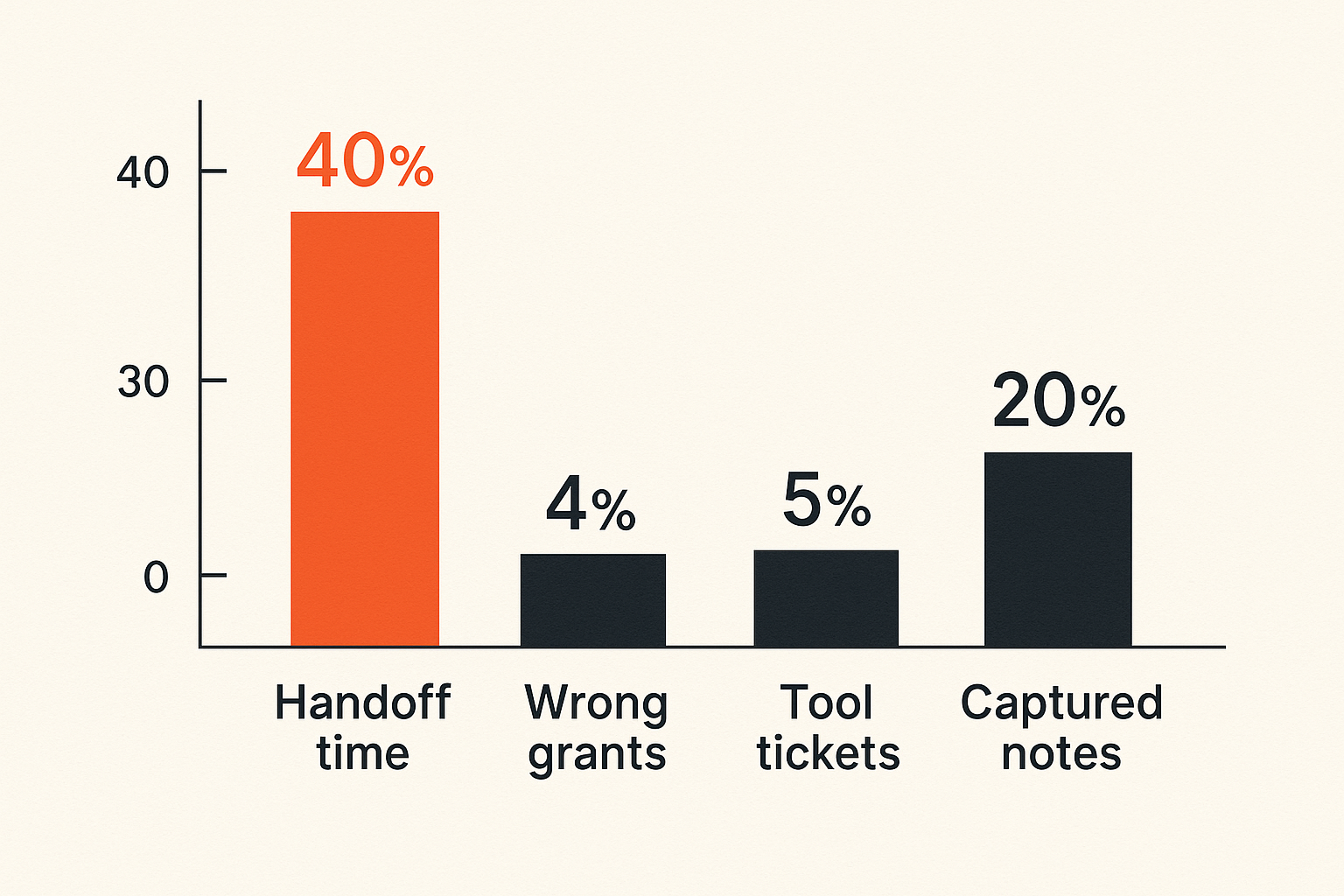
You do not need fake precision to know whether the workflow is improving. Track practical signals.
Useful metrics include:
- time from “can you take control?” to active control;
- number of repeated permission prompts per session;
- number of sessions where control was granted to the wrong person;
- number of support tickets caused by collaboration tooling;
- average session cleanup completion;
- frequency of clipboard or file transfer usage;
- number of sessions with captured outcomes.
These are not vanity metrics. They tell you whether the control plane is helping or creating more work.
Collaboration quality signals
Some signals are qualitative but still useful.
Listen for phrases like:
- “Who has control right now?”
- “Can you see my cursor?”
- “Wait, did I click that or did you?”
- “I thought you were driving.”
- “Do you still have access?”
- “What did we change?”
If those phrases show up constantly, the workflow is leaking state.
A well-designed remote control flow reduces those questions because the answers are visible or built into the sequence.
Review cadence
Review the workflow after real sessions, not during tool selection theater.
A simple monthly review is enough for many teams:
- Pull a few recent design, dev, and support sessions.
- Identify where control handoff slowed the team down.
- Look for permission grants that were broader than needed.
- Check whether outcomes were captured.
- Adjust defaults, templates, or team habits.
The goal is not perfection. The goal is fewer avoidable interruptions and safer shared work.
Where PairUX fits the workflow
Remote control as a collaboration primitive
PairUX is built around a simple belief: remote control should be a collaboration primitive, not an afterthought bolted onto a meeting room.
For remote teams, product designers, software developers, and startup operators, the value is in making shared work feel direct while keeping authority clear. That means real-time screen sharing, remote control, multi-cursor collaboration, and practical session behavior need to work together.
The practical question is not whether a tool has a remote control button. The practical question is whether the team can use it repeatedly without confusion.
When PairUX is the right fit
PairUX is a good fit when your team needs to work together on live screens and cannot afford a clumsy handoff process.
It is especially relevant when you:
- review product interfaces with distributed teammates;
- debug software together across machines;
- guide non-technical users through complex workflows;
- run startup operations with a small team and fast context switching;
- need remote control that feels collaborative rather than administrative.
This is the Vizio remote control lesson applied to team software: make control simple, visible, temporary, and easy to hand back.
The closing point is straightforward. A Vizio remote control works because authority is legible. Remote teams need the same thing for collaborative screen sharing: clear state, explicit handoff, narrow permissions, and fast recovery when something goes wrong.
Try pairux.com
pairux.com gives remote teams fast, practical collaborative screen sharing with remote control for working together online. Try pairux.com.