2026-07-13
Vizio Remote Control Thinking for Remote Teams: Design Better Collaborative Control Workflows
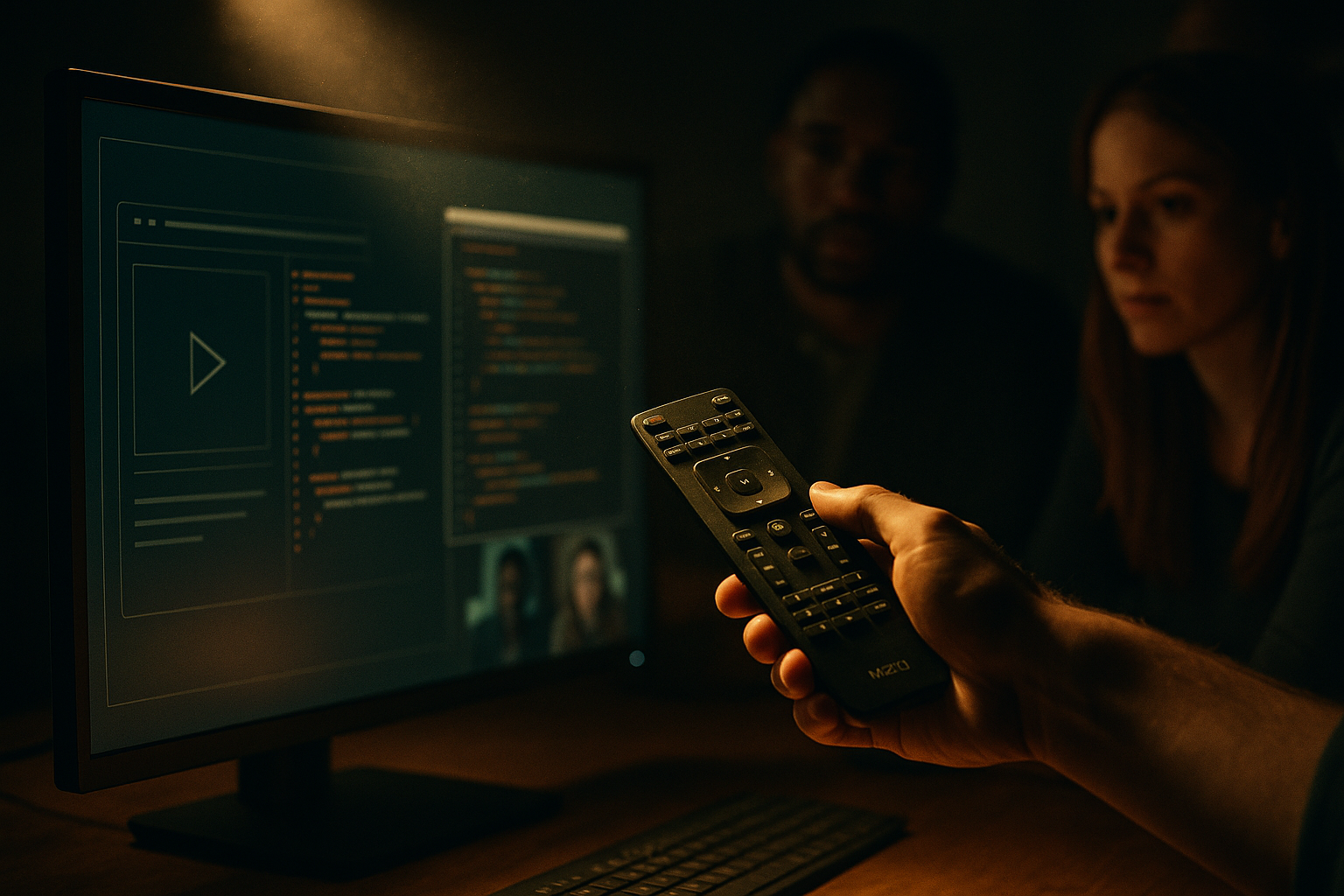
A Vizio remote control looks simple until it stops doing the one job everyone expects: make the screen do what the person intends. Then the room turns into a debugging session. Is it the batteries, input mode, pairing state, line of sight, app, TV firmware, or the person pressing the wrong button?
Remote teams run into the same problem during collaborative screen sharing. Someone says, can you take control for a second? Then the real work begins: who has control, who can see the cursor, who owns the decision, what happens if two people act at once, and how the team recovers when the session gets confusing.
Teams think the problem is remote control. The real problem is control architecture.
That changes the conversation. A Vizio remote control is not useful because it has buttons. It is useful because the button, screen, state, feedback, and human expectation line up. Remote teams need the same alignment when designers review prototypes, developers pair on code, operators troubleshoot production issues, or founders walk customers through a bug.
Table of contents
- Why Vizio remote control is a workflow problem for remote teams
- Map the living-room remote to a remote-team control plane
- The architecture behind collaborative remote control
- Permissions and handoff are where most sessions break
- Build the remote-control workflow, not just the screen share
- What works for designers, developers, and operators
- What fails when teams implement control badly
- Metrics that show whether remote control is helping
- PairUX product fit for collaborative control
- Closing: use Vizio remote control thinking to make remote work less fragile
Why Vizio remote control is a workflow problem for remote teams
The mistake teams make is treating the Vizio remote control idea as a gadget metaphor. They focus on the button: click here, take control, move the mouse, type the thing. That is the shallow version.
A useful way to think about it is this: a remote is a control surface for a shared system. It only works when everyone understands the current state, the allowed actions, and the feedback that confirms the action worked.
The button is not the control model
A button press is just an input event. The system behind it decides whether that event should be accepted, ignored, queued, blocked, or reversed.
In a remote collaboration session, the button might be a request-control action. But the workflow behind it has more moving parts:
- Who requested control?
- Who approved it?
- What app or screen is in scope?
- Can the viewer type, click, drag, paste, or use shortcuts?
- What happens if the host moves the mouse at the same time?
- Is there a visible signal that control changed hands?
- Can the host immediately take back control?
If those questions are not answered by the tool and the team protocol, they get answered socially in the moment. That is where sessions get awkward, slow, and risky.
Practical rule: Do not design remote control around the click. Design it around request, grant, action, feedback, and revoke.
The TV analogy that actually matters
A Vizio remote control normally has a clear relationship with the screen. Press volume up, see the volume indicator. Press input, see the input menu. Press home, see a state transition.
Remote teams need the same feedback loop. If a developer gives a teammate control during a debugging session, both people should know the current control owner. If a designer asks a PM to adjust spacing in a prototype, the designer should know whether the PM is pointing, editing, or just observing.
Related reading from our network: teams buying adjacent tools face similar ownership and support tradeoffs in remote access software architecture, especially when control moves from convenience feature to operational dependency.
Why this matters more in 2026
In 2026, remote work is less about proving people can work from anywhere and more about making distributed work operationally clean. Teams are smaller. Design, engineering, support, and founder-led sales overlap more often. The same screen share may include a Figma review, a code patch, a customer reproduction, and a production dashboard.
The practical question is not whether remote control is useful. It is whether the team can use it without creating confusion, permissions debt, or support friction.
Map the living-room remote to a remote-team control plane
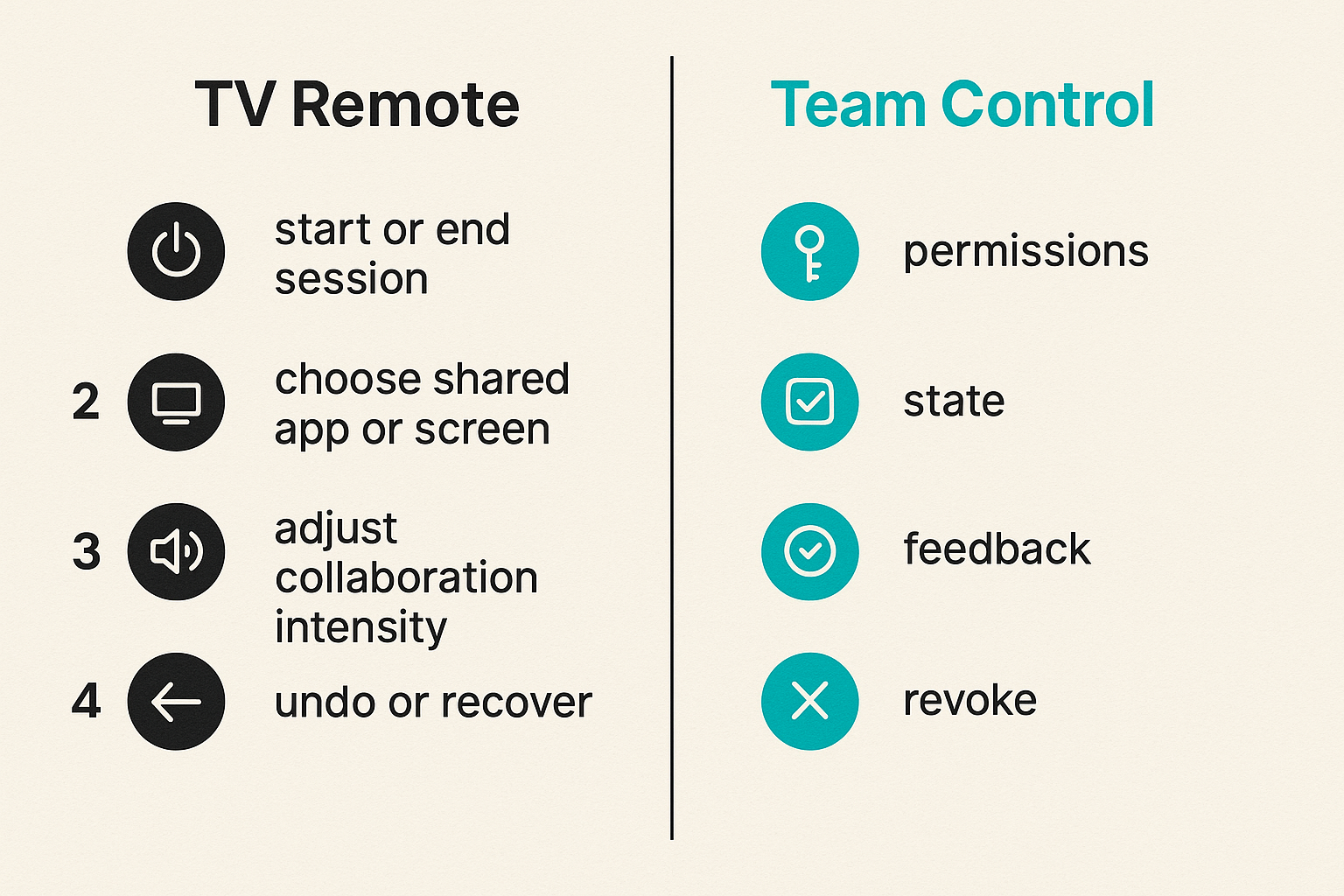
When you map a Vizio remote control to a remote-team workflow, the useful parts are not the plastic buttons. The useful parts are the control plane: inputs, permissions, state, feedback, and ownership.
Inputs, permissions, and feedback loops
Here is the basic mapping:
| Living-room control | Remote-team equivalent | What breaks in practice |
|---|---|---|
| Power button | Start or end session | People remain connected after the work is done |
| Input button | Choose shared app or screen | Wrong window, private data, or noisy context gets shared |
| Volume button | Adjust collaboration intensity | Too many interruptions or not enough active participation |
| Navigation arrows | Cursor and keyboard control | Two people try to steer at once |
| Back button | Undo or recover | No clear rollback after a mistake |
| Pairing state | Trust and permission state | Unknown participant gets control or stale access persists |
This is why teams should not evaluate remote control tools only by latency or video quality. Those matter, but they are not the whole system. A fast session with unclear ownership is still a bad session.
One screen, many operators
A TV remote usually assumes one operator at a time. Remote teams often do not. A product review may have a designer driving, an engineer inspecting behavior, a PM asking edge-case questions, and a founder checking the customer impact.
That means the collaboration system needs more than host and viewer. It needs roles:
- Driver: the person currently controlling the screen.
- Navigator: the person directing the next action.
- Observer: a person watching but not acting.
- Approver: the person responsible for final decision or merge.
- Support owner: the person capturing the outcome and follow-up.
The names matter less than the clarity. If everybody is half-driving, nobody is responsible.
Where the analogy breaks
The analogy breaks when remote teams confuse remote control with authority. Taking control of a screen does not mean owning the decision. A junior engineer may drive while a senior engineer navigates. A customer success teammate may reproduce a bug while engineering owns the fix. A designer may let a stakeholder move through a prototype while the designer owns the product judgment.
That distinction keeps collaboration from turning into a messy power transfer.
Practical rule: Control of the cursor is not control of the decision. Separate operational control from decision ownership.
For a deeper version of this analogy, we have also written about Vizio remote control lessons for remote team workflows, focused on permissions, handoff, trust, and support.
The architecture behind collaborative remote control
Remote control becomes reliable when it is treated as architecture. Not heavy architecture. Just enough structure so people know what the system is doing and what they are allowed to do next.
Session state
Session state answers the basic question: what is happening right now?
A good session model tracks:
- Active participants.
- Current presenter.
- Current control owner.
- Whether keyboard input is allowed.
- Whether clipboard sharing is allowed.
- Which screen or app is visible.
- Whether the session is recording, if applicable.
- Whether control is locked, shared, or request-based.
What breaks in practice is invisible state. If someone says, wait, do you have control or do I, the system has already failed at communicating state.
Session state should be visible in the product UI and repeated in the team workflow. People should not need to infer ownership from cursor movement.
Identity and trust
Remote control requires stronger identity than passive viewing. Watching a screen is one level of trust. Typing into someone else’s machine is another.
Useful trust checks include:
- Named participants instead of anonymous viewers.
- Host approval before control is granted.
- Clear distinction between view-only and control-capable users.
- Permission prompts that describe the action, not just ask for access.
- Session-scoped permissions instead of permanent access.
The mistake teams make is allowing convenience to blur trust boundaries. A recurring teammate should not automatically have broad control just because they had control yesterday.
Intent, action, and audit
You do not need enterprise surveillance to run a good collaboration session. But you do need enough traceability to avoid ambiguity.
At minimum, teams should be able to answer:
- Why did we start this session?
- Who drove the critical action?
- What decision did we make?
- What changed afterward?
- Who owns the follow-up?
This can be lightweight: a ticket comment, a design note, a pull request summary, or a support case update. The point is to connect the session to the work system.
Related reading from our network: editorial teams face a similar issue when automation moves faster than review, which is why publishing automation workflow architecture is really about approvals, gates, and control lanes, not just faster output.
Permissions and handoff are where most sessions break
Remote control sessions rarely fail because someone cannot find the mouse. They fail because the group does not know who should be acting.
Explicit control beats social guessing
Social guessing sounds like this:
- You can drive if you want.
- Wait, are you clicking or am I?
- I thought you were still controlling it.
- Sorry, I typed over you.
- Can you stop for a second?
These are not catastrophic moments. But they create drag. In high-context work, small ambiguity compounds quickly.
Explicit control sounds like this:
- Alex is driving for the reproduction.
- Maya is navigating the test cases.
- Jordan owns the final decision.
- Control returns to Alex after the patch is applied.
The tool should make this easy, but the team should also say it out loud.
Handoff should be visible
A good handoff has three parts:
- A request or invitation.
- A visible state change.
- A clear return path.
Without the visible state change, people operate on stale assumptions. Without the return path, the host may hesitate to grant control in the first place.
The fastest remote teams are not careless. They are clear. They make handoff cheap because it is reversible.
Revoke needs to be boring
Revoke is not a dramatic security event. It is normal session hygiene.
If the host needs to take back control, the action should be obvious and immediate. No hunting through menus. No social apology. No uncertainty about whether the other participant still has keyboard input.
Practical rule: If revoking control feels rude or technically awkward, people will avoid granting control. Make revoke normal, visible, and fast.
This is especially important in customer support, production debugging, or any session involving sensitive data. The safest workflow is the one people will actually use.
Build the remote-control workflow, not just the screen share
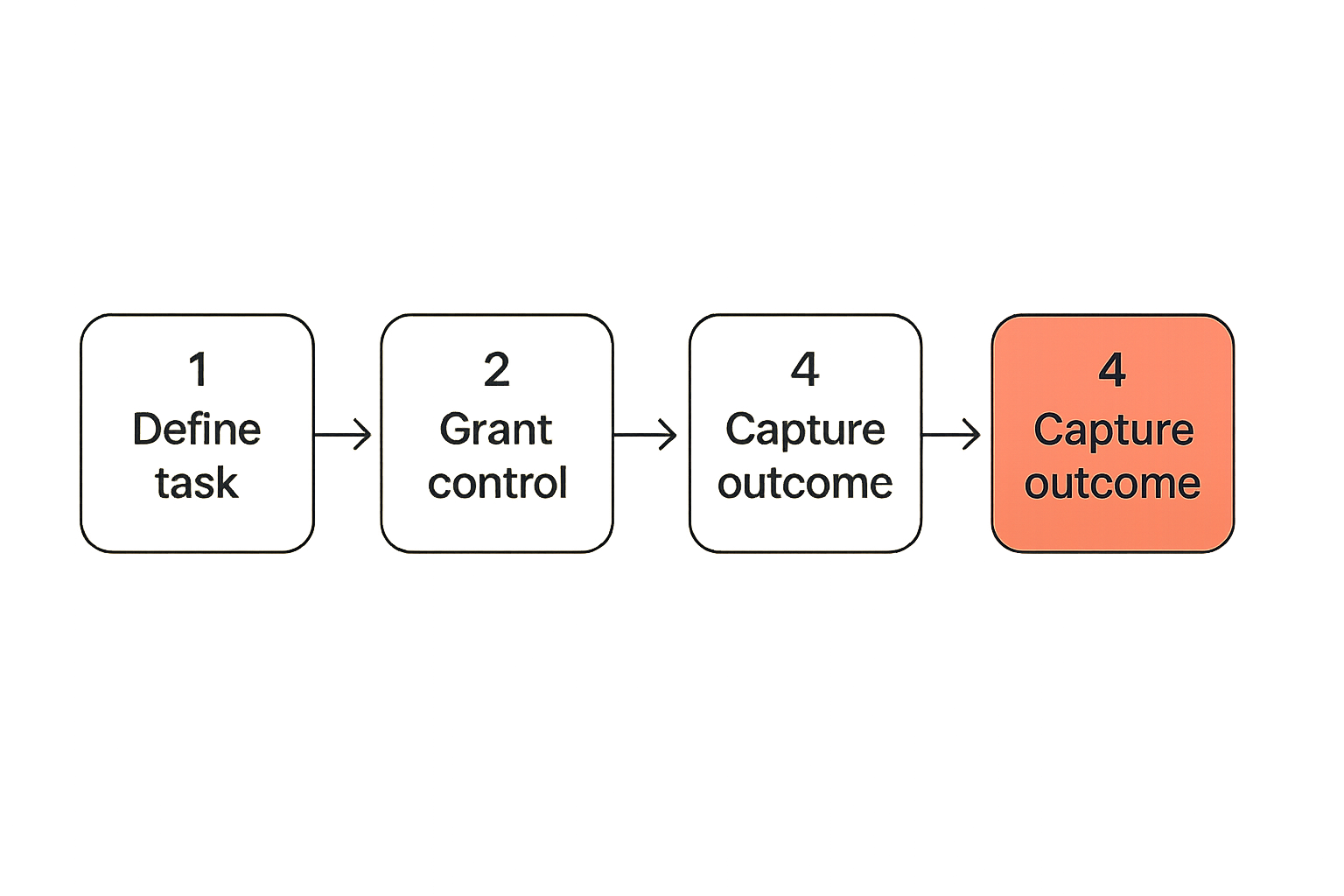
A screen share shows the room. A remote-control workflow defines how people move through it.
A practical implementation sequence
Use this sequence when standardizing collaborative control for a remote team:
Define session types. Decide whether the session is design review, debugging, customer support, onboarding, incident response, or planning. Each type needs a different control posture.
Define roles before control starts. Name the driver, navigator, observer, and decision owner. Do this verbally or in the ticket. Do not wait until the session gets busy.
Start with view-only by default. Let participants see context before they can act. Control should be requested or granted intentionally.
Grant control for a bounded task. Example: Maya gets control to reproduce the keyboard shortcut bug, not unlimited control for the whole meeting.
Confirm state after handoff. The host and controller both acknowledge who is driving. A visible indicator should reinforce this.
Capture the result in the work system. Link the session outcome to the issue, pull request, design file, or customer case.
End the session cleanly. Remove control, stop sharing, close sensitive windows, and record the follow-up owner.
This sequence is intentionally boring. Boring is good. Boring workflows survive production pressure.
What to decide before the session starts
Before anyone shares a screen, decide the scope:
- What are we trying to accomplish?
- Which app or window will be shared?
- Will anyone else be allowed to control?
- Are credentials, customer data, or production systems visible?
- What is the stopping condition?
A five-minute setup saves twenty minutes of confused collaboration.
Related reading from our network: launch teams handling physical fulfillment have the same scope problem, where choosing a promotional products supplier for a software launch depends on timing, attribution, and risk control rather than the surface vendor pitch.
What to capture after the session ends
After the session, capture the decision and next action. Not a transcript of everything. Just enough operational context:
- Problem observed.
- Action taken.
- Decision made.
- Remaining risk.
- Owner and deadline.
If the session changed code, design, customer state, or production configuration, the follow-up should live where that work is tracked. A remote control session without an outcome artifact becomes tribal memory.
What works for designers, developers, and operators
Remote control is not one workflow. It behaves differently depending on the team’s work. The practical question is how to shape control around the job.
Product design reviews
In design reviews, remote control works best when the designer keeps decision ownership but allows others to interact with the artifact.
What works:
- Let stakeholders click through prototypes instead of narrating their guesses.
- Give engineers control to inspect edge states or responsive behavior.
- Use multi-cursor or visible pointer behavior when discussion matters more than editing.
- Keep edit rights separate from navigation rights.
What fails:
- Letting every participant edit the design file during critique.
- Treating stakeholder clicks as design direction.
- Losing the distinction between feedback and decision.
A useful pattern is guided control. The stakeholder drives through a scenario, while the designer watches where they hesitate. The designer does not surrender product judgment; they gather better evidence.
Pair programming and debugging
Developers tend to understand driver-navigator workflows better than most teams, but even engineering sessions break down when permissions are loose.
What works:
- One person drives the editor.
- One person navigates the hypothesis.
- Terminal commands are spoken before execution when they affect shared systems.
- Destructive operations require explicit confirmation.
- The result lands in a branch, issue, or pull request.
What fails:
- Two people typing into the same file without coordination.
- Pasting commands from chat without review.
- Debugging production through an uncontrolled desktop session.
- Ending the session with no commit, note, or owner.
For developers, remote control should reduce latency between thinking and testing. It should not bypass review or change management.
Startup operations and customer support
Startup operators use remote control for messy work: onboarding a customer, reproducing a bug, fixing a billing setup, checking an analytics dashboard, or walking through a product configuration.
What works:
- Share only the relevant window when possible.
- Use temporary control for guided setup.
- Keep credentials out of shared view.
- Capture the support outcome immediately.
- End access when the customer problem is resolved.
What fails:
- Treating support sessions like casual calls.
- Leaving broad access open because the customer might need help later.
- Failing to document what changed.
Remote control in support is powerful because it shortens the distance between explanation and action. It is risky for the same reason.
What fails when teams implement control badly
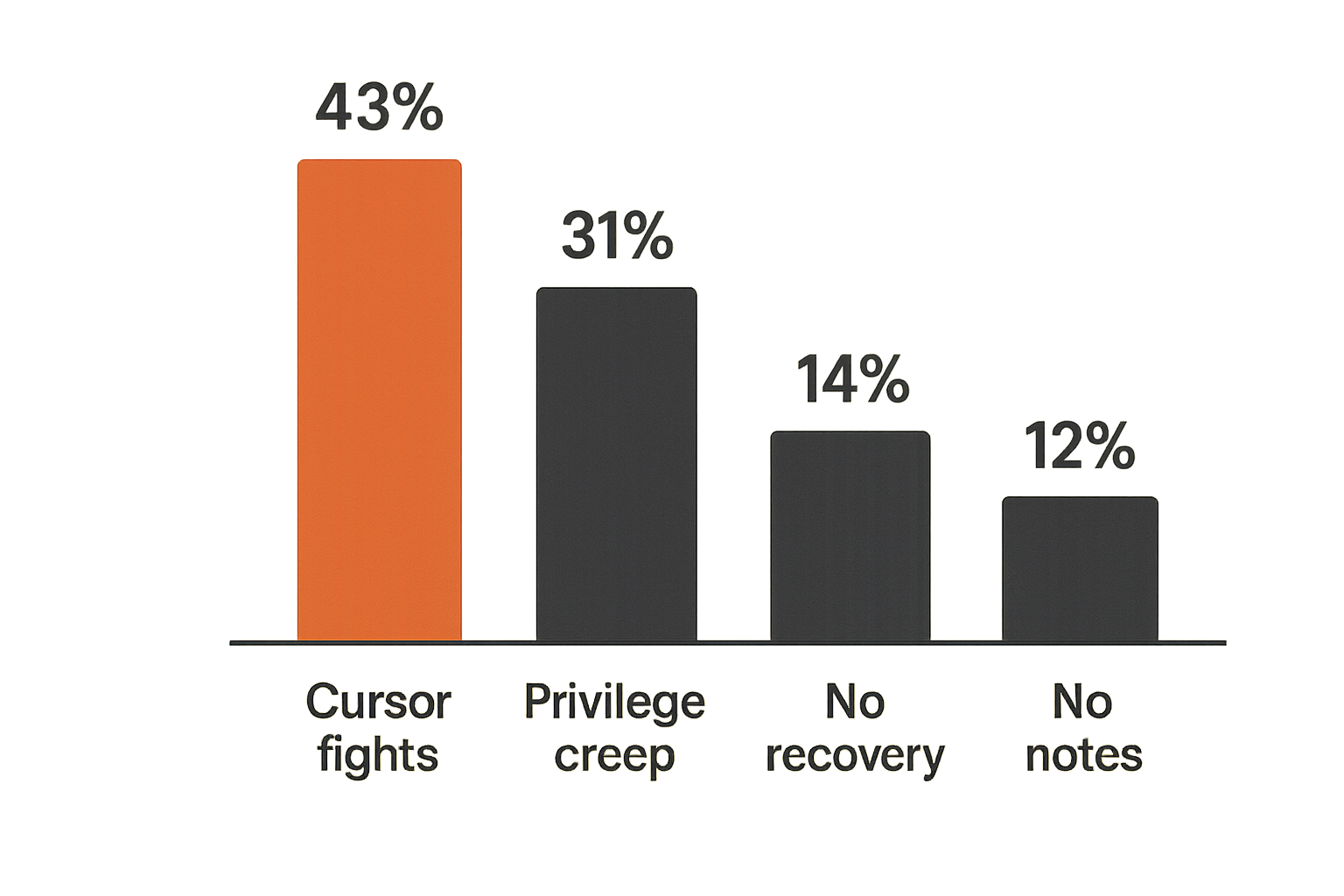
The failure modes are predictable. The good news is that predictable failures can be designed out.
Cursor fights
A cursor fight is what happens when two people try to drive one interface. It looks harmless, but it is a symptom of missing control state.
You see it when:
- The host moves the mouse while the guest is clicking.
- A guest starts typing while the host is navigating.
- Someone tries to select text while another person scrolls.
- The group says, wait, stop, let me do it.
The fix is not more patience. The fix is visible ownership and explicit handoff.
Silent privilege creep
Silent privilege creep happens when a permission granted for one moment becomes normal access. It is common in teams that work together often.
Examples:
- A teammate always gets control because they are trusted.
- Support staff reuse the same broad access pattern for every customer.
- Contractors are allowed to control sessions without fresh approval.
- A host forgets who can still interact after switching contexts.
This is where remote control starts to look like poor access management. Session-scoped control avoids most of the damage.
No recovery path
Every useful control system needs recovery. A Vizio remote control has a back button, input reset, power cycle, and sometimes pairing reset. Remote teams need equivalents.
Recovery paths include:
- Host instantly takes back control.
- Session drops to view-only.
- Sensitive window is hidden or share is stopped.
- Change is reverted through the normal work system.
- Decision owner pauses the session.
The mistake teams make is assuming recovery will be obvious under pressure. It rarely is. Recovery must be part of the workflow.
Metrics that show whether remote control is helping
Remote control should make collaboration faster and clearer. If it only makes meetings feel more interactive, that is not enough.
Time to useful control
Measure the time between someone needing help and the right person successfully acting on the shared screen. This is not just connection time. It includes context, permission, and confidence.
Useful signals:
- How long it takes to start the session.
- How long until the correct participant has control.
- How many clarification loops happen before action.
- Whether the first controlled action is the right one.
If this number is high, the team likely has unclear setup or handoff.
Handoff friction
Handoff friction is the cost of changing drivers. It shows up as repeated verbal coordination, accidental overlap, or reluctance to grant control.
Low-friction handoff feels like this:
- Request is obvious.
- Grant is deliberate.
- State change is visible.
- Revoke is immediate.
- Work continues without ceremony.
High-friction handoff feels like a negotiation every time.
Decision traceability
Traceability answers whether the session produced durable work. You do not need a perfect audit log for every design discussion, but you do need to know what changed.
Track whether sessions produce:
- A ticket update.
- A pull request.
- A design decision note.
- A customer case comment.
- A runbook change.
If remote control creates action but no trace, your team is trading meeting speed for future confusion.
PairUX product fit for collaborative control
PairUX is built around collaborative screen sharing with remote control. That sounds like a feature category, but the real product fit is workflow fit: helping remote teams move from watching to acting without making control ambiguous.
Why screen sharing alone is not enough
Screen sharing is passive by default. It helps people see the same thing, but it does not solve who should act.
Remote teams need a layer above video:
- Real-time shared context.
- Remote control when action is needed.
- Multi-cursor collaboration when pointing is better than taking over.
- Cross-platform support so sessions do not depend on one operating system.
- Clear setup guidance so the first session is not the debugging session.
You can review the current collaboration capabilities on the PairUX features page, including real-time screen sharing, remote control, multi-cursor collaboration, and cross-platform support.
Where PairUX fits in the workflow
PairUX fits best when teams already feel the pain of remote coordination but do not want a heavyweight remote access stack for every collaboration moment.
Good fits include:
- Designers walking through interactive prototypes with engineers.
- Developers pairing on UI bugs, environment setup, or tricky flows.
- Founders onboarding customers through product configuration.
- Support teams reproducing issues with a customer or teammate.
- Operators reviewing dashboards and internal tools together.
The product should not replace your issue tracker, design system, code review, or support desk. It should connect the moment of shared action to those systems by making control cleaner.
For setup details, system requirements, and security notes, use the PairUX documentation before you standardize it across a team.
How to roll it out without process theater
Do not start with a company-wide policy. Start with two or three high-value workflows.
A practical rollout:
- Pick one recurring use case, such as design QA or pair debugging.
- Define who may host and who may control.
- Write a short session checklist.
- Run five sessions and capture friction.
- Adjust the workflow before expanding.
- Add the pattern to team onboarding.
Avoid process theater. You do not need a 12-page remote control policy for a five-person startup. You need a shared expectation that control is explicit, scoped, reversible, and documented when it changes real work.
Closing: use Vizio remote control thinking to make remote work less fragile
The point of Vizio remote control thinking is not to turn every meeting into a hardware metaphor. It is to remind remote teams that control only feels simple when the system underneath it is designed well.
Checklist for your next session
Before your next collaborative remote control session, check the basics:
- Name the goal.
- Choose the shared screen or app.
- Start view-only unless control is needed immediately.
- Identify the driver and decision owner.
- Make handoff visible.
- Keep revoke easy.
- Capture the outcome where the work lives.
Practical rule: A good remote session ends with less ambiguity than it started with. If people leave unsure who changed what or who owns the next step, the workflow failed.
Final takeaway
Teams think the problem is finding a better remote control button. The real problem is designing a better control workflow.
A Vizio remote control works when intent, input, state, and feedback line up. Remote teams need the same thing. When they get it right, collaborative screen sharing becomes more than watching someone else work. It becomes a clean way to share context, transfer control, make decisions, and move the work forward.
Use the Vizio remote control lens as a test: does your remote collaboration setup make control obvious, safe, reversible, and connected to the outcome? If not, fix the workflow before adding another tool.
Try pairux.com
PairUX helps remote teams collaborate with fast screen sharing, remote control, and multi-cursor workflows. Try pairux.com.