2026-07-16
Vizio Remote Control Lessons for Remote Teams: Build Collaborative Control That Does Not Break

A Vizio remote control looks simple because the interface hides the system. You press input, volume, menu, or power, and the device responds. When it fails, everyone suddenly cares about pairing state, batteries, line of sight, device mode, latency, and who is actually holding the remote.
Remote teams hit the same problem with collaborative screen sharing. The demo starts clean. Then two designers need to inspect the same prototype, a developer needs to drive through a local bug, a founder wants to jump into the admin console, and nobody knows who has control.
Teams think the problem is screen sharing quality. The real problem is control architecture.
That changes the conversation. A remote control workflow is not just pixels on a call. It is permissions, handoffs, consent, auditability, fallback paths, and recovery when someone clicks the wrong thing. This guide uses Vizio remote control thinking as a practical model for remote teams, product designers, software developers, and startup operators who need collaborative control that works in production, not just in a polished onboarding video.
Table of contents
- Why Vizio remote control thinking matters for remote teams
- Vizio remote control as a model for collaborative control
- The control workflow remote teams actually need
- Permissions and trust boundaries
- What breaks when remote control is implemented badly
- Practical Vizio remote control workflows for design and development
- Implementation sequence for collaborative remote control
- What works and what fails in production
- Buying and operating remote control software in 2026
- Product fit for PairUX
Why Vizio remote control thinking matters for remote teams
The remote is a control surface not the system
The mistake teams make is treating the visible button as the whole experience. A Vizio remote control is only the control surface. Behind it are device discovery, input state, TV firmware, app state, infrared or Bluetooth transport, and user expectations about who is in charge.
That distinction matters because remote collaboration tools have the same split. The shared screen is the visible part. The real system includes session identity, permission grants, cursor authority, keyboard routing, input focus, latency handling, and the social protocol around interruption.
If a designer says, “Can you drive for a second?” that is not a casual sentence. It is a workflow transition. Control moves from one human to another, and the software either makes that transition obvious or leaves the team guessing.
Practical rule: Treat remote control as a state machine, not as a button labeled “take control.”
A useful way to think about it is this: the screen is the TV, the remote is the input layer, and the team is the household. If the household has no rule for who holds the remote, the tool cannot save the meeting.
The same failure pattern appears in screen sharing
When a Vizio remote stops working, people usually start with the wrong question: “Is the remote broken?” Sometimes it is. Often the issue is mode, pairing, batteries, input source, blocked signal, or the TV being in a state the user did not expect.
Remote teams do the same thing. They blame the screen sharing tool when the deeper issue is workflow design:
- Nobody knows who has keyboard and mouse control.
- Control persists after the task is done.
- A sensitive window is visible during a handoff.
- Two people try to drive at once.
- The host cannot quickly revoke access.
- The team has no recovery path when the session freezes.
The practical question is not “Which tool has remote control?” The better question is “Can our team move control safely, quickly, and visibly during real work?”
For teams comparing options, PairUX maintains product notes and tutorials on the PairUX blog, but the core decision is architectural: you need a control workflow your team will actually follow.
Vizio remote control as a model for collaborative control
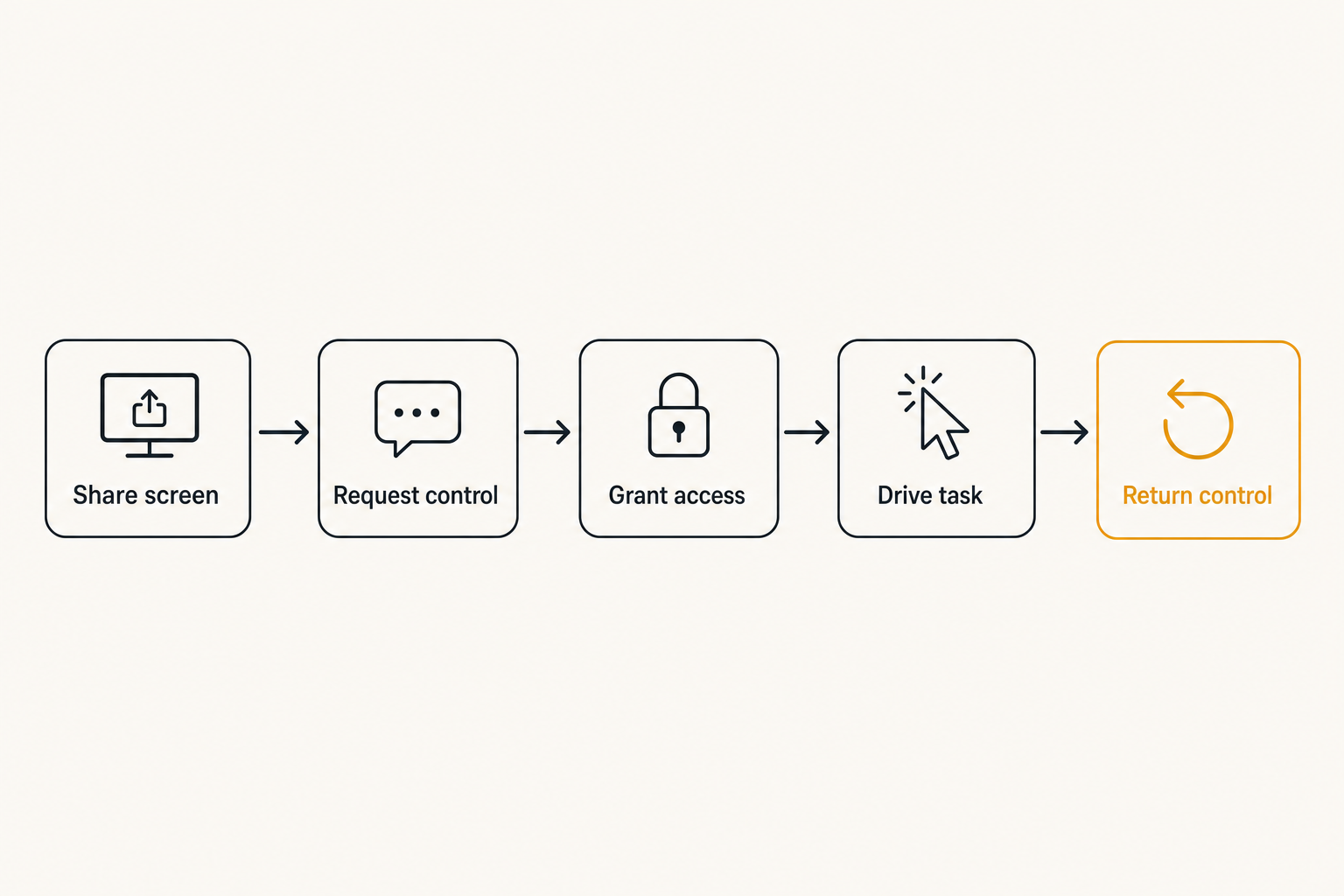
One driver many observers
Most TV watching has one active remote operator and several observers. That sounds basic, but it is a useful constraint. The system stays understandable because the active driver is obvious. When someone else wants to change the input or volume, they ask for the remote or physically take it.
Remote teams need the same clarity. In a product review, five people may be watching, but only one person should be driving the interface at a time unless the tool is explicitly designed for multi-cursor collaboration. In a debugging session, the host may own the terminal while a teammate temporarily controls the browser. In a customer support walkthrough, the support engineer may guide while the customer confirms sensitive steps.
The operator model should be visible:
- Who is sharing?
- Who can view?
- Who can point?
- Who can click?
- Who can type?
- Who can revoke?
Without those answers, “remote control” becomes a loose social agreement. That works for small teams until it does not.
Mode matters more than buttons
A Vizio remote button means different things depending on mode. Pressing arrows in a streaming app navigates the app. Pressing arrows in settings changes device configuration. The same physical action has a different risk profile because the system state changed.
Collaborative remote control has the same issue. A click in a local staging app is low risk. A click in production billing settings is not. Typing into a search field is different from typing into a terminal with environment variables loaded.
Teams should define modes before they define permissions:
| Mode | Typical use | Control risk | Recommended rule |
|---|---|---|---|
| View only | Demo, standup, review | Low | Anyone invited can watch |
| Pointer only | Design critique, QA notes | Low | Allow multiple pointers if labeled |
| Temporary control | Pairing, debugging, walkthrough | Medium | Host approves and can revoke instantly |
| Elevated control | Admin panels, terminals, production tools | High | Use explicit verbal confirmation and short expiry |
| Sensitive mode | Credentials, customer data, payments | Very high | Pause sharing or remove remote control |
This is where many teams under-design the workflow. They ask whether remote control is allowed. In practice, the answer depends on mode.
Practical rule: Do not grant one generic remote control permission across every screen and every task.
Related reading from our network: teams making software buying decisions face the same workflow-first problem in budgeting software selection, where approvals and ownership matter more than a long feature checklist.
The control workflow remote teams actually need
Consent before control
Remote control without consent feels broken even when it technically works. The host should know when control is requested, who requested it, what level of input is being requested, and how to stop it.
Consent also needs to be lightweight. If every handoff requires a meeting pause, teams will route around it. They will share passwords, switch tools, or let one person narrate while another slowly follows instructions. That wastes time and creates worse security behavior.
A practical control request should answer four questions:
- Who wants control?
- What kind of control do they need?
- For what task?
- When does the grant end?
For example: “Maya requests keyboard and mouse control for this browser tab until revoked.” That is much better than a vague “Maya joined.”
Fast handoff without ambiguity
The handoff is where remote control workflows usually break. The host says, “Go ahead,” but the guest is not sure whether control is active. The guest moves the cursor, nothing happens, then both people click. Someone opens the wrong panel. The meeting loses momentum.
Good handoff design makes the active state obvious:
- The active driver is labeled.
- The host can see a control indicator.
- Other participants know whether they are viewers or drivers.
- Input focus is predictable.
- Revocation is one action, not a settings hunt.
This is why collaborative control should be treated as a workflow, not a novelty feature. A weak implementation still looks good in a demo because one person clicks one button. What breaks in practice is the repeated handoff under time pressure.
Permissions and trust boundaries
Default viewer is safer than default driver
The safest default for most remote collaboration sessions is view-only. That does not mean teams should avoid remote control. It means active control should be granted intentionally.
Default-driver systems create silent risk. If every participant can click by default, the team eventually normalizes uncontrolled access. That may be acceptable for a casual whiteboard. It is not acceptable for terminals, dashboards, customer records, or admin consoles.
A better permission ladder looks like this:
- Viewer: can watch the shared screen.
- Pointer: can indicate locations without interacting.
- Driver: can use mouse and keyboard.
- Co-driver: can collaborate with labeled cursor and limited scope.
- Host: can grant, pause, revoke, and end the session.
The names matter less than the separation. If your tool collapses all roles into “participant,” your team has to enforce every boundary manually.
Access should expire by design
A physical Vizio remote control leaves your hand when you pass it back. Software control often does not. A teammate gets access for a quick test, the meeting moves on, and control remains active until someone notices.
That is a bad default. Remote control access should expire naturally based on task, time, session, or host action. Persistent grants should be rare and explicit.
Useful expiry patterns include:
- Until the host revokes.
- Until the current session ends.
- For five minutes.
- For one active application window.
- Until sensitive mode is triggered.
Practical rule: Every remote control grant should have an obvious owner and an obvious ending.
If you are implementing this in a team policy, write the rule down in plain language. “Guests can request temporary control during pairing sessions. Hosts must revoke control before opening production credentials.” That is better than a vague “be careful.”
What breaks when remote control is implemented badly
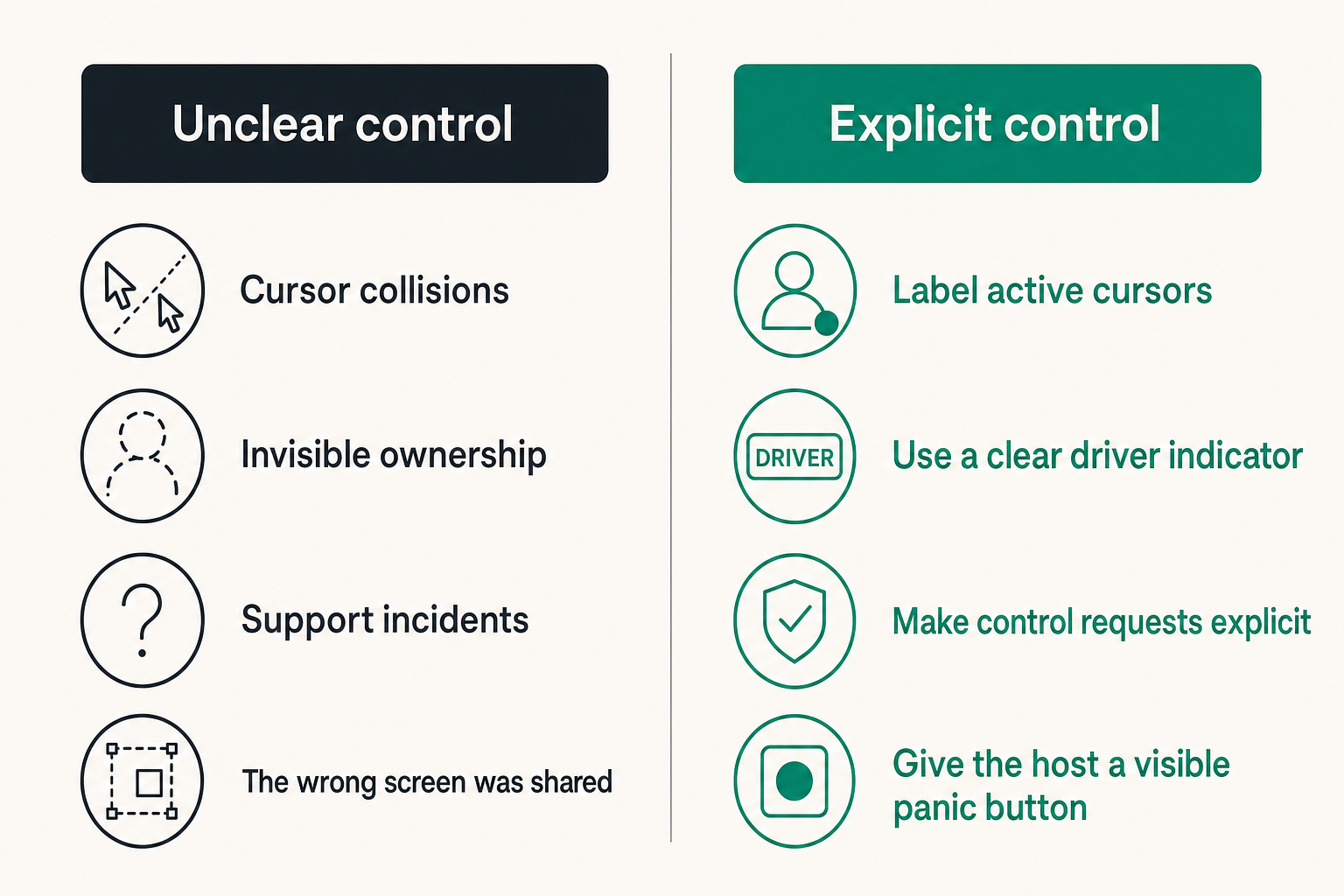
Cursor collisions and invisible ownership
Cursor collisions are the most visible failure mode. Two people move at once, the pointer jumps, clicks land in the wrong place, and nobody knows who caused what. The team laughs the first time. The tenth time, people stop using the feature.
Invisible ownership is worse. A participant may still have control but not realize it. The host may think control was revoked but it was not. A click happens, and the meeting turns into a forensic exercise.
The fix is not only technical. It is also operational:
- Label active cursors.
- Use a clear driver indicator.
- Make control requests explicit.
- Separate pointing from clicking.
- Give the host a visible panic button.
The mistake teams make is assuming adults will coordinate verbally. They will, until latency, stress, deadlines, or context switching make that unreliable.
Support incidents from unclear state
Unclear control state becomes a support problem. Users file bugs saying remote control is laggy, broken, or dangerous. Sometimes the underlying transport is fine. The problem is that the tool does not explain state well enough.
Common symptoms include:
- “I requested control but nothing happened.”
- “They could still click after I took control back.”
- “I did not know they could type.”
- “The wrong screen was shared.”
- “We lost control during the critical step.”
These are product design issues as much as infrastructure issues. Remote control software needs strong state communication because the cost of misunderstanding is high.
Related reading from our network: publishing teams see a similar failure mode in blog content automation workflow architecture, where automation breaks down when review gates and ownership are invisible.
Practical Vizio remote control workflows for design and development
Design critique with controlled driving
Design reviews are a good example because they look harmless. A product designer shares a prototype, a founder wants to explore an edge case, and an engineer wants to test responsive behavior. Without a control model, the review becomes a narration bottleneck: “Click that. No, the other one. Scroll down. Back up.”
A better workflow:
- Designer shares the prototype in view-only mode.
- Participants use pointers or comments for lightweight feedback.
- One reviewer requests temporary control to explore a path.
- Designer approves control for the browser window.
- Reviewer drives for a short sequence.
- Designer revokes control and returns to guided review.
That feels small, but it changes meeting quality. The designer keeps ownership. Reviewers can test real interactions. The team avoids uncontrolled cursor chaos.
If your team uses multi-cursor workflows, the same principle applies. Multi-cursor does not mean no ownership. It means each participant’s input must be labeled and scoped.
Pair debugging without local chaos
Debugging is higher risk because local developer machines contain terminals, secrets, source code, browser sessions, and production-like access. Remote control can save enormous time, but only if the workflow protects the host.
A practical debugging pattern looks like this:
- Host shares the relevant app or desktop.
- Guest starts as viewer and talks through hypotheses.
- Host grants temporary control only when guest needs to reproduce or inspect.
- Terminal access is handled separately from browser access.
- Host revokes control before opening credentials, environment files, or production dashboards.
- The team summarizes the fix before ending the session.
This is where “Vizio remote control thinking” is useful. The guest does not need every button in every mode. They need the right control surface for the current task.
Teams evaluating tools can compare whether remote control, multi-cursor collaboration, and screen sharing are first-class parts of the product on the PairUX features page.
Implementation sequence for collaborative remote control
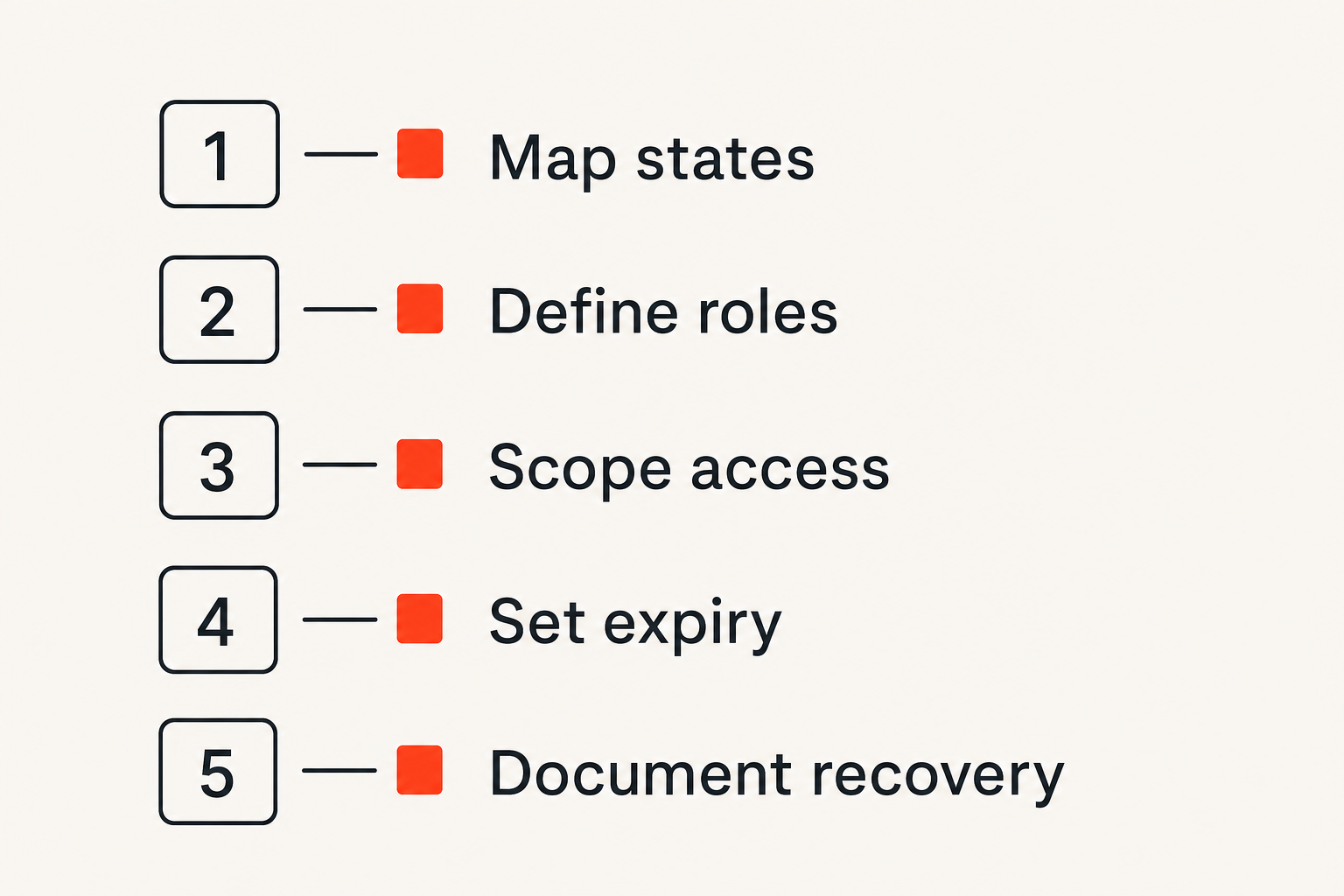
Map states before choosing tools
Before you choose or configure collaborative screen sharing software, map the states your team needs. This is unglamorous work, but it prevents most problems later.
Use this sequence:
- List common sessions. Design critique, pair programming, customer support, onboarding, incident response, investor demo, QA reproduction.
- Define participant roles. Host, viewer, pointer, temporary driver, observer, admin.
- Identify sensitive contexts. Terminals, credentials, customer data, billing, production dashboards, unreleased roadmap material.
- Choose control levels. View, point, click, type, full keyboard, application-limited control.
- Define handoff language. “Request control,” “grant control,” “return control,” “pause sharing,” “end session.”
- Set expiry rules. End on session close, host revoke, timeout, or sensitive mode.
- Document recovery. What happens when latency spikes, control is stuck, or the wrong screen is shared?
The output should fit on one page. If it requires a policy binder, nobody will use it.
Instrument the handoff points
What you measure depends on your product and team, but handoff points deserve attention. Many teams measure call duration and video quality while ignoring the exact moments that decide whether remote control feels safe.
Useful signals include:
- Number of control requests per session.
- Grant acceptance or denial rate.
- Time from request to active control.
- Number of revokes.
- Control time by role.
- Session exits after control confusion.
- Support tickets mentioning control state.
These signals are not about surveillance. They help you find friction. If users request control repeatedly, the first request may not be clear. If hosts revoke immediately after granting, they may not trust the scope. If sessions end after control is granted, something may feel unsafe.
For implementation details, security notes, and setup guidance, the PairUX docs are the right place to validate platform behavior before rolling it out to a team.
What works and what fails in production
What works
What works is boring in the best way. The team knows the session mode. The active driver is visible. Control requests are explicit. The host can revoke instantly. Sensitive work has a different rule than casual review.
Strong remote control workflows usually share these traits:
- Visible ownership. Everyone can tell who is driving.
- Scoped access. Control matches the task.
- Short grants. Temporary access is normal.
- Clear fallback. The host can pause, revoke, or end the session.
- Plain language. The workflow uses terms people understand.
- Low ceremony. Safety does not require ten clicks.
A useful way to think about it is “minimum effective control.” Give the collaborator enough input to do the work, but not so much that every handoff becomes a trust exercise.
Practical rule: The best remote control workflow is the one users can understand while they are busy.
What fails
What fails is usually over-permissioned, under-labeled, and undocumented.
Bad patterns include:
- Everyone can control by default.
- Control state is hidden in a small icon.
- There is no distinction between pointer and driver.
- Keyboard control is bundled with mouse control.
- Access persists after the task.
- Sensitive screens rely on users remembering to stop sharing.
- The host cannot revoke quickly.
- New teammates learn the workflow by guessing.
These failures compound. A single unclear handoff is annoying. A culture of unclear handoffs makes people avoid remote control altogether. Then the team falls back to slow narration, screenshots, or long async threads that should have been a five-minute collaborative session.
Related reading from our network: launch teams selling online products face a comparable operations problem in digital product delivery workflows, where checkout is only the visible surface and fulfillment state is the real system.
Buying and operating remote control software in 2026
Evaluate workflow fit not feature count
In 2026, most teams have seen enough remote work tools to be skeptical of feature grids. “Screen sharing” and “remote control” on a pricing page do not tell you whether the workflow will survive a real design review, debugging session, or onboarding call.
Evaluate tools with practical scenarios:
| Scenario | Question to test | Failure to watch for |
|---|---|---|
| Design review | Can a reviewer temporarily drive the prototype? | Host loses track of who controls the cursor |
| Pair debugging | Can control be granted without exposing secrets? | Guest gets broader access than needed |
| Onboarding | Can a new hire request help quickly? | Handoff requires too much explanation |
| Customer support | Can the host revoke instantly? | Customer feels surprised by control |
| Incident response | Can the team coordinate under pressure? | Latency and unclear ownership cause mistakes |
Run the trial with your real workflow. Do not only test the happy path. Open a terminal. Switch windows. Deny a control request. Revoke during input. Recover from a dropped session. That is where the product shows you what it actually believes about control.
Plan for onboarding and recovery
Even good software needs team habits. If people do not know the expected workflow, they will create their own. That may work inside one pair, but it does not scale across a startup.
A lightweight operating guide should cover:
- When to use view-only mode.
- When to allow pointer access.
- When to grant remote control.
- What to do before opening sensitive data.
- How to revoke control.
- How to recover from a frozen or confused session.
- What language to use during handoff.
Keep it short. Put it where teams already look. Revisit it after support incidents or confusing meetings.
The practical question for operators is not whether remote control can be enabled. It is whether new teammates can use it safely on their second week without a long explanation.
Product fit for PairUX
Where PairUX fits the workflow
PairUX is built around collaborative screen sharing with remote control, so the product fit is straightforward: teams use it when they need more than passive screen viewing. The useful architectural lens is not “replace every meeting tool.” It is “give teams a clearer control layer when they need to work together on the same screen.”
That includes:
- Product designers reviewing prototypes with stakeholders.
- Developers pairing through local bugs and UI states.
- Startup operators walking through internal tools.
- Remote teammates unblocking each other without long narration.
- Small teams that want practical remote control without turning every session into a support ticket.
The Vizio remote control analogy matters here because it keeps the focus on control clarity. A remote is useful because it lets someone operate the system without standing at the device. Collaborative remote control is useful for the same reason, but the stakes are higher: the shared system may be a codebase, product dashboard, customer workflow, or design environment.
If you already think this way, PairUX becomes easier to evaluate. Ask whether it supports your handoff model. Ask whether your team can see who is driving. Ask whether the workflow feels safe enough that people will actually use it.
For a deeper adjacent discussion, our prior article on Vizio remote control collaborative control workflows covers how this mental model applies to permissions, handoffs, and shared ownership in more detail.
The closing point is simple: Vizio remote control is not just a consumer TV phrase. For remote teams, it is a useful reminder that the visible controller is only the front end of a larger control system. Build that system deliberately, and collaborative work gets faster without becoming reckless.
Try pairux com
PairUX is for remote teams that need fast, practical guidance on collaborative screen sharing, remote control, and working together online. Try pairux.com.