2026-07-15
Vizio Remote Control Thinking for Remote Teams: Build Collaborative Control Workflows That Do Not Break
A Vizio remote control looks simple until it stops doing what the room expects. Someone changes the input. Someone else mutes the audio. The TV is on, but the screen is black. Now the meeting is not about the movie. It is about who has control, what state the system is in, and how to recover without making it worse.
Remote teams hit the same problem during screen sharing. A designer wants to drive Figma. A developer needs to inspect the browser. A founder wants to show a customer something quickly. Everyone can see the screen, but control is unclear.
Teams think the problem is finding better remote control software. The real problem is designing a shared control workflow that makes ownership, permission, state, and handoff obvious.
That changes the conversation. Vizio remote control is not just a consumer electronics keyword here. It is a useful model for thinking about collaborative screen sharing, remote control, and online work in 2026: fewer buttons, clearer modes, safer handoffs, and faster recovery when something goes wrong.
Table of contents
- Why a Vizio remote control is the wrong object but the right model
- Map the Vizio remote control model to collaborative screen sharing
- What works in a remote control workflow
- What fails when teams copy consumer remote control patterns
- Design the control plane before the meeting starts
- Implement a practical handoff sequence
- Compare consumer remote control and team remote control
- Build guardrails for designers developers and operators
- Measure whether your workflow is getting better
- Where PairUX fits in this architecture
Why a Vizio remote control is the wrong object but the right model
The TV is simple because the control surface is constrained
A Vizio remote control is not powerful because it has unlimited capability. It is useful because most actions are constrained. Power, volume, input, navigation, select, back. The control surface is small enough that a normal person can build a mental model quickly.
That is the lesson remote teams usually miss. They add more collaboration tools, more permissions, more browser tabs, more meeting roles, and more ways to interrupt. Then they wonder why a simple product review turns into fifteen minutes of negotiation.
A useful way to think about it is this: the best collaborative control systems reduce the number of possible states at any moment. Everyone should know who is driving, what they can change, and how to stop.
Remote teamwork fails when every participant has a different remote
In a living room, chaos starts when three people each think they know which remote controls the TV. One remote changes the soundbar. One changes the streaming box. One changes the television input. Each action is rational locally and confusing globally.
Remote teams reproduce this pattern with screen sharing. The host controls the machine. A designer controls the prototype. A developer controls the dev server. A customer controls the feedback direction. A product manager controls the agenda. Nobody controls the workflow.
The mistake teams make is treating remote control as a feature instead of a state-management problem.
The architecture question behind the metaphor
The practical question is not: can someone click on someone else’s screen? Most tools can make that happen.
The practical question is: can the team safely move control between people without losing context, creating security risk, or burning meeting time?
That question leads to architecture decisions:
- Who can request control?
- Who can grant it?
- What is visible while control is active?
- What actions should be blocked or discouraged?
- What happens when latency, confusion, or interruption appears?
- Who owns recovery?
Practical rule: Do not evaluate remote control by the first successful click. Evaluate it by the first confused handoff.
Map the Vizio remote control model to collaborative screen sharing
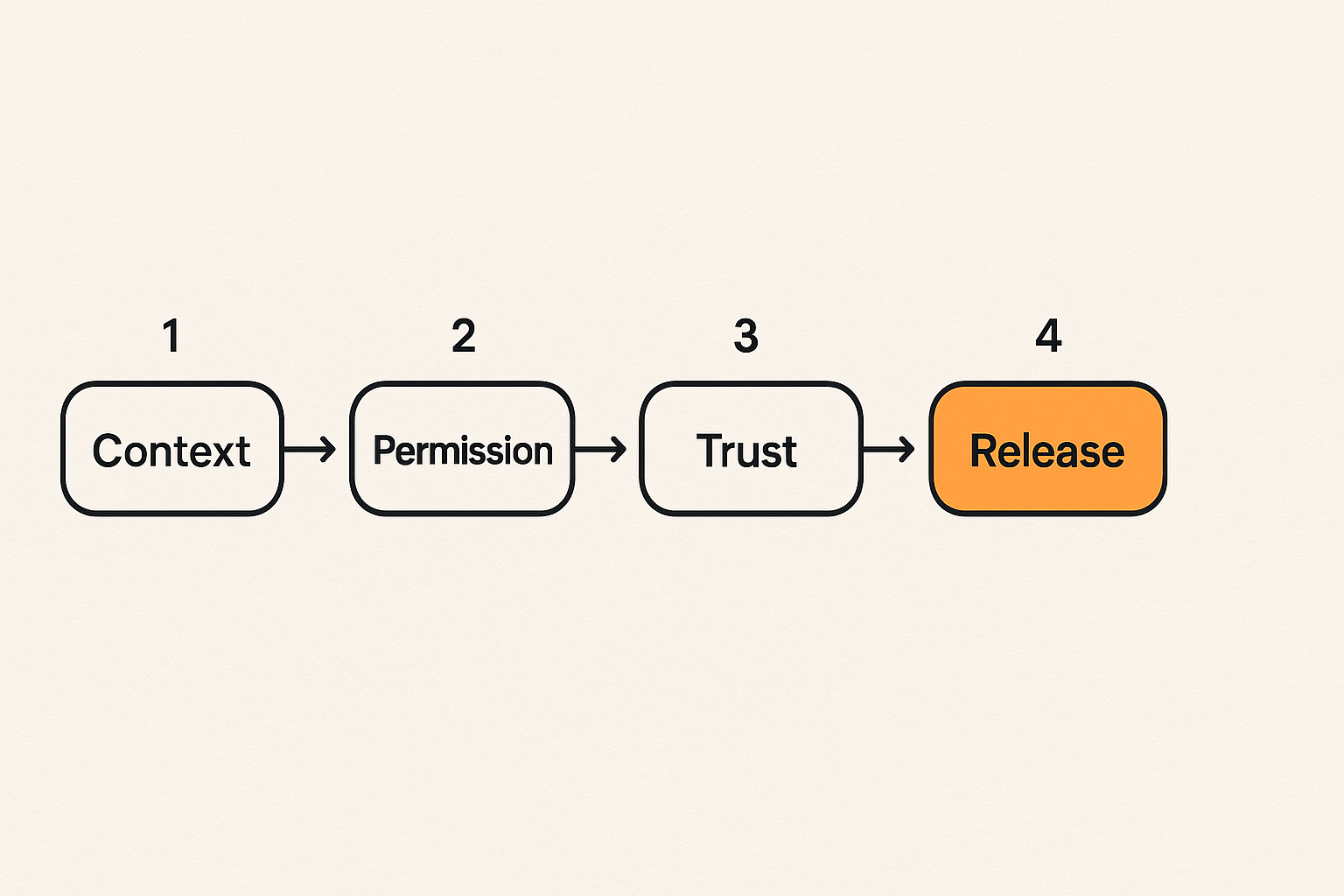
Inputs become shared context
On a TV, input selection matters because HDMI 1, HDMI 2, casting, and streaming apps are different contexts. If the input is wrong, the screen may look broken even when every device is working.
In remote collaboration, input is the active work context. Are we reviewing production, staging, a design prototype, a local branch, a customer account, or a sandbox? If that is unclear, remote control becomes risky.
Before handing over control, the driver should state the active context in plain language: local dev environment, test user, staging data, design file, or production system. This sounds basic. In production teams, basic context is what prevents expensive mistakes.
Buttons become permissions
A Vizio remote has different buttons for different intent. Volume is low risk. Factory reset is not. Collaborative control needs the same split.
Viewing a screen is not the same as driving it. Moving a cursor is not the same as typing into a terminal. Typing into a terminal is not the same as deploying. Clicking through a design is not the same as editing source files.
If your remote control workflow treats all control as one permission, you are building a big red button and hoping people behave.
The PairUX feature model is built around real-time screen sharing and remote control because collaborative work needs both visibility and action, not just passive viewing; the current capabilities are summarized on the PairUX features page for teams comparing this workflow to ordinary meeting software.
Pairing becomes trust
A TV remote often works only after pairing or line-of-sight. That limitation is annoying, but it establishes a boundary. The remote that controls the device is physically or logically connected to it.
Remote teams need the same trust boundary. A participant should not become a driver just because they joined a call. They should request control, receive explicit approval, and operate within a known session.
Related reading from our network: teams choosing automation platforms face a similar ownership problem, where control needs to be designed around integrations and rollout fit rather than demo speed, as covered in best workflow automation software in 2026.
What works in a remote control workflow
One owner at a time
The simplest workable rule is also the least glamorous: one active driver at a time. Multiple cursors can be useful for pointing, teaching, and parallel attention, but destructive control should have a clear owner.
This does not mean only one person participates. It means only one person commits action at a time. Others can narrate, point, annotate, or queue suggestions. The active driver remains accountable for what happens on the machine.
Practical rule: If two people can change the same thing at the same time, you need either a merge model or a single-driver rule. Meetings rarely have a merge model.
Visible state for everyone
What works is visible control state. Everyone should know who is driving without asking. If control is requested, granted, paused, or revoked, the room should see that change.
Good visible state includes:
- A clear current-driver indicator.
- A visible request to take control.
- A quick way for the host to revoke control.
- Cursor identity when multiple people are pointing.
- Session context that distinguishes demo, design, staging, and production.
The important part is not visual polish. It is reducing side-channel coordination. If the team has to ask who has the mouse, the system is already leaking state.
Reversible actions and easy recovery
Good remote control workflows assume mistakes. Someone will click the wrong tab. Someone will type in the wrong field. Someone will accept control while their keyboard focus is in the wrong window.
What works is making recovery cheap:
- Use test accounts for demos.
- Keep production admin panels out of casual sessions.
- Prefer design prototypes and staging environments for collaborative driving.
- Keep undo, version history, and rollback visible.
- End control immediately when the task is complete.
A remote control session should have the same operational discipline as a production change: scope it, execute it, verify it, and exit.
What fails when teams copy consumer remote control patterns
Hidden mode changes
Consumer remotes hide mode changes all the time. The same arrow keys might control a TV menu, a streaming app, or a soundbar depending on state. That is tolerable on a couch. It is dangerous in a work session.
What breaks in practice is mode confusion. A developer thinks they are typing into a local shell but focus is in a shared chat. A designer thinks they are clicking through a prototype but edits the source design file. A founder thinks they are showing a sandbox but exposes a customer workspace.
The fix is not more reminders. The fix is visible mode and narrower workspaces.
No audit trail
A consumer remote does not need an audit trail. Work does. When something changes during a shared session, teams need enough context to answer basic questions later.
You do not need heavy compliance machinery for every design review. But you do need operational breadcrumbs: who hosted, who drove, what environment was used, what decision was made, and what follow-up exists.
For remote teams documenting their setup, install steps, security notes, and common questions should live somewhere durable; PairUX keeps that operational material in the PairUX docs so teams do not have to reconstruct usage patterns from memory.
Support by guessing
The weakest support workflow is guessing. Guessing happens when the team has no shared language for control. Someone says, I cannot click. Someone else says, try again. Then the meeting spends five minutes debugging attention instead of the product.
Support gets easier when your workflow has named states:
- Viewer joined.
- Control requested.
- Host approved.
- Driver active.
- Control paused.
- Control revoked.
- Session ended.
If those states are explicit, support becomes diagnosis. If not, support becomes theater.
Design the control plane before the meeting starts
Define roles before tools
The control plane is the set of rules that decides who may do what. Remote teams often let the meeting tool define it accidentally. That is backwards.
Start with roles:
- Host: owns the session and can grant or revoke control.
- Driver: operates the shared screen for a defined task.
- Navigator: gives direction but does not directly change state.
- Observer: watches, asks questions, and records issues.
- Operator: handles setup, links, accounts, and recovery if the session is high stakes.
A two-person pairing call may only need host and driver. A customer workshop may need all five. The point is not bureaucracy. The point is removing ambiguity.
Separate viewing from driving
Viewing is low risk. Driving is not. The tool and the workflow should treat them differently.
A participant can be allowed to view without being allowed to control. A participant can point without being allowed to type. A participant can drive a prototype without being allowed to touch production data.
This is especially important for distributed startups where the same meeting may include employees, contractors, advisors, prospects, or customers. Trust is contextual. Your control model should be too.
Choose defaults for interruptions
Interruptions are where remote control workflows reveal their quality. The host loses network. The driver goes silent. The customer asks to try something. A child, notification, or calendar alert steals focus.
Set defaults before the session:
- If the host disconnects, control stops.
- If the driver is idle for a defined period, control returns to the host.
- If a sensitive screen appears, the host pauses sharing.
- If a participant requests control during an active task, the request queues rather than interrupts.
Practical rule: The safest default is not the most convenient default. Choose defaults for the failure case, not the demo.
Implement a practical handoff sequence
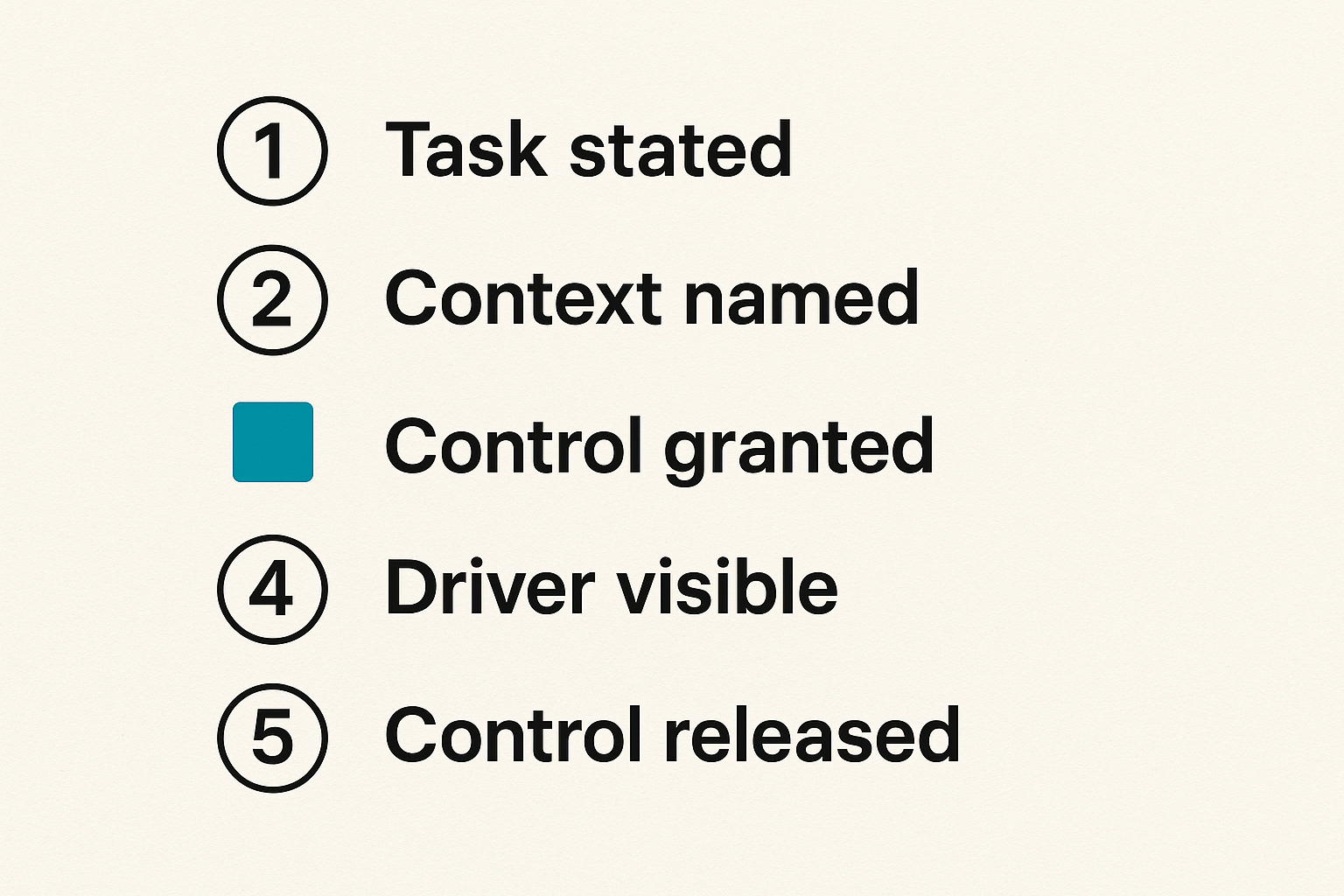
The six step control handoff
A good handoff is short enough to use and explicit enough to prevent confusion. Here is a practical sequence teams can adopt:
- State the task: The host says what the driver is about to do.
- State the context: The host names the environment, file, browser tab, or account.
- Request control: The driver requests control through the tool, not by talking over the meeting.
- Grant control: The host approves and confirms the driver is active.
- Execute and narrate: The driver performs the task while saying what they are changing.
- Release control: The driver gives control back when the task is complete.
This sequence feels formal the first few times. Then it becomes muscle memory. The benefit is that the team stops renegotiating control every five minutes.
Edge cases to handle
No workflow survives contact with real meetings unless edge cases are addressed.
Common cases:
- The wrong person requests control.
- The host grants control while focused on a sensitive window.
- The driver’s keyboard layout differs from the host’s.
- Latency causes double clicks or repeated keystrokes.
- The driver forgets to release control.
- A recording captures something that should not be recorded.
- A participant joins late and does not know the current state.
The mistake teams make is treating these as rare exceptions. They are normal. Build small habits around them.
A small checklist for operators
For recurring design reviews, engineering pairing, and customer sessions, use a short checklist:
- Is the correct account open?
- Is the environment safe for changes?
- Is the active driver visible?
- Is rollback or undo available?
- Is the session being recorded, and should it be?
- Is there a written follow-up location?
Related reading from our network: editorial teams using AI content systems run into the same quality-gate problem when many people can influence output, which is why review lanes and approvals matter in managed AI content platform architecture.
Compare consumer remote control and team remote control
Where the analogy helps
The Vizio remote control analogy helps because it forces a constraint-first mindset. A good remote does not expose every internal setting on the first button layer. It gives common actions a predictable path.
Remote teams should do the same. Most sessions need a few repeated operations: point, request control, grant control, drive, pause, revoke, release, and summarize. If those operations are clean, the meeting feels lightweight.
Here is the useful comparison:
| Area | Consumer remote control | Team remote control |
|---|---|---|
| Primary user | One person in a room | Multiple participants across locations |
| Main risk | Wrong input or volume | Wrong action, wrong account, lost context |
| Permission model | Physical possession | Explicit approval and session trust |
| State visibility | Often implicit | Must be visible to everyone |
| Recovery | Press back or power cycle | Revoke, undo, rollback, document |
| Success metric | Content plays | Work advances safely |
Where the analogy breaks
The analogy breaks because remote work is not a living room. Teams deal with source code, customer data, design systems, payments, internal tools, and production infrastructure. The cost of the wrong click is not symmetrical.
A Vizio remote control does not need identity, auditability, or collaboration semantics. Your team does. So use the analogy to simplify the interface, not to trivialize the risk.
A prior PairUX article goes deeper on this pattern from a workflow-design angle; if you want the longer conceptual version, read Vizio remote control thinking for remote teams.
Build guardrails for designers developers and operators
For product design reviews
Product design reviews often break because everyone wants to touch the artifact. One person wants to resize. Another wants to test the prototype. Another wants to inspect copy. The screen becomes a shared steering wheel.
What works:
- Let the designer host the source file.
- Use prototype mode for broad review.
- Grant edit control only for narrow tasks.
- Capture suggestions in comments rather than live edits when the discussion is exploratory.
- End with named owners for changes.
What fails:
- Letting anyone edit the design file during debate.
- Switching between prototype, source file, issue tracker, and browser without naming the context.
- Treating cursor movement as agreement.
For engineering pairing
Engineering pairing needs a sharper boundary. A developer’s screen may include terminals, tokens, logs, local environment variables, customer traces, and deployment controls.
A practical engineering setup separates safe collaboration from risky execution:
- Use a disposable branch for exploration.
- Keep secrets out of visible terminals.
- Prefer local or staging environments.
- Have the host type destructive commands.
- Use remote control for navigation, reproduction, and inspection before execution.
This is not about distrust. It is about reducing accidental blast radius.
For founder and customer sessions
Founder-led customer sessions are where remote control gets politically tempting. A customer wants to try the product. The founder wants to move fast. The team wants feedback. Everyone wants the session to feel interactive.
That is exactly when guardrails matter.
Give customers controlled interaction in a sandbox or demo workspace. Avoid live customer data unless that is the explicit purpose of the session. If the customer drives, narrate the boundary: You can click through this demo account, but I will handle account settings and billing screens.
Related reading from our network: launch teams face a similar operational timing problem when coordinating vendors and attribution, which is why workflow ownership matters in choosing a promotional products supplier for a software launch.
Measure whether your workflow is getting better
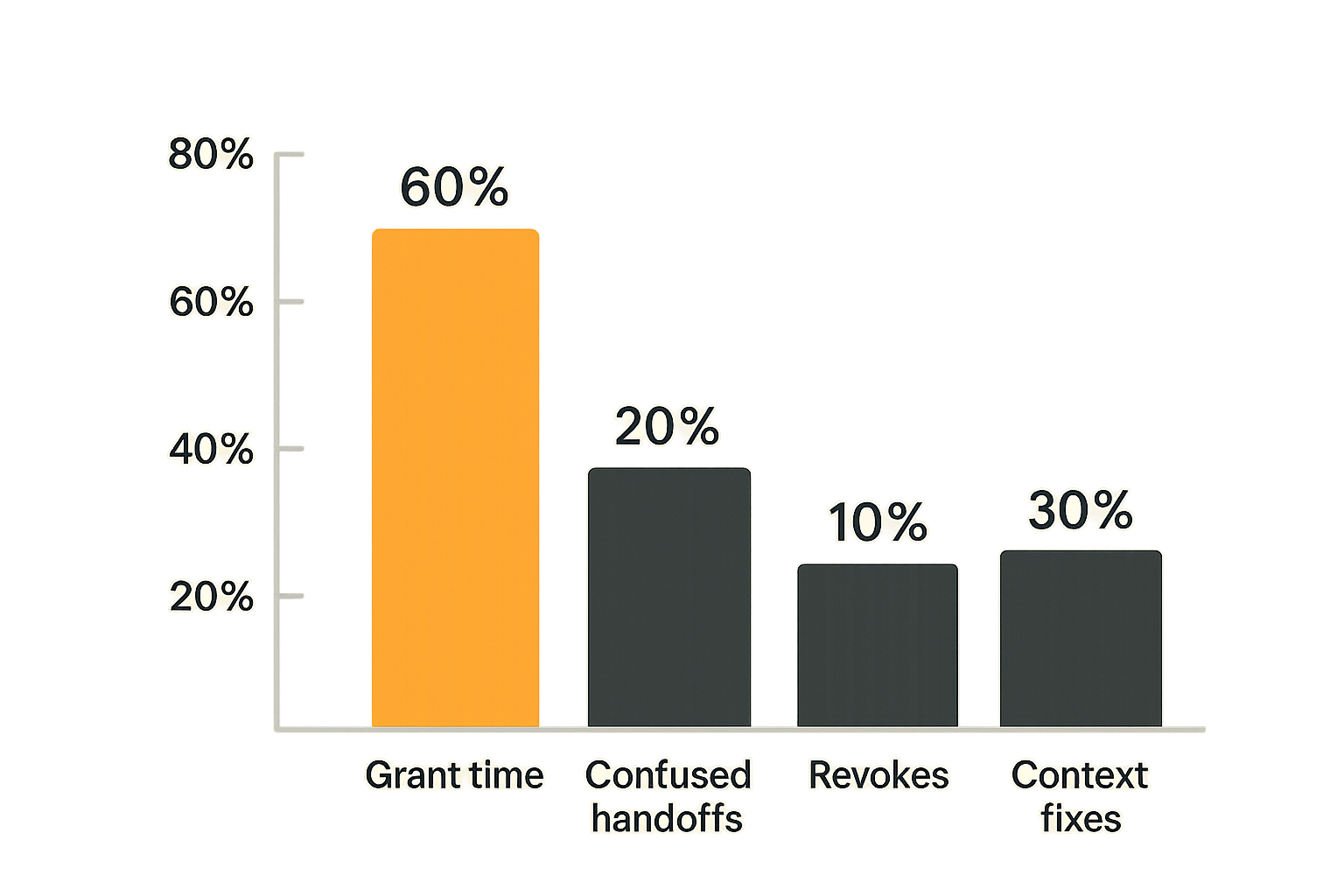
Metrics that matter
You do not need a heavyweight analytics program to improve remote control. You need a few operational signals that show whether the workflow is creating clarity.
Useful metrics include:
- Time from request to granted control.
- Number of confused handoffs per session.
- Number of times the host revokes control.
- Number of context corrections, such as wrong tab or wrong account.
- Time spent on meeting-tool troubleshooting.
- Number of follow-up actions created from the session.
The goal is not to optimize every meeting into a machine. The goal is to notice when control is the bottleneck.
Signals that look good but are not
Some signals feel positive but hide problems.
Fast control grants can be bad if hosts approve without checking context. Long sessions can look collaborative while producing no decisions. Lots of cursor activity can look engaged while everyone avoids ownership. Screen sharing uptime can be perfect while the team still loses ten minutes to who is driving.
The practical question is: did the session move work forward with less confusion and acceptable risk?
Review cadence
Review the workflow after repeated friction, not after every call. A monthly review is enough for many teams. Ask:
- Where did control handoff slow us down?
- Which meetings needed remote control and which only needed viewing?
- Did any session expose sensitive context unnecessarily?
- Are roles clear enough for new teammates?
- Should defaults change?
Remote collaboration improves when teams treat the workflow as a product surface. Observe it, adjust it, and remove unnecessary states.
Where PairUX fits in this architecture
Product fit without the magic story
PairUX is for teams that need collaborative screen sharing with remote control and practical multi-person work, not another passive meeting window. The product fit is strongest when a team already knows that seeing the screen is not enough. They need to point, drive, hand off, and recover without turning the session into a permissions debate.
This is the architecture view: PairUX sits in the control layer between people and shared work. It helps teams make real-time collaboration more explicit, especially when product designers, software developers, and operators need to work through the same interface together.
It is not magic. You still need sane roles, safe environments, and team habits. But the right tool should support those habits instead of fighting them.
Start small and standardize
Do not roll out a new remote control workflow by rewriting every meeting. Start with one recurring workflow where control friction is obvious:
- Weekly product design review.
- Bug reproduction session.
- Customer onboarding call.
- Internal tool walkthrough.
- Founder and engineer pairing block.
Define the host, driver, context, handoff sequence, and recovery rule. Run it for a few sessions. Then standardize what works.
That changes the conversation from, which tool has the flashiest demo, to, which workflow lets the team collaborate without losing state?
Try pairux.com
PairUX is built for remote teams that need fast, practical collaborative screen sharing, remote control, and working together online. If Vizio remote control thinking makes sense for your team workflow, Try pairux.com and start with one high-friction collaboration session.