2026-08-19
Universal Remote for Remote Teams: Build Control Workflows That Do Not Break in Production
A universal remote sounds simple until your team tries to use one for real work.
Someone is sharing a screen. A designer needs to adjust a prototype. A developer needs to reproduce a bug in a local environment. An operator needs to walk through a customer setup without asking for ten screenshots. The meeting tool shows the pixels, but the work still stalls because nobody has the right control at the right time.
Teams think the problem is finding better screen sharing. The real problem is designing a control workflow that is safe, fast, reversible, and understandable under pressure.
That changes the conversation. A universal remote for a remote team is not a gadget. It is a small operating system for collaboration: roles, permissions, handoffs, recovery, auditability, and support. If you treat it like a button in a meeting app, it will fail exactly when the session matters.
Table of contents
- What a universal remote means for remote teams in 2026
- Universal remote architecture starts with ownership
- The permission model is the product
- The workflow layer from screen share to shared execution
- Security and trust boundaries for universal remote control
- Designing for designers developers and operators
- Tool comparison universal remote versus meeting software
- Implementation sequence for a team rollout
- Failure modes what breaks in practice
- PairUX product fit collaborative control without turning meetings into chaos
- Closing build a universal remote workflow not a toy
What a universal remote means for remote teams in 2026
It is not one magic controller
A useful way to think about a universal remote is this: it is the control plane for a shared work session.
Not the screen share. Not the call. Not the chat thread. The control plane.
In a home theater, a universal remote hides the complexity of multiple devices behind one interface. In a remote team, the same idea is tempting. One place to see the work, request control, pass control, recover control, and finish the task.
The mistake teams make is assuming this is primarily a UI problem. They compare cursor smoothness, video quality, and whether the button says request control. Those details matter, but they are not the architecture. The architecture is who can control what, when, for how long, under which constraints, and with what recovery path.
The operating surface is bigger than the screen
Remote collaboration touches more than pixels. It touches local files, browser sessions, design tools, terminals, staging systems, admin panels, credentials, customer data, and private notifications. A universal remote workflow has to respect that surface area.
If the workflow ignores the operating surface, people compensate with bad habits:
- Sharing entire desktops when one window would do.
- Dictating every click over a call.
- Sending credentials in chat.
- Granting long-lived access to unblock a five-minute task.
- Recording sessions without clear consent.
What breaks in practice is not that people are careless. It is that the tool gives them no safer path that is still fast enough.
Why this matters now
By 2026, remote work is not an exception workflow. Designers are reviewing prototypes across time zones. Developers are pairing on local bugs. Customer teams are onboarding accounts live. Founders are debugging payments, analytics, and admin screens with contractors and customers.
The practical question is no longer whether remote teams need screen sharing. They do. The practical question is whether the team can move from viewing to doing without losing control of security, context, and accountability.
Practical rule: Treat universal remote capability as collaboration infrastructure, not a meeting feature.
Universal remote architecture starts with ownership
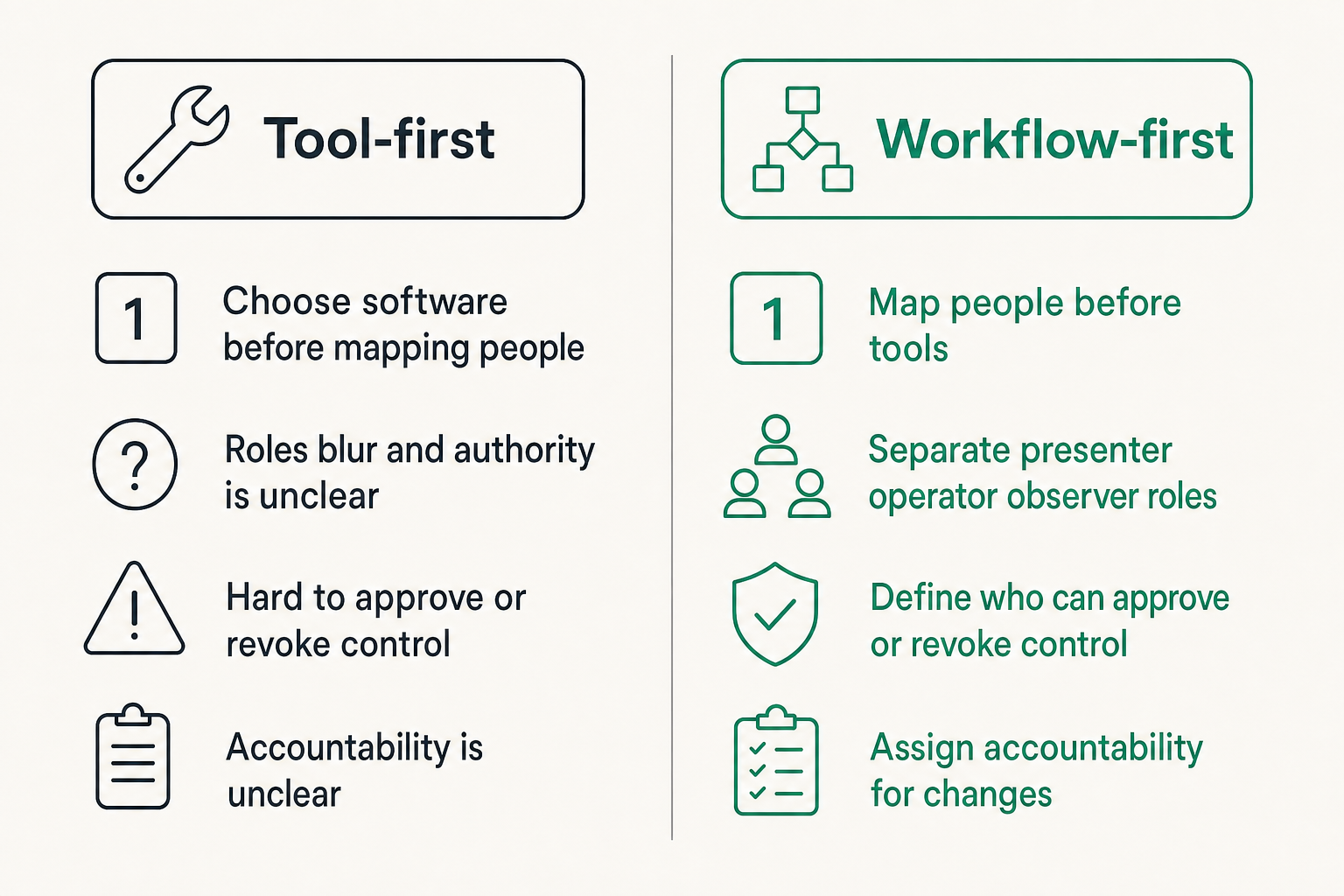
Map people before tools
Before choosing software, map the people in the session. Most teams skip this and go straight to features. That is backwards.
For each recurring workflow, identify:
- Who owns the device being controlled.
- Who needs temporary control.
- Who is observing for context.
- Who can approve or revoke control.
- Who is accountable if something changes.
This sounds basic until a live customer call goes sideways. If a developer is driving on a customer success manager's laptop, who is allowed to click into billing? If a designer takes over a founder's browser, who stops the session when private tabs appear? If a contractor controls a staging environment, who validates the final state?
Ownership is the skeleton. Tools hang on that skeleton.
Separate presenter operator observer roles
A healthy universal remote workflow separates three roles.
The presenter shares the environment. The operator temporarily controls it. Observers watch, advise, or validate.
In many meetings, those roles blur. The presenter talks, the operator clicks, observers interrupt, and nobody knows who has authority. That is manageable for a casual demo. It is bad for production debugging, user research, customer onboarding, or sensitive admin work.
Role separation creates useful constraints. The presenter can pause control. The operator can request a narrow action. Observers can ask for a handoff instead of talking over the driver. The team can end the session with a clear record of what happened.
Put revocation in the workflow
Revocation is not a panic button hidden in settings. It is part of the normal workflow.
The person sharing should always understand how to stop remote control instantly. The operator should expect control to be temporary. Observers should know who has the authority to end the action.
This is where the garage-door-opener analogy is useful. You want quick access, but you also want clear ownership, short-lived permission, and a way to stop access if something feels wrong. We covered that pattern in more detail in garage door opener remote thinking for safer collaborative screen sharing, and the same principle applies here.
Practical rule: If revocation is hard to find, the session is not safe enough for sensitive work.
The permission model is the product
Session scoped access beats always on control
A universal remote should prefer session scoped access. Control starts because a specific person requested it in a specific context. Control ends when the session ends, the presenter revokes it, or the workflow times out.
Always on access is operationally convenient and usually too broad. It turns a collaboration tool into an administration tool. That may be appropriate for IT support in managed environments, but it is the wrong default for product teams, design reviews, customer calls, and startup operations.
Session scoped access gives teams a clean mental model:
- This access exists because of this session.
- This person has control right now.
- This control can be revoked now.
- This control does not silently persist tomorrow.
That changes the conversation from trust me to here is the boundary.
Consent needs to be visible
Consent cannot be implied by presence in a call. People join calls while multitasking. They switch windows. They share the wrong monitor. They open private apps. A universal remote workflow has to make consent visible at the moment control begins.
Good consent design includes a clear request, a clear accept action, a visible control state, and an obvious stop action. It should be hard to miss who is driving.
The mistake teams make is treating consent as legal decoration. In practice, consent is a UX and safety mechanism. It keeps the presenter oriented. It keeps the operator honest. It gives observers confidence that the session is intentional.
For teams evaluating collaborative control software, the PairUX features overview is a useful place to compare capabilities like real-time sharing, remote control, multi-cursor behavior, and cross-platform support against your actual workflow needs.
Auditability is not enterprise theater
Small teams often hear auditability and think bureaucracy. That is too narrow.
Auditability can be simple. It can mean knowing who joined, who controlled, when control changed hands, and when the session ended. You do not need a heavyweight compliance program to benefit from that record.
Auditability helps with:
- Debugging disputes about what changed.
- Training new team members on session etiquette.
- Reviewing customer support escalations.
- Reducing fear around remote control.
- Making sensitive workflows repeatable.
Practical rule: The minimum useful audit trail is who controlled what, when, and under whose consent.
The workflow layer from screen share to shared execution
A practical five step session flow
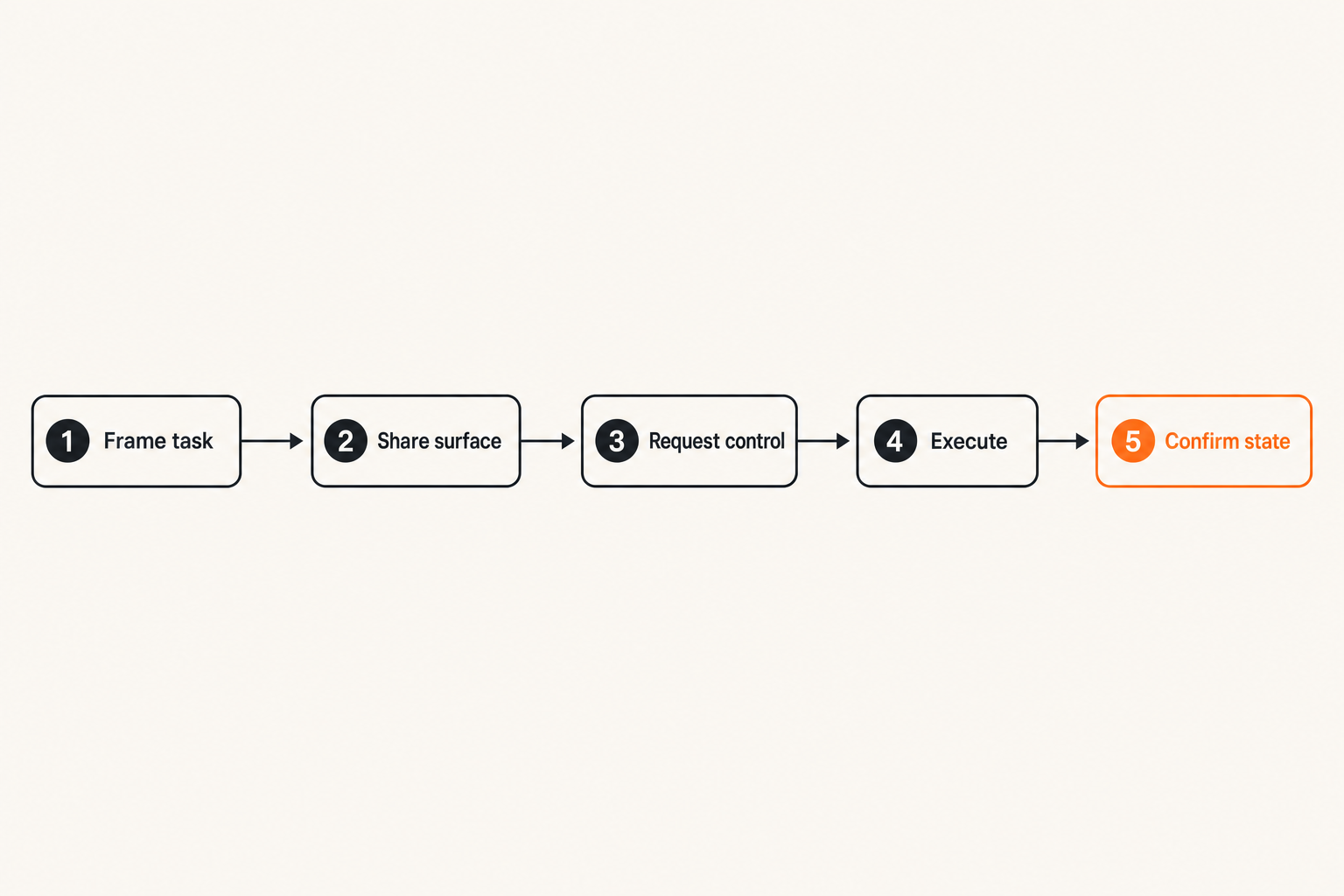
A universal remote workflow should be boring enough to repeat. If every session invents its own protocol, the tool will feel risky even when the software is solid.
Use a five step flow:
- Frame the task. State what you are trying to accomplish and what is out of scope.
- Share the right surface. Prefer a specific window or workspace over the entire desktop when possible.
- Request control. The operator asks for control only when doing is faster than explaining.
- Execute with narration. The operator explains important actions before taking them.
- Return and confirm. Control returns to the presenter, and the team confirms final state.
This sequence is not ceremony. It prevents confusion. It also gives the presenter a natural point to stop control before the operator enters sensitive areas.
Where handoffs usually break
Handoffs break when the team has no shared language for control. One person says let me drive. Another says sure. Then a third person starts giving instructions. The pointer moves. The presenter opens the wrong tab. Someone says wait, but nobody knows whether wait means pause, revoke, or explain.
This is why remote control needs explicit state. The system should make it obvious whether someone is viewing, requesting, controlling, or disconnected. Verbal coordination helps, but it should not be the only source of truth.
A practical handoff phrase is simple: I am requesting control to do X. I will stop before Y. That gives the presenter a bounded decision.
What works versus what fails
What works:
- Short control windows.
- One operator at a time unless the tool is designed for multi-cursor collaboration.
- Clear narration around irreversible actions.
- Presenter-owned stop control.
- End-of-session confirmation.
What fails:
- Permanent remote access for temporary collaboration.
- Whole-desktop sharing during sensitive work.
- Multiple people talking over the operator.
- Remote control without a visible state indicator.
- No recovery plan when control freezes.
Related reading from our network: teams building product-led workflows face similar activation and ownership tradeoffs in product led growth as an operating system, especially when collaboration depends on repeatable user actions rather than one-off heroics.
Security and trust boundaries for universal remote control
Local device boundaries still matter
A universal remote does not erase local security boundaries. It sits on top of them.
If a local machine has unlocked credentials, admin panels, production terminals, or private data visible, the remote session inherits that risk. The tool can help with consent and control, but it cannot make a messy desktop safe by magic.
Teams should define basic pre-session hygiene:
- Close unrelated private apps.
- Use a dedicated browser profile for shared work.
- Avoid exposing password managers during control.
- Prefer test accounts and staging environments.
- Disable unnecessary notifications.
The goal is not paranoia. The goal is to reduce accidental exposure without slowing the session to a crawl.
Network and browser constraints change behavior
Remote control performance depends on network quality, browser permissions, operating system rules, display settings, and input handling. Teams often evaluate a tool in a quiet office and then roll it out to hotels, home Wi-Fi, coworking spaces, VPNs, and locked-down corporate laptops.
What breaks in practice is the gap between demo conditions and real environments.
Developers may need keyboard shortcuts that the browser intercepts. Designers may need high-fidelity pointer movement. Operators may need to work on small laptop screens. Security-conscious teams may restrict device permissions. These constraints are not edge cases; they are the operating environment.
For adjacent technical thinking, related reading from our network: CI/CD teams face a similar boundary problem when runners, webhooks, registries, and egress rules become part of the trust model in network security for CI/CD and software supply chains.
Recovery is part of security
Security is not only preventing bad access. It is also recovering cleanly when the session misbehaves.
Recovery questions include:
- How does the presenter immediately stop control?
- What happens if the operator disconnects while controlling?
- Can the session continue as view-only?
- Is there a clear final state after a failed handoff?
- Who validates that no unintended changes were made?
If recovery is unclear, people panic-click. Panic-clicking is a workflow smell. It means the system did not give them a safe path back.
Designing for designers developers and operators
Designers need spatial context
Design work is visual and spatial. A designer may need to point, annotate, drag, resize, compare states, or inspect interaction details. A universal remote workflow for designers should make shared attention easy.
Multi-cursor presence helps because it separates look here from I am taking over. Smooth pointer movement matters because design critique often depends on tiny details. Window selection matters because design tools, notes, chat, and browser previews may all be open at once.
The mistake teams make is forcing all design collaboration through verbal instruction. Move that thing a little left is slower and less precise than letting the right person briefly control the canvas.
Developers need precise control without credential leakage
Developer workflows are different. They involve terminals, local servers, logs, browser devtools, IDEs, package managers, feature flags, and secrets. Remote control can save enormous time during debugging, but it also increases the chance of exposing credentials or changing the wrong environment.
Good developer sessions should define the target environment before control starts. Are we in local, staging, preview, or production? Are we using a test account? Is the operator allowed to run commands? Are destructive commands out of scope?
A useful pattern is narrator-driver pairing. The operator drives, but narrates before commands that mutate state. The presenter retains the right to stop control before the command runs.
Operators need escalation paths
Startup operators and customer-facing teams often use remote collaboration for messy, high-context work: onboarding, account setup, QA, bug reproduction, billing review, workflow configuration, or data cleanup.
Their problem is not only control. It is escalation. When the operator hits a technical issue, can a developer join without restarting the whole session? When a customer is present, can the internal team coordinate without exposing private notes? When a support call becomes a product bug, can the team capture enough context to follow up?
A universal remote workflow should support escalation without turning the call into chaos.
Tool comparison universal remote versus meeting software
Comparison table for buying decisions
Meeting software is useful. It is not automatically a universal remote architecture. Use this comparison to clarify what you are actually buying.
| Capability | Generic meeting screen share | Universal remote collaboration workflow |
|---|---|---|
| Primary job | Show what is on screen | Let the right person safely act |
| Control model | Often basic request control | Explicit roles, consent, revocation |
| Session scope | Meeting-centric | Task-centric and permission-aware |
| Handoff quality | Mostly verbal | Visible state plus clear ownership |
| Security posture | Depends on meeting habits | Designed around temporary access |
| Best fit | Demos, updates, lightweight reviews | Pairing, support, onboarding, debugging |
| Failure recovery | Rejoin or stop sharing | Pause, revoke, return to view-only |
Why generic meetings are not enough
Generic meeting tools optimize for attendance, audio, video, and broad screen visibility. That is a different product problem.
A universal remote workflow optimizes for shared execution. The session has a task. Someone needs to operate another environment temporarily. The owner needs to stay in control. The team needs a clean end state.
If you use meeting software for this anyway, you can still make it work for lightweight cases. But the more sensitive or frequent the workflow becomes, the more the cracks show: unclear control, weak recovery, poor handoffs, and no consistent operating model.
When simple screen sharing is still fine
Not every team needs remote control for every session. Simple screen sharing is fine when:
- The session is informational.
- The presenter can execute quickly without help.
- There is no need for precise pointer or keyboard input from others.
- Sensitive systems are involved and control adds more risk than value.
- The workflow is rare enough that process overhead is not worth it.
The practical question is whether remote control reduces total friction without increasing unacceptable risk. If it does, build the workflow. If it does not, keep the meeting simple.
Implementation sequence for a team rollout
Start with one painful workflow
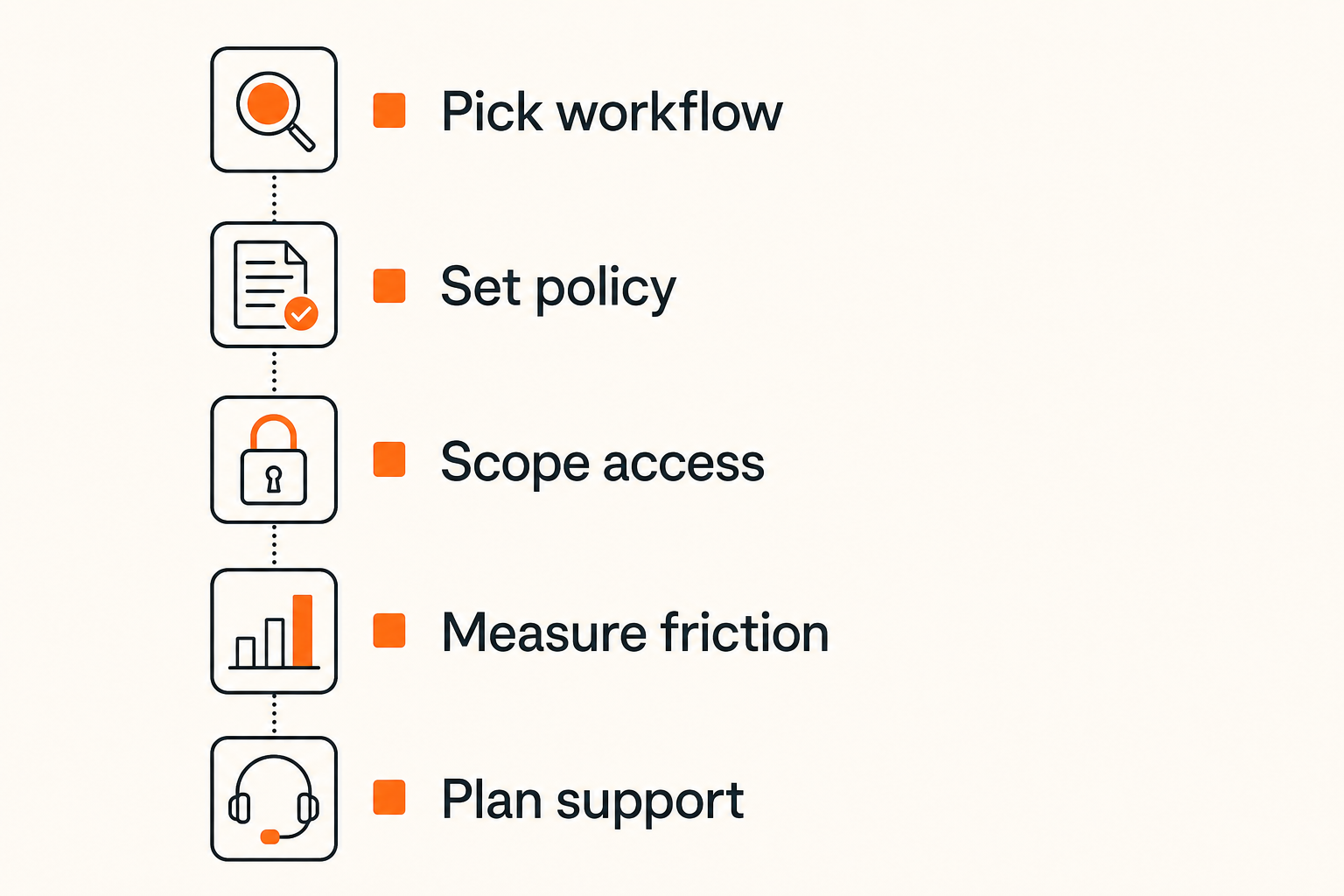
Do not roll out universal remote practices everywhere on day one. Start with one workflow where the pain is obvious.
Good candidates:
- Pair debugging a local issue.
- Reviewing a product prototype.
- Customer onboarding with configuration steps.
- QA reproduction sessions.
- Founder or operator support for internal tools.
Pick a workflow that happens often enough to learn from, but not one so risky that a bad first session creates fear. The goal is to develop team muscle memory.
Define session policy before inviting everyone
Before broad rollout, write a short session policy. Keep it practical.
Include:
- Which workflows are approved for remote control.
- Who may present and who may operate.
- What systems are out of scope.
- How control is requested and revoked.
- What to do when the session freezes or disconnects.
- What gets documented afterward.
This is not a legal document. It is an operating guide. Put it where people will actually see it. If your team is already documenting collaboration practices, the PairUX docs can help you line up installation, requirements, security information, and usage expectations before a wider rollout.
Measure friction not vanity
Do not measure a universal remote rollout by how many sessions happened. That number is easy to inflate and hard to interpret.
Measure friction:
- How long did it take to get control working?
- How often did people fall back to verbal instructions?
- How many sessions ended with unresolved state?
- How often did presenters revoke control intentionally?
- Which workflows still require follow-up screenshots or async cleanup?
These signals tell you whether the workflow is actually improving work. A team that runs fewer but better sessions may be healthier than a team that uses remote control constantly because nobody has learned to document anything.
Related reading from our network: freelancers and distributed operators face similar stack-selection problems when they choose platforms, communication tools, and delivery workflows in best freelance websites for remote work in 2026.
Failure modes what breaks in practice
The shadow admin problem
The shadow admin problem appears when temporary collaboration quietly becomes informal administration.
A developer takes control once to fix a setup issue. Then the operator asks again next week. Then the developer becomes the unofficial person who clicks through every customer setup. Nobody planned it, nobody documented it, and nobody owns the risk.
The fix is to separate remote control from ownership transfer. Remote control can help train, unblock, and debug. It should not become the hidden process for doing work that needs a real owner, a script, or a product improvement.
Practical rule: If the same person keeps remotely fixing the same workflow, you do not have a collaboration problem. You have a product or process problem.
The stuck cursor and lost context problem
Every remote control system can hit awkward moments: lag, cursor mismatch, keyboard focus problems, display scaling, permission prompts, or audio delay. The issue is not that these things happen. The issue is whether the workflow can survive them.
Teams fail when they have no fallback. The operator keeps clicking. The presenter gets nervous. Observers start giving contradictory instructions. The task fragments.
A better pattern is pause, narrate, recover. Pause control. State what happened. Decide whether to continue, switch to view-only, or restart the session. This sounds slow, but it is faster than ten minutes of confused clicking.
The support burden nobody planned for
Every collaboration tool creates a support surface. People need help with permissions, browsers, input devices, monitors, firewalls, and expectations. If the rollout has no owner, support spills into chat and interrupts whoever is most responsive.
Plan for support before rollout:
- Assign an internal owner for the first month.
- Document the top five setup issues.
- Create a lightweight session checklist.
- Collect examples of good and bad handoffs.
- Decide when to escalate to product, IT, or security.
The goal is not to make every teammate an expert. The goal is to prevent small setup problems from poisoning the team's trust in the workflow.
PairUX product fit collaborative control without turning meetings into chaos
Where PairUX fits in the stack
PairUX is built for collaborative screen sharing with remote control, which puts it closer to the universal remote problem than a generic meeting add-on. The important distinction is architectural: the value is not just seeing a screen, but coordinating who can interact with it and how the session stays understandable.
For remote product teams, PairUX fits best when the work needs shared execution:
- A designer and engineer adjusting an interaction together.
- A developer reproducing a bug on another machine.
- A founder helping an operator navigate an internal tool.
- A support teammate escalating a setup issue without restarting the session.
- A distributed team pairing across operating systems.
If you want release notes and product updates as the tool evolves, the PairUX team publishes them through the PairUX blog, alongside practical tutorials for collaborative screen sharing and remote control.
How to evaluate it without a committee
Run a small evaluation with one workflow and three questions.
First, did the session start quickly enough that people would use it again voluntarily? Second, did control handoff feel clear to the presenter and operator? Third, did the session end with less follow-up than your previous workflow?
Avoid abstract feature scoring. Instead, run real sessions:
- One design critique with a handoff.
- One developer debugging session.
- One operator support or onboarding flow.
After each session, ask what felt risky, what felt slow, and what the team would need before using it with customers or sensitive systems. That feedback is more valuable than a spreadsheet with twenty unchecked boxes.
Adjacent reading and operating context
The broader pattern is the same across modern remote work: tools are only useful when they fit the operating model. A universal remote workflow needs the same discipline teams apply to product operations, security boundaries, and distributed hiring stacks.
If your team treats remote control as a shortcut around unclear ownership, it will create more confusion. If you treat it as a controlled execution layer for shared work, it becomes a practical advantage. Not magic. Not hype. Just less waiting, fewer verbal instructions, and cleaner handoffs.
Closing build a universal remote workflow not a toy
The decision checklist
Before you adopt or standardize a universal remote for your team, check the workflow against these questions:
- Is the use case frequent enough to justify a repeatable process?
- Does the presenter clearly own the shared environment?
- Is control session scoped and easy to revoke?
- Can the operator do the task without seeing unrelated private data?
- Is there a fallback when input, network, or permissions fail?
- Do designers, developers, and operators understand their roles?
- Will the session reduce follow-up work rather than create it?
The mistake teams make is buying remote control and hoping etiquette appears. It will not. The workflow has to be designed.
A universal remote is valuable when it gives remote teams a safe way to move from watching to doing. Build the permissions, handoffs, recovery paths, and ownership model first. The software matters, but the architecture is what keeps the session from becoming chaos.
Try pairux.com
PairUX is collaborative screen sharing with remote control for remote teams that need to work together online without turning every session into a meeting maze. Try pairux.com.