2026-08-17
Garage Door Opener Remote Thinking for Safer Collaborative Screen Sharing

A garage door opener remote looks simple because the button is simple. Press it, the door moves, the job is done. Remote teams often treat collaborative screen sharing the same way: add a control button, let someone drive, and call it a remote work feature.
Teams think the problem is giving another person control. The real problem is designing a control system that knows who requested access, who granted it, what state the session is in, how control is revoked, and what happens when something goes wrong.
That changes the conversation. A garage door opener remote is not useful because it has a button. It is useful because the button participates in a system: pairing, range, state, interruption, failure handling, and a clear expectation that control is temporary.
The practical question is not whether remote control is convenient. It is whether your collaborative screen sharing workflow behaves like a controlled access system or like a meeting link with a steering wheel bolted onto it.
Table of contents
- Why a garage door opener remote is a workflow problem
- Translate the garage door opener remote model into screen sharing
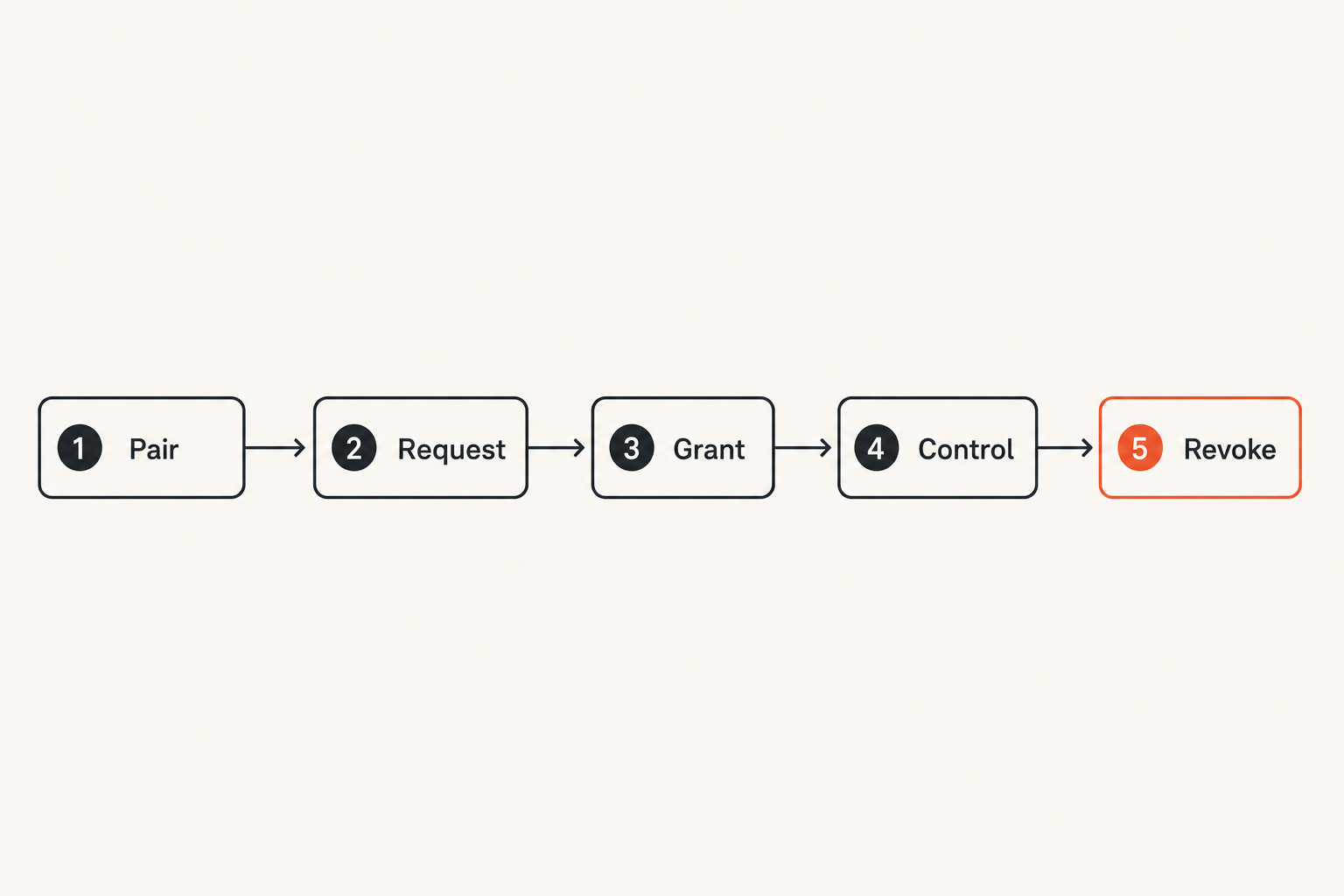
- The architecture pattern: request, grant, act, revoke
- What breaks when remote control is implemented badly
- Design permissions like a physical control surface
- Operational workflow for product teams
- Comparison: garage door remote thinking vs meeting-link thinking
- Implementation sequence for a safer remote session
- Metrics that show the workflow is healthy
- Where PairUX fits in this architecture
Why a garage door opener remote is a workflow problem
The remote is not the system
The mistake teams make is treating remote control as a UI feature. In practice, the UI is the least interesting part. The button is only safe because the rest of the system constrains what the button can do.
A useful way to think about it is this: the garage door opener remote does not own the garage. It has limited authority. It is paired to a specific receiver. It triggers a narrow action. It does not create a permanent relationship between every nearby person and the door.
Collaborative screen sharing should work the same way. A participant can request control, receive a narrow grant, operate inside a visible session, and lose control when the reason for control ends. That is a workflow decision, not just a rendering decision.
Practical rule: If a remote-control feature cannot explain who is allowed to act, why they are allowed, and when that permission expires, it is not ready for production use.
Why this matters for remote teams in 2026
Remote teams are no longer experimenting with online collaboration. They are building products, shipping fixes, onboarding customers, debugging production issues, and reviewing designs through shared screens. The work is real, and the cost of sloppy control is real.
For a designer, the risk is someone changing a frame or prototype while feedback is still being discussed. For a developer, the risk is a helper typing into the wrong terminal, deploying from the wrong branch, or losing local context. For an operator, the risk is customer trust: a call feels unprofessional when nobody knows who is controlling the screen.
The practical question is whether your tool helps the team maintain operational control. Screen sharing without a control model becomes a shared window into confusion. Remote control without session state becomes a small permissions incident waiting to happen.
Translate the garage door opener remote model into screen sharing
Pairing beats permanent access
A garage door opener remote has to be paired. That pairing step is annoying on purpose. It says: this device is allowed to talk to this receiver. In remote collaboration, the equivalent is not a permanent teammate privilege. It is a session-specific grant.
A developer helping another developer debug should not automatically retain control over future sessions. A product manager joining a design review should not inherit the same control rights as the designer driving the prototype. The relationship should be scoped to the session, not to the calendar invite.
Pairing in this context can be lightweight:
- The host starts a session.
- A participant requests control.
- The host sees the request in context.
- The host grants control for this session or this task.
- The system removes control when the session ends or the host revokes it.
That is enough to change the power model from access by presence to access by explicit grant.
State matters more than the button
What breaks in practice is not usually the first click. It is the unclear state after the click. Is the participant viewing or controlling? Did control transfer or is it shared? Can both users move the cursor? Did control silently continue after a network reconnect?
A good collaborative screen sharing system needs visible state transitions. The users should know whether the session is in view-only mode, request-pending mode, control-granted mode, paused mode, or revoked mode.
The button is a trigger. The state machine is the product.
Related reading from our network: teams building broader shipping systems face similar state and handoff problems in product strategy as a shipping system, especially when roadmap decisions have to survive real execution pressure.
The operator needs visible control
The host is the operator. The host owns the screen, the application context, and the consequences of an action. That means the host needs more than a passive indicator. They need control visibility.
At minimum, the host should know:
- Who is currently driving.
- Where their pointer is.
- Whether keyboard input is active.
- How to take back control immediately.
- Whether sensitive windows are exposed.
This is where many remote tools get too casual. They optimize for low friction and forget that control is not the same as conversation. If someone is driving your machine, even for ten seconds, the software should make that fact hard to miss.
The architecture pattern: request, grant, act, revoke
Step 1: Request control with context
A control request should answer the first operator question: what are you trying to do?
In a fast pair-debugging session, the context might be obvious from voice chat. In a customer support call, it may not be. The request can be simple, but the workflow should still separate asking from receiving.
Bad pattern:
- Participant joins session.
- Participant can immediately control.
- Host notices only after input begins.
Better pattern:
- Participant clicks request control.
- Host sees the requester identity.
- Host grants or denies control.
- Session state changes visibly for everyone.
The point is not ceremony. The point is preventing surprise.
Step 2: Grant the smallest useful permission
The smallest useful permission depends on the task. A designer may want someone to move around a prototype but not edit production design files. A developer may want a teammate to point, select text, or type a command, but not run anything outside the shared terminal.
Most general-purpose tools do not give perfect application-level control. Still, the operating model should push toward least privilege. View-only should be the default. Remote control should be explicit. Elevated actions should be rare and visible.
Practical rule: Treat remote control like borrowing the keyboard, not joining the meeting. Presence should not imply permission.
Step 3: Act with shared visibility
Once control is granted, the session should help both people stay oriented. Multi-cursor visibility, clear driver labels, and low-latency input all matter because they reduce correction loops.
The host should not have to ask, are you moving the cursor or am I? The participant should not have to guess whether input is being accepted. If both people are watching the same screen but interpreting different states, the session is already degraded.
This is also why collaborative screen sharing is not just video. Video shows pixels. Collaboration requires synchronized intent: cursor position, input ownership, pauses, revocation, and recovery.
Step 4: Revoke and record the session
Revocation has to be boring. The host should be able to take control back without negotiation, without hunting through a menu, and without ending the whole call.
Recording does not always mean video recording. For many teams, the useful record is operational: session started, participant joined, control requested, control granted, control revoked, session ended. These events help teams debug workflows and support complaints without turning every call into surveillance.
A practical session log might look like this:
- session.started
- participant.joined
- control.requested
- control.granted
- control.paused
- control.revoked
- session.ended
The log is not the product. The log is how you know whether the product behaved as expected.
What breaks when remote control is implemented badly
Failure mode: access outlives intent
The most common failure is access that lasts longer than the reason for access. Someone needed control to click one setting, but control remained active while the host opened another application. Someone helped debug a local environment, but the tool remembered an overly broad permission for the next call.
In a physical garage, this would feel absurd. You would not hand someone a garage remote forever because they helped you park once. In software, teams accidentally do this when permissions are sticky, vague, or tied to identity rather than session intent.
The fix is expiration by default. End of task, end of session, loss of focus, and host inactivity can all be reasonable revocation triggers depending on the product.
Failure mode: nobody knows who is driving
Remote sessions fall apart when input ownership is ambiguous. The host tries to move the cursor while the guest is moving it. The guest types while the host is explaining. A command is submitted, but neither person is completely sure who submitted it.
This is not only a UX annoyance. It breaks accountability. Teams need a clear sense of driver and navigator, especially during pair programming, production debugging, and customer support.
A visible driver label is cheap. A fast host override is cheaper than the cost of confusion.
Failure mode: support cannot reconstruct the event
When a remote session goes badly, the support question is usually simple: what happened? The answer is often not simple because the tool treated the session as a video call instead of a workflow.
Without event history, teams rely on memory. Memory is poor after a stressful customer call or production incident. Even a lightweight audit trail can separate a tool bug from a user misunderstanding.
Related reading from our network: field teams have the same reconstruction problem when dispatch, job state, and customer communication are split across tools, which is why workflow fit matters in field service management software.
Design permissions like a physical control surface
Make permissions temporary by default
Temporary permissions are not just a security posture. They are a collaboration posture. They tell everyone that control has a purpose and an end.
For remote teams, useful permission windows include:
- Until the host revokes control.
- Until the current application changes.
- Until the session ends.
- Until a timeout after inactivity.
- Until the guest completes a specific approved action.
Not every team needs every option. Too many controls can create their own failure mode. The important part is that the default is temporary, visible, and easy to cancel.
Separate viewing from driving
Viewing is not driving. This sounds obvious until a tool blends the two. A participant may need to watch a design review, inspect a bug, or follow an onboarding flow without touching anything.
Remote teams should treat these as separate states:
- Viewer: can see the screen.
- Pointer: can indicate an area without input.
- Driver: can move the cursor and type.
- Host: can grant, pause, revoke, and end the session.
This model is simple enough for people to understand during a call. It also maps cleanly to implementation. If your product cannot separate these roles internally, the UI will eventually leak that confusion.
Build a fast emergency stop
A garage door opener remote usually has a simple interrupt behavior. If the door is moving, another press can stop it or reverse it. Remote control needs the same idea: a host-level stop that is always available.
The emergency stop should not depend on the guest behaving well, the network being perfect, or the host finding a buried menu. It should be visible and immediate.
Practical rule: The host must be able to regain control faster than the guest can make a second unintended action.
In practice, this means keyboard shortcuts, clear UI affordances, and local enforcement. If the host revokes control, the local client should stop accepting guest input even if the remote connection is delayed.
Operational workflow for product teams
Design reviews need reversible control
Product designers often need a teammate to try a prototype, move through a flow, or point at an awkward interaction. That does not mean the teammate should own the design surface.
A good design review workflow looks like this:
- Designer shares the relevant window.
- Reviewer joins as viewer.
- Reviewer requests pointer or control.
- Designer grants temporary control.
- Reviewer demonstrates the issue.
- Designer revokes control and continues editing.
The reversible part matters. Control is useful because it is temporary. The designer should not have to rebuild session safety after every handoff.
Debugging needs shared context
Developer collaboration is where remote control becomes operationally valuable. Sometimes the fastest way to debug is to let a teammate drive for thirty seconds: inspect a stack trace, change a local config, reproduce a race condition, or run a failing test.
But debugging also has higher risk. Terminals, credentials, local services, package managers, and deployment scripts may all be nearby. The workflow should make it natural to narrow the shared surface and revoke control after the action.
This is why installation, system behavior, and security expectations should be clear before teams standardize on a tool. PairUX publishes practical setup and security information in the PairUX documentation so teams can evaluate the operating model, not just the demo.
Customer calls need tighter boundaries
Customer-facing sessions have a different risk profile. The customer may not understand what control means. The operator may be switching between internal and customer-visible systems. The session may involve account data, billing screens, or private notes.
For these calls, the workflow should be stricter:
- Share only the needed window when possible.
- Start in view-only mode.
- Ask before requesting control.
- Narrate control changes clearly.
- Revoke control before changing context.
- Keep event history for support review.
Related reading from our network: teams distributing signed desktop or agent software face adjacent trust boundaries around permissions and platform behavior, covered in this guide to Apple Developer Program workflows for AI agent products.
Comparison: garage door remote thinking vs meeting-link thinking
What works
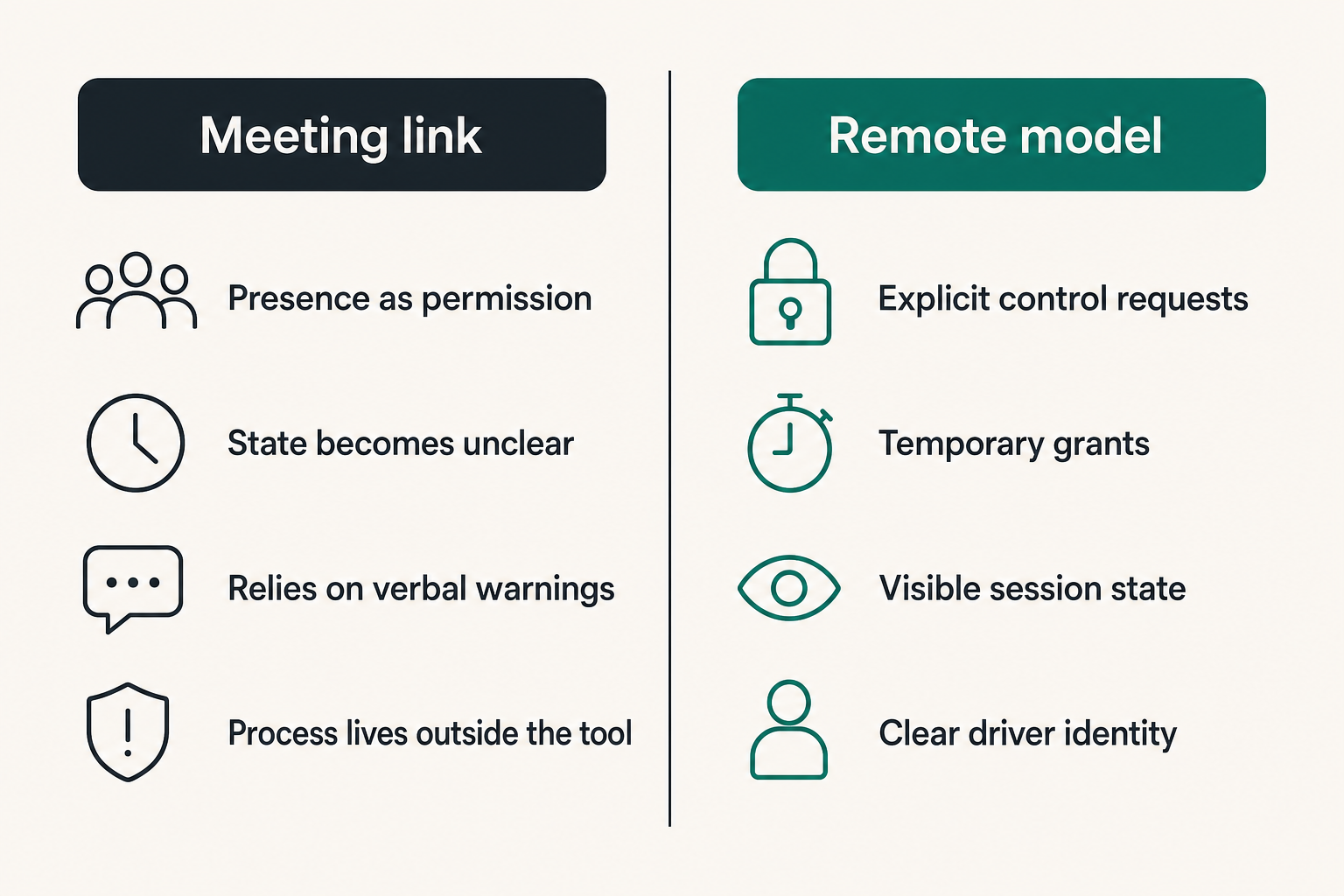
Garage door remote thinking works because it starts from control boundaries. It asks what should be allowed, who can trigger it, how long it lasts, and how the system returns to a safe state.
For collaborative screen sharing, that leads to better defaults:
- Explicit control requests.
- Temporary grants.
- Visible session state.
- Host-owned revocation.
- Clear driver identity.
- Minimal event history.
The benefit is not that every session becomes locked down and slow. The benefit is that high-trust teams can move quickly without relying on vague assumptions.
What fails
Meeting-link thinking fails because it treats presence as the main permission. If you are in the room, you can participate. That works for voice. It does not work cleanly for driving someone else's machine.
The failure pattern is predictable:
- The meeting starts fast.
- Screen sharing begins.
- Someone needs to help.
- Control is granted casually.
- The session state becomes unclear.
- A mistake happens or nearly happens.
- The team adds process outside the tool.
When teams have to compensate with verbal warnings and private rules, the product architecture is leaking.
Decision table for remote collaboration tools
| Decision area | Meeting-link thinking | Garage door remote thinking |
|---|---|---|
| Default access | Presence implies participation | Presence allows viewing, not driving |
| Control grant | Often casual or persistent | Explicit and session-scoped |
| State visibility | Hidden or secondary | Central to the interface |
| Revocation | Menu-driven or awkward | Immediate host action |
| Auditability | Little workflow history | Lightweight lifecycle events |
| Failure recovery | End the call or argue verbally | Pause, revoke, resume |
The mistake teams make is buying for the left column and then writing internal rules to behave like the right column. Choose the workflow you actually need.
Implementation sequence for a safer remote session
A practical rollout checklist
If you are rolling out collaborative screen sharing for a remote team, do not start with a feature matrix. Start with the session lifecycle. The feature matrix matters only after the workflow is clear.
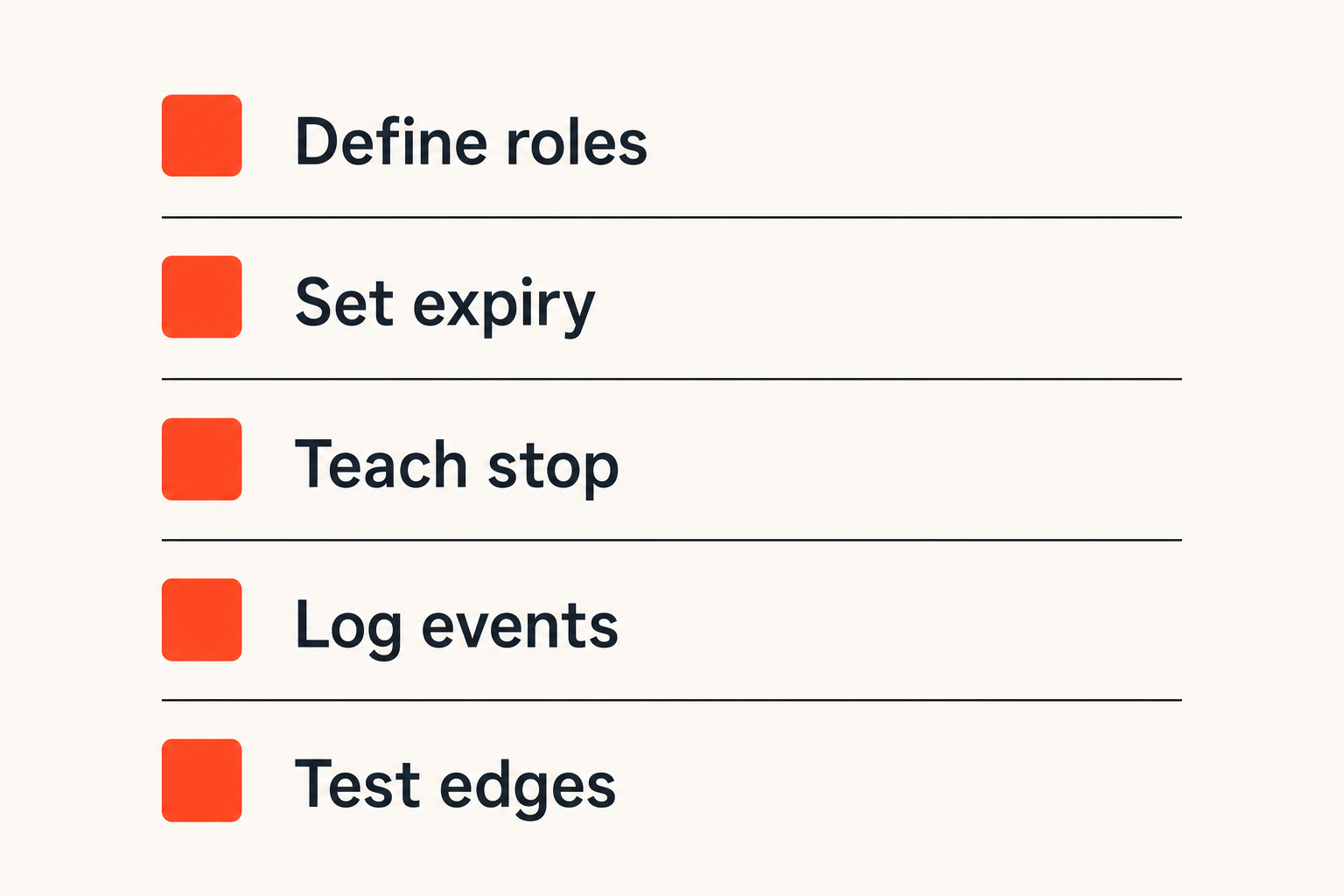
A practical rollout sequence:
- Define who hosts sessions for each use case.
- Decide when viewers may request control.
- Decide whether control grants expire on timeout, app switch, or session end.
- Define the emergency stop behavior and teach it first.
- Standardize naming for host, viewer, pointer, and driver roles.
- Test a normal design review, a debugging session, and a customer support call.
- Review what confused people before expanding usage.
This is not heavy process. It is the minimum operating model needed to prevent every team from inventing its own control etiquette.
Session lifecycle events to capture
You do not need a surveillance system to run safer sessions. You do need enough events to understand the workflow.
Capture events like:
- Session created.
- Participant joined.
- Screen shared.
- Control requested.
- Control granted.
- Control revoked.
- Host override used.
- Session ended.
For internal tools, these can live in application logs. For customer-facing workflows, they may need to connect to support tickets or account records. The key is consistency. If one session can be reconstructed and another cannot, support quality depends on luck.
A simple implementation note: log the lifecycle event, actor, timestamp, session identifier, and permission state. Avoid storing sensitive screen content unless you have a clear policy and user expectation.
Edge cases teams forget
The edge cases are where the architecture shows. Many teams test the happy path: join, share, request, grant, move cursor. Production breaks somewhere else.
Test these cases before standardizing:
- Guest disconnects while holding control.
- Host loses network while guest is driving.
- Host changes applications after granting control.
- Multiple guests request control at once.
- Guest input arrives after revocation because of latency.
- Host uses emergency stop during keyboard input.
- Session resumes after sleep or laptop lid close.
- External monitor is connected or removed mid-session.
What breaks in practice is often stale state. The UI says control ended, but an input path still accepts events. Or the network reconnects and restores a permission that should have expired. Treat reconnect as a new trust moment unless your model can prove otherwise.
Metrics that show the workflow is healthy
Measure handoff friction
Healthy collaboration feels fast, but fast is not the same as uncontrolled. Measure how long it takes to move from request to grant to useful action. If every handoff takes a minute of verbal coordination, the workflow is too heavy. If control grants happen instantly with no awareness, the workflow is too loose.
Useful handoff signals include:
- Time from request to host decision.
- Number of denied or ignored requests.
- Number of control changes per session.
- Number of times users ask who is driving.
Some of this can be instrumented. Some of it comes from watching real sessions. Do both.
Measure recovery time
Recovery time is the underrated metric. When something goes wrong, how quickly can the host stop input, regain control, and continue the call?
You can measure:
- Time from host override to input stop.
- Time from accidental action to corrected state.
- Number of sessions ended because revocation was not enough.
- Number of support tickets where session state was unclear.
A remote collaboration tool should make minor mistakes recoverable. If every mistake requires ending the meeting, the control model is too brittle.
Measure trust signals
Trust is not a mood. In this workflow, trust shows up as fewer interruptions, fewer verbal confirmations, and more confident handoffs.
Look for signs like:
- Hosts grant control without hesitation because revocation is clear.
- Guests request control instead of asking for vague permission verbally.
- Teams use remote control for precise tasks, not only emergencies.
- Customer-facing operators can explain what is happening in plain language.
This is where product design and operations meet. The system earns trust by being legible under pressure.
Where PairUX fits in this architecture
Use PairUX when collaboration is the work
PairUX is built around collaborative screen sharing with remote control for teams that need to work together online, not just watch a broadcast. That distinction matters.
A remote team doing design review, pair programming, product QA, onboarding, or support needs shared context and controlled action. The session is not a side channel. The session is where the work happens.
The PairUX features are easiest to evaluate through this lens: real-time screen sharing, remote control, multi-cursor collaboration, and cross-platform support are useful when they support a clear operating model.
Keep the operating model simple
The goal is not to turn every remote session into a compliance exercise. The goal is to make the safe path the easy path.
For most teams, the simple model is enough:
- Host owns the session.
- Everyone starts as a viewer.
- Participants request control.
- Host grants temporary control.
- Driver identity stays visible.
- Host can revoke immediately.
- Session ends cleanly.
If you are introducing this workflow to a team, start with one use case. Pair debugging is a good candidate because the value is obvious and the risks are concrete. Design review is another good candidate because the handoffs are frequent but reversible.
You can download PairUX for macOS, Windows, or Linux when you are ready to test the workflow with real sessions rather than a whiteboard model.
Try pairux.com
PairUX is for remote teams that need fast, practical collaborative screen sharing, remote control, and online teamwork without turning every handoff into a meeting ritual.
If your team is treating remote control like a button, use the garage door opener remote model instead: pair intentionally, grant narrowly, show state clearly, and revoke cleanly. That is the difference between screen sharing that works in a demo and collaborative control that survives real work.