2026-06-18
Samsung TV Remote for Remote Teams: Screen Sharing Workflows That Actually Work
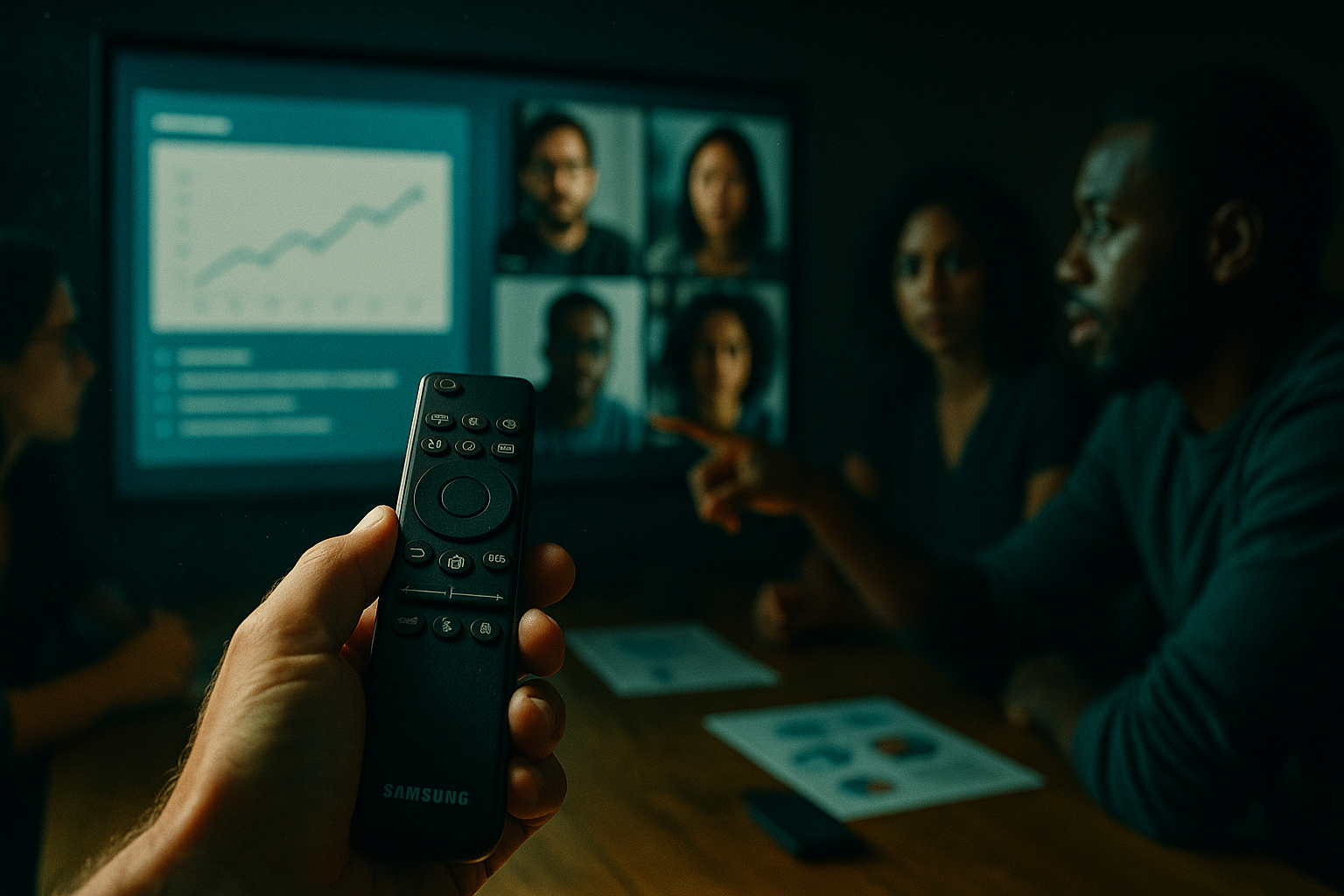
The meeting starts. Someone has the Samsung TV remote. Everyone else is waiting.
That's the real problem — not that the remote is missing, not that the TV won't pair, but that a physical device has become the single point of failure for a distributed team trying to do collaborative work. The remote controls the room, but it has nothing to do with the work.
Teams think the problem is a hardware configuration issue. The real problem is that they've built a workflow where a TV remote is load-bearing infrastructure. One person holds the clicker, and everyone else is a passive observer. That's not collaboration — it's a lecture with a mute button.
This guide is about fixing the architecture, not the remote. We'll cover how to think about Samsung TV remote workflows in a remote-team context, where physical remotes actually belong in a modern setup, and how screen sharing with real remote control replaces the bottleneck entirely.
Table of contents
- Why the Samsung TV remote becomes a bottleneck
- How remote teams actually use Samsung TVs in collaborative setups
- The architecture problem: control vs. collaboration
- Samsung TV remote pairing and connectivity troubleshooting
- Screen mirroring from a Samsung TV perspective
- Remote control workflows that replace the bottleneck
- What breaks when teams implement this badly
- Comparison: Samsung TV remote workflow vs. collaborative screen sharing
- Implementation sequence: upgrading your team's shared screen workflow
- Where the Samsung TV remote still belongs
- How PairUX fits into this architecture
Why the Samsung TV remote becomes a bottleneck
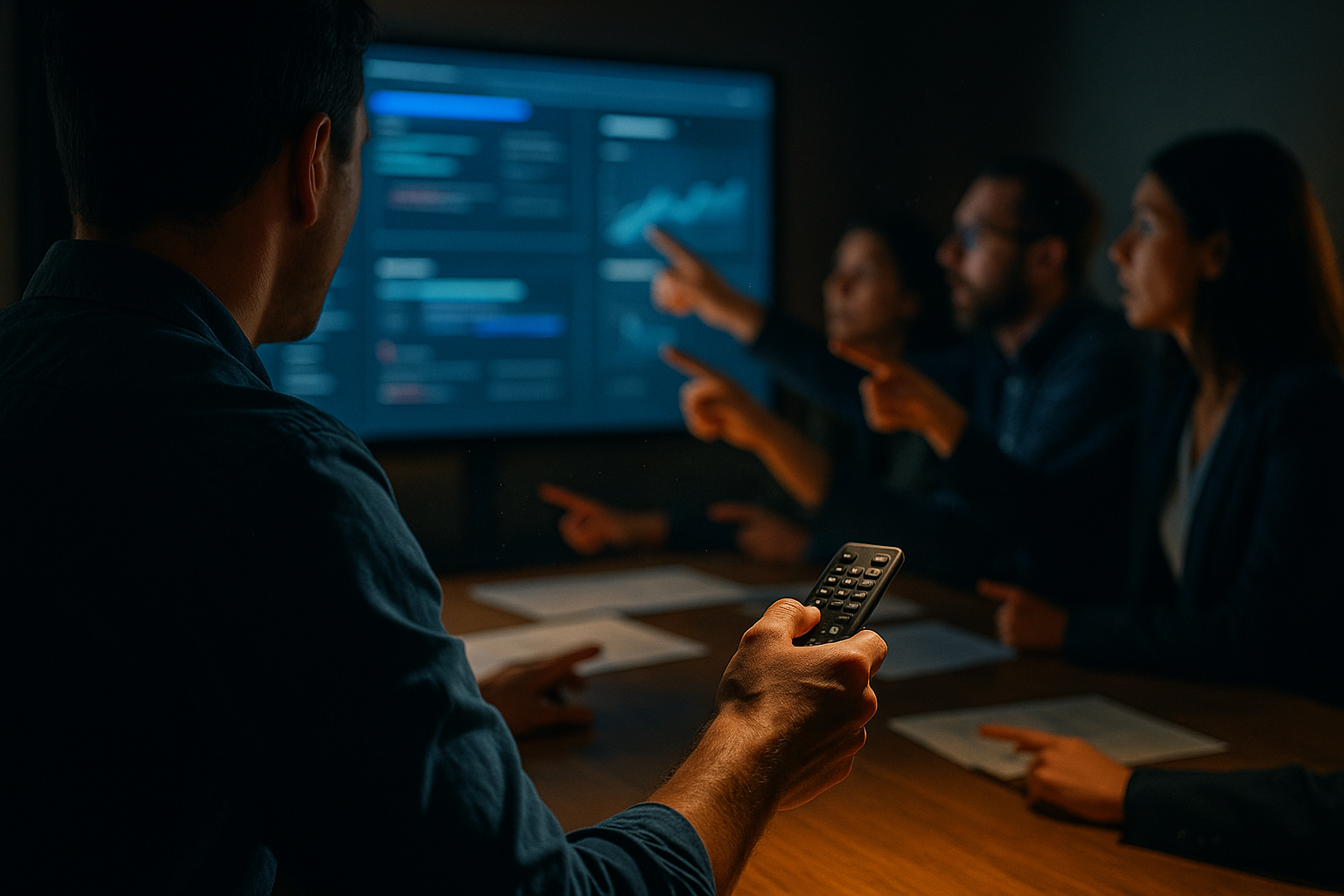
The single-controller problem
In a room with a Samsung TV, there is one remote. On a good day, it's on the table. On a bad day, it's behind the couch cushion or paired to someone's phone who left the meeting early. Either way, the person holding it controls what the group sees.
This is a workflow anti-pattern that remote teams reproduce at scale. You'll see it in:
- Sprint reviews where the engineer sharing their screen is also fielding questions, trying to scroll, and managing the remote simultaneously
- Design critiques where the designer has to verbally direct someone else to "click there, no, one more to the right"
- All-hands meetings where the TV remote gates every content transition and the presenter can't step away from the display
The mistake teams make is treating this as a hardware problem — get a better remote, get a wireless keyboard, get a longer HDMI cable. The actual problem is that they've created a single point of failure in a workflow that should be distributed.
Physical vs. digital control surfaces
A Samsung TV remote is a physical control surface. It's designed for one user in a fixed location to navigate a display interface. It was never designed for collaborative work, asynchronous handoffs, or multi-participant interaction.
Digital control surfaces — screen sharing with remote control, collaborative cursors, shared whiteboard tools — are designed for exactly the opposite: multiple participants, variable locations, shared ownership of what's on screen.
The practical question is: why are teams using a physical control surface as the foundation of a digital workflow?
How remote teams actually use Samsung TVs in collaborative setups
Common Samsung TV remote use cases in team environments
In practice, Samsung TVs show up in team environments in a few specific ways:
- Conference room displays: A large Samsung TV is wall-mounted, and the Samsung TV remote controls input switching, volume, and brightness. A laptop is connected via HDMI or wireless casting, and the remote is used to switch between sources.
- Hybrid meeting rooms: The TV is the primary display for remote participants joining via video call. The remote controls the TV; a separate device controls the meeting software.
- Home office setups: Individual contributors use a Samsung TV as a secondary monitor. The Samsung TV remote adjusts picture settings and switches between desktop and streaming inputs.
- Demo environments: Teams running product demos or customer calls project onto a Samsung TV for in-room audiences while also sharing their screen remotely.
In all of these, the Samsung TV remote is doing one of two things: switching inputs or adjusting display settings. Those are legitimate jobs. The problem starts when the remote is also being used as a stand-in for actual collaboration tooling.
Where the workflow breaks down
The breakdown point is usually one of three things:
- Input switching delays: Someone switches the TV input with the Samsung TV remote mid-meeting, and the remote participants on the video call lose the shared screen for 30 seconds while the presenter reconnects.
- Permission ambiguity: No one is sure who is supposed to have the remote, so the meeting pauses while someone physically walks across the room to hand it off.
- Remote loss or failure: The Samsung TV remote dies, Bluetooth drops, or the remote has been reprogrammed by a previous user. The meeting halts entirely.
Related reading from our network: teams shipping SaaS products face similar workflow ambiguity when it comes to who controls the demo environment and when.
Practical rule: If your meeting can be blocked by a missing or dead remote, you don't have a collaboration workflow — you have a dependency on a physical object.
The architecture problem: control vs. collaboration
What control actually means in a distributed setup
Control in a distributed team context should mean: any participant can take the cursor, annotate the screen, scroll to the relevant section, or hand off control to another participant — without anyone leaving their seat or picking up a remote.
This is not a new idea. It's been the promise of screen sharing since the early days of remote desktop tools. But in practice, many teams still implement it badly: one person shares their screen, everyone else watches, and the presenter is both the navigator and the subject-matter expert simultaneously. That's a cognitive load problem, and it slows down every meeting that requires real interaction with a shared artifact.
A useful way to think about it: the Samsung TV remote problem is a symptom of a missing permission model. No one has defined who can control what, when, and how. The remote fills that vacuum by being the only available control surface.
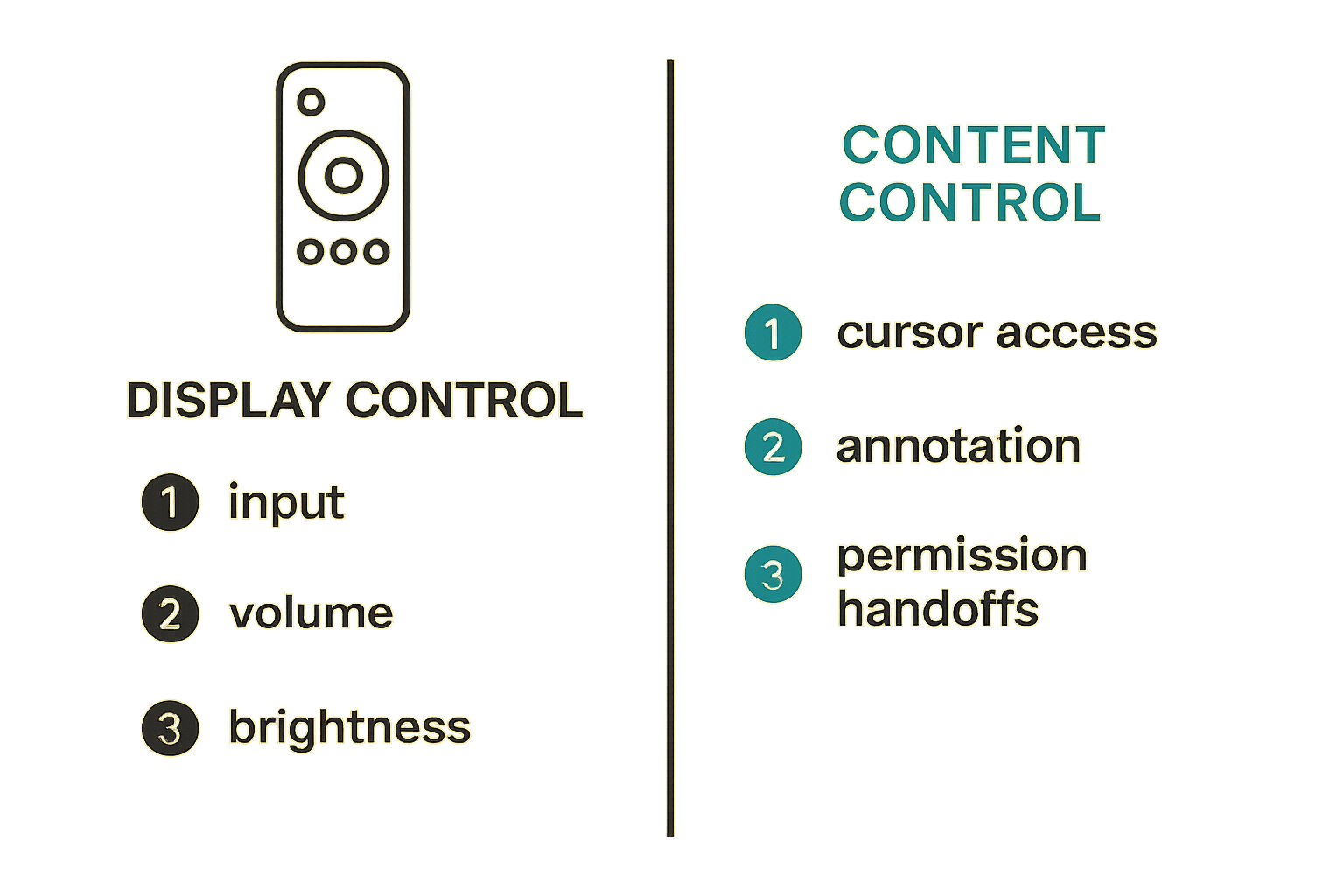
Separating display control from content control
The architectural fix is to separate two things that often get conflated:
- Display control: brightness, volume, input source, aspect ratio. This is what the Samsung TV remote is actually good at. Let it do that job.
- Content control: what's on the shared screen, which slide is active, where the cursor is pointing, who is annotating. This should be handled by your screen sharing and collaboration tooling, not a physical remote.
When you separate these two concerns, the Samsung TV remote goes back to being a display accessory — which is what it's designed to be — and your team gets a real workflow for the content layer.
Samsung TV remote pairing and connectivity troubleshooting
Bluetooth vs. IR remotes: what matters for teams
Samsung ships two types of remotes with their smart TVs: traditional infrared (IR) remotes and Bluetooth-based Smart Remotes (sometimes called One Remote or SolarCell Remote). Understanding which one you have matters for team setups.
IR remotes require line-of-sight. If the TV is mounted high or in a corner, and your conference table is off-axis, the remote may not register reliably. Bouncing signals off walls occasionally works, but it's not a workflow.
Bluetooth remotes pair directly to the TV and don't need line-of-sight. They support voice commands and have a more limited button set. Pairing is usually automatic when you insert batteries, but manual pairing requires holding the Return and Play/Pause buttons simultaneously for 3 seconds.
For teams with conference room setups, Bluetooth remotes are more practical. But they introduce a different failure mode: the remote pairs to one TV, and if someone moves it between rooms or resets the TV, re-pairing is required.
Common pairing failures and fixes
Most Samsung TV remote pairing failures in team environments fall into three categories:
- Remote paired to wrong TV: In offices with multiple Samsung displays, Bluetooth remotes can accidentally pair to a different unit. Fix: hold the Back and Play buttons for 3 seconds to reset, then re-pair to the correct TV.
- Low battery causing intermittent response: Samsung Bluetooth remotes are power-efficient but will degrade connectivity before fully dying. Replace batteries earlier than you think you need to.
- TV firmware update broke pairing: Samsung TV firmware updates occasionally reset Bluetooth pairing. After a major update, re-pair the remote manually. Keep the TV's software update schedule predictable — don't let it auto-update before a critical meeting.
Practical rule: Keep a spare Samsung TV remote or a Samsung SmartThings app configured as a backup on a shared device in every conference room. Remote failure is not a reason to cancel a meeting.
Screen mirroring from a Samsung TV perspective
Built-in mirroring options on Samsung smart TVs
Samsung smart TVs (2018 and later) ship with several built-in screen sharing and mirroring options that teams use in conjunction with the remote:
- Smart View / Screen Mirroring: Uses Miracast-based wireless projection. Windows PCs and Android devices can cast directly to the TV without additional hardware. Accessed via the TV's source menu, which you navigate with the Samsung TV remote.
- AirPlay 2: Available on Samsung TVs from 2018 onward. Apple devices can cast to the TV. Setup requires navigating Samsung's SmartHub with the remote.
- DeX support: Samsung Galaxy devices can project a desktop interface to the TV. Again, the Samsung TV remote navigates the initial setup.
- HDMI with CEC: Physical connection that allows the TV remote to control connected device playback in some configurations.
In all cases, the Samsung TV remote is used for setup and input switching. The actual content being mirrored is controlled from the source device.
Limitations of native Samsung screen share
Native Samsung screen mirroring has real limitations that matter for distributed teams:
- One source at a time: You can only mirror one device at a time. Handing off to a different presenter requires disconnecting and reconnecting, which takes 15–30 seconds and often interrupts the meeting flow.
- No remote control of the source: The TV remote cannot control the content on the mirrored device. If the presenter needs to advance a slide or scroll a document, they must do it from their own device.
- Latency on wireless casting: Miracast and AirPlay introduce latency. For static presentations this is fine. For live demos or interactive walkthroughs, the lag is noticeable and disruptive.
- No multi-participant annotation: Native mirroring has no concept of shared cursors or collaborative annotation. The viewer is always passive.
This is where dedicated screen sharing software with remote control capabilities does a different job than what the Samsung TV remote and native mirroring can offer.
Remote control workflows that replace the bottleneck
Giving every participant cursor access
The core shift is moving from a model where one person controls the shared screen to a model where any participant can request or receive cursor control. This requires software that supports:
- Real-time remote control handoff: The presenter can grant control to any participant without disconnecting the session.
- Multi-cursor visibility: Participants can see where others are pointing, even if they don't have active control.
- Permission revocation: The host can take back control instantly if needed.
For teams that use the PairUX features page as a reference, this is the core workflow that replaces the Samsung TV remote as the bottleneck: any participant gets cursor access on request, the host keeps permission control, and no one has to walk across a room.
Related reading from our network: operators building and shipping software products face a similar handoff problem during internal demos and reviews.
Permission models that don't slow the meeting down
Permission models in collaborative screen sharing exist on a spectrum:
- No model: Anyone can take control at any time. Fast but chaotic. Works in small, high-trust teams.
- Request/grant: A participant requests control; the host approves. Adds one round-trip but maintains clarity on who has the cursor. Best for most team meetings.
- Explicit handoff: The host actively passes control to specific participants in sequence. Useful for structured demos or training sessions.
- View-only with annotation: Participants can annotate but not control. Good for design reviews where you want feedback without editing.
The mistake teams make is implementing the most restrictive model by default and then wondering why no one participates. Start with request/grant and move toward more explicit handoff only when session structure requires it.
Practical rule: Your permission model should match your meeting type. A design critique needs different permissions than a production incident review. Don't apply one model universally.
What breaks when teams implement this badly
Common failure modes
In production — meaning in real team meetings, not demos — the following failure modes come up repeatedly:
- The phantom presenter: Screen sharing is running, but the person who started the share has left the meeting or lost connectivity. No one else can take over because the share is locked to the original host.
- The annotation chaos session: Multi-cursor access is enabled with no permission model. Three people start drawing on the screen simultaneously. The meeting degenerates into cursor combat.
- The TV input war: Someone switches the Samsung TV input with the remote mid-session to check something on a streaming service. The shared screen disappears for the in-room audience. The remote participants on the call are unaffected but confused by the sudden silence.
- The latency spiral: A team casts wirelessly to a Samsung TV, introduces 2–3 seconds of lag, and the presenter starts overcompensating by moving the cursor more aggressively. The lag makes it worse. Remote participants on the video call are now watching two out-of-sync versions of the same screen.
- The security gap: A team uses a screen sharing tool that doesn't enforce session authentication. Someone outside the team joins the session URL and gets cursor access.
What good implementation looks like
Good implementation has a few consistent properties:
- The share session is independent of the presenter's connectivity. If the original host drops, someone else can take over without restarting.
- The permission model is explicit and communicated before the meeting starts. Participants know whether they can request control or not.
- The Samsung TV remote is only used for display control — input source, volume, brightness. It does not touch the content layer.
- Latency is managed at the connection layer, not compensated for at the presenter layer. If wireless casting is too slow, use a wired connection for the in-room display and screen sharing software for remote participants.
- Sessions require authentication. Guest access should require explicit approval.
Comparison: Samsung TV remote workflow vs. collaborative screen sharing
| Dimension | Samsung TV remote workflow | Collaborative screen sharing |
|---|---|---|
| Who controls content | One person (remote holder) | Any permitted participant |
| Handoff mechanism | Physical handoff of remote | Software permission grant |
| Remote participant experience | Passive viewer | Active participant with cursor access |
| Latency | Display-level (fast) | Network-dependent (managed) |
| Failure mode | Lost/dead remote | Session auth failure, connectivity |
| Multi-participant annotation | Not supported | Supported (tool-dependent) |
| Setup complexity | Low (physical device) | Low to medium (software setup) |
| Scalability | Does not scale beyond the room | Scales to any number of remote participants |
The comparison makes clear that the Samsung TV remote workflow is not wrong — it's just scoped to in-room display control. It was never designed for the distributed, multi-participant collaboration that remote teams need. Trying to stretch it into that role is the source of most of the friction teams experience.
Implementation sequence: upgrading your team's shared screen workflow
Step-by-step rollout for small and mid-size teams
This is a practical sequence for teams moving from a Samsung TV remote-centered workflow to a collaborative screen sharing setup. It's designed to be low-disruption — you're adding a layer, not ripping out the existing display setup.
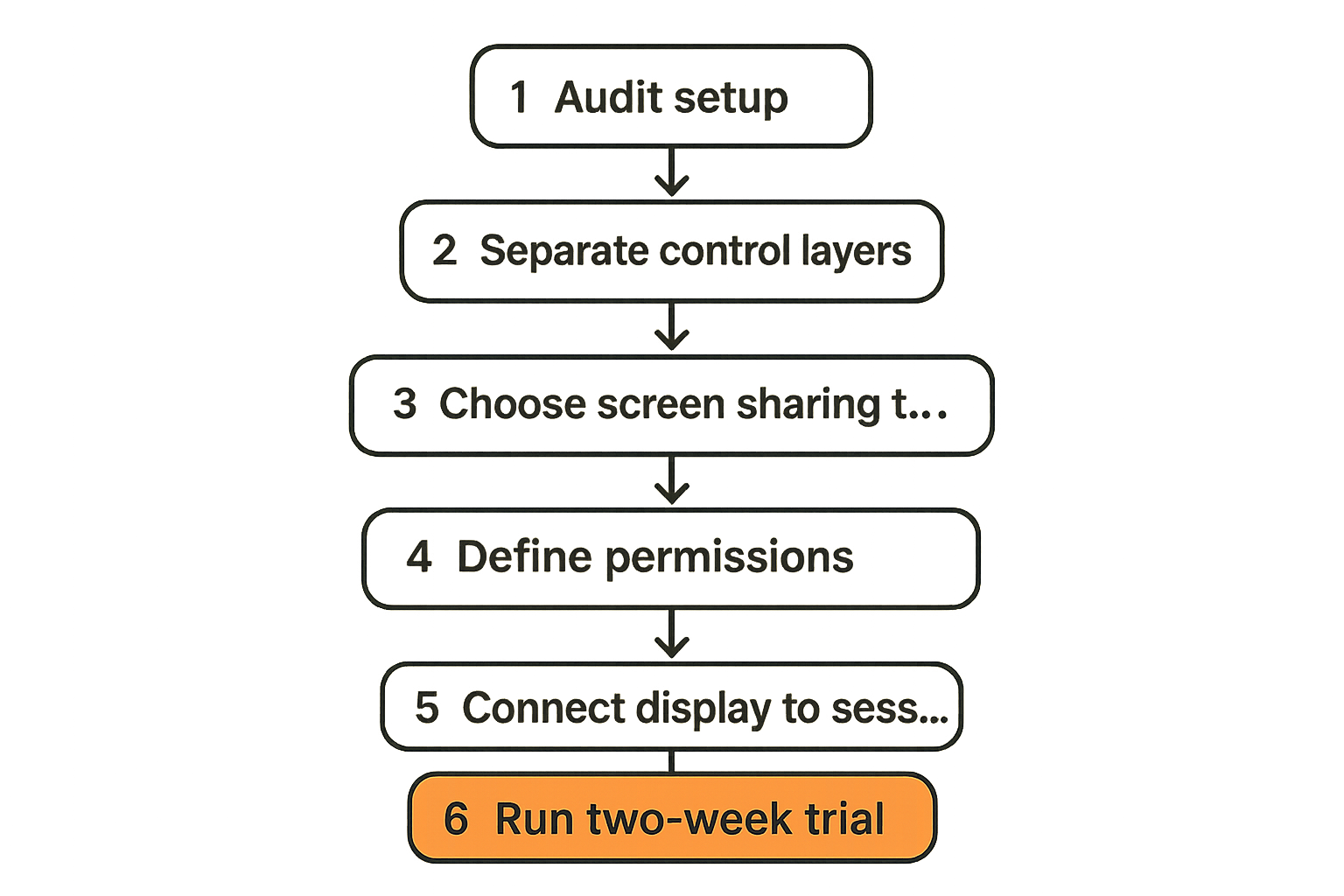
Audit your current setup: Identify every place where the Samsung TV remote is acting as the sole control surface for collaborative work. Conference rooms, home offices, demo environments. List the specific meeting types where a remote handoff causes friction.
Separate display control from content control: Designate the Samsung TV remote (and the SmartThings app as backup) as display-only tools. Document this explicitly — stick a label on the remote if you have to. Input switching and volume are its job. Content navigation is not.
Choose a screen sharing tool with remote control: The criteria are: real-time remote control handoff, request/grant permission model, low-latency screen rendering, and session authentication. Test it in a low-stakes meeting before rolling it out for demos or production reviews.
Define your permission model per meeting type: For each recurring meeting type (sprint review, design critique, all-hands, customer demo), define the default permission model. Document it in your meeting norms doc.
Connect the in-room display to the screen sharing session, not the casting source: Instead of casting a laptop to the Samsung TV and separately joining a video call, have the in-room TV display the screen sharing session directly. This eliminates the dual-stream problem and means remote participants see exactly what the room sees.
Run a two-week trial with one team: Pick the team with the most frequent collaborative screen-sharing pain points. Run the new workflow for two weeks. Track: meeting start delays, number of mid-session handoff failures, presenter cognitive load (informal survey), and participant engagement.
Standardize and document: After the trial, document the working configuration in your team's knowledge base. Include the screen sharing tool setup, the Samsung TV remote scope (display only), and the permission model for each meeting type. The PairUX docs are a useful reference for installation and system requirements if you're evaluating PairUX as the screen sharing layer.
Set a review cadence: Revisit the workflow every quarter. Samsung TV firmware updates, changes to your video conferencing tool, and team size changes will all require adjustments.
Related reading from our network: remote professionals evaluating new workflow tools can use similar structured evaluation frameworks — the pattern of auditing current state, defining criteria, trialing, and standardizing applies broadly.
Where the Samsung TV remote still belongs
Legitimate use cases for physical control
After all of this, the Samsung TV remote is not the villain. It's a well-designed tool for a specific job. Here's where it genuinely belongs in a remote team's setup:
- Pre-meeting display setup: Adjusting brightness, switching to the correct input source, connecting HDMI or enabling screen mirroring mode. This is the remote's job, and it does it well.
- Audio management in hybrid rooms: Volume control for in-room participants during video calls. The remote is faster than navigating the TV's on-screen menu.
- Kiosk and ambient display control: If your office runs dashboards or ambient displays on Samsung TVs, the remote manages those displays. No collaboration software needed.
- Fallback navigation: If your screen sharing software fails and you need to present from a device directly connected to the TV, the remote navigates the TV's interface while you troubleshoot.
The key reframe: treat the Samsung TV remote as infrastructure management tooling, not collaboration tooling. It manages the display. Your screen sharing software manages the collaboration.
How PairUX fits into this architecture
Screen sharing with real remote control for distributed teams
PairUX is built for exactly the workflow gap described in this guide: the space between "one person controls the screen" and "everyone can participate without chaos."
The architecture is straightforward. The presenter starts a session and shares their screen. Any participant can request cursor control. The presenter approves with one click. Multiple participants can see each other's cursors in real time. The host can revoke control at any time. Sessions require authentication — no anonymous cursor access.
This maps directly onto the implementation sequence above. The Samsung TV remote stays in its lane — display control, input switching, volume. PairUX handles the content layer: who can see what, who can interact, and how control moves between participants.
For teams that have read our prior deep-dive on Samsung TV remote workflows for remote teams, PairUX is the practical tooling answer to the workflow architecture that post describes.
The practical question isn't whether you need collaborative screen sharing. If you're running sprint reviews, design critiques, or customer demos with remote participants, you already need it. The question is whether your current setup is accidentally delegating that work to a TV remote.
Try pairux.com
PairUX gives remote teams real-time collaborative screen sharing with request-based remote control — so any participant can interact with the shared screen, not just the person holding the clicker. Try pairux.com