2026-06-17
Samsung TV Remote Workflows for Remote Teams: Control the Shared Screen, Not the Room
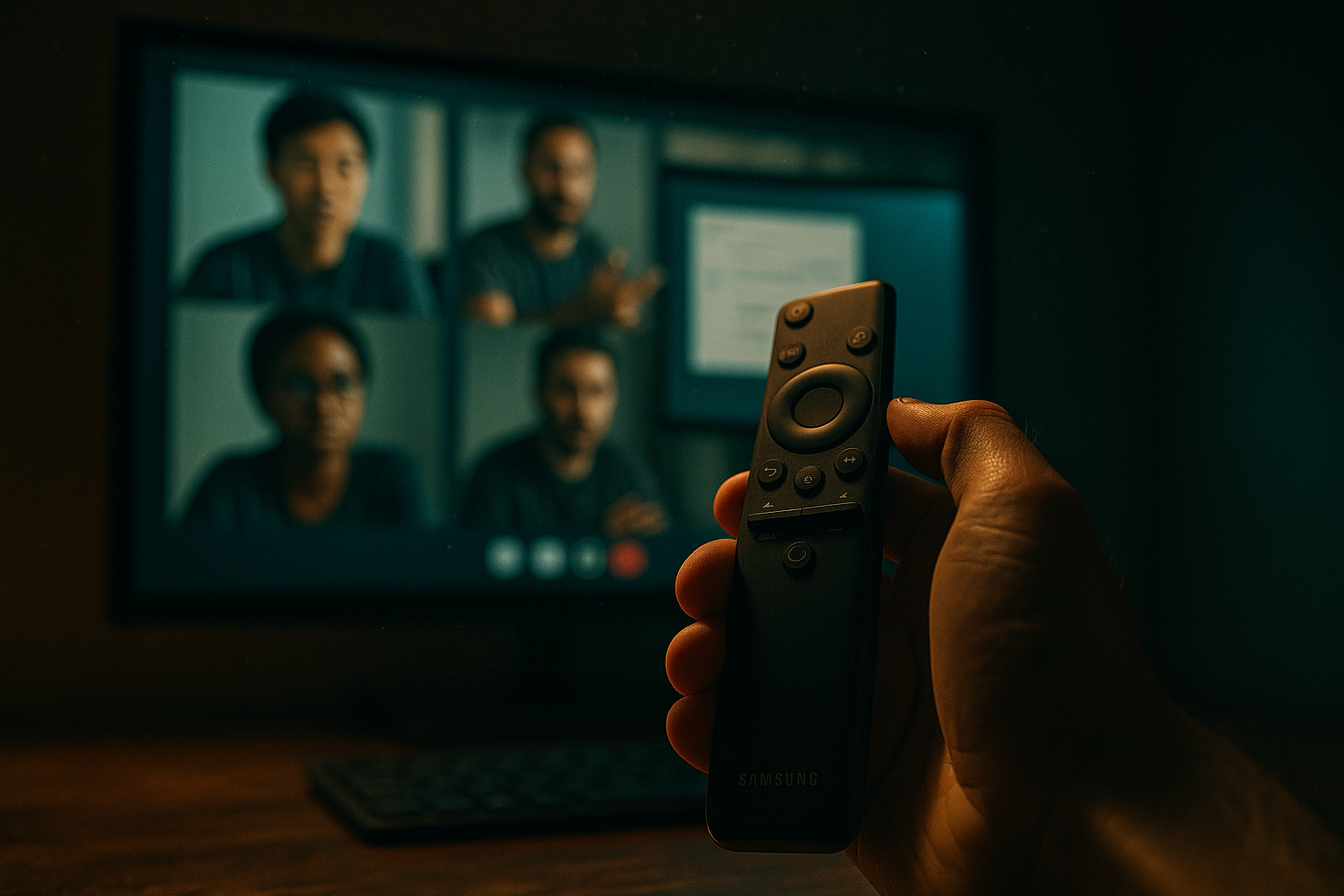
A samsung tv remote feels like a small problem until it blocks a team call.
Someone is presenting on a conference-room TV. A designer wants to zoom into a prototype. A developer needs to switch tabs. The person with the physical remote is not the person who understands the work. The room becomes a bottleneck.
Teams think the problem is the Samsung TV remote. The real problem is control architecture: who can see the screen, who can act on it, who can recover when it breaks, and how the team avoids turning every shared display into a support ticket.
That changes the conversation. The practical question is not which button to press on the remote. It is how remote teams should design a reliable workflow around shared screens, remote control, permissions, and fallback paths in 2026.
Table of contents
- Why a samsung tv remote becomes a workflow problem
- Samsung TV remote options and where they fail
- Reference architecture for a TV collaboration setup
- Permissions, remote control, and trust boundaries
- Designing the operating workflow
- What breaks in practice
- What works when teams standardize the setup
- Implementation sequence for remote teams
- Metrics, support, and ongoing operations
- Where PairUX fits into the samsung tv remote workflow
Why a samsung tv remote becomes a workflow problem
The screen is shared but control is not
A conference-room TV is usually treated as a passive display. That works when one person is presenting slides. It fails when the work is interactive: design critique, bug triage, code review, customer support review, onboarding, roadmap planning, or QA walkthroughs.
In those sessions, the person talking is often not the person driving. The designer sees the layout issue. The engineer knows where the log panel is. The product lead wants to compare two tickets. If every action has to be translated into verbal instructions for the person holding the Samsung TV remote, the meeting slows down.
What breaks in practice is not the picture on the screen. It is the handoff between intent and action.
Practical rule: Treat the TV as a display endpoint, not as the collaboration layer.
Teams think the problem is the television
The mistake teams make is buying more accessories before defining ownership. They add a better HDMI adapter, a mobile remote app, a casting dongle, or another keyboard. Sometimes that helps. Often it just adds another path nobody owns.
A Samsung TV remote can change inputs, adjust volume, open apps, and navigate menus. It cannot decide who should control the shared browser, which participant is allowed to take over a cursor, or how the team recovers when the presenter drops from the call.
That is why this topic belongs in the same category as remote collaboration tooling, not consumer electronics. The device is visible. The workflow is the thing that either holds or breaks.
The practical question for remote teams
The practical question is: how do you make a TV useful for a hybrid or remote team without turning the room into a gatekeeper?
A useful way to think about it is to split the system into three layers:
- Display layer: the Samsung TV, input source, resolution, audio, and room visibility.
- Control layer: who can move the cursor, type, switch apps, or advance the demo.
- Workflow layer: meeting roles, permissions, fallback paths, and support ownership.
If those layers are mixed together, the room controls the work. If they are separated, the room becomes just another endpoint.
Samsung TV remote options and where they fail
Physical remotes are local-only control
The physical Samsung TV remote is fine for local setup tasks. Someone in the room can power on the display, select HDMI, adjust volume, and back out of a menu. It is fast because it is direct.
But it has a hard boundary: it assumes the operator is in the room. In a distributed team, the person with the context may be remote. The remote cannot be passed through the meeting link. A remote developer cannot press input source or close a pop-up unless someone local does it for them.
That creates a subtle hierarchy. The local room becomes operationally privileged, even if the remote participant is the one doing the work.
Mobile remote apps add convenience but not workflow
Samsung and third-party mobile apps can replace some physical remote functions. For home use, that is often enough. For team work, it is incomplete.
Mobile remote apps still focus on device control. They do not solve meeting control. They also introduce device pairing, Wi-Fi network assumptions, phone battery issues, account ambiguity, and app update drift. In a shared office, a phone-based remote can be worse than a physical remote because nobody knows which phone is paired.
The mistake teams make is assuming app-based control is the same as collaborative control. It is not. It is just another local control surface.
Screen mirroring solves display, not collaboration
Casting or mirroring can get a laptop onto the Samsung TV quickly. That is useful. But mirroring generally answers one question: how do we show this screen over there?
Remote teams need more than that. They need to answer:
- Who can control the shared screen?
- Can control be granted temporarily?
- Can multiple people point, inspect, or navigate?
- What happens if the presenter loses connectivity?
- How do we end access cleanly after the meeting?
For teams comparing adjacent collaboration stack decisions, Related reading from our network: how SaaS teams design engineering work before hiring is a useful reminder that tool choices should follow workflow design, not replace it.
Reference architecture for a TV collaboration setup
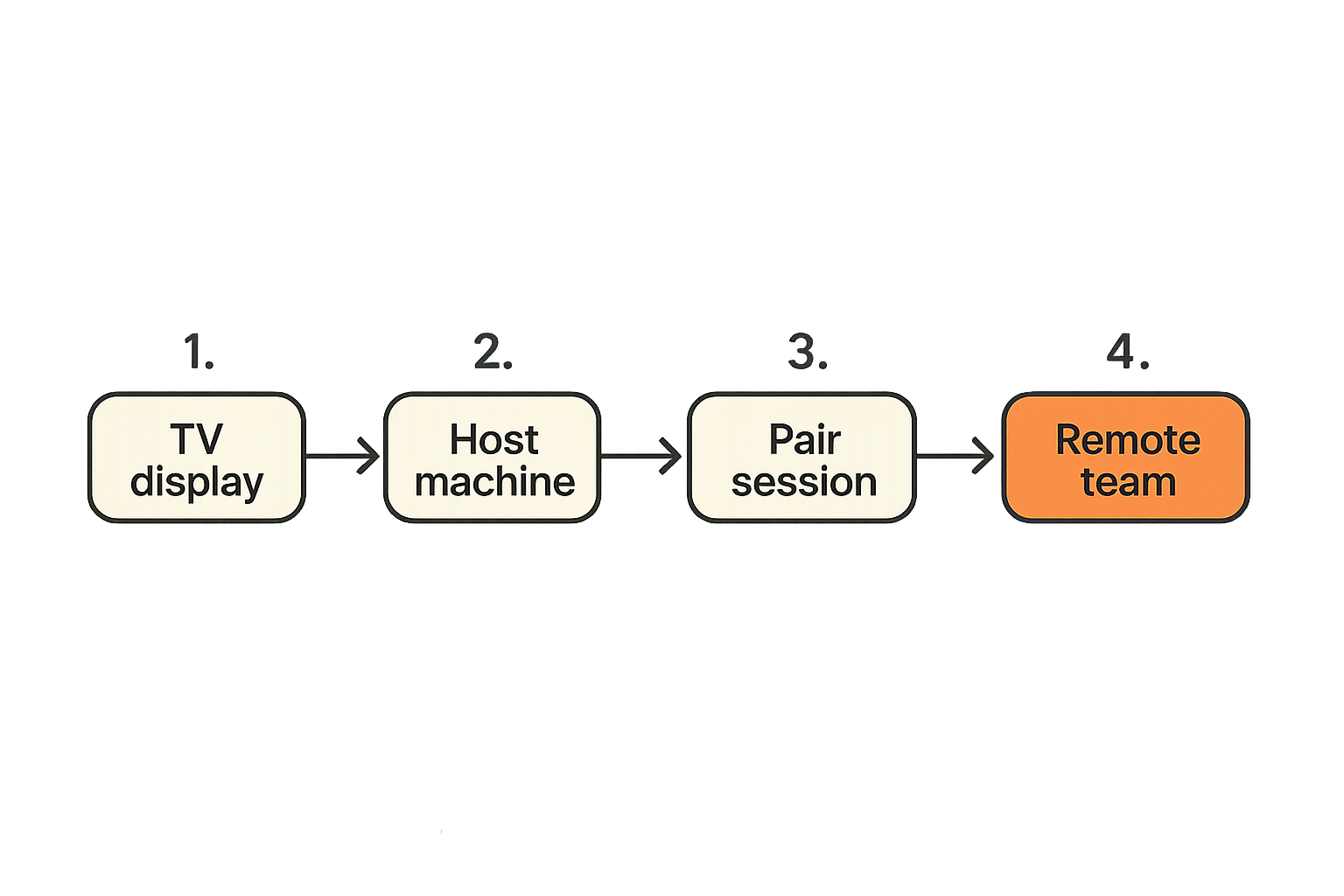
Separate display control from work control
A reliable setup separates the act of displaying from the act of collaborating.
The Samsung TV remote should handle room-level controls: power, input, volume, and basic TV settings. The collaboration tool should handle work-level controls: screen sharing, remote cursor access, multi-user participation, and handoff.
Here is the clean separation:
| Layer | Primary job | Good owner | Common failure |
|---|---|---|---|
| Samsung TV remote | Power, input, volume | Room host or office owner | Remote person cannot operate it |
| Host computer | Runs the shared work session | Meeting driver | Sleep, wrong account, app updates |
| Collaboration tool | Screen share and remote control | Whole meeting | Permissions unclear |
| Runbook | Recovery and support rules | Team operations | Nobody knows the fallback |
The table matters because it prevents a common argument. If a remote participant cannot control the Figma file or browser, the fix is probably not a better TV remote. It is a better control layer.
Use one host machine as the stable endpoint
Most teams get better results when the TV is attached to a stable host machine rather than relying on whoever walks into the room first.
That host can be a dedicated mini PC, a meeting-room laptop, or a known workstation. The exact hardware matters less than the operating model:
- It is patched and restarted on a schedule.
- It has the required collaboration software installed.
- It uses a predictable display resolution.
- It has a known audio route.
- It is not someone’s personal machine full of private notifications.
This reduces meeting startup time because the TV is not the computer. The TV displays the host. The host joins or displays the collaborative session.
Keep recovery paths outside the TV
Do not put your only recovery path behind the TV menu. If a session freezes, a participant should not need to navigate five Samsung TV remote screens while the team waits.
A better recovery model is external:
- Restart the collaboration session from the host machine.
- Rejoin from a second device if the host fails.
- Switch TV input only if the display path is broken.
- Use a written room runbook for last-resort TV settings.
Practical rule: If recovery depends on one person knowing the TV menu, you do not have a workflow. You have folklore.
Permissions, remote control, and trust boundaries
Remote control should be explicit
Remote control is powerful. It lets someone else act on a machine: click, type, scroll, navigate, and sometimes expose sensitive information. Treat it as a permissioned action, not a casual convenience.
For a team session, the right default is explicit control grants. A participant requests control, the host approves, the action is visible, and control can be revoked. This is especially important during customer calls, hiring exercises, incident reviews, and internal admin work.
The goal is not to make collaboration slow. The goal is to make control understandable.
The TV should not become an identity system
A Samsung TV remote has no meaningful concept of your team identity. It does not know who is a contractor, who is a new hire, who is an external customer, or who should never touch production dashboards.
That identity boundary belongs in your collaboration layer and operating policy. Room access is not the same as system access. Being physically near the display should not automatically give someone authority to control the work.
This is where remote teams need to be a little skeptical of convenience. If the easiest path also bypasses access control, it will eventually be used in the wrong meeting.
Auditability matters more than clever pairing
In production teams, clever pairing flows are less important than knowing what happened. Who shared the screen? Who took control? Who approved it? When did the session end?
You do not need a heavyweight compliance program for every design review. But you do need enough visibility to debug awkward situations. If a customer screen was exposed, if a private ticket was opened, or if someone edited the wrong environment, the team needs a timeline.
Related reading from our network: a SOC operating model for national security agency terminology covers a different domain, but the operating lesson is similar: signals without ownership do not produce reliable response.
Designing the operating workflow
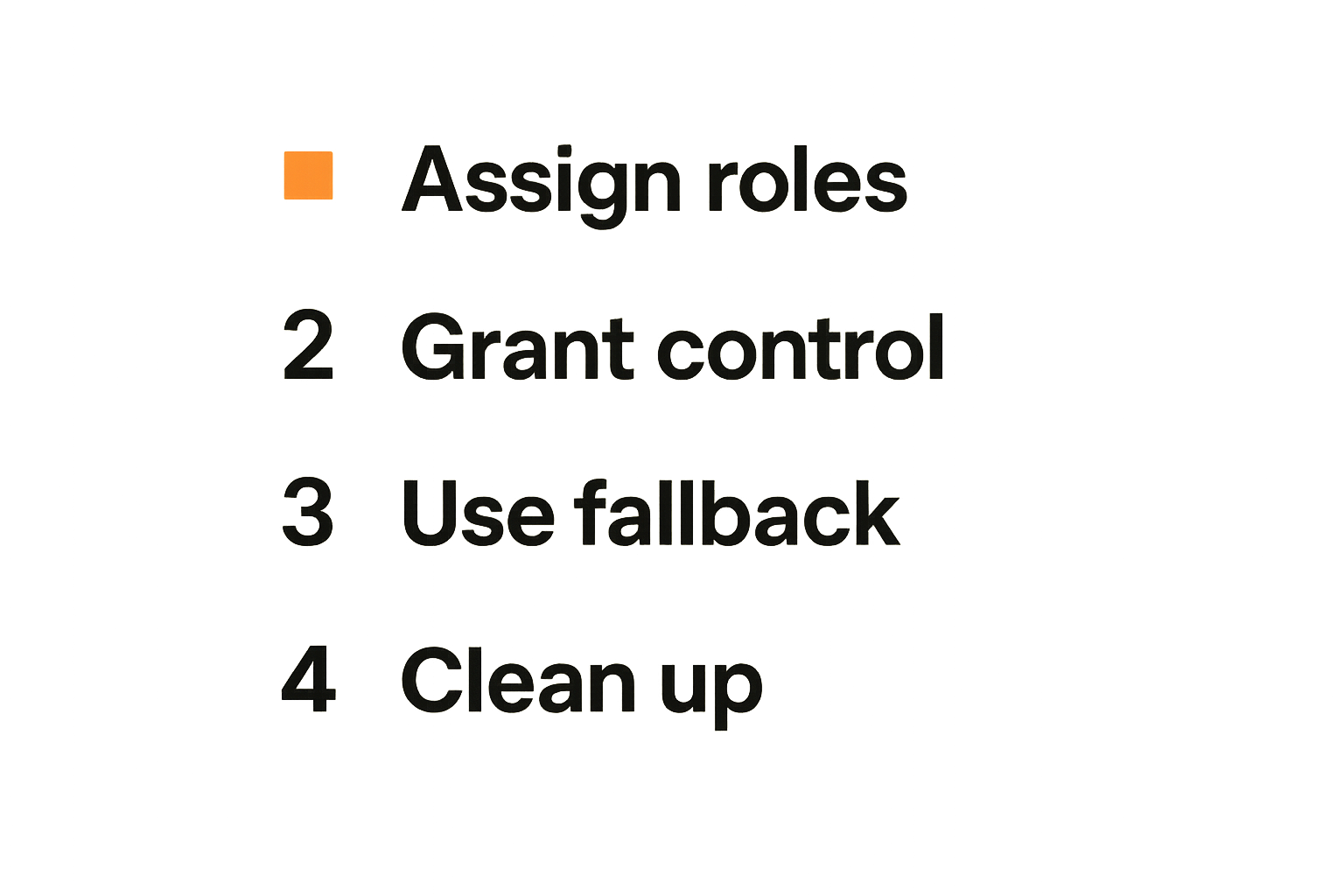
Define the meeting roles before the call
The fastest meetings usually have clear roles before anyone joins:
- Room host: handles TV power, input, camera, microphone, and local hardware.
- Session host: starts the screen share and grants remote control.
- Driver: operates the shared work surface for the current segment.
- Participants: observe, annotate, request control, or take over when approved.
- Fallback owner: knows the recovery sequence if the session fails.
One person can hold multiple roles in a small team. The point is not bureaucracy. The point is removing ambiguity when the first five minutes are already being spent on audio, display, and login problems.
Route interaction through the right surface
Not every interaction should go through the TV or the host machine.
A good design critique might use the TV for shared visibility, a collaboration tool for cursor handoff, and comments in the design tool for durable decisions. A bug triage might use the TV for shared logs, remote control for reproduction, and the issue tracker for final ownership.
The mistake teams make is forcing every action through the visible screen. That turns the TV into a bottleneck again. Use the shared display for shared context. Use the right system of record for decisions.
Document the fallback sequence
A fallback sequence should be short enough to execute under pressure. For example:
- If the TV is blank, check power and selected input.
- If the host screen is visible but frozen, restart the collaboration session.
- If remote control fails, revoke and re-grant control.
- If audio is broken, move audio to individual laptops and keep the TV for visuals.
- If the host fails, switch to the backup participant’s shared screen.
The sequence should live where the team actually looks. A laminated card in the room can help. So can a shared doc or workspace note. PairUX users can keep setup references close to implementation details by pairing the room process with the PairUX documentation during rollout.
Practical rule: Write the fallback before the next incident. Nobody writes clear instructions while ten people are waiting.
What breaks in practice
The remote disappears
This sounds trivial, but it happens constantly in shared spaces. The Samsung TV remote moves to another room, falls behind a cabinet, or gets taken by someone who thought it belonged elsewhere.
If the physical remote is the only path to selecting inputs or changing volume, the meeting is now blocked by an object nobody can find. That is a bad dependency.
What works is assigning a known location and a backup path. The backup might be a mobile remote app on a room tablet, a host machine already connected to the right input, or a documented button sequence on the TV itself. The important thing is that the backup is intentional.
The wrong person owns the cursor
Cursor ownership is where many collaboration sessions become messy. Someone requests control and forgets they have it. Another participant starts narrating instructions instead of requesting control. The host clicks while the driver is typing. Two people try to solve one problem through one pointer.
This is not a device issue. It is an interaction protocol issue.
A simple rule helps: one driver at a time, visible handoff, immediate revoke after the task. If the session needs multiple people to point or annotate, use a tool that supports that pattern instead of turning one cursor into a shared steering wheel.
The TV session outlives the meeting
A shared TV setup can leak context after the call ends. A private roadmap, customer dashboard, admin console, or support queue may remain visible in the room. If the host machine stays logged in, the next group may inherit a session they should not see.
End-of-meeting cleanup should be part of the workflow:
- Stop screen sharing.
- Revoke remote control.
- Close sensitive tabs.
- Return the TV to a neutral input or dashboard.
- Lock or sign out of the host machine.
The TV is a public surface. Treat it that way.
What works when teams standardize the setup
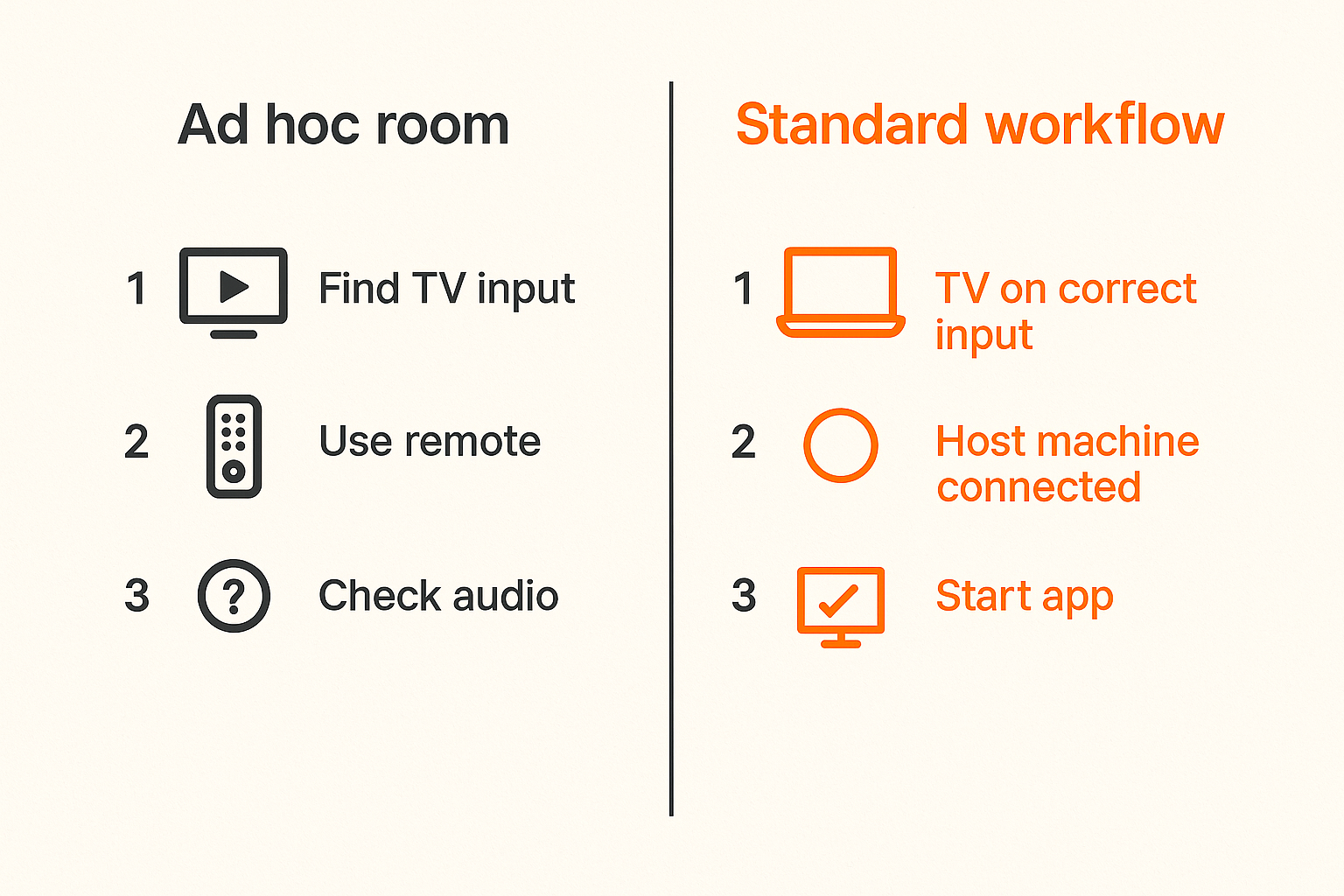
A small checklist beats tribal knowledge
The best setup is usually boring. It has a predictable input, a known host, a collaboration tool everyone understands, and a short checklist.
A useful room checklist looks like this:
- TV is on the correct input.
- Host machine is awake and connected.
- Collaboration app is updated.
- Audio route is known.
- Remote control permissions are tested.
- End-of-meeting cleanup is assigned.
This is not glamorous work. It is the difference between a ten-second start and a ten-minute interruption.
One workflow per room reduces support load
Support load grows when every room has a different pattern. One room uses casting. Another uses HDMI. Another uses a Samsung TV remote app on someone’s phone. Another uses a browser-based meeting on the TV. Nobody knows which assumptions apply.
Standardize by room type:
| Room type | Recommended setup | Why it works |
|---|---|---|
| Small huddle room | TV plus stable host laptop | Fast setup, low complexity |
| Design review room | TV plus collaborative remote control | Easier handoff and critique |
| Engineering triage room | Host machine plus logs and issue tracker | Better reproduction workflow |
| Customer call room | Locked-down host and explicit control grants | Lower exposure risk |
You do not need one setup for every possible use case. You need a small number of supported patterns that teams can remember.
Shared control shortens the feedback loop
When shared control is done well, the conversation changes.
Instead of saying, go to the upper right, no, the other tab, scroll down, click the filter, not that filter, a participant can request control and do the thing. Designers can inspect spacing. Developers can reproduce a bug. Operators can walk through a support flow. Product managers can update the working artifact while the conversation is fresh.
The benefit is not novelty. It is fewer translation steps between thought and action. The PairUX features are built around that practical layer: real-time screen sharing, remote control, multi-cursor collaboration, and cross-platform participation.
Implementation sequence for remote teams
Step 1: classify the room or display
Start by deciding what the display is for. A Samsung TV in a lounge has different requirements from one in an engineering war room.
Use a simple classification:
- Broadcast display: mostly slides, dashboards, or one-way updates.
- Interactive collaboration display: design reviews, demos, bug triage, planning.
- Sensitive collaboration display: customer data, admin tools, production systems.
- Public ambient display: metrics, status, calendar, or office information.
Each category needs a different control model. Broadcast displays can be simple. Sensitive collaboration displays need explicit permissions, cleanup, and tighter host-machine rules.
Step 2: choose the control plane
The control plane is the system that decides who can act.
For a consumer TV, the control plane is often the physical remote. For a remote team, that is not enough. The control plane should sit where the work happens: the screen sharing and remote control session.
A practical decision table:
| Need | Use TV remote | Use host machine | Use collaborative remote control |
|---|---|---|---|
| Change HDMI input | Yes | Sometimes | No |
| Adjust volume | Yes | Sometimes | No |
| Navigate prototype | No | Yes | Yes |
| Reproduce bug | No | Yes | Yes |
| Let remote teammate drive | No | Limited | Yes |
| Revoke control after task | No | Manual | Yes |
This table is the architecture in plain language. Use the Samsung TV remote for TV duties. Use collaboration software for collaborative work.
Step 3: test failure modes deliberately
Do not wait for the important customer call to discover the setup is fragile. Test the obvious failures:
- The physical remote is missing.
- The TV opens on the wrong input.
- The host machine is asleep.
- The presenter loses internet.
- A participant cannot take remote control.
- Audio routes through the wrong device.
- The session remains visible after the meeting.
Run these tests during setup, not during a live meeting. Remote professionals in other industries face similar operational drift when tools and workflows are not tested together; Related reading from our network: AI-assisted workflow planning for remote professionals is adjacent reading on making the workflow explicit before execution.
Metrics, support, and ongoing operations
Measure interruptions, not device features
A better Samsung TV remote app is not success. Fewer meeting interruptions are success.
Track simple operational signals:
- Time from meeting start to visible shared screen.
- Number of display or audio interruptions per week.
- Number of remote control handoff failures.
- Number of sessions where the host machine was not ready.
- Number of times sensitive content stayed visible after a meeting.
These do not need to become a dashboard on day one. Even a monthly review of recurring meeting friction can show where the workflow is failing.
Create a lightweight support runbook
The support runbook should answer the questions people ask when the room is already failing:
- Which input should the Samsung TV use?
- Which machine is the host?
- Where is the physical remote?
- What is the backup if the remote is missing?
- Who can grant remote control?
- How do we end the session safely?
- Who owns the room setup?
Keep the runbook short. If it takes six pages to start a meeting, people will ignore it. If it is one page and actually works, it becomes part of the room.
The mistake teams make is documenting the ideal state instead of the broken state. Support docs should start from failure.
Review the workflow after real incidents
When a meeting breaks, do a small review. Not a blame session. Just answer:
- What failed?
- Was the failure device-level, host-level, collaboration-level, or workflow-level?
- Did the team know the fallback?
- Did permissions behave as expected?
- What should change before the next session?
This is how the workflow matures. The first version will be imperfect. The point is to make failures visible and cheap to fix.
For broader remote collaboration patterns, the PairUX team also publishes practical notes and updates on the PairUX blog, including related workflows for shared screens and remote control.
Where PairUX fits into the samsung tv remote workflow
Use PairUX for collaborative control
PairUX is not trying to be a Samsung TV remote. That is the wrong layer.
PairUX fits where remote teams actually collaborate: shared screens, remote control, multi-cursor work, and practical handoff between people who are not in the same room. If your TV is showing a host machine, PairUX can provide the interaction layer that the TV remote cannot.
That is the architectural fit:
- The Samsung TV remains the room display.
- The host machine remains the stable endpoint.
- PairUX handles collaborative control between participants.
- The team workflow defines who drives, who approves, and how the session ends.
This keeps the device simple and moves collaboration into software designed for it.
Keep the television as an output device
The more jobs you assign to the TV, the more fragile the setup becomes. Smart TV apps, browser sessions, casting flows, mobile remotes, and account logins can all work individually. Combined without rules, they create support ambiguity.
A more reliable pattern is to make the Samsung TV boring. It turns on. It shows the host. It plays audio if needed. It does not own identity, permissions, decisions, or recovery.
The workflow should live in tools your team can operate remotely. That is the difference between a room-dependent meeting and a remote-friendly collaboration system.
The samsung tv remote still has a place. It controls the television. It should not control the team’s ability to work.
Try pairux.com
PairUX helps remote teams collaborate through practical screen sharing, remote control, and shared online work sessions. If your Samsung TV remote workflow keeps turning the room into a bottleneck, move the collaboration layer where the team can actually use it: Try pairux.com.