2026-08-06
Remote Work Architecture in 2026: How Teams Actually Collaborate Without Losing Context

Remote work is not failing because teams forgot how to talk. It fails because the operating model around the work is usually vague.
A designer shares a screen. A developer asks for control. Someone posts a link in chat. The meeting ends. Then the real confusion starts: who changed what, what was decided, where the artifact lives, and whether the person who could unblock the problem is still available.
Teams think the problem is remote work tools. The real problem is collaboration architecture.
That changes the conversation. The practical question is not whether your team has video calls, chat, docs, and project boards. It is whether those pieces form a workflow that preserves context, gives the right person control at the right time, and produces a decision or change that survives the call.
Table of contents
- Remote work is an operating system, not a location policy
- The remote work stack should start with the task
- Screen sharing is where remote work becomes operational
- A practical remote collaboration workflow
- What breaks when remote work is implemented badly
- Remote work patterns for product designers
- Remote work patterns for software developers
- Security, permissions, and trust in remote work
- Metrics that show whether remote work is actually working
- Where PairUX fits in the remote work workflow
Remote work is an operating system, not a location policy
Remote work is usually discussed like a hiring model: people are not in the same office, so the company needs meetings, chat, and maybe a VPN. That framing is too shallow for teams doing product design, software development, customer support, security reviews, QA, or operations.
The mistake teams make is treating remote work as a replacement for office presence. In practice, remote work is an operating system for moving context between people who are not looking at the same physical surface.
The meeting is not the workflow
A meeting is a container. It is not a workflow. A calendar invite can gather people, but it does not define what artifact they will touch, who has authority to change it, or how the outcome will be recorded.
A useful way to think about it is this: every remote session should answer three questions before it starts.
- What are we trying to change or decide?
- Who needs to see the live state?
- Who needs temporary control to make progress?
If the answer is just talk, async text may be enough. If the answer involves an interface, bug, prototype, dashboard, or local environment, screen sharing and remote control become part of the actual work surface.
Remote teams need explicit collaboration modes
In an office, people rely on informal cues. Someone points at a monitor. Someone grabs a keyboard. Someone sketches over a printout. Remote teams do not get those defaults for free.
You need named modes. For example:
- Broadcast: one person shows status to many people.
- Guided review: one person drives while others comment.
- Shared operation: multiple people interact with the same screen or environment.
- Handoff: control moves from one person to another.
- Verification: one person reproduces while another confirms.
These modes sound simple, but they prevent most of the confusion that shows up as meeting fatigue.
Why this matters more in 2026
By 2026, many teams have already normalized distributed work. The novelty is gone. The remaining problem is execution quality.
AI tools can draft summaries, generate code, and produce design variants. That makes human coordination more important, not less. When output is cheap, review, trust, reproduction, and decision-making become bottlenecks.
Related reading from our network: teams handling sensitive workflows face similar coordination problems around verification and records in IRS secure messaging, where the tool is only useful if the surrounding process is explicit.
Practical rule: Remote work gets easier when every live session has a mode, an owner, and an exit condition.
The remote work stack should start with the task
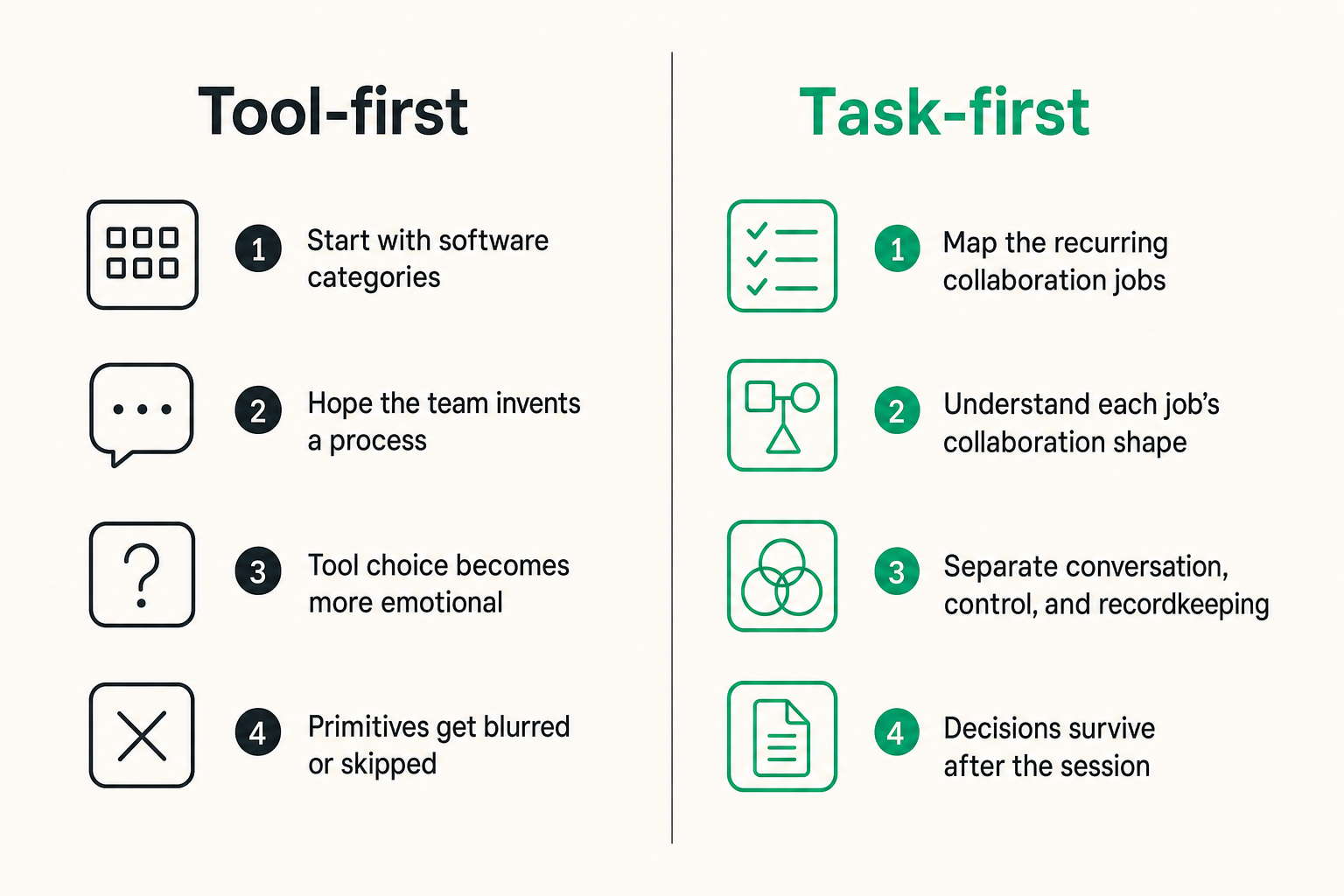
Most teams build their remote work stack backward. They start with software categories: video, chat, docs, project management, whiteboard, screen share. Then they hope the team invents a process around them.
The better approach starts with the work itself. What has to move from uncertain to resolved? What kind of context is required? What failure is expensive?
Map the work before choosing software
List the recurring collaboration jobs your team performs. A startup product team might have:
- Design critique
- Bug reproduction
- Pair programming
- QA verification
- Customer support escalation
- Sprint planning
- Incident response
- Founder review
- Onboarding walkthrough
Each job has a different collaboration shape. A design critique may need visual annotation and quick switching between alternatives. A bug reproduction session may need remote control and environment visibility. An onboarding walkthrough may need guided control with guardrails.
Once you map the work, tool choice becomes less emotional.
Separate conversation, control, and recordkeeping
The core remote work primitives are conversation, control, and recordkeeping.
Conversation is where people discuss. Control is where someone changes the live system, document, prototype, or environment. Recordkeeping is where the decision survives after the session.
When those primitives are blurred, teams lose context. For example, a decision made verbally during a screen share but never written down becomes tribal knowledge. A bug fixed by someone taking remote control but never linked to the issue tracker becomes a support mystery later.
| Collaboration primitive | Common tool | What it is good for | What fails if used alone |
|---|---|---|---|
| Conversation | Video or chat | Clarifying intent and tradeoffs | Talk replaces action |
| Control | Screen sharing with remote control | Reproducing, fixing, guiding, pairing | Changes become invisible if not logged |
| Recordkeeping | Docs, tickets, pull requests | Durable memory and accountability | Stale notes without live context |
| Coordination | Calendar and project boards | Scheduling and ownership | Status theater if no artifact changes |
The practical question is not which tool is best. It is which tool owns which primitive.
Use the smallest tool that preserves context
Do not use a 60-minute meeting when a five-minute annotated screen share will work. Do not force a full video call when a recorded walkthrough and two comments will settle the issue. Do not move a complex debugging session into chat just because the calendar is full.
The smallest useful tool is the one that preserves enough context for the next person to act.
For deeper operational examples around collaborative screen sharing and remote control features, the PairUX team keeps product guidance in the PairUX features overview, which is useful when you are deciding whether a session needs passive viewing or active control.
Screen sharing is where remote work becomes operational
Remote work becomes real when someone needs to see the same thing at the same time. That is why screen sharing is not a side feature. For many product and engineering teams, it is the workbench.
But not all screen sharing solves the same problem. Passive viewing, remote control, and multi-cursor collaboration create different operating models.
Passive sharing is useful but limited
Passive sharing is the default. One person shares a screen. Everyone else watches. It works for demos, updates, and quick explanation.
What breaks in practice is precision. The driver has to translate everyone else's feedback into action. The reviewers say things like click the other tab, scroll up, no not that one, open the console, try the second dropdown. The driver becomes a human API for the group.
That narration debt is manageable for five minutes. It becomes painful during debugging, QA, design polish, or support.
Remote control changes the ownership model
Remote control lets the person with the best next action operate directly. A developer can inspect a browser console. A designer can adjust spacing. A support lead can reproduce a customer path. A founder can test a prototype without asking the designer to click through every branch.
This changes the ownership model. The screen owner still controls access, but the operator can temporarily do the work.
Practical rule: Use remote control when the cost of explaining the next click is higher than the cost of granting temporary control.
The control boundary should be explicit. The person sharing should know who has control, when control changes, and how to stop it.
Multi-cursor collaboration reduces handoff friction
Multi-cursor collaboration is useful when more than one person needs to point, select, or act without constantly interrupting. It turns a shared screen from a broadcast into a shared workspace.
For product teams, this matters during visual review. For developers, it matters during environment inspection. For operators, it matters during onboarding or process training.
The point is not to make every session multiplayer. The point is to avoid forcing a serial workflow when the work is naturally collaborative.
A practical remote collaboration workflow
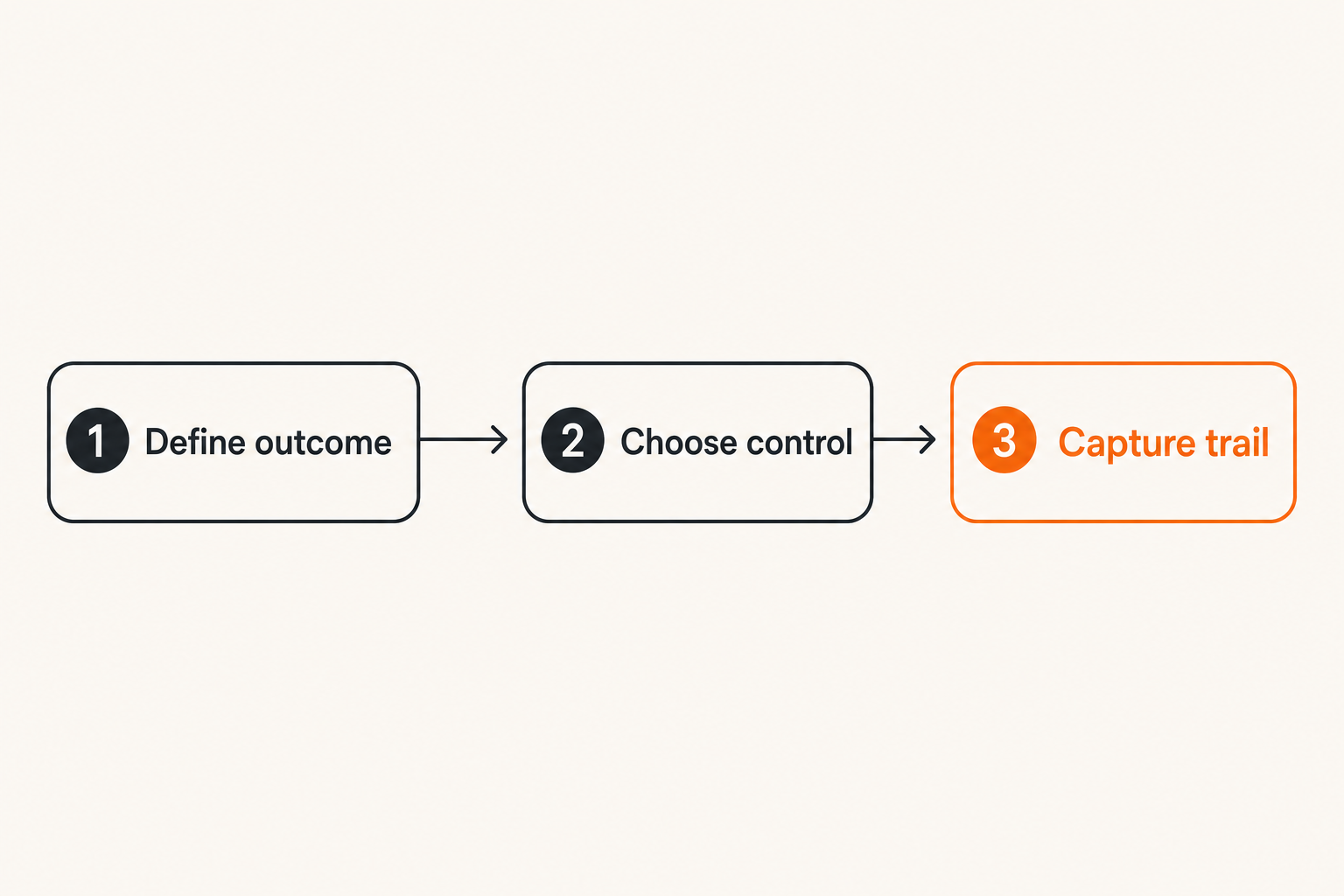
Remote work improves when teams stop improvising every session. You do not need bureaucracy. You need a lightweight operating sequence that fits real work.
Here is a practical workflow for product designers, developers, and startup operators.
Step 1 define the session outcome
Before the call or screen share starts, write the desired outcome in one sentence.
Examples:
- Reproduce the checkout bug and assign the fix.
- Decide whether the new onboarding flow is ready for user testing.
- Pair through the failing integration test.
- Walk a new teammate through the deployment process.
- Verify that the support escalation is resolved.
This prevents a common remote work failure: the session becomes a tour instead of a decision.
Step 2 choose the control model
Choose one of three control models before the session starts.
- Driver-only: one person controls the screen, others comment.
- Granted control: one person can request or receive control when needed.
- Shared interaction: multiple participants can point, guide, or operate in a controlled way.
Then state the rule out loud or in chat. For example: I will drive the first walkthrough, then hand control to engineering when we hit the failing state.
This sounds minor. It prevents awkward interruptions and accidental edits.
Step 3 capture the decision trail
Close the loop while everyone still has context. The record can be short.
A useful closing note includes:
- Decision or diagnosis
- Owner
- Follow-up artifact
- Deadline or next review point
- Link to relevant ticket, doc, commit, or prototype
A numbered implementation sequence for a remote team might look like this:
- Create a shared vocabulary for session modes.
- Add outcome fields to meeting notes or issue templates.
- Decide which sessions allow remote control.
- Define who can grant control and how it is revoked.
- Link every live session to a durable artifact.
- Review unresolved sessions weekly and remove recurring ambiguity.
If your team needs setup details, system requirements, or security notes for a collaborative screen sharing workflow, the PairUX docs are the practical place to start.
What breaks when remote work is implemented badly
The failure modes are predictable. They do not show up as a single dramatic incident. They show up as slower delivery, repeated questions, shallow reviews, and frustration that people mislabel as culture problems.
Tool sprawl creates invisible queues
Remote teams often add tools faster than they define ownership. A decision starts in chat, moves to a call, gets captured in a doc, then changes in a ticket, then is contradicted in a pull request.
No one is trying to create chaos. The system just has too many places where truth can live.
The mistake teams make is assuming integration solves this automatically. Integration helps, but it does not decide which artifact is authoritative.
A better rule is simple: every workflow needs a source of truth. For code, it may be the pull request. For a bug, the issue. For design, the prototype or design file. For support, the customer ticket.
Screen share without control creates narration debt
A passive screen share can become a bottleneck when the wrong person is driving. You can hear it immediately: go there, click that, no the other panel, can you zoom in, open dev tools, scroll back.
This is not collaboration. It is remote puppeteering.
Remote control solves part of the problem, but only when used intentionally. If control is granted casually without visibility or boundaries, people get nervous. If it is never granted, the team wastes time translating action into instructions.
No closing protocol means no operational memory
The end of a remote session is where many teams lose the most value. Everyone agrees verbally. Then the meeting ends. The person who was going to update the ticket gets pulled into another call. Two days later, the same question returns.
Practical rule: A remote session is not complete until the next action is visible outside the meeting.
What works is a closing protocol. Spend the final two minutes writing the decision, owner, and next artifact. This is not admin overhead. It is how remote work avoids memory leaks.
Related reading from our network: payment teams face a similar state problem in crypto checkout architecture, where the visible UI is less important than reconciliation, webhooks, and settlement state.
Remote work patterns for product designers
Design work is especially sensitive to remote collaboration quality. The artifact is visual, the feedback is subjective, and the details matter. A vague comment can waste hours.
The practical question is whether the session is meant to explore, decide, or fix.
Use live critique for ambiguity
Live critique is useful when the team needs to resolve ambiguity. Examples include first impressions, flow comprehension, tradeoff discussion, and stakeholder alignment.
Keep the group small. Too many voices turn critique into performance. Assign one driver, one facilitator if needed, and a clear decision owner.
What works:
- Start with the user problem.
- Show the current option and one serious alternative.
- Keep comments tied to user behavior.
- Capture decisions in the design file or ticket.
What fails:
- Opening with personal preference.
- Reviewing every pixel in a large group.
- Ending without a chosen direction.
- Treating silence as approval.
Use async review for preference sorting
Not every design question deserves a live session. If the problem is preference sorting, async review may be better. Ask reviewers to comment on specific frames or flows before a decision meeting.
Then use the live session only for unresolved conflicts. This reduces calendar load and makes the actual meeting sharper.
A useful pattern is to ask for comments in three categories: blocking issue, open question, preference. Blocking issues get discussed. Preferences get considered but do not dominate.
Use remote control for precise reproduction
Sometimes the design issue is not visible in a static frame. It appears in interaction: hover states, scrolling, transition timing, responsive layout, or a prototype branch.
Remote control helps here. The designer can let a developer or stakeholder reproduce the path directly. The reviewer can show exactly where comprehension breaks instead of narrating it abstractly.
This is especially useful when design and implementation diverge. Seeing the live product, design file, and issue tracker in the same session can shorten the loop dramatically.
Remote work patterns for software developers
Development teams already understand distributed systems. Ironically, many run their collaboration process like a set of loosely coupled services with no retries, no state model, and no observability.
The same engineering instincts apply to remote work: define ownership, reduce latency, avoid hidden state, and make failure modes visible.
Pair debugging needs shared state
Pair debugging is not just two people on a call. It needs shared state: the failing behavior, logs, environment, hypothesis, and next experiment.
A strong pair debugging session has a driver and navigator, but those roles can switch. The driver operates the environment. The navigator watches assumptions and proposes next tests.
Remote control is useful when the navigator sees the next move and can execute faster than explaining it. But control should not bounce randomly. Say when it changes.
Code review should not become a meeting tax
Most code review should stay async. Pull requests exist for a reason. Live sessions are useful when the review is blocked by context that is hard to express in comments.
Use live review for:
- Architectural tradeoffs
- Complex refactors
- Local reproduction
- Security-sensitive behavior
- Cross-functional impact
Do not use live review for formatting, naming bikesheds, or issues a comment can solve.
The goal is to reserve synchronous collaboration for high-context work. If every pull request needs a meeting, the team has a design, documentation, or ownership problem.
Incident collaboration needs permissions and pace
During incidents, remote work gets harder because time pressure compresses communication. People need to see dashboards, logs, deploy state, and customer impact. But they also need permissions boundaries.
Define incident roles before the incident: commander, operator, communications owner, subject matter expert. Screen sharing should expose only what the group needs. Remote control should be limited to people authorized to act.
Related reading from our network: freelancers and operators dealing with fragmented opportunities run into adjacent workflow problems in AI-assisted Craigslist jobs workflows, where filtering, verification, and follow-up matter more than the initial listing.
Security, permissions, and trust in remote work
Remote collaboration software sits close to sensitive work. It can expose customer data, source code, admin consoles, credentials, financial dashboards, and unreleased product plans.
That does not mean teams should avoid screen sharing or remote control. It means they need sane boundaries.
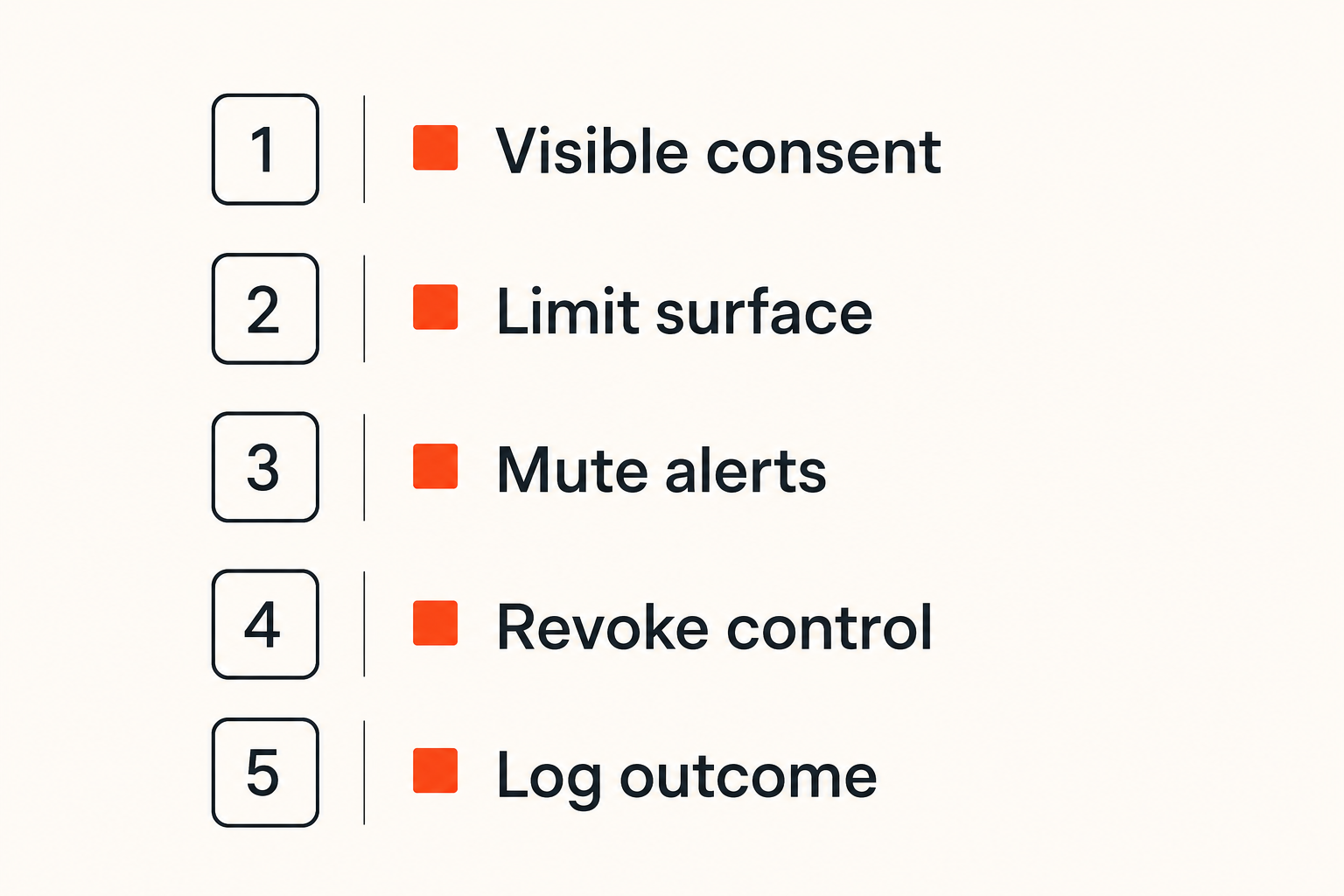
Control should be granted, visible, and revocable
The control model should be obvious to everyone in the session. Who has control? What can they do? How does the host stop it?
A remote control feature should support the human expectation that control is temporary. The host should remain aware and able to revoke access quickly.
Practical rule: Never make remote control feel invisible. Trust depends on clear consent, visible state, and fast revocation.
This matters even for small teams. A five-person startup may not need enterprise policy overhead, but it still needs predictable behavior. People should not wonder whether someone can still control their screen after the session context has changed.
Do not share more surface area than needed
Oversharing is one of the quiet risks in remote work. Someone shares a full desktop when one window would do. Notifications appear. A private customer conversation is visible. A terminal tab exposes secrets.
Practical mitigations:
- Share a specific window when possible.
- Disable notifications before sensitive sessions.
- Use separate browser profiles for demos and admin work.
- Close unrelated tabs and terminals.
- Avoid displaying secrets, tokens, or customer data unless required.
This is not paranoia. It is operational hygiene.
Auditability matters even for small teams
Auditability does not always mean heavy compliance tooling. At a basic level, it means the team can answer what happened.
For remote collaboration, that can include knowing who joined, who drove, what artifact changed, and where the follow-up lives. In regulated environments, the requirements are stricter. In startups, the requirement is often simpler: avoid confusion and reduce blame.
A short note after a session can be enough. The point is to leave a trace that helps the next person understand the decision.
Metrics that show whether remote work is actually working
Remote work quality is measurable, but not through vanity metrics like number of meetings, chat messages, or hours online. Those usually measure activity, not progress.
Better metrics focus on flow, resolution, and repeated confusion.
Track handoff latency
Handoff latency is the time between one person needing another person's input and the work becoming actionable again.
High handoff latency shows up when designers wait for engineering clarification, engineers wait for reproduction steps, support waits for product review, or founders wait for a prototype update.
Ways to reduce it:
- Use screen sharing for high-context clarification.
- Grant remote control when action is faster than explanation.
- Keep source-of-truth links in the session notes.
- Create escalation paths for blocked work.
Track session resolution rate
A session should usually produce one of three outcomes: resolved, assigned, or intentionally deferred. If too many sessions end in vague agreement, the workflow is weak.
You do not need a complex analytics system. Review the last ten collaboration sessions and ask:
- Did we know the desired outcome before starting?
- Did the right people attend?
- Was the artifact changed or decision captured?
- Did someone own the next action?
If the answer is often no, more meetings will not fix it.
Track repeat confusion
Repeat confusion is when the same question, bug, design concern, or operational decision returns because the previous collaboration did not stick.
This is one of the best signals that remote work architecture is broken. The team is spending energy rediscovering context.
Common causes include:
- Decisions made verbally but not recorded.
- Too many competing sources of truth.
- Screen shares that show but do not change anything.
- Follow-ups assigned without owners.
- Remote control sessions that fix symptoms without documenting causes.
A useful operating review is to ask, once a week, which questions repeated and why. The answer usually points to a missing artifact or unclear owner.
Where PairUX fits in the remote work workflow
PairUX is built around a specific view of remote work: the screen is often the shared workspace, and collaboration improves when teams can move from watching to doing without switching tools or losing context.
This is not about adding another meeting layer. It is about making the live work surface more useful.
A tool for active collaboration, not calendar inflation
Many teams already have video chat. That is fine. Video solves presence and conversation. It does not always solve shared operation.
PairUX fits when the team needs collaborative screen sharing, remote control, and practical interaction around a live surface. That might be a product prototype, local development environment, customer support flow, QA session, or onboarding walkthrough.
If your team already uses video-heavy workflows, it can help to separate the talking layer from the doing layer. A prior PairUX article on Zoom video chat for remote collaboration workflows covers that distinction in more detail.
When PairUX is a good fit
PairUX is a good fit when your remote work problem looks like this:
- People need to collaborate on what is visible now.
- The session requires more than passive viewing.
- Control needs to move between participants deliberately.
- Designers, developers, or operators need to reproduce something together.
- The team wants less narration and more direct action.
It is not a replacement for every collaboration tool. You still need docs, tickets, code review, and project ownership. PairUX is most useful in the active middle: the moment where seeing, pointing, controlling, and deciding happen together.
The closing point is simple: remote work in 2026 is not a question of whether teams can work outside an office. They can. The harder question is whether the workflow preserves context, grants control safely, and turns live collaboration into durable progress.
Try pairux.com
pairux.com provides fast, practical guidance for remote teams that need collaborative screen sharing, remote control, and better ways to work together online. Try pairux.com.