2026-08-14
Garage Door Opener Remote Thinking for Collaborative Screen Sharing in 2026
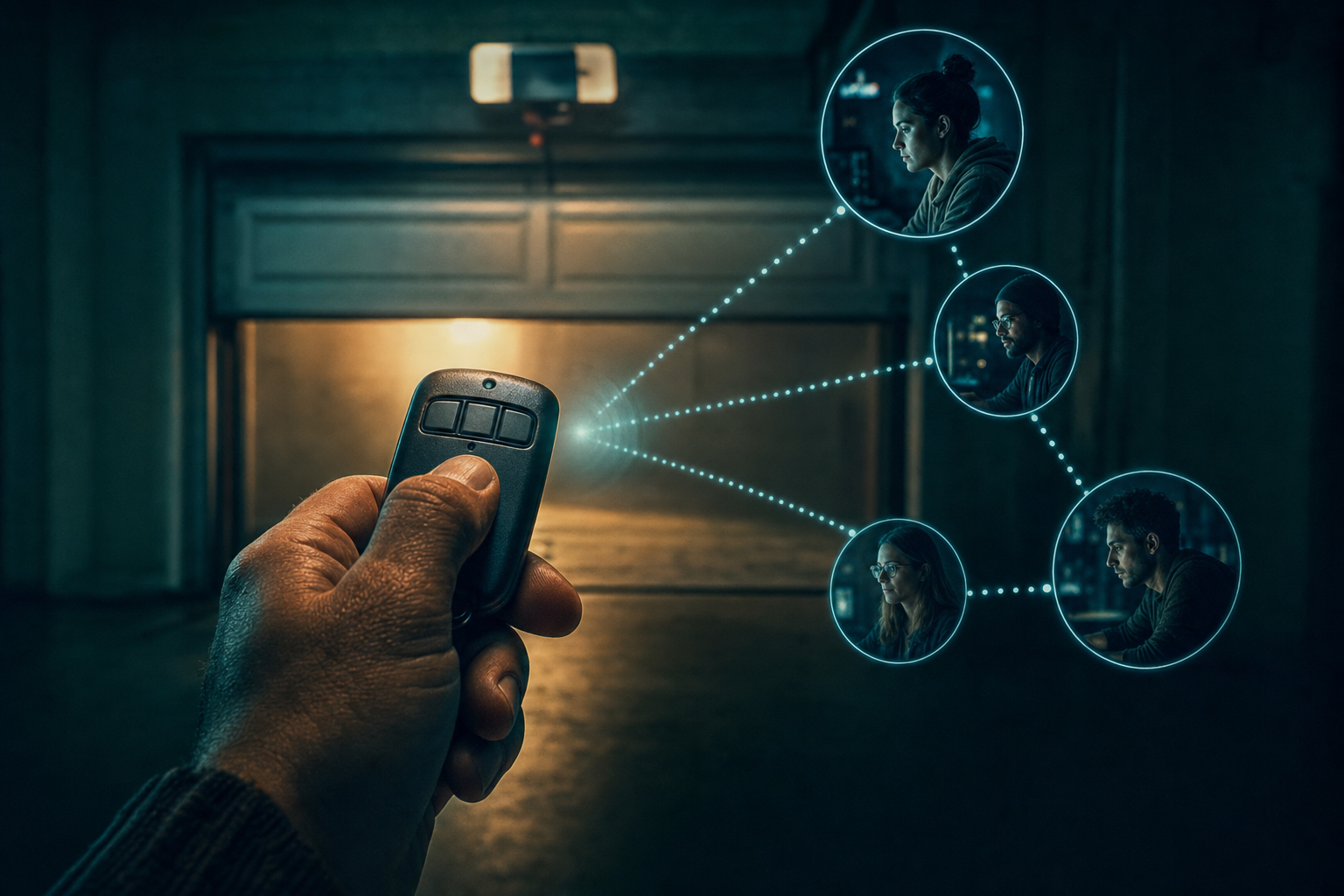
A garage door opener remote looks simple because the user experience is simple: press a button, the door moves, stop thinking about it. Remote collaboration tools often copy the same surface idea. Click to share. Click to request control. Click to take over.
Teams think the problem is making the button easier to find. The real problem is designing the control system behind the button so nobody gets surprised, locked out, interrupted, or forced into a support spiral.
That changes the conversation. A garage door opener remote is not just a remote. It is an authorization model, a state machine, a safety boundary, and a recovery process. Collaborative screen sharing has the same shape. The UI is only the visible part.
The practical question is: how do you let remote teammates act quickly on someone else's machine, prototype, terminal, browser, or design file without turning control into chaos?
Table of contents
- Why a garage door opener remote is a useful model for remote teams
- The remote control problem is really an ownership problem
- Map the garage door opener remote model to screen sharing
- Design permissions like a control loop
- Build session state that humans can understand
- Failure modes when remote control is implemented badly
- A practical implementation workflow
- What works and what fails
- Operational rollout for startup teams
- Where PairUX fits
Why a garage door opener remote is a useful model for remote teams
A garage door opener remote works because the action is bounded. The remote does one thing, against one receiver, in one physical context. It does not ask the user to become a security engineer. It also does not let every visitor rewire the opener.
That is why the metaphor is useful for remote teams. Collaborative screen sharing should make control fast, but it should not make control vague. If a product designer gives a developer control to inspect a prototype, the system should make the scope, state, and exit path obvious.
The visible button is not the system
The mistake teams make is treating remote control as a button in the meeting UI. But the button is the smallest part of the problem.
Under the button you need:
- Identity: who is asking for control?
- Consent: who approved it?
- Scope: what can the controller operate?
- State: who has control right now?
- Reversal: how does the host take it back?
- Recovery: what happens if the network drops?
A useful way to think about it is that every remote control feature has two products: the visible collaboration product and the invisible safety product. Users judge the first when things go well. Operators discover the second when something breaks.
Why this matters in 2026
Remote work is no longer a special operating mode. Many teams now design, ship, debug, review, and support software without sitting in the same room. The pressure is not just better video calls. The pressure is shared operation.
A PM wants to drive a staging build on a designer's machine. A senior engineer wants to jump into a junior developer's local environment. A founder wants to help a customer success teammate reproduce a browser bug. These are practical workflows, not edge cases.
For adjacent reading on turning team input into shipped decisions, teams building collaboration tools face similar workflow design tradeoffs to those described in product research operations. Related reading from our network: product research surveys as a shipping workflow.
Practical rule: If remote control can change work, data, or customer outcomes, design it as an operating system workflow, not as a meeting feature.
The remote control problem is really an ownership problem
Teams think the problem is access. The real problem is ownership. Access answers, “Can this person touch the session?” Ownership answers, “Who is accountable for what happens next?”
Without ownership, a shared session becomes ambiguous. Two people move at once. One person thinks they are observing; another thinks they have approval to edit. Someone pastes into the wrong terminal. Nobody knows whether the host or guest is responsible for stopping the action.
Access without ownership creates risk
Access is easy to grant and hard to reason about after the fact. That is true for a physical garage door opener remote and it is true for collaborative software.
If you hand someone a spare garage remote, you have not just given them a button. You have given them the ability to open a boundary. The same is true when you grant remote control over a shared desktop. The guest may be able to type into Slack, run a local command, approve a browser prompt, or modify a design.
The risk is not always malicious. In practice, most incidents are mundane:
- The wrong browser tab is active.
- The guest types while the host is also typing.
- A private notification appears during control.
- A terminal command runs in the wrong directory.
- The host assumes control ended, but it did not.
What breaks in practice is not cryptography. It is shared understanding.
Pairing needs a clear operator
Every collaborative control session needs a named operator. That does not mean only one person can contribute. It means one person must own the active control state at a time.
For product teams, this can be simple:
- Host owns the machine and can revoke control instantly.
- Guest controls only after explicit approval.
- Everyone can see who is driving.
- Control ends on timeout, disconnect, or host action.
- Sensitive actions require a host-side confirmation.
This is similar to the way a garage door opener remote does not negotiate endlessly. It sends a signal, the receiver validates, the motor acts, and the system returns to a stable state.
Map the garage door opener remote model to screen sharing
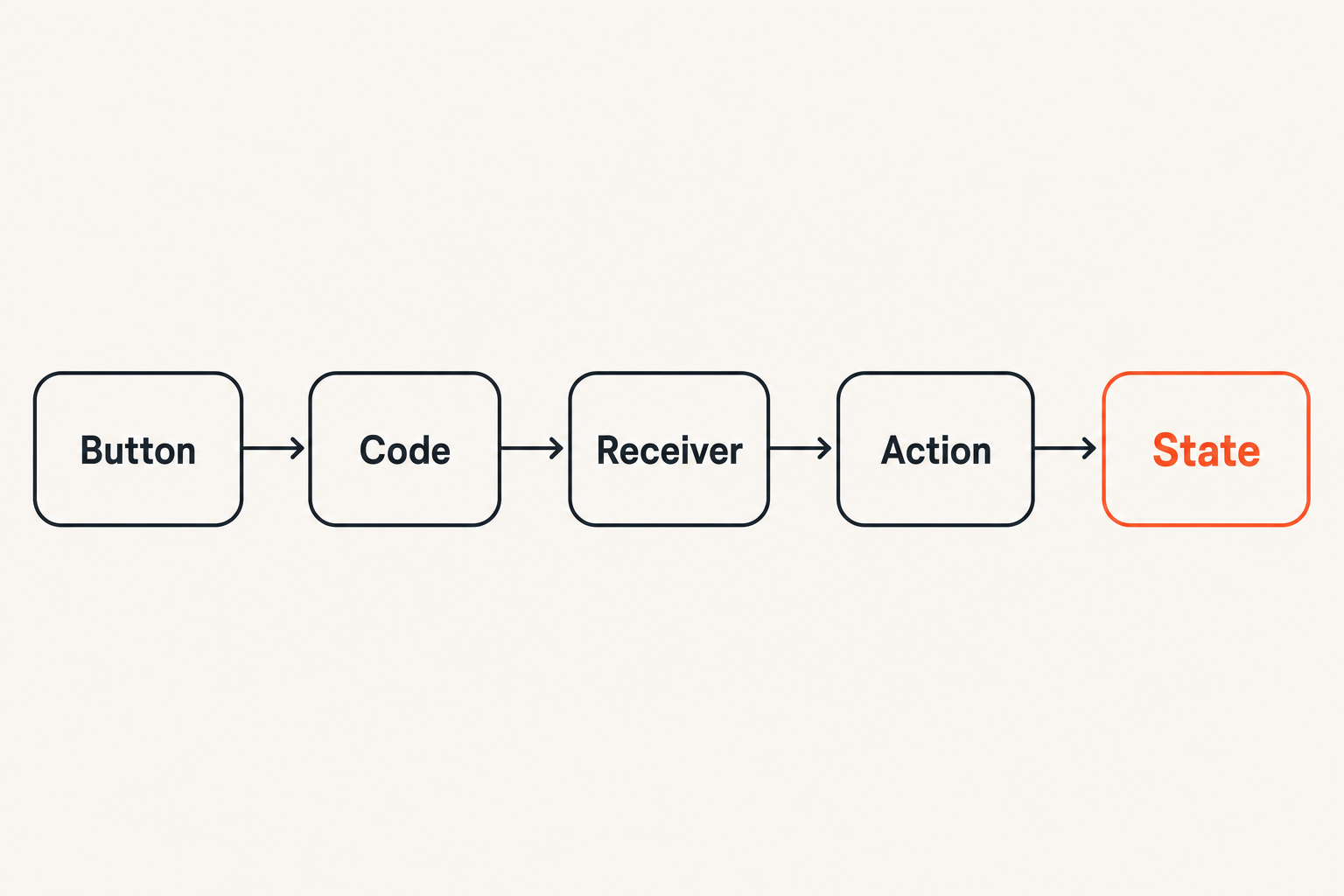
The garage door opener remote model is useful because it breaks a messy collaboration problem into components. When teams do that, they stop arguing about whether remote control is “safe” in the abstract and start designing specific boundaries.
Button code receiver and motor
A basic opener has four parts:
- Button: the user's intent to act.
- Code: the credential or signal that proves the remote is recognized.
- Receiver: the component that validates the signal.
- Motor: the actuator that changes the physical world.
In collaborative screen sharing, the mapping looks like this:
| Garage system | Screen sharing equivalent | Practical design question |
|---|---|---|
| Button | Request control or start sharing | Is intent explicit? |
| Code | User identity, session token, permission | Is the request bound to this session? |
| Receiver | Host app, collaboration service | Who validates the action? |
| Motor | Mouse, keyboard, clipboard, file access | What can actually change? |
| Door state | Session state and UI indicators | Can humans see what is happening? |
The important move is separating authorization from action. A guest should not be able to act merely because they are present in the call. Presence is not permission.
What changes when the receiver is software
Software receivers are more flexible than physical receivers, which is both useful and dangerous. You can add roles, session timers, network checks, revocation, logs, and multi-user presence. You can also accidentally create a control surface nobody fully understands.
A physical garage door opener remote usually opens one door. A screen sharing remote can operate many surfaces: browser tabs, terminals, design tools, cloud consoles, chat apps, and local files. That broader surface area means the software receiver needs context.
For example:
- Control in a design review should favor cursor visibility and annotation.
- Control in a debugging session should emphasize terminal focus and copy-paste clarity.
- Control in customer support should minimize exposure of unrelated apps.
- Control in onboarding should make handoff and recovery obvious.
If your team is evaluating collaborative screen sharing options, the practical feature question is not just “does it support remote control?” It is “does the control model match how our team actually works?” PairUX describes its real-time sharing, remote control, multi-cursor, and cross-platform support on the features page, which is the right place to start when mapping product capability to workflow.
Design permissions like a control loop
Permission design should not be a one-time gate. It should be a loop: request, approve, act, observe, revoke, recover. Teams that skip the loop end up with remote control that feels fast during demos and unsafe during real work.
Request approve act revoke
The control loop should be obvious enough that a tired teammate can use it during a production issue.
A healthy loop looks like this:
- Guest requests control with a visible reason or action.
- Host approves from inside the session, not from a hidden menu.
- System shows who has control with persistent indicators.
- Guest acts within the approved scope.
- Host can pause or revoke instantly.
- Control expires when the task or session ends.
This flow matters because remote collaboration often happens under pressure. The more stressful the task, the less you can rely on people remembering etiquette.
Practical rule: Do not make revocation harder to find than approval. The host's escape path is part of the permission model.
Default deny is not enough
“Default deny” sounds strong, but it is not a complete design. If users cannot understand why a request was denied, how to approve the right scope, or how to recover from a mistake, they will route around the system.
Good permission design needs usable states:
- Not requested
- Requested
- Approved
- Active
- Paused
- Revoked
- Expired
- Disconnected
Each state should have a visible UI and a predictable transition. For remote teams, predictability beats cleverness. Nobody wants a novel permission pattern while pairing on a broken build.
Teams in adjacent software buying workflows run into the same issue: a feature checklist is not enough if the rollout path is unclear. Related reading from our network: Aztec software buying workflow for SaaS teams.
Build session state that humans can understand
Remote control fails when machine state and human belief drift apart. The system thinks Alex has control. Alex thinks Priya has control. Priya thinks control ended. The cursor moves and everyone pauses.
This is the collaborative equivalent of a garage door half open. The motor may be doing exactly what it was told, but the humans do not trust the state.
Presence cursors and control indicators
State should be visible without requiring explanation. In a shared session, people need to know:
- Who is present?
- Who can point?
- Who can click?
- Who can type?
- Who is currently controlling?
- Whether control is paused or revoked?
Multi-cursor collaboration helps because it separates pointing from driving. A teammate can indicate a field, component, bug, or design element without taking control. That reduces unnecessary handoffs.
The mistake teams make is giving every collaboration action the same weight. Pointing is not clicking. Clicking is not typing. Typing into a design comment is not typing into a production console. These are different control levels and should be represented differently.
Audit trails without surveillance theater
Audit trails are useful when they help teams reconstruct what happened. They become surveillance theater when they collect noise nobody reviews.
For collaborative control, a practical audit trail might record:
- Session start and end time
- Host and guest identities
- Control request and approval events
- Revocation and timeout events
- File transfer or clipboard events, if supported
- Error and disconnect events
It usually does not need to record every pixel or every keystroke. The point is operational clarity, not creating a compliance-looking artifact nobody trusts.
If you need implementation details, installation notes, system requirements, and security information should live where operators can find them. PairUX keeps that material in its documentation, which is where teams should verify setup assumptions before rolling remote control into real work.
Failure modes when remote control is implemented badly
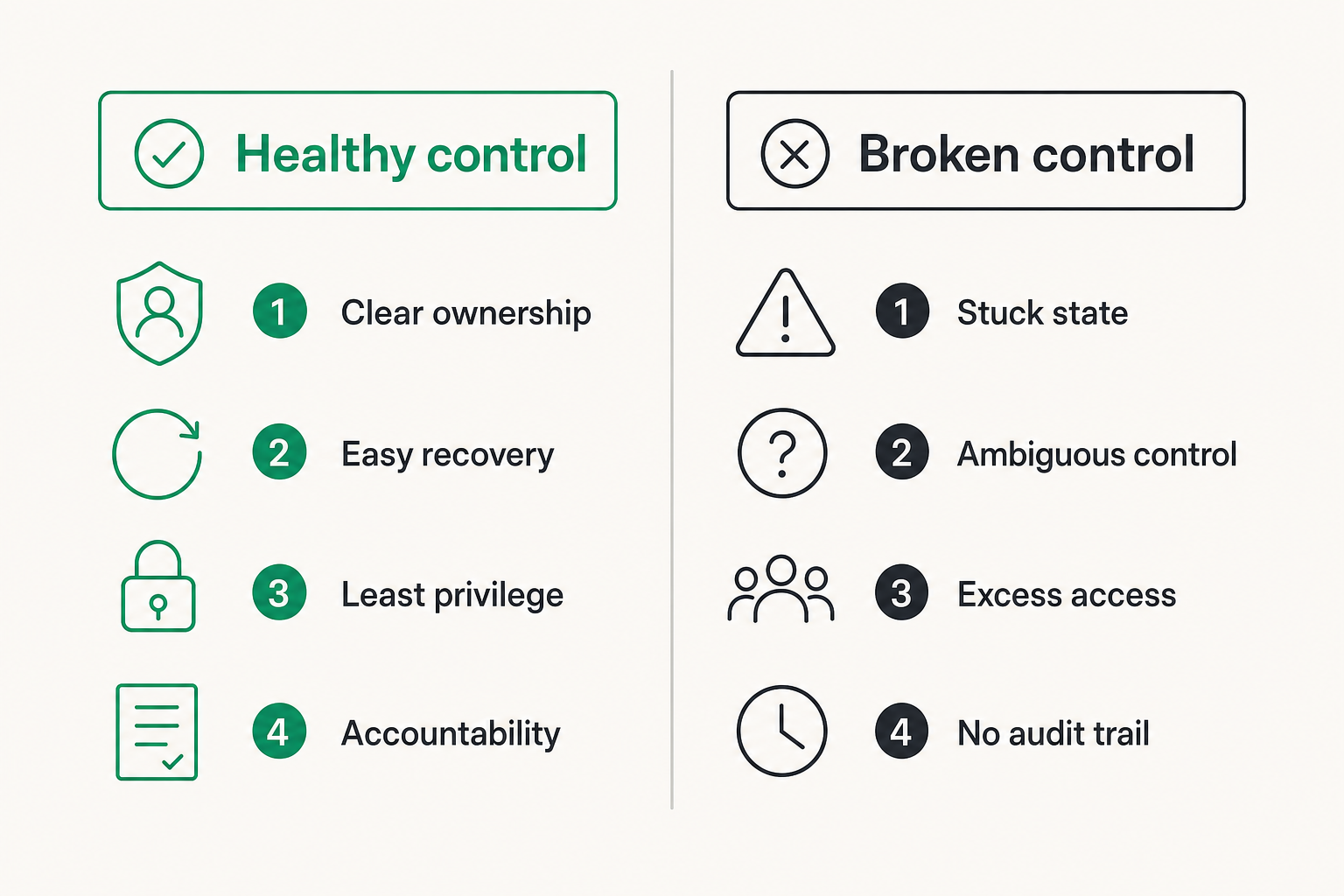
Bad remote control does not usually fail dramatically on day one. It fails slowly. People stop trusting it. They avoid using it for real work. Support sessions get awkward. Pairing becomes screen narration instead of actual collaboration.
The stuck door problem
The stuck door problem is when the system enters a state that users cannot easily exit. In a garage, the door is half open and the remote button no longer gives a predictable result. In screen sharing, control appears active but input does not work, or input works but the UI says control is paused.
Common causes include:
- Network drop during active control
- Host app losing focus
- OS permission prompts blocking input
- Guest disconnect without cleanup
- Multiple input streams racing
- Session service and local client disagreeing on state
What works is a strong recovery rule: when state is uncertain, fall back to host control and require a fresh request.
Practical rule: Ambiguous control state should always resolve toward the host, not toward the guest.
The unknown remote problem
The unknown remote problem is when nobody can explain who has access. In a garage, this looks like spare remotes floating around after roommates, contractors, or previous owners. In a remote team, it looks like standing permissions, reused invites, shared accounts, or unclear guest access.
This is where convenience becomes debt. A support teammate keeps a long-lived session link. A contractor stays in a workspace after the project ends. A demo account has broad permissions because it was easier during onboarding.
For software teams, this overlaps with broader supply-chain and access-control thinking. Related reading from our network: security system installation for CI/CD and software supply chains.
The fix is boring and important:
- Short-lived session tokens
- Named users instead of shared identities
- Explicit invite scope
- Automatic expiration
- Easy participant removal
- Workspace-level review for persistent access
The garage door opener remote lesson is simple: if you cannot name the remotes that open the door, you do not have a control system. You have hope.
A practical implementation workflow
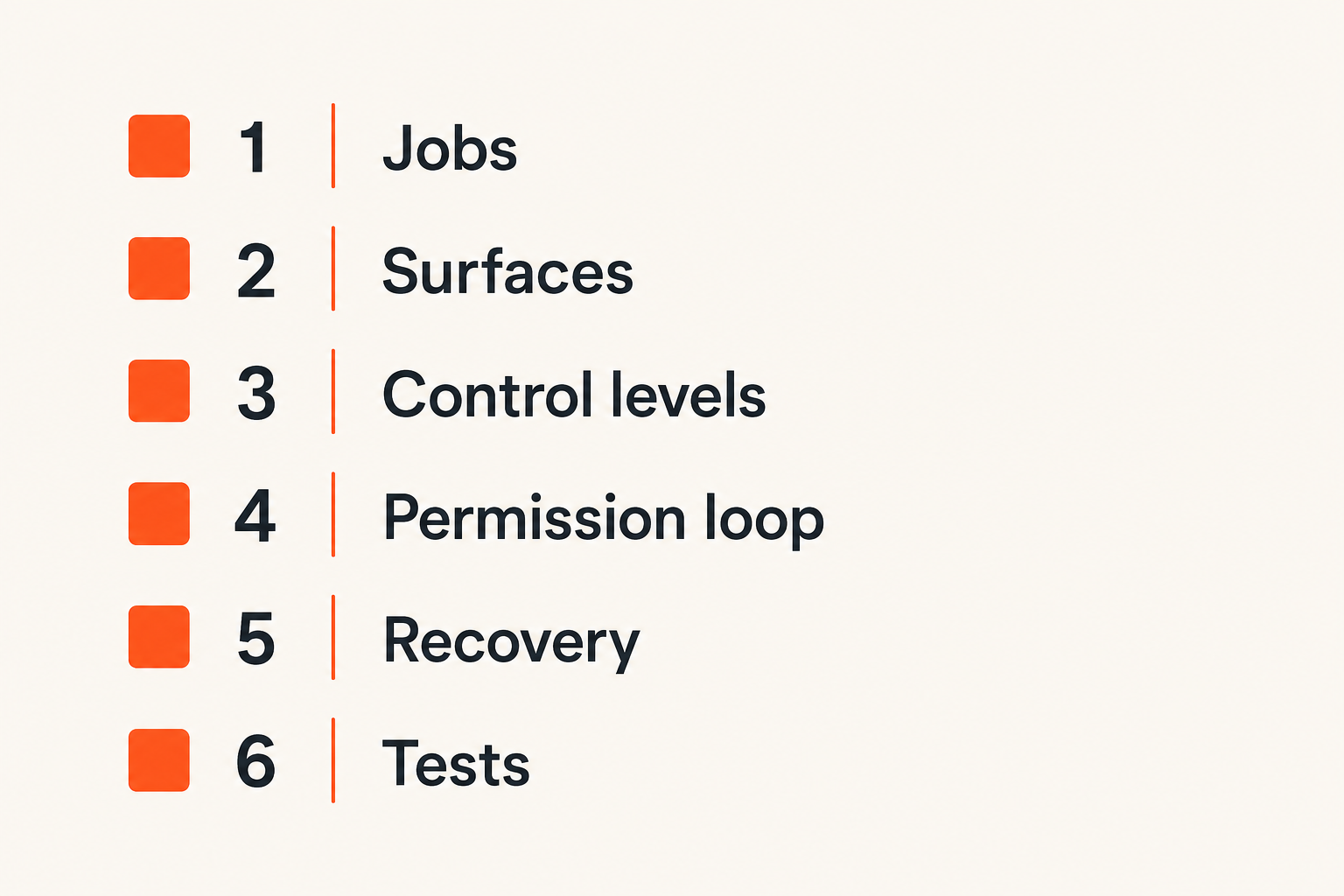
The practical question is not whether your team should allow remote control. Many teams already need it. The practical question is how to implement it so the workflow holds up when people are busy, distracted, or under pressure.
Step sequence for product teams
Use this sequence before you ship or standardize collaborative remote control:
Define the jobs to be done.
- Pair programming
- Design critique
- QA reproduction
- Customer support
- Onboarding
Identify the surfaces that can be controlled.
- Full desktop
- App window
- Browser tab
- Terminal
- Design canvas
Define control levels.
- View only
- Point only
- Click only
- Keyboard input
- Clipboard use
- File transfer, if supported
Design the permission loop.
- Request
- Approve
- Show active state
- Revoke
- Expire
Add recovery behavior.
- Network loss
- App crash
- Host idle
- Guest disconnect
- OS permission failure
Test with real team workflows.
- A design review with multiple cursors
- A debugging session with terminal focus
- A support handoff
- A session where the wrong person requests control
Write the operating rules.
- Who may grant control?
- When should control be revoked?
- Which sessions require recording or logs?
- What data should never be exposed?
The workflow matters more than the checklist. A control feature that passes a demo but fails during onboarding is not done.
Testing the unhappy paths
Most teams test the happy path: request control, approve, move cursor, type, end session. That proves the button works. It does not prove the system works.
Test the unhappy paths deliberately:
- Guest loses network while controlling.
- Host closes laptop during active control.
- OS blocks accessibility permissions.
- Guest pastes a large clipboard payload.
- Two guests request control at once.
- Host revokes control during a drag operation.
- Session token expires during active collaboration.
- Guest attempts input after revocation.
A simple test matrix is usually enough:
| Scenario | Expected behavior | Failure signal |
|---|---|---|
| Guest disconnects | Host regains control | Cursor remains guest-owned |
| Host revokes | Guest input stops immediately | Input continues after revoke |
| Token expires | Control ends cleanly | Session enters unknown state |
| OS permission missing | Clear setup prompt appears | Silent input failure |
| Multiple requests | Queue or reject visibly | Competing active controllers |
The goal is not perfection. The goal is predictable degradation.
What works and what fails
Good collaborative control is not flashy. It is boring in the right places. It makes the active operator obvious, makes revocation immediate, and makes recovery predictable.
Bad collaborative control hides complexity until it is too late. The demo looks smooth. Then a real team uses it across time zones, operating systems, permissions, browsers, and network conditions.
Comparison table for design choices
| Design area | What works | What fails |
|---|---|---|
| Control requests | Explicit request with named user | Silent takeover or vague prompt |
| Host consent | Approve in context | Approval buried in settings |
| State display | Persistent operator indicator | Tiny transient toast |
| Revocation | One-click host override | End session required to stop control |
| Scope | Window or task-aware control where possible | Full desktop by default for every use case |
| Expiration | Session-bound and time-limited | Standing access by convenience |
| Recovery | Unknown state returns to host | Guest control persists after errors |
| Logs | Event-level operational trail | Excessive capture nobody reviews |
A garage door opener remote is trusted because the boundary is legible. You know what it opens. You know when it moved. You can stop using it. Remote collaboration tools need the same legibility.
Rules teams can actually enforce
Policies fail when they require people to remember abstract security principles during a busy call. Use rules that map to the interface.
Examples:
- Control is granted per session, not forever.
- Host can revoke without asking.
- Nobody controls production systems through a casual design review session.
- Sensitive work uses app-window sharing instead of full-desktop sharing when possible.
- Contractors and customers use named guest access, not shared accounts.
- If control state looks wrong, end control and request again.
Practical rule: A remote control policy is only real if the product makes the safe path faster than the workaround.
This is where many collaboration rollouts go wrong. Leadership writes a policy. The tool makes the policy annoying. Teams route around it. Then everyone pretends the policy is still operating.
Operational rollout for startup teams
Startup teams do not need a 40-page remote collaboration policy. They need a few clear workflows that match how work actually happens. The goal is to reduce friction without normalizing vague control.
Support design QA and engineering
Different functions need different defaults.
Support teams often need customer-safe workflows:
- Keep customer data exposure minimal.
- Make consent explicit.
- Prefer view or pointer modes before control.
- End access immediately after the issue is solved.
Design teams need high-fidelity collaboration:
- Multi-cursor pointing
- Smooth handoff
- Annotation without takeover
- Window-specific sharing where useful
QA teams need reproducibility:
- Clear session context
- Easy handoff to engineering
- Evidence of what was tested
- Reliable control over staging environments
Engineering teams need precision:
- Keyboard reliability
- Terminal focus clarity
- Fast revoke
- Clipboard rules
- Recovery after network drops
One tool can serve these groups, but not if every workflow is treated the same. The control model needs enough structure to fit the job.
Policies that do not slow work
A lightweight rollout policy can fit on one page:
- Use named users for collaborative control.
- Grant control only inside active sessions.
- Keep host override visible.
- Prefer the narrowest useful sharing scope.
- Revoke control when the task is complete.
- Restart the permission loop after errors or disconnects.
- Review persistent access monthly, if your tool supports it.
The mistake teams make is trying to solve every theoretical edge case before shipping a workflow. Start with the highest-frequency sessions. Watch where people hesitate. Improve the system there.
PairUX has written about this metaphor before in the context of safer team handoffs and recovery. If you want the adjacent version, the earlier post on garage door opener remote lessons for remote teams covers more of the collaboration control pattern.
Where PairUX fits
PairUX is built around a simple view: remote teams need shared control that feels fast without becoming vague. Screen sharing is not just pixels. It is presence, intent, permission, handoff, and recovery.
That is why garage door opener remote thinking is useful. It forces the product conversation away from “can someone click my screen?” and toward “what exactly is being controlled, by whom, for how long, and how do we return to a safe state?”
Product fit for collaborative control
PairUX is a fit when your team regularly needs to work together inside live software rather than talk around it. That includes:
- Designers and developers reviewing interactive UI behavior
- Engineers pairing on debugging sessions
- Founders helping teammates reproduce issues
- QA and product teams walking through flows together
- Distributed teams that need practical remote control without heavy ceremony
The architectural fit is not “replace every meeting.” It is “make the sessions where shared operation matters less fragile.”
The garage door opener remote model gives you a useful product evaluation checklist:
- Is control explicit?
- Is the operator visible?
- Can the host revoke instantly?
- Does session state recover safely?
- Are permissions tied to the workflow?
- Can users understand the system without a training course?
If the answer is no, the tool may still be useful for viewing. It is not ready to be your default shared-control layer.
Try pairux.com
PairUX gives remote teams fast, practical collaborative screen sharing, remote control, and multi-cursor work without turning every session into a permissions guessing game. If your team needs garage door opener remote simplicity with software-grade control, Try pairux.com.