2026-08-07
Garage Door Opener Remote Lessons for Remote Teams: Build Collaborative Control That Does Not Break
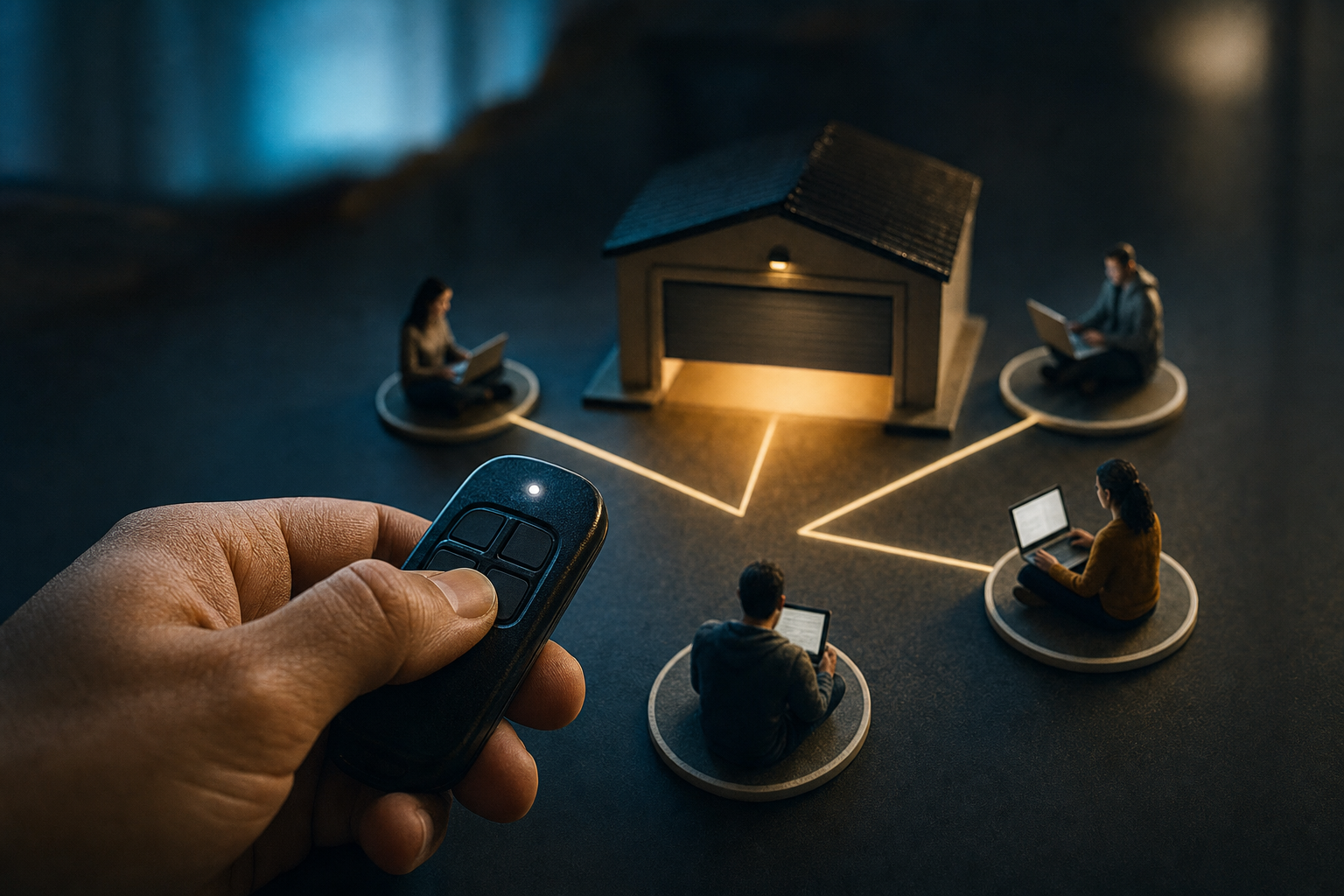
A garage door opener remote looks simple until it fails at the wrong time. The button is not the system. The system is access, state, signal, trust, fallback, and recovery.
Remote teams hit the same problem with screen sharing and remote control. Someone says, take over my screen, and everyone assumes the hard part is moving a cursor across the internet. It is not. The hard part is knowing who has control, what they can touch, how control changes hands, and what happens when the session becomes confusing.
Teams think the problem is a garage door opener remote-style button: click to open, click to close, click to control. The real problem is the operating model behind the button.
That changes the conversation. For product designers, software developers, and startup operators, the practical question is not whether remote control exists. It is whether the control workflow is safe enough, visible enough, and recoverable enough for real work.
Table of contents
- Why the garage door opener remote is the right mental model
- Garage door opener remote control maps to remote collaboration
- The workflow problem behind remote control
- Designing permission flows that do not surprise people
- What works in collaborative screen sharing
- What fails when teams implement remote control badly
- A practical implementation workflow
- Security and trust boundaries for remote teams
- Using garage door opener remote thinking in product and design reviews
- Where PairUX fits
- Closing: build the system behind the button
Why the garage door opener remote is the right mental model

The button is not the system
A garage door opener remote is useful because nobody worships the button. The button is just the visible control surface. Underneath it are paired devices, range limits, safety sensors, motor state, obstruction detection, and manual override.
Remote collaboration has the same shape. The visible control surface is a request button, a shared cursor, or a prompt that says someone wants control. Underneath that are permissions, identity, session state, operating system constraints, network conditions, input routing, and user trust.
The mistake teams make is designing the button and calling the workflow finished. They ship remote control as a feature, then discover the real issues during onboarding, support, design reviews, and pair programming sessions.
Practical rule: If the user cannot tell who has control, what they can do, and how to stop it, the remote control workflow is incomplete.
Shared control needs a boundary
A garage door is a boundary. The remote does not open every garage in the neighborhood. It opens a specific door because the device relationship is constrained.
Screen sharing also needs boundaries. A participant should not accidentally control the wrong display, interact with the wrong app, or keep access after the work is done. If the boundary is vague, people compensate with awkward behavior: asking repeatedly, hesitating before clicks, narrating every movement, or avoiding remote control entirely.
A useful way to think about it is this: collaborative control is not a privilege you grant once. It is a temporary operating mode inside a live session.
Simple interfaces hide operational complexity
The best simple tools are not simplistic. They hide complexity because the workflow absorbs it.
For a garage door opener remote, the user does not think about pairing codes and limit switches every morning. But those details still matter when the remote is lost, the door reverses, the power goes out, or a new car needs access.
Remote teams need the same discipline. During normal use, control handoff should feel obvious. During weird cases, the system should still be legible. Who is driving? Who is observing? Did the request expire? Can the host revoke control? What happened after reconnect?
Those are not edge-case details. In production, they are the difference between a tool people trust and a tool people quietly avoid.
Garage door opener remote control maps to remote collaboration
Signal, permission, action, confirmation
A garage door opener remote sends a signal, the opener validates it, the motor acts, and the user gets confirmation because the door moves. Remote collaboration should follow the same sequence.
| Garage door opener remote concept | Remote collaboration equivalent | What can break |
|---|---|---|
| Paired remote | Authenticated participant | Unknown or stale identity |
| Button press | Control request | Accidental or unclear request |
| Receiver validation | Host approval and policy check | Permission granted too broadly |
| Motor action | Input routed to shared machine | Lag, wrong target, or OS block |
| Door movement | Visible cursor and state change | No confirmation of control |
| Stop or reverse | Revoke control or pause session | No fast recovery path |
The comparison is not cute. It is operational. If your remote collaboration product does not have the equivalent of validation, state change, and stop behavior, people will invent their own process on top of it.
Related reading from our network: teams working on broader launch systems face the same ownership problem in product operations for cleaner launches, where the visible ship button only works when the workflow behind it is clear.
Why visual state matters
A garage door gives physical feedback. You can see whether it is open, closed, moving, stuck, or reversing. Remote collaboration needs the same kind of feedback, but on a screen.
In practice, visual state should answer four questions quickly:
- Who is currently controlling the screen?
- Is control active, pending, denied, or paused?
- What input is being shared: mouse, keyboard, clipboard, or all of them?
- Can the host stop the action immediately?
If those answers are hidden in a menu, the design is already too subtle. Live collaboration is a high-context activity. People are talking, watching, thinking, debugging, and making decisions. State needs to be visible without becoming noisy.
Where latency changes behavior
Latency is not only a technical metric. It changes how people behave.
With low latency, a designer can point, drag, resize, and adjust with confidence. With high latency, the same designer slows down, over-explains each step, or asks the host to perform the action instead. Developers feel this during pair programming when cursor movement, text selection, terminal input, or editor navigation trails behind intent.
What breaks in practice is not just speed. It is trust. If the remote participant cannot predict what their input will do, they stop using control for precise work.
Practical rule: Treat latency as a product behavior problem, not only an infrastructure problem. Slow input changes meeting dynamics.
The workflow problem behind remote control
Who owns the session
Every collaborative session needs an owner. Usually that is the person sharing their screen, but not always. A product review may have a facilitator. A support session may have a customer as host and an internal specialist as operator. A pair programming session may switch ownership depending on who is driving.
Session ownership decides who can grant control, revoke control, change sharing mode, invite others, and end the session. If ownership is implicit, teams argue with the interface.
The practical question is: what decision can only one person make?
For most remote teams, the answer is revocation. Many people may request control, but the host must always be able to stop control. That is the safety boundary.
Who can request control
Open request flows feel convenient until they create noise. If anyone in a large call can request control at any time, the host gets distracted. If nobody can request control without a separate verbal negotiation, the tool creates friction.
Useful request paths usually depend on session type:
- Small pairing session: both participants can request control.
- Design critique: only invited collaborators can request control.
- Customer support: support can request, customer approves.
- Workshop or demo: viewers cannot request unless promoted.
- Internal incident review: designated operators can request, others observe.
This is where generic screen sharing often gets thin. A single permission model does not fit every workflow.
Who can stop control instantly
The stop path matters more than the start path.
A garage door opener remote has a simple mental model: press again, stop or reverse. Remote control needs an equivalent. The host should not have to hunt for a hidden menu, close the app, or disconnect the whole call to stop input.
Good stop behavior is obvious, local, and immediate. It should also be resilient when the remote participant disconnects, the network drops, or the UI gets obscured by a full-screen app.
Practical rule: Design revoke control before you design grant control. The person taking the risk needs the fastest control.
Designing permission flows that do not surprise people
Explicit beats implied
Implied permission is the source of many collaboration failures. People think screen sharing means viewing. Then a tool quietly enables remote control because it was allowed last time. Or a participant assumes they can type because they controlled the screen in a previous session.
That is how trust gets damaged.
Explicit permission does not mean modal spam. It means the workflow should make a clear promise: this person is asking for this kind of access for this session. The host should see enough context to make a decision without reading policy text.
A practical prompt might include:
- Participant name and organization context.
- Requested capability: pointer only, mouse, keyboard, clipboard, or file drop.
- Duration or session scope.
- A visible way to revoke.
Temporary access beats permanent trust
Permanent trust is convenient for consumer devices. It is risky for work sessions.
Remote teams change context constantly. A designer may be safe to control a Figma file during critique but not a production console during incident review. A developer may be safe to type in a local editor but not in a password manager prompt. A contractor may need access today and not tomorrow.
Temporary access keeps the collaboration aligned with the moment. It also makes the product easier to explain. You are not handing over your computer forever. You are allowing a specific person to control a specific session until you stop it.
For setup and policy details, teams should keep one canonical place for installation, permissions, and system requirements; PairUX maintains that kind of operational reference in the PairUX docs.
Auditability beats memory
In small teams, people rely on memory. That works until it does not. After a confusing session, someone asks: who had control when that setting changed? Did we grant keyboard access or pointer access? Was this customer approved to drive, or did support perform the action?
Auditability does not need to mean enterprise theater. At minimum, collaboration tools should make session events understandable:
- Control requested.
- Control granted.
- Control revoked.
- Participant joined or left.
- Session paused or ended.
The goal is not surveillance. The goal is supportability. When something feels wrong, the team needs a plain record of what happened.
What works in collaborative screen sharing
Visible control ownership
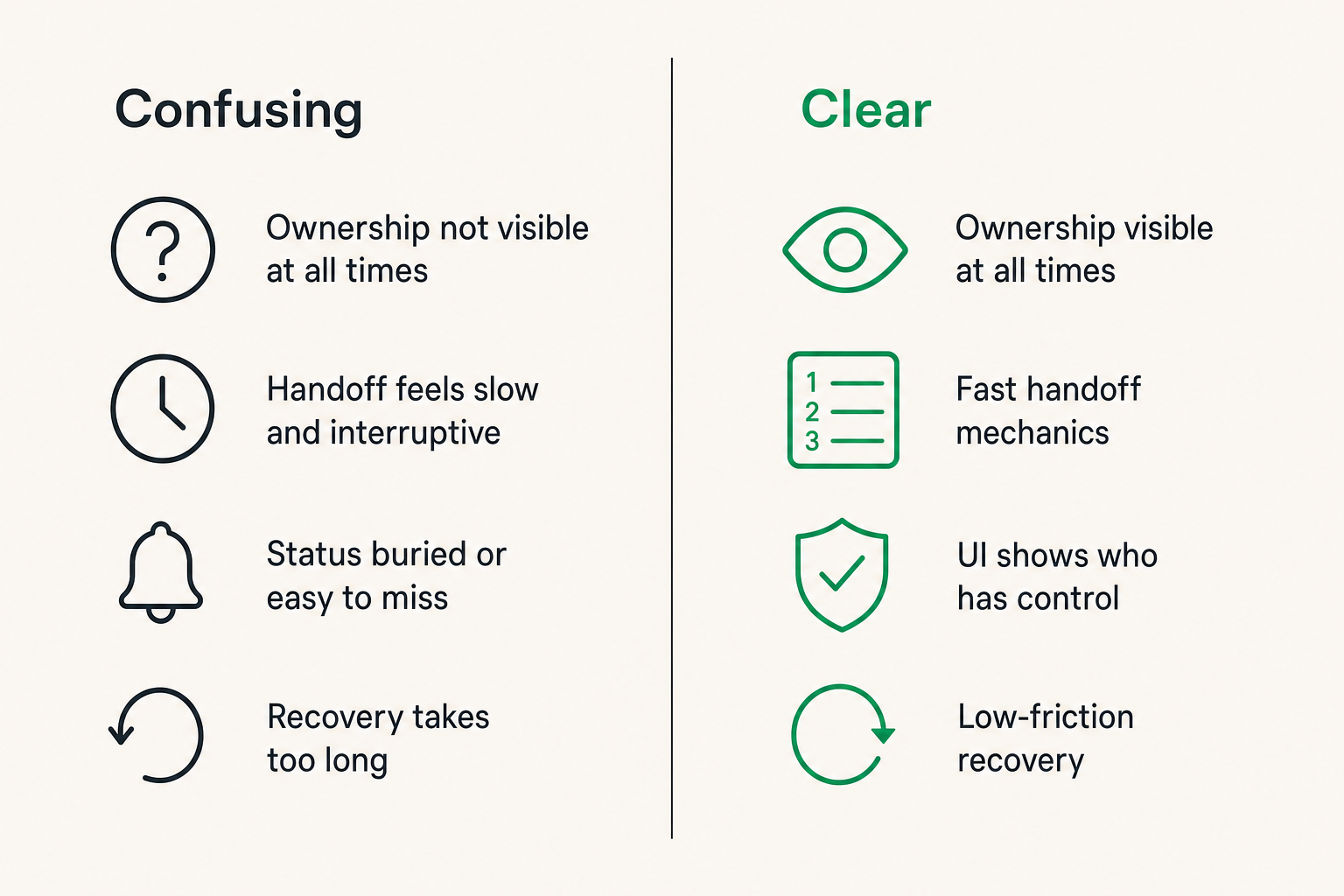
The most reliable remote control sessions make ownership visible at all times. Not in a buried participant list. Not in a notification that disappears after two seconds. Visible.
Good state can be simple:
- Alex is sharing.
- Priya has mouse control.
- Keyboard control is off.
- Alex can stop control with one action.
This reduces verbal overhead. Instead of asking, do you have control, the team can see it. That matters during design reviews, technical debugging, and customer support, where attention is already expensive.
Fast handoff mechanics
Fast handoff is where collaborative tools either feel natural or become meeting tax.
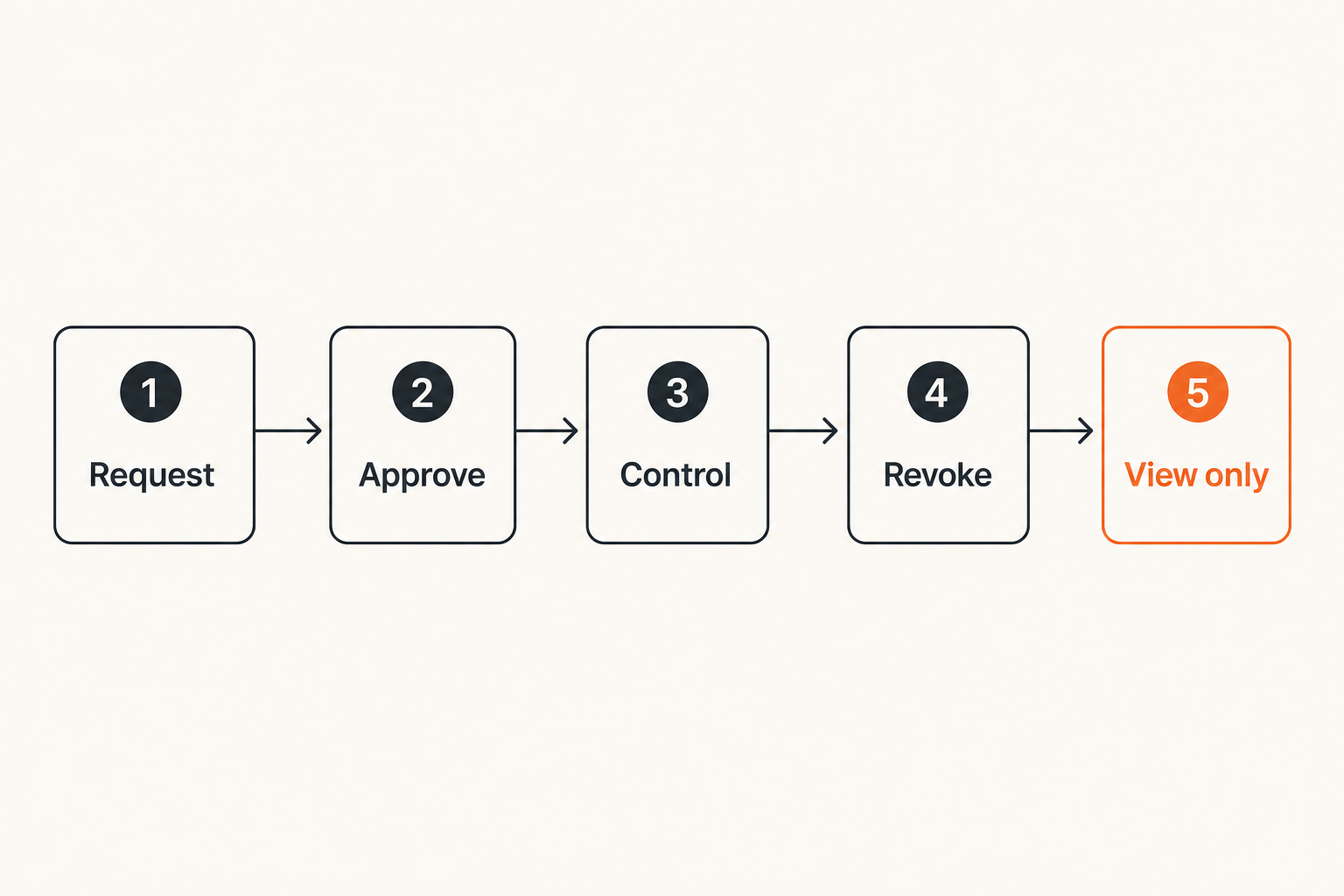
A useful handoff flow looks like this:
- Participant requests control with a clear capability.
- Host approves without leaving the shared context.
- UI shows who has control.
- Participant acts.
- Host revokes or participant releases control.
- Session returns to view-only or next operator.
The flow is short because the work is the point. The tool should not become the meeting.
Teams comparing collaboration products should look beyond the marketing page and test the real handoff path. PairUX documents its collaboration model and supported capabilities on the PairUX features page, but the better test is still to run your own workflow with your actual team.
Low-friction recovery
Recovery is the boring part that saves the session.
Examples:
- The host can instantly stop remote input.
- The participant can release control without awkwardness.
- Control expires when the session ends.
- Reconnect does not silently restore risky access.
- Full-screen apps do not hide the escape path.
- Keyboard shortcuts do not trap the host.
The mistake teams make is testing only happy-path collaboration. They run a demo where one person requests control, the other approves, and everything works. Then production adds calls, notifications, external monitors, VPNs, permissions, OS prompts, and distracted humans.
What fails when teams implement remote control badly
Ambiguous cursor ownership
Ambiguous cursor ownership creates chaos quickly. Two people move the pointer. One person clicks while another is explaining. The host tries to correct movement while the remote participant is still driving. Everyone laughs once, then stops trusting the feature.
The fix is not only technical locking. It is interface clarity. If multiple cursors are allowed, label them. If only one input stream is active, show the driver. If pointer-only mode exists, distinguish it from real control.
A garage door opener remote does not leave you wondering which door is moving. Collaborative control should not leave you wondering whose input changed the screen.
Hidden permissions
Hidden permissions are worse than missing permissions because they create false confidence.
Common examples include:
- Remote keyboard access remains enabled after mouse-only work.
- Clipboard sharing is on without clear state.
- A participant can control a second monitor the host forgot was shared.
- A previous approval is reused in a different session context.
- OS-level accessibility permission is granted, but app-level UI implies control is off.
What breaks in practice is support. Users do not describe permission bugs precisely. They say, it felt like they still had access, or I was not sure who could type. That ambiguity becomes a trust problem.
Related reading from our network: security teams have a parallel version of this problem in CI/CD, where hidden trust relationships create supply chain risk; the architecture view is covered in cyber security software for CI/CD and supply chain defense.
No escape hatch
No escape hatch is the fastest way to make people reject remote control.
If a participant types in the wrong field, opens the wrong app, or triggers an unexpected shortcut, the host needs immediate local authority. Closing the laptop, killing the process, or yelling stop over the call is not a product design.
At minimum, teams should expect:
- A persistent stop control action.
- A keyboard shortcut owned by the host.
- Automatic revocation on disconnect or session end.
- Clear state after revocation.
- No silent re-grant after reconnect.
Practical rule: A remote control product should fail closed. If session state is uncertain, remove control and make the team grant it again.
A practical implementation workflow
Step 1: define session roles
Before choosing or building remote control software, define the roles your team actually uses.
For a startup product team, the roles might be:
- Host: shares the screen and owns revoke authority.
- Driver: controls input temporarily.
- Navigator: gives direction but does not control.
- Observer: watches without interaction.
- Facilitator: manages meeting flow and handoffs.
Do not over-model this. The point is not bureaucracy. The point is avoiding mushy permissions where everyone is sort of allowed to do everything.
A minimal role matrix can be enough:
| Role | Can view | Can request control | Can grant control | Can revoke control | Can end session |
|---|---|---|---|---|---|
| Host | Yes | Yes | Yes | Yes | Yes |
| Driver | Yes | Yes | No | Release only | No |
| Navigator | Yes | Maybe | No | No | No |
| Observer | Yes | No | No | No | No |
| Facilitator | Yes | Maybe | Maybe | Maybe | Maybe |
Step 2: design the request path
Once roles are clear, design the request path as a state machine.
A simple version:
- Viewer clicks request control.
- System checks whether viewer is allowed to request.
- Host receives request with capability and participant identity.
- Host approves or denies.
- System activates control and displays state.
- Host revokes, driver releases, or session ends.
- System returns to safe view-only state.
This is the part many teams skip. They wire a button directly to input control and treat the rest as interface polish. That is backwards. The state machine is the product.
For implementation, name states explicitly:
- view_only
- request_pending
- control_active
- control_paused
- control_revoked
- session_ended
Then decide allowed transitions. For example, control_active can move to control_revoked by host action, driver release, network loss, policy timeout, or session end. It should not move back to control_active after reconnect without a fresh check.
Step 3: validate recovery paths
Recovery testing should be part of rollout, not a last-minute QA pass.
Run drills:
- Remote participant disconnects while controlling.
- Host network drops.
- Host switches monitors.
- Full-screen app takes focus.
- Password manager prompt appears.
- Clipboard contains sensitive data.
- Two participants request control at once.
- Session recording starts after control is granted.
The output should be a short policy your team can follow. For example: support never requests keyboard control until the customer confirms the target app; design reviews use pointer-only by default; production consoles require host-operated input; contractors get session-only access.
Related reading from our network: if your team is also choosing workflow tooling, the same rollout-risk lens appears in this monday.com vs ClickUp workflow guide, where the real question is not features but operating fit.
Security and trust boundaries for remote teams
Least privilege in a live session
Least privilege is easy to say and hard to apply to a live meeting. The practical version is capability-based control.
Do not make remote control binary if your workflow needs nuance. Useful capability levels include:
- View only.
- Pointer or laser pointer.
- Mouse control.
- Keyboard control.
- Clipboard sharing.
- File transfer or file drop.
- Admin-elevated actions, if supported at all.
Most collaboration work does not need the highest level. A design critique may need pointing and occasional mouse control. Pair programming may need keyboard control. Customer support may need request-and-confirm steps before typing.
The safer default is to start narrow and expand when the work requires it.
Sensitive screens and shared machines
Remote teams often work on messy machines. Browser tabs, terminals, staging dashboards, local files, API keys, customer records, and private messages coexist on the same screen.
A remote control workflow has to respect that reality. It should not assume the shared screen is clean.
Practical safeguards include:
- Share only the window needed when possible.
- Pause before opening password managers or admin consoles.
- Disable clipboard sharing unless required.
- Use pointer-only mode for review-heavy sessions.
- Keep production operations host-driven unless policy says otherwise.
- End the session before switching to unrelated sensitive work.
This is not paranoia. It is normal operational hygiene.
Operational policies that people will follow
A policy nobody follows is decorative. Remote collaboration rules need to be short enough to remember during a call.
A workable policy might be:
- The host always owns stop control.
- Control is session-only.
- Keyboard access requires explicit approval.
- Support explains before acting.
- Production systems stay host-driven unless escalated.
- Reconnect requires re-approval.
If the rules require a wiki search during a meeting, they will not survive contact with work.
Using garage door opener remote thinking in product and design reviews
Design critiques
Design critiques are a good fit for controlled collaboration because the work is visual and iterative. But they break when everyone wants to drive at once.
Use modes:
- View-only for most participants.
- Pointer mode for comments and attention.
- Temporary mouse control for layout exploration.
- Host-owned revoke when discussion shifts.
The garage door opener remote analogy helps here because it reminds teams that access should be specific. You do not need to hand over the whole house to let someone open one door.
Pair programming
Pair programming needs faster control handoff than most meetings. If the driver and navigator swap often, every handoff must be lightweight.
What works:
- Persistent driver indicator.
- Keyboard control only when needed.
- Easy release control.
- Shared verbal convention: I am driving, you drive, I am taking back.
- Clear fallback when latency gets bad.
What fails:
- Asking for permission through multiple dialogs every minute.
- No indication of who is typing.
- Losing control state after every reconnect.
- Remote input fighting local input.
For teams moving beyond ad hoc calls, the important question is whether the tool supports the rhythm of pairing, not just the checkbox called remote control. You can find ongoing product notes and collaboration tutorials on the PairUX blog, where the focus is practical team workflows rather than generic meeting advice.
Customer support and onboarding
Support sessions need the strictest trust model because the customer may not understand the tool deeply. The support rep may know exactly what to do, but the customer owns the machine and the risk.
A good support workflow is explicit:
- Rep explains the action.
- Rep requests the narrowest required control.
- Customer approves.
- Rep performs the action slowly enough to be understood.
- Rep releases control.
- Customer confirms the result.
This reduces anxiety and creates a better support record. It also prevents the common failure mode where support moves too quickly and the customer feels their screen was taken over.
Where PairUX fits
PairUX is built around collaborative control
PairUX exists for remote teams that need practical collaborative screen sharing, remote control, and working together online. The product fit is strongest when your team does not want screen sharing to be a passive broadcast.
If your workflow includes design reviews, pair programming, debugging sessions, onboarding, support, or founder-led product work, control handoff becomes part of the operating system of the team. You need the session to show state, support remote control, and keep collaboration moving without turning every handoff into a meeting inside the meeting.
That is the architecture problem PairUX is aimed at: collaboration where multiple people may need to point, drive, review, and recover without losing track of who owns the session.
When PairUX is a good fit
PairUX is worth evaluating if your team regularly says things like:
- Can I drive for a second?
- Wait, who has control?
- I will just tell you where to click.
- The lag makes this hard.
- I do not want to give full control for this.
- Let me take back the screen.
Those are workflow signals. They usually mean the team has outgrown passive screen sharing, but has not yet formalized collaborative control.
PairUX is also a fit when your team is cross-platform, technical, and willing to test the real workflow instead of buying based on a feature list. Developers, designers, and startup operators tend to care less about webinar polish and more about whether the tool handles actual work.
What to test before rollout
Before rolling PairUX or any collaborative control tool across your team, run a small operational test:
- Pair two developers on a real bug.
- Run a design critique with three participants.
- Conduct a support-style walkthrough with one person acting as customer.
- Test revoke control during an awkward moment.
- Disconnect and reconnect during active control.
- Try pointer-only, mouse, and keyboard workflows separately.
Capture what felt unclear. Do not only ask whether the stream was smooth. Ask whether people understood ownership, permissions, and recovery.
That changes the conversation from tool preference to workflow readiness.
Closing: build the system behind the button
The practical takeaway
The garage door opener remote is a small object that only works because the system around it is constrained. It knows the door, sends a signal, gets validated, triggers motion, and gives the user visible feedback. When something goes wrong, there is a stop path and usually a manual fallback.
Remote collaboration needs the same discipline. The button that says request control is not enough. The system has to answer who owns the session, who can drive, what level of control is active, how people recover, and what happens when the network or human workflow gets messy.
Teams that treat remote control as an architecture and workflow problem build tools people trust. Teams that treat it like a single feature end up with confusion, hesitation, and support issues.
A garage door opener remote is not interesting because it opens a door. It is interesting because it makes access feel simple while keeping the boundary clear. That is the standard remote teams should expect from collaborative screen sharing and remote control in 2026.
Try pairux.com
PairUX is for remote teams that need fast, practical collaborative screen sharing, remote control, and working together online. Try pairux.com.