2026-06-09
Cloud Based Productivity and Collaboration Tools: The Operator Guide for Remote Teams in 2026

Most remote teams do not have a productivity problem because they lack apps. They have a productivity problem because their apps do not form a working system.
A designer shares a prototype in one tool. A developer explains a bug in another. A founder asks for status in chat. Someone opens a screen share, but nobody can safely take control. The team loses ten minutes negotiating where the work actually lives before any work happens.
Teams think the problem is choosing better cloud based productivity and collaboration tools. The real problem is designing the workflow that those tools are supposed to support.
That changes the conversation. Instead of asking which app has the cleanest interface, the practical question is: can your stack move a remote team from context, to decision, to execution, to record, without creating a support mess?
Table of contents
- Why cloud based productivity and collaboration tools fail in real teams
- Cloud based productivity and collaboration tools as workflow architecture
- The core jobs your stack must support
- Screen sharing and remote control are the collaboration control plane
- Access security and trust boundaries
- A practical implementation workflow for remote teams
- What works when selecting tools
- What fails in production
- Metrics that tell you the stack is working
- Product fit where PairUX belongs
- Closing checklist for cloud based productivity and collaboration tools
Why cloud based productivity and collaboration tools fail in real teams
The mistake teams make is treating collaboration as a procurement category. They buy chat, docs, meetings, whiteboards, project management, screen sharing, and automation. Then they assume the system will assemble itself because everything is in the cloud.
It rarely does. In production, people build shadow workflows. Decisions happen in calls but are not written down. Tasks are created without the original context. Access gets granted too broadly because nobody wants to block a call. Screen shares become slow theater because only one person can drive.
A useful way to think about it is that every collaboration tool creates an operational promise. Chat promises fast coordination. Docs promise durable context. Screen sharing promises shared perception. Remote control promises shared execution. If the promises are not connected, the team pays a switching tax every day.
The visible tool is not the operating system
The tool you see on a demo is not the operating system your team will run. The operating system is the set of rules around when to use it, who owns the output, what happens after the session, and how access is revoked.
For example, a screen sharing app is not just a way to broadcast a desktop. It is a decision surface. It is where a designer can show interaction details, a developer can reproduce a bug, an operator can debug a customer issue, and a founder can unblock a teammate. If that surface has no handoff model, the team still depends on narration instead of execution.
The same is true for documents. A document without ownership becomes a pile. A project board without status discipline becomes decoration. A meeting tool without follow-up becomes a memory leak.
Why 2026 made the problem harder
Remote work in 2026 is less about whether teams can work online and more about whether they can coordinate across fragmented environments. Product designers may be in Figma, developers in local IDEs, support teams in browser consoles, and operators in billing dashboards. The work is distributed across tools, devices, identities, and time zones.
Cloud based productivity and collaboration tools are now the default, but the default stack is noisy. AI assistants, browser apps, desktop apps, and automation systems all create new places for work to start. Related reading from our network: teams building AI workflows face similar coordination problems around local tools, events, and credentials in Mac tools for AI agent builders.
What breaks in practice is not one missing feature. It is the absence of a collaboration path that tells the team how to move from problem discovery to shared action.
Practical rule: If the team cannot explain where a decision starts, where execution happens, and where the record ends up, the tool stack is not designed yet.
Cloud based productivity and collaboration tools as workflow architecture
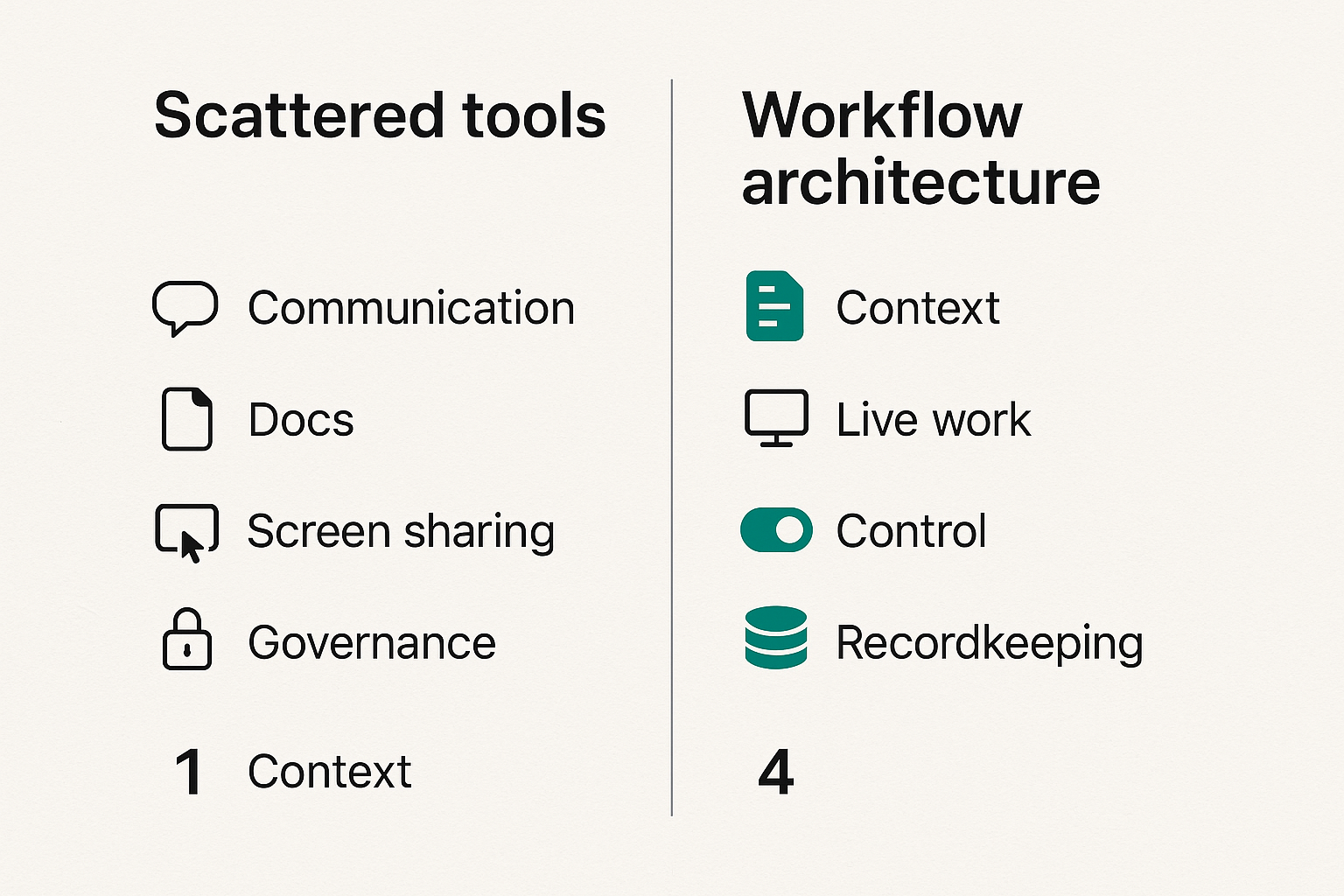
The better frame is architecture. Not enterprise architecture in the heavy diagram sense. Workflow architecture: the deliberate design of how work moves through people, tools, permissions, and records.
When you use that frame, cloud based productivity and collaboration tools become components in a flow. Some tools create context. Some help people decide. Some let people act together. Some preserve the result. Some control access. The stack works when those components have clean handoffs.
The collaboration stack has layers
Most remote teams need five layers:
- Communication: chat, comments, calls, and alerts.
- Context: docs, tickets, specs, product requirements, research notes.
- Shared workspace: whiteboards, design files, code reviews, browser-based apps.
- Live control: screen sharing, remote control, multi-cursor sessions, pair debugging.
- Governance: identity, permissions, audit trails, retention, offboarding.
Small teams often skip the governance layer until a contractor leaves, a client joins a call, or someone shares the wrong screen. That is when convenience stops feeling harmless.
The point is not to over-process a startup. The point is to decide which layer owns which job. If chat owns decisions, search becomes painful. If calls own execution, teammates who were not present are blind. If screen sharing owns sensitive support work, permissions need to be explicit.
The comparison teams should make
Feature checklists are useful only after the workflow is clear. Before that, compare tools by the operational behavior they create.
| Decision area | Weak stack behavior | Strong stack behavior |
|---|---|---|
| Live collaboration | One person narrates while others wait | Participants can point, drive, or take turns safely |
| Context handoff | Notes are scattered across chat and calls | Decisions link back to docs, tickets, or recordings |
| Access | Everyone gets broad permissions to avoid friction | Access is scoped to role, session, and need |
| Support | Problems are re-explained repeatedly | The team can reproduce, control, and resolve in one flow |
| Adoption | Tools are announced once | Workflows are trained, measured, and adjusted |
That changes the conversation from which tool is best to which behavior do we need to produce.
Practical rule: Buy the behavior, not the category. A tool category tells you what it is. A workflow tells you whether it will be used correctly.
The core jobs your stack must support
Remote collaboration breaks down when every job is forced into the same channel. Chat is not a spec. A document is not a live debugging room. A screen share is not a project management system. Each job needs a primary surface and a clean exit path.
The practical question is not how many tools you have. It is whether the team knows which surface to use for each type of work.
Async alignment
Async alignment is the work that lets people understand the situation without being present at the same time. It includes product briefs, design notes, customer context, issue reports, release plans, and decision logs.
Good async tools reduce the need for live meetings. Bad async workflows create stale documents that nobody trusts. The difference is ownership. Every durable artifact needs an owner, a status, and a known place in the workflow.
For remote product teams, async alignment should answer four questions:
- What changed?
- Why does it matter?
- Who needs to act?
- Where should action happen?
If those answers are missing, the team will drag people into calls to reconstruct context.
Live decision making
Live decision making is for moments where ambiguity is expensive. Design critique, incident triage, architecture tradeoffs, onboarding, and customer escalation often need shared attention.
The mistake teams make is starting live sessions without deciding what the session is supposed to produce. A call can produce a decision, a task, a reproduced bug, a merged patch, a changed design, or a support resolution. If the output is unclear, the meeting expands to fill the calendar.
Live collaboration tools should make it obvious who is leading, who can contribute, what artifact is being changed, and where the result will be recorded.
Hands on execution
Hands on execution is where many collaboration stacks fall apart. Everyone can talk about the work, but only one person can touch the environment where the work is happening.
This is especially painful for software developers and product designers. A teammate can describe a UI issue, but the fastest fix may require someone else to drive the browser. A developer can explain a local setup error, but the fastest path may be remote control with clear consent. A founder can review a workflow, but the fastest feedback comes from clicking through together.
Viewing is coordination. Control is collaboration. They are not the same.
Related reading from our network: operational software selection has the same workflow-first pattern in this invoicing software workflow guide, where the UI matters less than approvals, reconciliation, and lifecycle control.
Screen sharing and remote control are the collaboration control plane
For many remote teams, screen sharing is treated as a meeting feature. That is too narrow. Screen sharing and remote control are the control plane for live work because they connect explanation to action.
A control plane is where participants coordinate what is happening, who can act, and when control changes hands. In a remote team, that might mean a designer letting an engineer inspect an interaction, a developer letting another developer drive a terminal with supervision, or an operator helping a teammate through a browser workflow.
PairUX focuses on this layer: collaborative screen sharing, remote control, and multi-person interaction. The broader PairUX features page is useful when you want to map capabilities like real-time screen sharing, remote control, and cross-platform support to your own collaboration workflow.
When viewing is not enough
Viewing is enough when the task is explanation. It is not enough when the task is correction, reproduction, configuration, testing, or review.
Examples where remote control changes the workflow:
- Pair debugging a local environment issue.
- Walking a designer through a product edge case.
- Helping a new teammate configure a toolchain.
- Reviewing a customer-reported bug in the exact browser state.
- Testing a prototype while multiple people point at the same UI.
Without remote control, the team falls back to verbal instructions. Click the thing near the top. No, the other menu. Scroll down. Open the panel. That is not collaboration; that is latency with microphones.
Permission design matters more than convenience
Remote control needs friction in the right places. Too much friction and people avoid it. Too little and the team creates security risk.
Good permission design should answer:
- Who can request control?
- Who grants control?
- Can control be revoked instantly?
- Is the session scoped to the intended screen or app?
- What is visible to guests?
- What is the expected behavior with secrets, terminals, and admin panels?
The answer does not need to be complicated, but it must be explicit. If the team has to invent the rule during a customer escalation, the rule is too late.
Practical rule: Remote control should always be consent-based, visible, and easy to revoke. Convenience is not a substitute for a trust boundary.
Access security and trust boundaries
Cloud collaboration expands the number of people who can touch work. That is the benefit and the risk. The more distributed the team, the more important it becomes to separate identity, device, session, and artifact permissions.
The practical question is: what can a person do because they are a teammate, what can they do because they are in a session, and what can they do because they own a resource?
Identity and device assumptions
Many teams assume identity is solved because they use single sign-on or a shared workspace. That helps, but it does not cover every collaboration path.
A live session includes device state. Someone may share a desktop with browser tabs, terminals, local files, credentials, or customer data. A remote control session may touch systems that were never intended for broad access. A recording may preserve information longer than expected.
A lightweight access model should include:
- Named users for regular teammates.
- Temporary access for guests.
- Clear rules for contractors.
- Session-level control grants.
- Sensitive data handling rules.
- Offboarding checks when a person leaves.
The PairUX docs are the right place to check setup, system requirements, security notes, and practical usage details before you roll remote control into a team workflow.
Guest collaborators contractors and clients
Guest access is where teams make the most mistakes. A client needs to review a prototype, so they get invited into a workspace. A contractor needs to debug something, so they receive broader access than needed. A candidate needs to pair on an exercise, so the team improvises.
The safer pattern is to treat guests as session participants, not permanent workspace members, unless there is a clear reason. Give them the least durable access possible. If they only need to see and point, do not give them control. If they need control, scope it to the session and revoke it when the task is done.
This is not paranoia. It is operational hygiene. Small teams can move fast and still keep clean boundaries.
A practical implementation workflow for remote teams
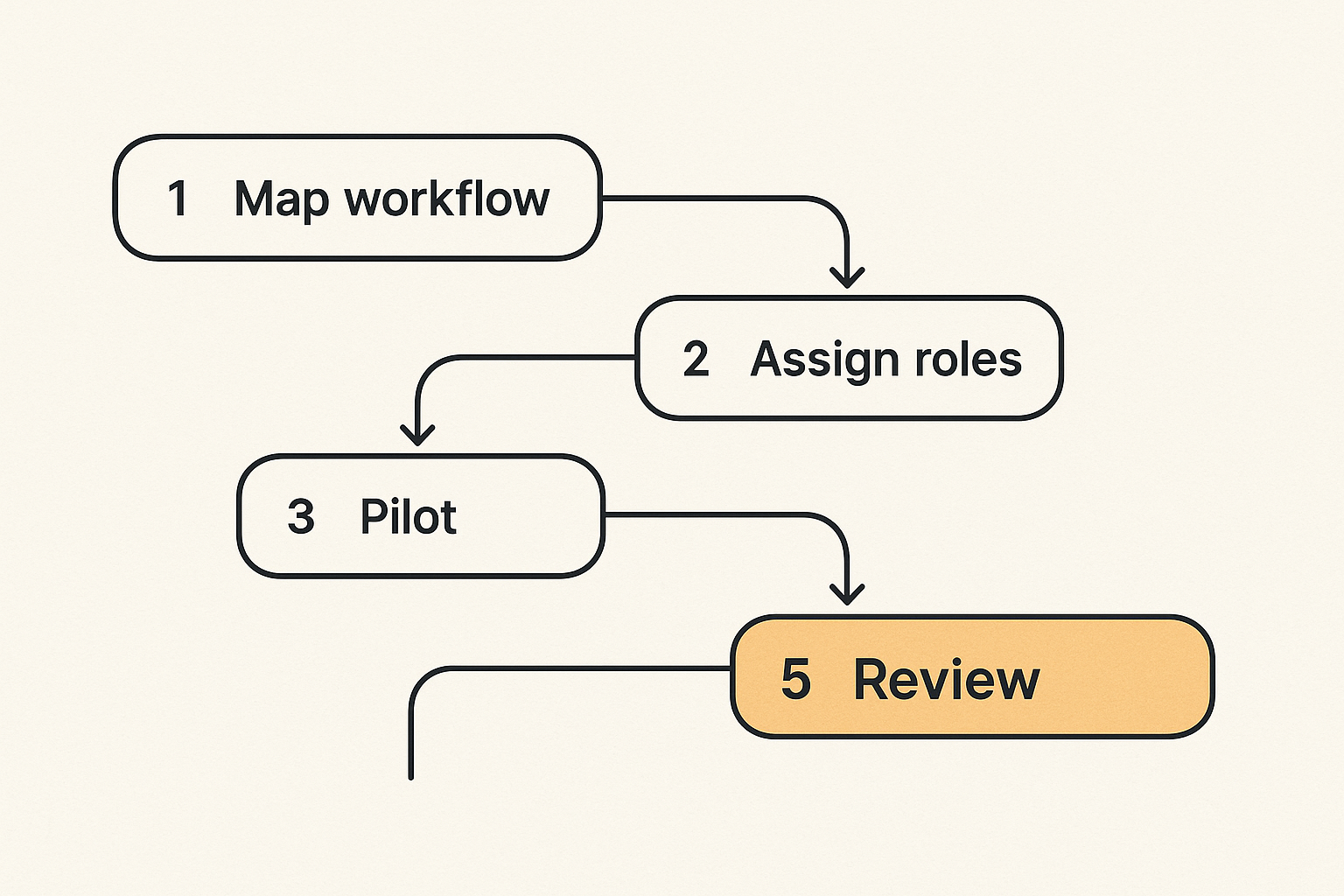
A collaboration stack should be rolled out like a workflow change, not like a tool announcement. If you announce a new app in chat and hope people adopt it, you will get partial usage, duplicated work, and inconsistent habits.
The better approach is to start with a specific workflow that hurts, design the path, test it with a small group, then expand.
Step by step rollout sequence
Use this sequence for any cloud collaboration rollout, especially when it includes screen sharing or remote control:
- Pick one painful workflow. Examples: design review, pair debugging, onboarding, customer escalation, release coordination.
- Map the current path. List where context starts, where live work happens, where decisions are recorded, and where follow-up tasks land.
- Identify the handoff failures. Look for repeated explanations, missing links, unclear owners, and access delays.
- Assign tool roles. Decide which tool owns context, live collaboration, execution, and recordkeeping.
- Define session rules. Specify who can host, who can control, what can be shared, and what must be closed before sharing.
- Run a pilot. Use one team or project for two weeks. Do not roll out to everyone first.
- Collect operational feedback. Ask where time was saved, where trust felt weak, and where people worked around the process.
- Write the policy in plain language. Keep it short enough that people actually read it.
- Train with real work. Do not demo empty screens. Use a real bug, design review, or support case.
- Review monthly. Remove tools or rules that are not producing better behavior.
This sequence is intentionally boring. Boring is good. Boring means the team can repeat it.
A sample operating policy
Here is a lightweight policy structure that works for small remote teams:
- Use async docs for context before live sessions.
- Use live calls only when a decision or hands-on action is needed.
- Use collaborative screen sharing when the work depends on shared visual context.
- Use remote control only with explicit consent from the host.
- Close unrelated sensitive windows before sharing.
- Record decisions in the relevant ticket, document, or project board.
- Revoke guest access after the session or project ends.
You can add more detail as the team grows, but resist the urge to write a policy nobody follows. The policy should match the actual workflow, not the compliance fantasy version of the workflow.
What works when selecting tools
Selection gets easier when you evaluate tools against your actual work. A startup with heavy pair programming needs different collaboration surfaces than a product design agency. A support-heavy SaaS team needs different access rules than an internal platform team.
The right question is not what does this tool do. The right question is what failure mode does this tool remove without creating a worse one.
Choose around workflows not categories
Start with your recurring workflows:
- Product design critique.
- Engineering pairing.
- Bug reproduction.
- Customer support escalation.
- New teammate onboarding.
- Founder or operator review.
- Release readiness.
For each workflow, write the desired path in one sentence. Example: a developer can reproduce a bug with a designer, let the designer control the browser when needed, record the decision in the issue, and continue async.
That sentence is your buying criterion. If a tool does not support the path, the feature list is secondary.
This is also where teams should avoid buying overlapping tools too quickly. Two apps that both solve 60 percent of the problem often create more confusion than one app that solves the important 40 percent cleanly.
Integration checks before rollout
Before adopting any cloud based productivity and collaboration tools, test the boring integration points:
- Does it work on the operating systems your team actually uses?
- Does it behave well with multiple monitors?
- Can guests join without derailing the session?
- Are permissions visible to the host?
- Can control be revoked quickly?
- Does the workflow leave a record somewhere durable?
- Does it create notifications people will ignore?
- Can support or operations troubleshoot common failures?
If a tool fails these checks, it may still be useful. But you should know which operational cost you are accepting.
Related reading from our network: architecture tradeoffs around distributed execution, queues, validation, and workload routing show up in a different domain in AI agents cloud computing, but the same principle applies: the workflow is the system.
What fails in production
Most collaboration failures are not dramatic. They are small delays that repeat until they become culture. People stop asking for help because the process is annoying. Developers avoid pairing because the session setup is clumsy. Designers stop joining reviews because feedback disappears. Operators create private shortcuts because official workflows are too slow.
What breaks in practice is the gap between intended usage and actual behavior.
Notification sprawl and context loss
Cloud tools make it easy to notify everyone and hard to preserve context. A remote team can have mentions in chat, comments in documents, alerts from project boards, email updates, meeting notes, and direct messages. None of that guarantees that the next person knows what to do.
Notification sprawl creates three problems:
- People miss important signals because everything looks urgent.
- Decisions are split across channels.
- Work restarts because context is not attached to the task.
The fix is not fewer notifications by itself. The fix is a rule that says where a decision becomes durable. For example, chat can discuss, but the issue records the decision. A call can decide, but the project board gets the owner and next step. A screen share can resolve, but the support ticket gets the summary.
Ownership gaps and support loops
A support loop happens when nobody owns the collaboration failure. The meeting tool is blamed for audio. The screen sharing tool is blamed for permissions. The project board is blamed for missing status. The real problem is that nobody owns the end-to-end workflow.
Assign workflow owners, not just tool admins. A tool admin can configure settings. A workflow owner watches whether the work actually moves. For example, the engineering lead may own pair debugging workflow. The design lead may own critique workflow. The operator may own customer escalation workflow.
This matters because every workflow has edge cases. New contractor. Slow laptop. Client firewall. Sensitive tab. Broken permission prompt. If nobody owns the workflow, each edge case becomes a fresh emergency.
Practical rule: Every recurring collaboration workflow needs an owner who can change the process, not just a tool admin who can change settings.
Metrics that tell you the stack is working
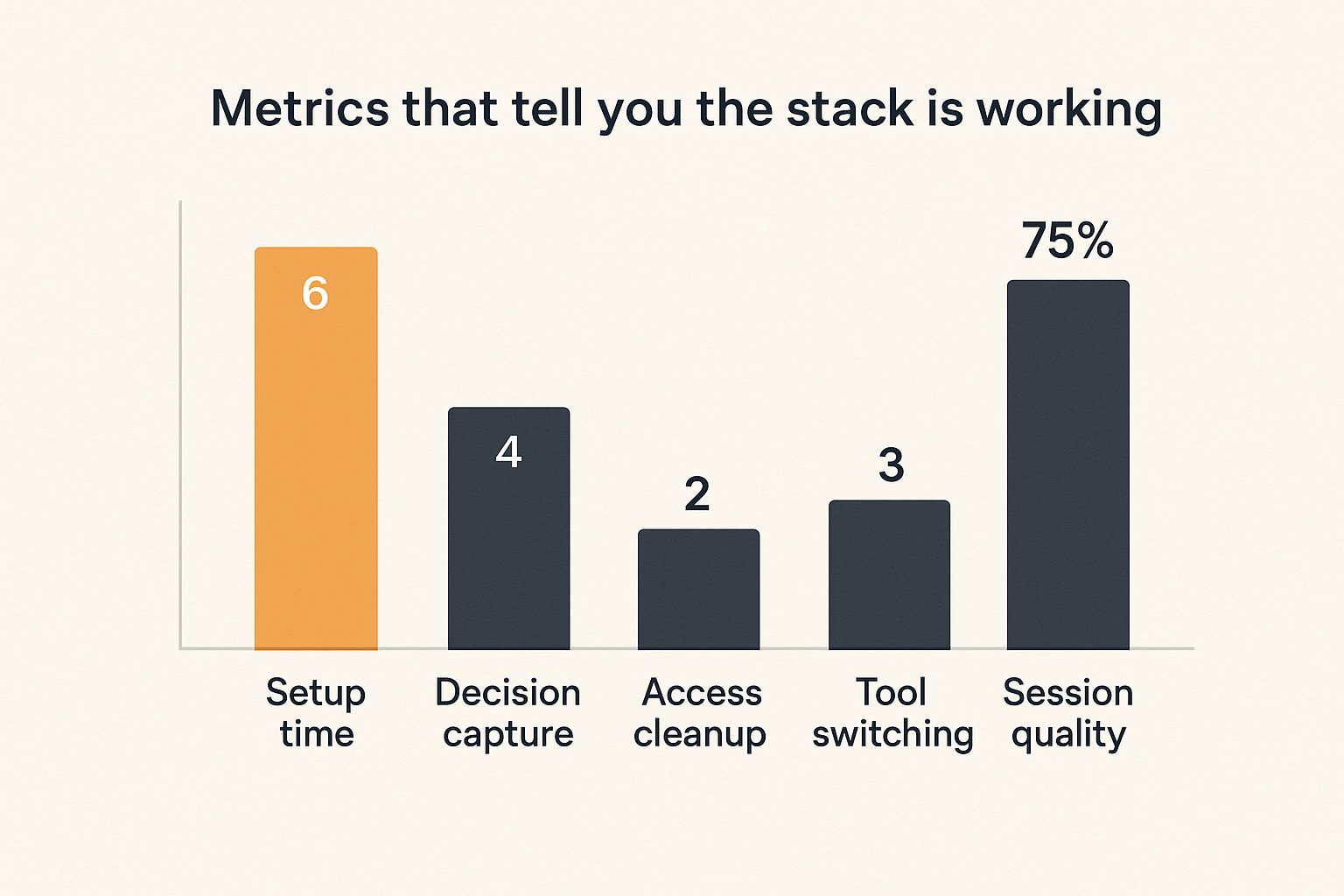
You do not need a giant analytics program to evaluate collaboration tools. You need enough signal to know whether the stack is reducing friction or just moving it around.
Measure a few operational indicators, then combine them with qualitative feedback. Numbers can show delay. Teammates can tell you why the delay exists.
Operational metrics to watch
Useful metrics include:
- Time from help request to live collaboration.
- Time from live session to recorded decision.
- Number of repeated explanations for the same issue.
- Percentage of sessions that end with a clear owner.
- Guest access duration after the work is complete.
- Number of tools touched during one workflow.
- Failed session starts due to permissions, installs, or device issues.
Do not turn these into vanity dashboards. Use them to find friction. If pair debugging takes ten minutes to start because everyone fights permissions, fix that. If design review decisions never land in tickets, fix that. If contractors keep permanent access after projects, fix that.
A simple monthly review is enough for many teams:
| Signal | Good trend | Bad trend |
|---|---|---|
| Help-to-session time | Shorter setup with fewer retries | People delay asking for help |
| Decision capture | Clear owner and link after sessions | Decisions live in memory or chat |
| Guest access | Revoked promptly | Guests remain in workspaces indefinitely |
| Tool switching | Fewer surfaces per workflow | Work jumps across disconnected apps |
| Session quality | More action, less narration | Calls become status theater |
Qualitative signals from the team
Ask practical questions:
- Where did collaboration feel slower than being in the same room?
- Which tool did you avoid using last week?
- Where did you need control but only had viewing?
- Which decision was hard to find later?
- Which guest access made you uncomfortable?
The answers will tell you what the metrics miss. If people say remote sessions feel safe, fast, and useful, the stack is probably improving. If they say they need a pre-call before the real call, the stack is creating ceremony.
Product fit where PairUX belongs
PairUX belongs in the live control layer of the collaboration stack. It is not trying to replace your docs, project management, design system, chat, or identity provider. Those tools still matter. PairUX is useful where remote work needs shared screen context, remote control, and hands-on collaboration.
That is an architectural position, not a slogan. The UI is not the whole system. The system is the workflow around consent, control, context, and follow-up.
Collaborative screen sharing in the stack
PairUX is a fit when the team regularly needs to work together on something visible and interactive:
- Product designers reviewing flows with engineers.
- Developers pairing through local bugs.
- Startup operators walking through browser-based tools.
- Remote teammates helping each other without long narration.
- Small teams that need fast sessions without heavyweight process.
If you are comparing approaches, the earlier PairUX article on cloud based productivity and collaboration tools for remote team architecture goes deeper on how screen sharing, access, docs, security, and rollout rules fit together.
The main point: collaborative screen sharing should shorten the distance between seeing the problem and fixing it. If it only creates another meeting window, you have not solved the workflow.
When PairUX is not the only answer
No single tool should own your whole collaboration system. You still need durable documentation, issue tracking, identity rules, and team norms. PairUX works best when it is connected to those surfaces through clear practice.
For example:
- Use a product brief before a design review.
- Use PairUX for the live review and control handoff.
- Record decisions in the issue or design document.
- Assign owners before the session ends.
- Revisit unresolved items asynchronously.
That path is simple, but it prevents the common failure where a great live session leaves no durable trace. The goal is not more meetings. The goal is faster movement from ambiguity to action.
Closing checklist for cloud based productivity and collaboration tools
Cloud based productivity and collaboration tools should make remote work feel less fragmented, not more. The winning teams in 2026 will not be the ones with the longest software list. They will be the teams that design cleaner paths for context, decisions, shared control, and follow-through.
The mistake teams make is waiting until the stack becomes painful before assigning ownership. Do the opposite. Pick the workflows that matter, decide which tools own which jobs, and make live collaboration safe enough that people actually use it.
The operator checklist
Use this checklist before you add another tool:
- Have we named the workflow this tool improves?
- Do we know where context starts?
- Do we know when live collaboration is required?
- Can participants move from viewing to control when needed?
- Are permissions consent-based and easy to revoke?
- Is there a durable place for the decision or output?
- Who owns the workflow after rollout?
- What metric will tell us whether friction went down?
If you cannot answer those questions, pause the purchase. You are probably buying a category instead of fixing a workflow.
Cloud based productivity and collaboration tools are valuable when they behave like an operating system for remote work. Build that system deliberately.
Try pairux.com
PairUX is for remote teams that need fast, practical collaborative screen sharing, remote control, and hands-on work together online. Try pairux.com.