2026-06-05
Cloud Based Productivity and Collaboration Tools: A Practical Stack for Remote Teams in 2026

Remote teams do not usually fail because they picked the wrong notes app. They fail because work gets stuck between tools, people, permissions, and time zones.
A designer shares a prototype. A developer asks for context. A product manager schedules a call. Someone pastes a stale link. The customer issue waits another day because nobody knows whether the bug is in design, code, environment, or support notes.
That is why cloud based productivity and collaboration tools matter in 2026. Not because teams need more SaaS. They already have plenty. The practical question is whether the stack helps people move from context to action without forcing every problem through another meeting.
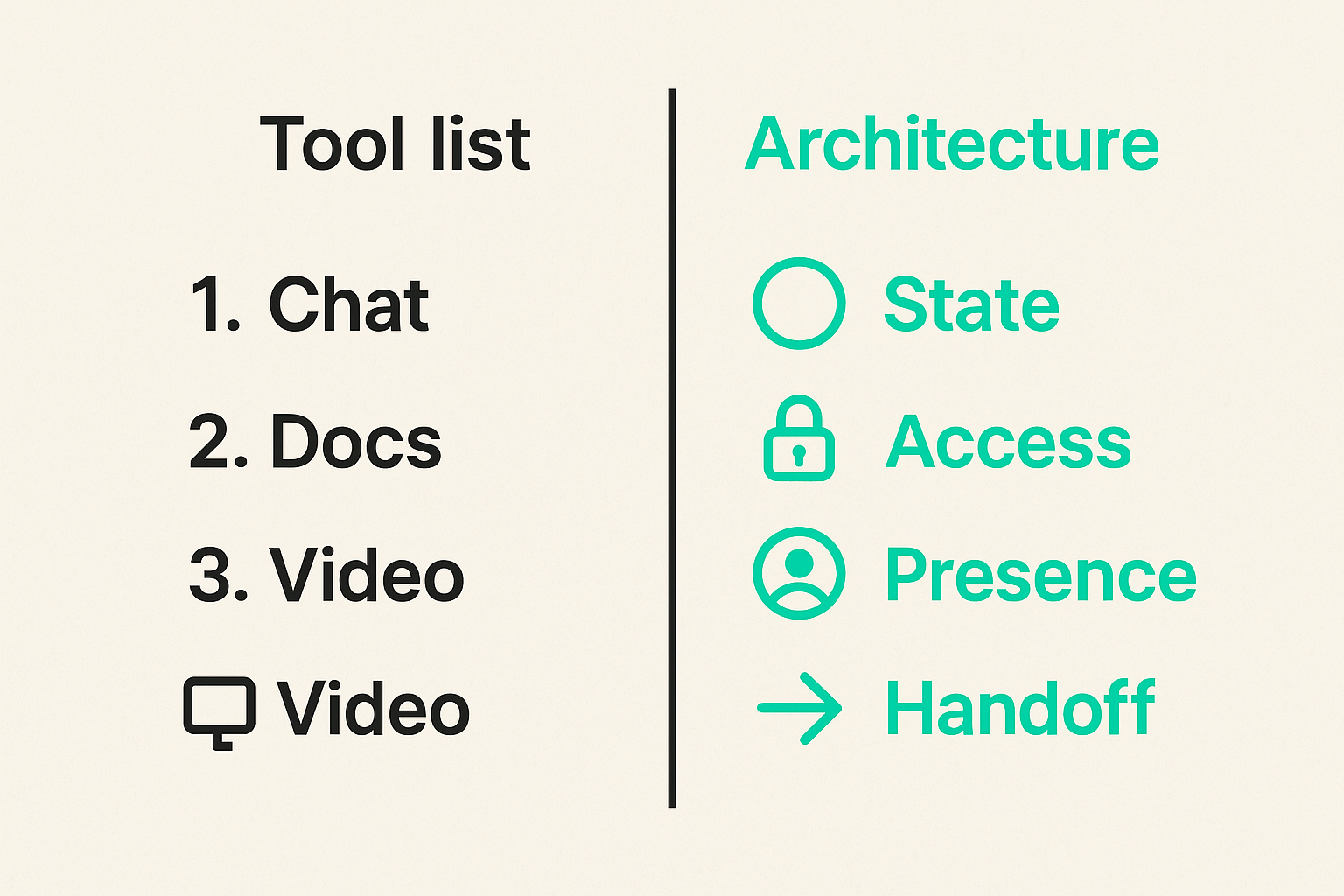
Teams think the problem is tool selection. The real problem is collaboration architecture. That changes the conversation. Instead of asking which app has the most features, ask where work state lives, who can act on it, how handoff happens, and what breaks when the person with context is offline.
Table of contents
- Why cloud based productivity and collaboration tools are now an operating layer
- The architecture view: state, access, presence, and handoff
- Core categories in a practical collaboration stack
- Choosing cloud based productivity and collaboration tools without buying shelfware
- The screen sharing layer: where collaboration becomes executable
- Implementation workflow for remote teams
- Security, permissions, and compliance without killing speed
- What breaks in practice when teams implement badly
- Metrics that tell you whether the stack works
- What works, what fails, and how to keep it boring
- Where PairUX fits in the collaboration architecture
Why cloud based productivity and collaboration tools are now an operating layer
Cloud software used to be treated as an IT convenience: cheaper licenses, browser access, fewer local installs. That is no longer the interesting part. For remote teams, cloud based productivity and collaboration tools have become the operating layer where decisions, files, conversations, reviews, bugs, designs, approvals, and support handoffs happen.
The mistake teams make is treating that layer as a collection of subscriptions. In practice, it behaves more like infrastructure. If links break, permissions drift, meeting context disappears, or nobody can take control during a debugging session, the team slows down even if every individual tool is good.
The old office assumptions are gone
In an office, a lot of coordination happened through proximity. You could turn a chair, point at a screen, borrow a device, or pull someone into a conversation for five minutes. Remote teams need explicit systems for the same work.
That does not mean every interaction should become a calendar event. It means the collaboration stack must support fast escalation: async first, live when needed, shared control when explanation is not enough, and documented handoff when the session ends.
The tool list is not the system
A list might say the team uses chat, docs, video, design software, issue tracking, code hosting, and cloud storage. That list says very little about how work actually moves.
A useful way to think about it is flow. Where does a customer problem enter? Where does it get triaged? Where does technical evidence live? Who can reproduce it? How does a fix get reviewed? What artifact tells support what changed? The stack is only useful if it preserves that chain.
Ownership matters more than procurement
Many remote teams buy collaboration tools by department. Design owns design tools. Engineering owns code tools. Operations owns process tools. Finance owns billing. That is normal, but it creates seams.
Someone needs to own the workflow between tools. Not as a bureaucrat, but as an operator who can say: this is the source of truth, this is where exceptions go, this is how access is removed, and this is how we know the workflow is working.
Practical rule: If nobody owns the handoff between two tools, the handoff will eventually become a meeting, a Slack thread, or a lost task.
The architecture view: state, access, presence, and handoff
Collaboration architecture sounds heavier than it is. You do not need an enterprise architecture board. You need four questions for every important workflow: where is the state, who has access, how do people become present together, and what happens after handoff?
State is where work lives
State is the current truth of a work item. It might be a ticket status, a document version, a design comment, a pull request, a customer transcript, or a shared screen during a live debugging session.
What breaks in practice is state fragmentation. The ticket says one thing, the chat says another, the recording has the real explanation, and the final decision happened in a call. When that happens, new teammates cannot reconstruct why something changed.
Good cloud collaboration tools make state visible and durable. They reduce private context. They make it easy to link the live session back to the async artifact.
Access decides who can act
Access is not just security. It is operational speed. If the person who can diagnose an issue cannot open the relevant file, join the right workspace, control the remote screen, or see the error logs, collaboration becomes theater.
The goal is not open access for everyone. The goal is fast, intentional access. Teams need role-based defaults, temporary guest paths, expiration for sensitive sessions, and clear owner approval for high-risk actions.
Presence and handoff reduce context loss
Presence is the ability to work together at the same time with shared context. Handoff is what lets the next person continue without replaying the whole story.
Screen sharing, remote control, shared cursors, comments, transcripts, and recordings all support presence in different ways. But handoff is where many stacks fail. If the live session produces no artifact, the team bought a temporary conversation, not operational knowledge.
Related reading from our network: teams planning a collaboration launch face similar trust and support tradeoffs in this guide to a screen sharing product launch workflow.
Core categories in a practical collaboration stack
A remote collaboration stack does not need twenty categories. It needs enough coverage for writing, deciding, meeting, helping, building, tracking, and learning. The exact vendors matter less than the boundaries between categories.
Async documents and knowledge bases
Docs are where teams slow down to think. They are also where decisions become reusable. A good knowledge system separates durable knowledge from transient discussion.
Use docs for decisions, specifications, onboarding, runbooks, and customer-facing process notes. Do not use docs as a dumping ground for every chat thread. The moment everything becomes a document, nothing is findable.
A simple pattern works well:
- One decision record per meaningful product or operational choice
- One owner per page
- A clear status: draft, active, deprecated
- Links back to tickets, prototypes, sessions, or pull requests
Real-time meetings and screen sharing
Live collaboration is expensive because it requires synchronized attention. Use it where it pays for itself: debugging, design critique, onboarding, incident response, complex customer support, and pair work.
The screen sharing layer matters because many problems are visual, environmental, or hard to describe. A user says the button is missing. A developer cannot reproduce it. A designer notices a viewport issue. A support teammate sees a permissions state that never appeared in logs.
That is where real-time shared view and remote control change the workflow from description to diagnosis.
Work tracking and code collaboration
Issue trackers and code platforms are not just engineering tools. They are coordination systems. Product decisions, customer reports, design changes, QA notes, and release risks often need to connect to the same delivery path.
For software teams, code review should link back to the originating context. If the pull request cannot explain why a change exists, the team will rediscover the same debate later. If the ticket cannot show what shipped, support will guess.
Choosing cloud based productivity and collaboration tools without buying shelfware
Most teams buy too early. A painful workflow appears, someone recommends a category leader, the team trials it for a week, and the tool becomes permanent before anyone defines success.
Choosing cloud based productivity and collaboration tools should feel closer to designing a workflow than shopping for features. The question is not whether a tool can do something in a demo. The question is whether your team will use it correctly under time pressure.
Start with workflows, not demos
Before evaluating tools, pick three workflows that actually matter. For a remote product team, that might be:
- Customer bug report to confirmed reproduction
- Design review to engineering-ready specification
- Production incident to documented follow-up
Then walk through each workflow from trigger to closure. Identify where context is created, where it is lost, who needs access, and what artifact proves the work is done.
Only then compare tools. A tool that looks less impressive in a demo may fit better because it reduces a specific handoff failure.
Map integration paths before rollout
Integrations are not magic. They are data paths with ownership problems. A chat integration that posts every update can create noise. A ticket integration that does not preserve identity can create audit gaps. A recording link with broad access can create security exposure.
Map each integration in plain language:
- Trigger: what event starts the integration?
- Destination: where does the data go?
- Permission model: who can see it after transfer?
- Failure behavior: what happens if the integration breaks?
- Owner: who fixes it?
Practical rule: An integration without an owner is not automation. It is a future support ticket.
Compare tools by operational risk
Feature comparison tables are useful only when they include failure modes. The best tool on paper may be the worst fit if it creates unclear access, poor export paths, weak auditability, or heavy admin work.
| Evaluation area | Good sign | Risk sign |
|---|---|---|
| Access control | Role-based defaults and temporary sharing | Everyone becomes an admin to move faster |
| Live collaboration | Low-friction joining and clear control handoff | Meetings require setup rituals and permission confusion |
| Async artifacts | Sessions link back to tickets or docs | Important context stays in chat or recordings only |
| Reliability | Clear reconnect and recovery behavior | One network hiccup kills the workflow |
| Admin burden | Simple policies and visible usage | Settings are powerful but nobody understands them |
| Exit path | Exportable data and standard formats | Knowledge is trapped in proprietary spaces |
Related reading from our network: for an adjacent buying lens, see this practical guide to screen sharing business software.
The screen sharing layer: where collaboration becomes executable
Screen sharing is often treated as a meeting feature. That undersells it. In remote teams, screen sharing is the layer where collaboration becomes executable because people can inspect the same state at the same time.
Viewing is not the same as helping
Watching someone struggle is not the same as helping them complete the task. For onboarding, support, QA, and pair programming, the ability to point, guide, and sometimes take remote control changes the quality of the session.
This is especially true for product designers and developers. A designer can show the intended interaction. A developer can inspect the implementation. A founder can walk through a customer issue without waiting for a perfect written reproduction.
PairUX focuses on this high-context layer with real-time screen sharing, remote control, multi-cursor collaboration, and cross-platform support; the PairUX features page is useful if you want to see the collaboration primitives as product capabilities rather than generic meeting features.
Remote control needs clear boundaries
Remote control is powerful because it collapses explanation time. It is risky when teams treat it casually. The user should know who has control, how to revoke it, and what the session is for.
Good remote control workflows include explicit consent, visible control state, easy stop controls, and a norm that sensitive apps are closed before a session begins. For internal teams, this is as much about trust as compliance.
Practical rule: Remote control should be fast to grant, obvious while active, and easy to revoke. If any of those are missing, adoption will be uneven.
Latency changes team behavior
Latency is not just a technical metric. It changes behavior. If the shared session lags, people talk over each other, avoid interactive work, and revert to screenshots. If control feels imprecise, the helper stops helping and starts narrating.
Remote collaboration tools should be tested on real networks, not only office fiber. Try home Wi-Fi, VPN, lower-powered laptops, external monitors, and browser-heavy workflows. The edge cases are where trust is won or lost.
Implementation workflow for remote teams
A rollout does not need to be slow, but it does need sequence. The mistake teams make is launching tools as announcements. A better rollout teaches the workflow, defines ownership, and measures whether the new stack reduces friction.
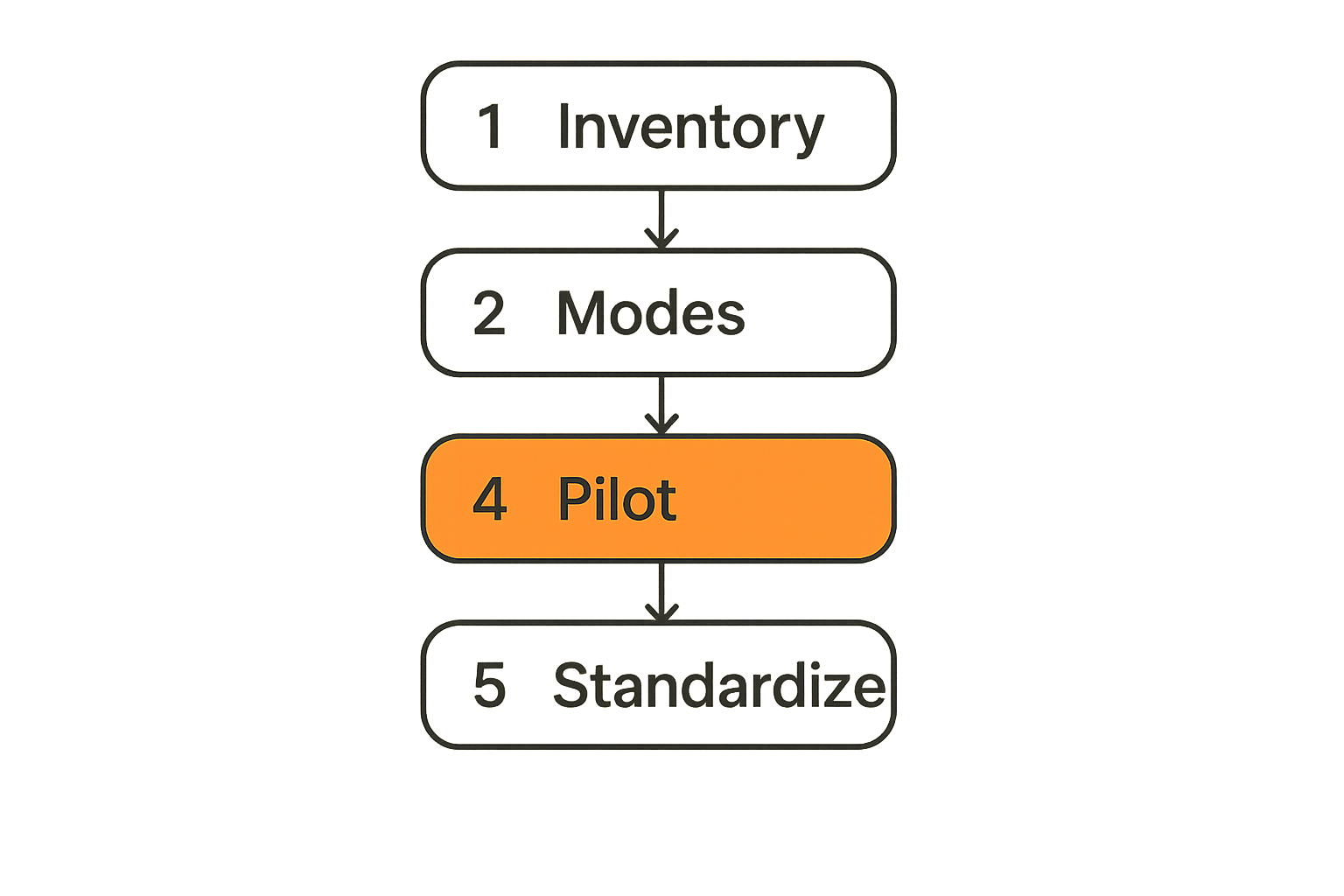
Step 1: inventory real work
Start with observed work, not imagined process. Interview a few people across product, design, engineering, support, and operations. Ask where they lose time and where they depend on another person being online.
Use a lightweight inventory:
- Workflow name
- Trigger event
- Current tools used
- People involved
- Common failure
- Desired artifact at the end
- Security or access sensitivity
This inventory is usually enough to reveal duplicate tools, unclear ownership, and places where screen sharing or remote control would replace long explanatory threads.
Step 2: define collaboration modes
Not every task needs the same mode. Define a small set of modes so the team knows what to use when.
For example:
- Async review: comments in docs, designs, tickets, or pull requests
- Live discussion: short meeting with agenda and decision owner
- Shared execution: screen sharing or remote control to complete a task together
- Escalation: urgent collaboration with logging and follow-up artifact
When the mode is clear, tool choice gets easier. People stop asking where to talk and start asking what outcome they need.
Step 3: pilot, measure, then standardize
Run the new workflow with one team or one workstream first. Keep the pilot narrow enough that you can observe it. Do not standardize based on enthusiasm after the first week.
A simple rollout sequence:
- Pick one painful workflow with a clear owner.
- Document the current path and failure points.
- Configure tools and permissions for that workflow only.
- Train the team with real examples, not feature tours.
- Run for two to four weeks.
- Review metrics, incidents, support questions, and qualitative friction.
- Standardize only if the workflow is faster, clearer, or safer.
The PairUX documentation and setup guides can help teams validate installation, system requirements, and security expectations before they make screen sharing part of a standard workflow.
Security, permissions, and compliance without killing speed
Security becomes unpopular when it is only experienced as delay. In collaboration systems, the better goal is safe speed. People should be able to work quickly inside clear boundaries, with risky actions requiring more explicit consent.
Use least privilege as a daily habit
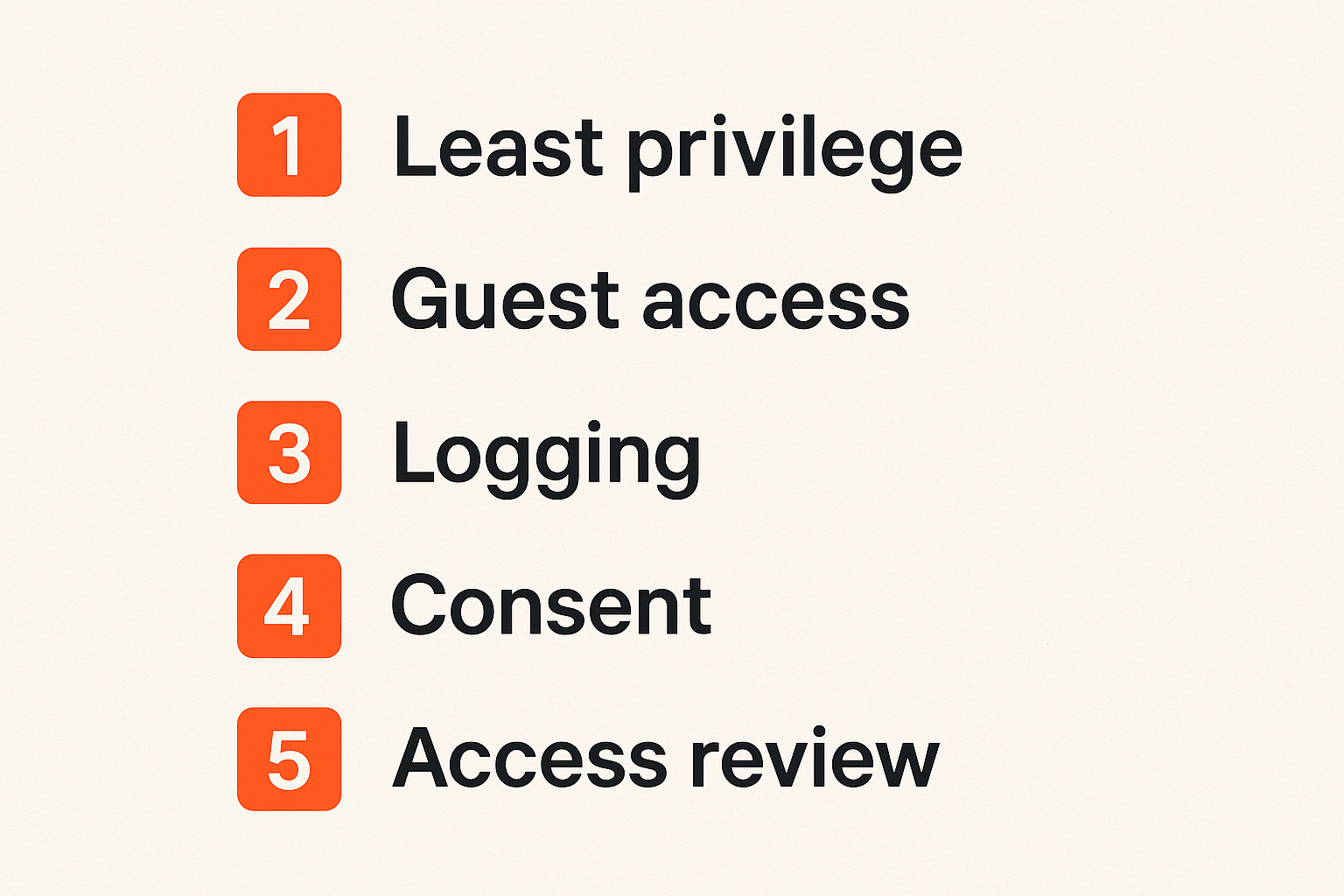
Least privilege is not just an audit concept. It is a daily operating habit. People should have the access they need for their role, not the access they accumulated during last quarter's emergency.
For cloud productivity tools, review these regularly:
- Workspace administrators
- External guests
- Shared folders and public links
- Recording access
- Remote control permissions
- Automation tokens and integrations
Do not wait for annual cleanup. Access drift is easier to fix monthly than after a teammate leaves or a customer asks for evidence.
Treat guests as a separate workflow
Guests are different from employees. Contractors, customers, vendors, interview candidates, and community contributors need narrower defaults and clearer expiration.
A good guest workflow answers five questions: who invited them, what they can see, what they can do, when access expires, and what artifact records the reason. If guest access is handled ad hoc, sensitive context will eventually leak into the wrong room, folder, or recording.
Logging should support investigation
Logs are only useful if someone can interpret them during a real incident. For collaboration tools, useful logs answer practical questions: who joined, who shared, who controlled, who changed permissions, who exported data, and who accessed a sensitive artifact.
You do not need to log everything forever. You need enough history to investigate suspicious behavior, support customer questions, and understand workflow failures.
Practical rule: If a collaboration action affects trust, access, or customer data, it should leave an understandable trail.
What breaks in practice when teams implement badly
Bad collaboration stacks do not usually collapse dramatically. They decay. People create side channels, duplicate documents, skip process, and privately maintain the context they cannot find in the official system.
Notification noise becomes hidden work
Notifications are often treated as harmless. They are not. Every low-value alert trains people to ignore the system. Then important alerts need manual escalation because nobody trusts the default channel.
Set notification policies by workflow. A production issue deserves urgency. A comment on a low-priority document does not. A remote control request should be visible and immediate. A routine status sync should not interrupt deep work.
Tool sprawl creates decision debt
Tool sprawl is not just cost. It is decision debt. Which doc tool should hold the plan? Which video tool should host the call? Which screen sharing tool supports remote control? Which task board is authoritative?
The more choices people face, the more collaboration depends on personal preference. That makes onboarding harder and handoff weaker. Standardization is not about control for its own sake. It is about reducing unnecessary decisions.
Shadow access survives employee changes
When access is informal, departures become risky. Former employees may lose primary account access while retaining shared links, guest accounts, personal workspace copies, or third-party integration tokens.
Create an offboarding checklist that includes collaboration-specific assets: recordings, shared folders, remote access permissions, group memberships, API tokens, guest invites, and ownership of critical docs.
Metrics that tell you whether the stack works
Most collaboration metrics are vanity metrics. More messages, meetings, comments, or recordings do not prove better collaboration. They may prove the opposite.
Measure handoff time and rework
A practical metric is time from request to useful handoff. How long does it take for a developer to get enough context to reproduce a bug? How long from design question to decision? How often does support ask engineering for the same explanation twice?
Rework is another useful signal. If the same issue returns because the context was incomplete, the collaboration system failed even if everyone used the official tools.
Track support load and meeting quality
Watch whether the stack reduces avoidable support questions. If people keep asking how to join, share, grant control, find recordings, or access docs, the workflow is too complicated.
Meeting quality can be measured simply: did the meeting have a clear purpose, the right people, a captured decision, and a linked follow-up artifact? If not, it was probably a conversation pretending to be workflow.
Watch adoption by workflow
Adoption by login count is weak. Adoption by workflow is better. Are design reviews happening in the intended path? Are bug reproductions captured with the right artifacts? Are onboarding sessions using the standard remote help flow?
This is where operators should be skeptical of dashboards. A tool can show active usage while the important work still happens elsewhere.
Related reading from our network: discoverability creates another layer of operational discipline, and this piece on screen sharing answer engine optimization shows how demos, docs, transcripts, and workflows can be structured for AI systems.
What works, what fails, and how to keep it boring
The best collaboration stacks are boring in the right way. People know where to work. Permissions are predictable. Live sessions are easy to start. Handoffs are documented. Exceptions are visible.
What works in production
What works is usually simple:
- Fewer official tools with clearer boundaries
- Workflow-specific playbooks
- Default templates for recurring work
- Live collaboration for problems that are hard to describe
- Remote control with explicit consent
- Links from sessions back to tickets, docs, or decisions
- Monthly access review for high-risk systems
The stack should make the desired behavior the easiest behavior. If the official workflow is slower than the workaround, the workaround will win.
What fails repeatedly
What fails is also predictable:
- Buying tools before defining workflows
- Assuming integrations solve ownership
- Letting every team choose its own overlapping tool
- Treating recordings as documentation
- Ignoring guest access until something goes wrong
- Measuring activity instead of outcomes
- Rolling out security controls with no operator empathy
The mistake teams make is interpreting these failures as user resistance. Sometimes users resist change. More often, the workflow asks them to do extra work without removing pain.
Keep the stack reviewable
A collaboration stack should be reviewable by a new operator in an afternoon. If understanding the stack requires tribal knowledge, it is already too complex.
Keep a short internal page with:
- Official tools by workflow
- Owners and admins
- Access review cadence
- Guest rules
- Recording and retention policy
- Integration list
- Known limitations
- Escalation path
For deeper thinking on the screen sharing side of remote collaboration architecture, our prior article on cloud computing screen sharing walks through latency, permissions, handoff, and operational context in more detail.
Where PairUX fits in the collaboration architecture
PairUX is not trying to replace your documents, issue tracker, design system, or code host. Those tools hold durable state. PairUX fits where remote teams need to work together on a live screen with enough control to solve the problem instead of describing it for thirty minutes.
Use PairUX for high-context shared work
Use PairUX when the work is visual, interactive, or hard to explain asynchronously:
- Pair debugging across environments
- Designer and developer implementation review
- Customer support reproduction sessions
- Founder-led onboarding or troubleshooting
- QA walkthroughs before release
- Internal training where remote control speeds learning
The practical question is not whether every meeting needs screen sharing. It does not. The question is which workflows become faster and clearer when teammates can share control and context in real time.
PairUX alongside your existing stack
In a healthy cloud collaboration stack, PairUX should connect to the workflow around it. Start the session from a ticket, doc, support case, or design review. End the session by updating that artifact with the decision, fix, or next step.
That is the difference between a useful collaboration layer and another disconnected tool. The session is where the team figures it out. The artifact is where the organization remembers it.
Cloud based productivity and collaboration tools work best when each layer has a job: docs hold durable knowledge, trackers manage flow, chat handles lightweight coordination, and screen sharing handles live shared execution.
Try pairux.com
PairUX helps remote teams collaborate through fast screen sharing, remote control, and multi-cursor work without turning every problem into a long meeting. Try pairux.com and make your cloud based productivity and collaboration tools easier to act on.