2026-06-04
Cloud Computing Screen Sharing: The Architecture Remote Teams Actually Need in 2026

Cloud computing screen sharing looks simple until the moment your design review stalls, your remote pairing session lags, or support cannot see what the customer is actually doing.
Teams think the problem is picking a screen sharing tool. The real problem is designing a collaboration workflow that survives real networks, permission boundaries, browser constraints, security reviews, and handoffs between people.
That changes the conversation. You are not just buying a way to show pixels. You are deciding how your remote team observes work, controls sessions, explains context, escalates issues, and documents decisions in 2026.
The practical question is not “does it share a screen?” It is “does cloud computing screen sharing fit the way our team builds, reviews, debugs, supports, and ships?”
Table of contents
- Cloud computing screen sharing is a workflow layer
- Where cloud computing screen sharing fits in remote work
- The architecture behind a useful session
- Latency is the product experience
- Permissions, trust, and remote control
- Cloud computing screen sharing implementation workflow
- What works and what fails
- Metrics that tell you the system is healthy
- Product fit and next step
Cloud computing screen sharing is a workflow layer

Cloud computing screen sharing is often treated as a checkbox inside a meeting product. That is the mistake teams make. In a distributed company, screen sharing becomes part of the operating system for work: product critique, design QA, onboarding, bug reproduction, remote support, sales engineering, code review, and incident response.
A useful way to think about it is this: every session has three jobs. It must transmit what someone sees, preserve the context around why it matters, and let the right people act without creating security debt.
The screen is only the visible part
The visible screen is the easy part to understand. The hidden system is where most failures live:
- Who is allowed to start a session?
- Who can view it?
- Who can request or take control?
- What happens when the host loses connection?
- Can the session continue across devices?
- Is there an audit trail for sensitive workflows?
- Can the team recover context after the meeting ends?
What breaks in practice is usually not the first frame. It is the second-order workflow. A designer can share a prototype, but the engineer cannot interact with it. A support rep can view a customer issue, but cannot safely guide the customer through a fix. A founder can demo a product, but the session falls apart when bandwidth drops.
Practical rule: Treat screen sharing as shared work state, not as a video feature.
Why cloud delivery changes the tradeoff
Traditional desktop sharing depends heavily on the host machine, local network conditions, installed clients, and operating system permissions. Cloud delivery shifts more of the session orchestration into managed infrastructure. That can help with access, routing, recording, scaling, and multi-party collaboration.
It also creates new design choices. You need to think about media paths, browser compatibility, identity, encryption, region selection, and whether remote control events should travel through the same path as video. These are architecture questions, not UI preferences.
The team at c0mpute.com works on decentralized compute and inference workflows, and the same lesson applies here: once work moves through distributed infrastructure, the coordination layer matters as much as the raw compute.
Where cloud computing screen sharing fits in remote work
Remote teams do not need another generic meeting window. They need fast ways to collapse distance when the work is visual, interactive, or hard to explain in text. Cloud computing screen sharing is useful when the cost of describing the problem is higher than showing the problem.
Design reviews and product critique
For product designers, screen sharing is not just presentation. It is a review surface. The team needs to see hover states, scroll behavior, animation timing, prototype transitions, responsive layouts, and what happens when the user takes the wrong path.
The mistake teams make is running design critique like a slide deck. Static screenshots remove the details that cause real product friction. A cloud-based session lets the team inspect behavior together, annotate decisions, and hand control to another reviewer without restarting the meeting.
A good review workflow usually includes:
- One person driving the prototype.
- One person capturing decisions.
- Engineers asking implementation questions in context.
- Product owners validating the flow against user intent.
- Clear follow-up items tied to the exact screen or state.
That changes the conversation from “do we like this?” to “can we ship this interaction safely?”
Developer pairing and incident debugging
Developers use screen sharing differently. They care about input responsiveness, terminal readability, IDE behavior, log visibility, and whether remote control feels precise enough to be useful.
In pairing sessions, latency changes the rhythm of thinking. If the observer sees commands late, they interrupt at the wrong time. If remote control feels sticky, the second engineer stops participating. If text rendering is blurry, the team goes back to copy-pasting snippets into chat.
For incidents, the stakes are higher. The session might involve production dashboards, cloud consoles, traces, logs, feature flags, or deploy tools. You need speed, but you also need boundaries. Not everyone should have control. Not everything should be recorded. Not every viewer should see secrets.
Practical rule: Developer screen sharing should optimize for legibility, low-latency control, and permission clarity before cosmetic polish.
The architecture behind a useful session
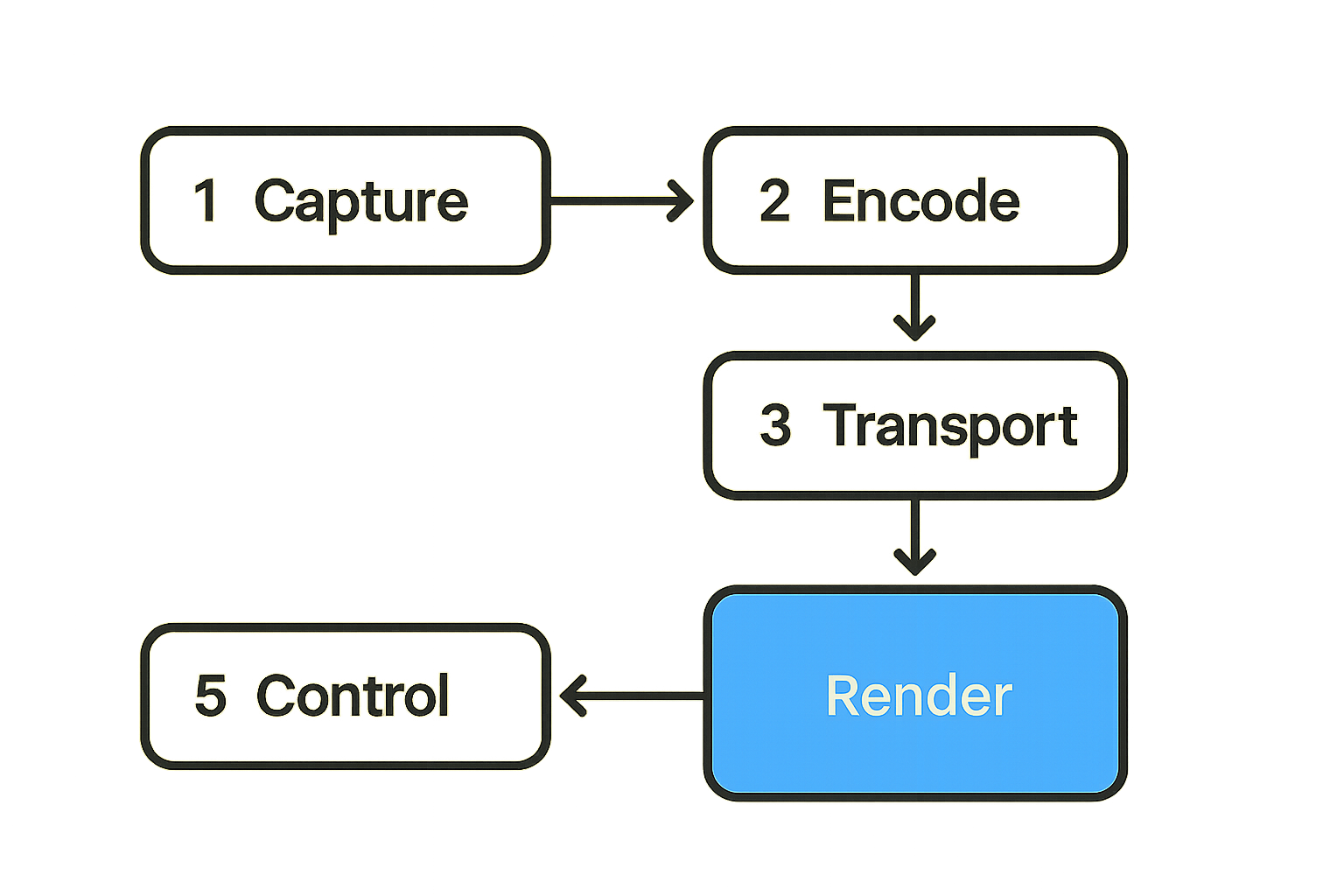
A screen sharing session is a pipeline. When teams understand that pipeline, they make better decisions about tools, configuration, and rollout.
At minimum, the system needs to capture the screen, encode frames, transport media, render on the viewer side, and handle interaction signals such as mouse movement, clicks, keyboard input, clipboard actions, and permission changes.
Capture, encode, transport, render
The basic pipeline looks like this:
- The host selects a screen, window, browser tab, or application region.
- The client captures frames and audio, subject to operating system and browser permissions.
- The frames are encoded into a stream that balances quality, latency, and bandwidth.
- The media is transported through a peer-to-peer path, relay, or cloud service.
- Viewers decode and render the stream on their devices.
- Session metadata updates who is present, who has control, and what state the session is in.
Each step has failure modes. Capture can fail because permissions were denied. Encoding can overload a weak machine. Transport can degrade on unstable networks. Rendering can look poor on high-density displays. Metadata can drift if the session loses synchronization.
The practical question is whether your workflow degrades gracefully. Can the session switch quality levels? Can it recover from network changes? Can a viewer rejoin without the host restarting? Can the team continue if one participant drops?
Control signals are not video
Remote control is a separate problem from screen viewing. Video can tolerate some jitter. Control cannot. A delayed mouse movement makes the session feel broken even if the screen looks sharp.
Control signals need ordering, permission checks, conflict handling, and sometimes rate limiting. If two people try to control the same session, the system must decide what happens. If a viewer pastes from the clipboard, the system needs to know whether that is allowed. If the host revokes access, control must stop immediately.
Here is the operator view:
| Layer | Primary concern | Common failure |
|---|---|---|
| Capture | Correct screen and permissions | Wrong window shared or black screen |
| Encoding | Quality vs. CPU load | Fans spin, battery drains, frames drop |
| Transport | Latency and reachability | Relay fallback adds delay |
| Rendering | Legibility and sync | Text is blurry or cursor lags |
| Control | Safety and responsiveness | Viewer acts without clear approval |
| Session state | Ownership and recovery | Rejoin requires a full restart |
A tool can look fine in a sales demo and still fail at the control layer. That is why testing with real workflows matters.
Latency is the product experience
Latency is not a backend metric hidden from users. In cloud computing screen sharing, latency is the product experience. It determines whether the session feels collaborative or performative.
What latency breaks in practice
Latency breaks turn-taking. People talk over each other because they are reacting to different moments. It breaks pointing. Someone says “this button,” but the cursor arrives late. It breaks remote control. A click lands after the user has already moved on.
For design teams, latency makes critique vague. For engineering teams, it makes pairing tiring. For support teams, it makes customers lose confidence. For startup operators, it makes demos feel less credible.
The mistake teams make is measuring only whether a connection exists. A connected session can still be unusable.
Practical rule: Test screen sharing under real home Wi-Fi, VPN, browser, and device conditions before calling it ready.
How to set practical performance targets
You do not need fake precision. You need thresholds your team can feel and act on.
Track these ranges during pilots:
- Time to start a session.
- Time for a viewer to join.
- Delay between host action and viewer display.
- Delay between remote control input and visible response.
- Frequency of frozen frames.
- Frequency of reconnects.
- CPU and memory load on common devices.
A useful internal test is simple: run a design review, a code pairing session, and a customer support simulation. If people stop narrating around the tool and start working through it, performance is probably acceptable. If they keep saying “wait, can you see that?” the system is not there yet.
Permissions, trust, and remote control
Cloud computing screen sharing creates a trust boundary every time someone joins a session. Remote teams often underestimate this because the interface feels casual. But a shared screen may include customer data, source code, credentials, internal strategy, financial dashboards, or production systems.
Security does not need to make sessions painful. It needs to make authority obvious.
Separate viewing from acting
Viewing and controlling should be different permissions. A product manager may need to observe a developer reproducing a bug. That does not mean they should control the terminal. A customer may need to show a support issue. That does not mean the support rep should have broad access without explicit approval.
Good permission design makes state visible:
- Who is sharing?
- Who is watching?
- Who has requested control?
- Who currently has control?
- What can they do?
- How does the host revoke it?
The practical question is whether the host can understand and change the session state under pressure. If revocation is hidden in a menu, it will not be used correctly.
Session boundaries beat permanent access
Permanent access is convenient until it is not. Screen sharing should prefer temporary, explicit, session-scoped permissions. When the session ends, access ends. When the participant leaves, control ends. When the host revokes control, the change is immediate.
For sensitive workflows, add more guardrails:
- Require explicit host approval for remote control.
- Show persistent indicators when control is active.
- Disable clipboard sharing by default where needed.
- Avoid recording by default for sensitive sessions.
- Keep audit events for join, leave, control request, approval, and revocation.
This is not bureaucracy. It is operational hygiene. Teams that skip it often discover the problem during a customer call, security review, or incident postmortem.
Cloud computing screen sharing implementation workflow
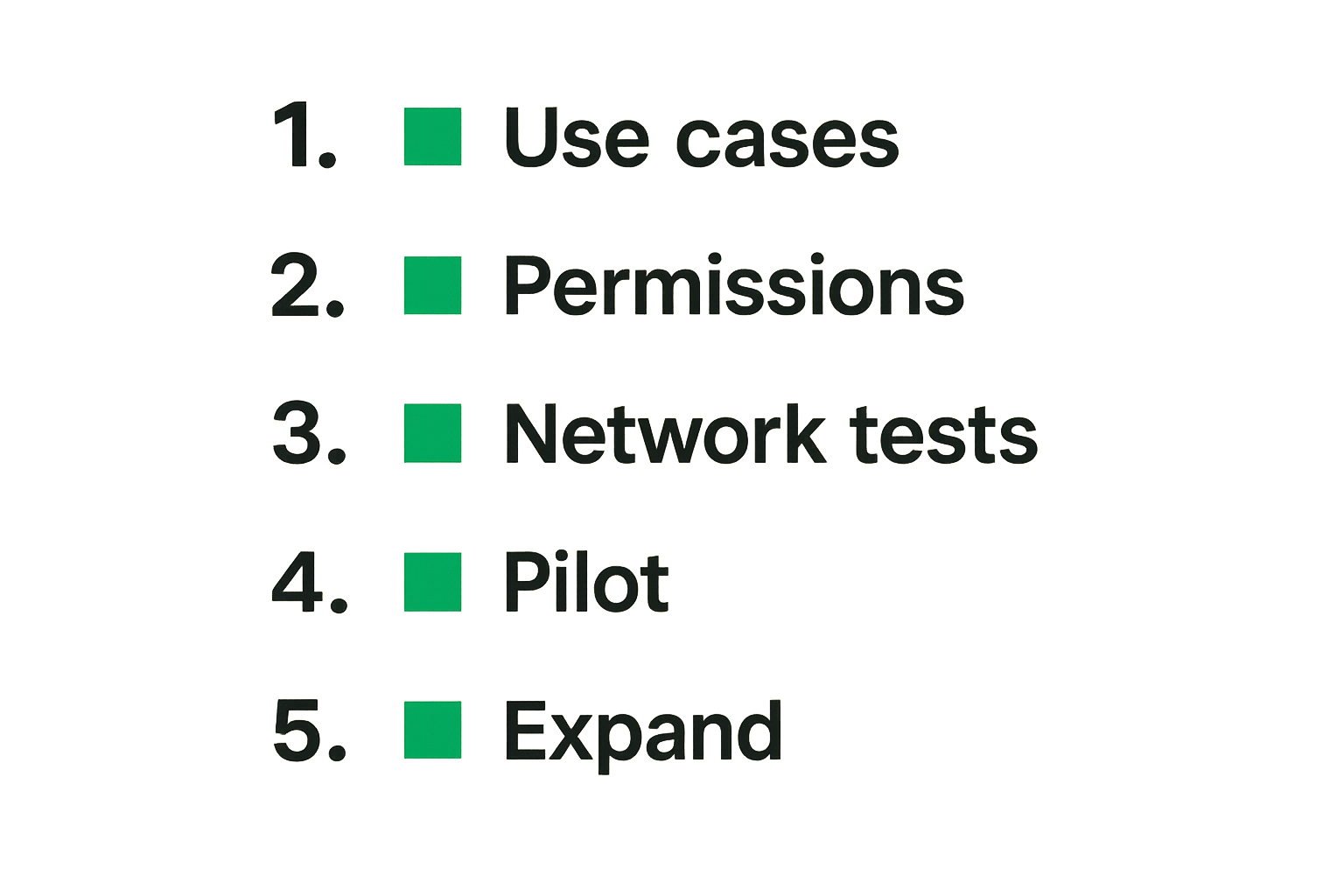
Rolling out cloud computing screen sharing should look more like deploying an internal workflow than enabling a meeting feature. The best implementations start small, observe friction, and expand with clear rules.
Start with use cases, not features
Start by listing the sessions that matter most. For many remote teams, the first four are:
- Product design review.
- Developer pairing.
- Customer support walkthrough.
- Internal onboarding or training.
Then define the required behavior for each. A design review may need annotation and handoff. Pairing may need low-latency remote control. Support may need strict host approval and session logs. Training may need recording and replay.
A practical rollout sequence:
- Pick two high-frequency workflows.
- Define who hosts, who joins, and who can control.
- Test on real devices and networks used by the team.
- Document session norms in one page.
- Run a two-week pilot with feedback captured after each session.
- Fix permission, quality, and handoff issues before expanding.
- Add sensitive workflows only after the basics are stable.
This sequence prevents a common failure: buying a tool for every possible use case and then discovering nobody knows how to use it safely.
Roll out in controlled stages
Do not start with production incident response or high-stakes customer support. Start where mistakes are recoverable. Then move into more sensitive areas once the team has a rhythm.
A staged rollout might look like this:
| Stage | Workflow | Goal | Risk level |
|---|---|---|---|
| 1 | Internal design critique | Validate viewing quality and handoff | Low |
| 2 | Developer pairing | Validate control and text legibility | Medium |
| 3 | Onboarding | Validate repeatability and documentation | Medium |
| 4 | Customer support | Validate trust, approval, and audit trail | Higher |
| 5 | Incident debugging | Validate speed under pressure | Higher |
What works is making the tool boring before making it critical. Boring means people know how to start, join, grant control, revoke control, recover from failure, and end the session properly.
What works and what fails
Most screen sharing problems are predictable. The same failure modes show up across remote teams because the workflow crosses human behavior, device constraints, and network conditions.
What works in production teams
What works is boring architecture and clear ownership.
- Standardize when to use screen sharing instead of chat or async video.
- Create separate norms for design, engineering, support, and onboarding.
- Make host control obvious.
- Keep session startup fast.
- Prefer browser-based joining when possible.
- Test with external guests before customer-facing use.
- Document fallback steps when a session fails.
The strongest teams also assign ownership. Someone owns the collaboration stack. Someone collects feedback. Someone decides when workflows change. Without ownership, screen sharing becomes another tool everyone complains about and nobody improves.
Practical rule: If no one owns the screen sharing workflow, the workflow will be defined by the worst session your team remembers.
What fails when teams rush
What fails is treating screen sharing as a universal replacement for every collaboration mode.
Screen sharing is bad for some things. It is not a substitute for written decisions. It is not ideal for long passive updates. It should not replace proper documentation. It can create fatigue if every small question becomes a live session.
Common failure modes include:
- Too many people in control of the conversation.
- No visible owner of the session.
- Participants joining without context.
- Sensitive information exposed accidentally.
- Remote control granted casually and not revoked.
- Recordings created without a clear retention policy.
- Teams relying on live sessions because async documentation is weak.
The fix is not more meetings. The fix is cleaner rules. Use screen sharing when interaction matters. Use documents when decisions need to persist. Use chat when the question is small. Use tickets when work needs tracking.
Metrics that tell you the system is healthy
Cloud computing screen sharing should be measured like an operational workflow. You do not need a dashboard with vanity charts. You need enough signal to know whether the tool is helping or creating drag.
Operational metrics to track
Track metrics that show reliability and usability:
- Session start success rate.
- Average time to first frame.
- Join failure rate.
- Reconnect frequency.
- Remote control request success rate.
- Remote control revocation time.
- Viewer count per session.
- Support tickets related to screen sharing.
These metrics help you separate training problems from infrastructure problems. If users cannot find the control button, that is a workflow issue. If sessions freeze whenever a VPN is active, that is a network path issue. If CPU spikes on older laptops, that may be an encoding or browser compatibility issue.
The practical question is what action each metric triggers. A metric with no owner and no response plan is just decoration.
Collaboration metrics that matter
Some collaboration signals are qualitative but still useful. Ask teams after pilots:
- Did the session shorten the discussion?
- Did it reduce back-and-forth messages?
- Did participants understand the decision faster?
- Did remote control help or slow the work?
- Did anyone feel unsure about permissions?
- Was the outcome captured somewhere after the session?
A useful pattern is to review sessions by workflow. Design critique may be healthy if decisions are clearer. Pairing may be healthy if both engineers stay active. Support may be healthy if customers need fewer follow-up messages. Onboarding may be healthy if new hires repeat tasks without another live walkthrough.
That changes the conversation from “people seem to like it” to “this workflow is reducing friction.”
Product fit and next step
Cloud computing screen sharing is not about chasing a newer delivery model. It is about making remote collaboration more immediate without losing control of the workflow. The right tool should help people work together inside the session, not just broadcast a screen.
When PairUX fits the workflow
PairUX is a fit when your team needs collaborative screen sharing that feels practical for product work, technical review, and remote teamwork. The important part is not only the screen. It is how quickly people can join, understand what is happening, share control appropriately, and keep the session moving.
For startup teams, product designers, and developers, that matters because the work is usually messy. You are reviewing a prototype, checking a bug, walking through a flow, debugging an environment, or helping someone complete a task. A tool that assumes passive viewing will not match that reality.
PairUX is most useful when you want:
- Fast shared sessions for remote teams.
- Practical collaboration around visual and interactive work.
- A workflow that supports handoff instead of one-way presenting.
- A simpler way to work together online without turning every session into a production.
The mistake teams make is waiting until collaboration is painful before defining the workflow. Define it while the team is still small enough to change habits.
Try pairux.com
PairUX helps remote teams share screens, collaborate, and work together online with less friction. If cloud computing screen sharing is becoming part of how your team builds, reviews, and supports work, Try pairux.com.